# Day 2
#### **Using the SOC Superpower**
The SOC has a superpower. When they are unsure whether an activity is performed by a malicious actor or a legitimate user, they can just confirm with the user. This privilege is not available to the attacker. A SOC analyst, on the other hand, can just send an email or call the relevant person to get confirmation of a certain activity. In mature organisations, any changes that might trigger an alert in the SOC often require Change Requests to be created and approved through the IT change management process. Depending on the process, the SOC team can ask the users to share Change Request details for confirmation. Surely, if it is a legitimate and approved activity, it must have an approved Change Request.
#### Task 8: One man's false positive is another man's potpourri.
**1. What is the name of the account causing all the failed login attempts?**
We can able to find out that under user name column.
```makefile
CopyAns: service_admin
```
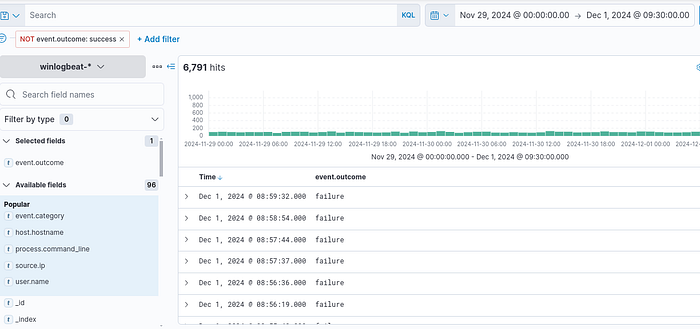
**2. How many failed logon attempts were observed?**
1. Time Frame should be `Nov 29 00:00` and `Dec 1 9:30`
2. Add the event.outcome field and set filters to only show failures.
```yaml
CopyAns: 6791
```
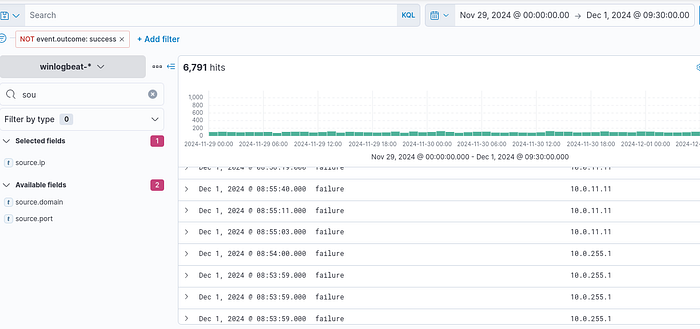
**3. What is the IP address of Glitch?**
Add the source.ip Field and we can able to find the IP
```makefile
CopyAns: 10.0.255.1
```
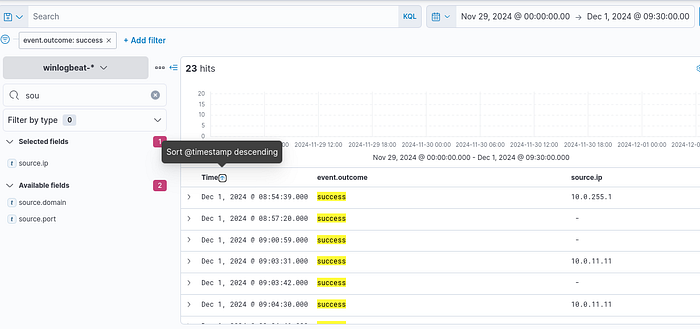
**4. When did Glitch successfully logon to ADM-01? Format: MMM D, YYYY HH:MM:SS.SSS**
Remove the Filter `event.outcome: failure` and add `event.outcome: success`
```yaml
CopyAns: Dec 1, 2024 08:54:39.000
```
**5. What is the decoded command executed by Glitch to fix the systems of Wareville?**
1. Navigate to Cyber Chef
2. Add From `Base64` and `Decode Text` Recipies
3. Copy the base64 code that we got from the Result `C:\Windows\System32\WindowsPowerShell\v1.0\powershell.exe -EncodedCommand SQBuAHMAdABhAGwAbAAtAFcAaQBuAGQAbwB3AHMAVQBwAGQAYQB0AGUAIAAtAEEAYwBjAGUAcAB0AEEAbABsACAALQBBAHUAdABvAFIAZQBiAG8AbwB0AA==`
4. Since it is a Base64 encoded command, McSkidy used two recipes, named `FromBase64` and `Decode text` from the left pane. Note that McSkidy configured the **Decode text** to **UTF-16LE (1200)** since it is the encoding used by PowerShell for Base64.
```makefile
CopyAns: Install-WindowsUpdate -AcceptAll -AutoReboot
```
---
# Agent Instructions: Querying This Documentation
If you need additional information that is not directly available in this page, you can query the documentation dynamically by asking a question.
Perform an HTTP GET request on the current page URL with the `ask` query parameter:
```
GET https://foothold.gitbook.io/blog/advent-of-cyber-2024/day-2.md?ask=
```
The question should be specific, self-contained, and written in natural language.
The response will contain a direct answer to the question and relevant excerpts and sources from the documentation.
Use this mechanism when the answer is not explicitly present in the current page, you need clarification or additional context, or you want to retrieve related documentation sections.