# Home Lab: Part 10

<figure><img src="https://blog.davidvarghese.net/assets/images/building-home-lab-part-10/building-home-lab-part-10-banner.png" alt=""><figcaption></figcaption></figure>

In this module, we will set up Splunk (SIEM) in a Ubuntu VM. The VM will be added to the SECURITY subnet. Then we will configure Splunk Universal Forwarder on our Windows Server 2019 (DC) VM which will allow Splunk to ingest logs from the DC.

### Ubuntu Setup <a href="#ubuntu-setup" id="ubuntu-setup"></a>

#### Downloading the Image <a href="#downloading-the-image" id="downloading-the-image"></a>

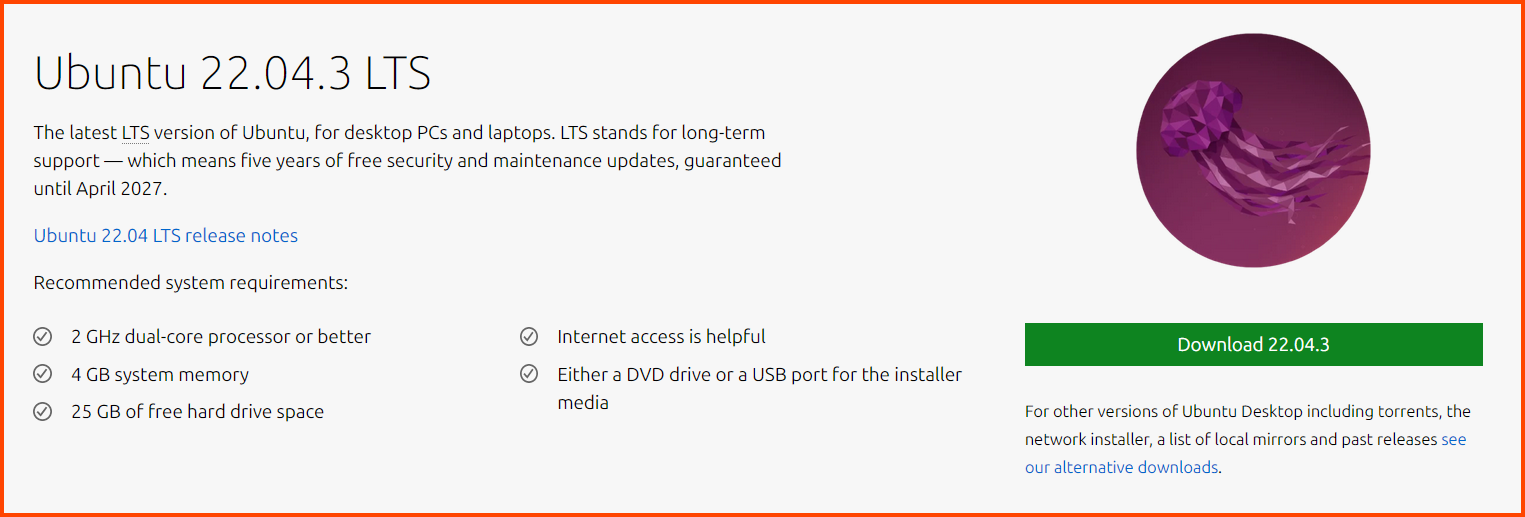
Go to the following URL: [Download Ubuntu Desktop | Download | Ubuntu](https://ubuntu.com/download/desktop).\
Download the latest LTS version of Ubuntu. As of writing the latest version is **`2022.04.3`**

The ISO is \~5GB.

<figure><img src="https://blog.davidvarghese.net/assets/images/building-home-lab-part-10/ubuntu-1.png" alt=""><figcaption></figcaption></figure>

After the download is complete you will have a **`.iso`** file.

<figure><img src="https://blog.davidvarghese.net/assets/images/building-home-lab-part-10/ubuntu-2.png" alt=""><figcaption></figcaption></figure>

#### Creating the VM <a href="#creating-the-vm" id="creating-the-vm"></a>

In VirtualBox from the sidebar select **`Tools`** and then click on **`New`** from the toolbar.

<figure><img src="https://blog.davidvarghese.net/assets/images/building-home-lab-part-10/ubuntu-3.png" alt=""><figcaption></figcaption></figure>

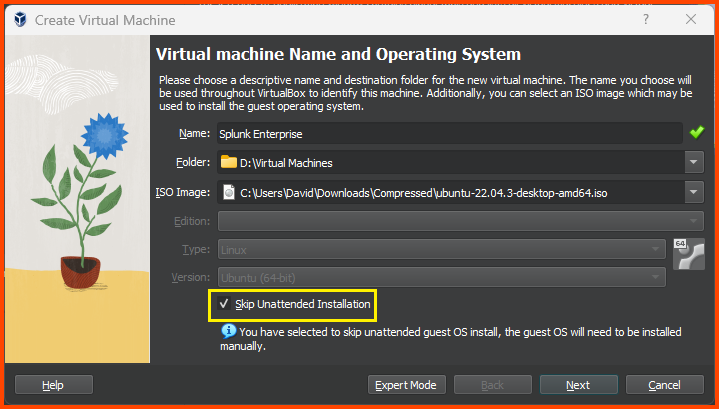
Give the VM a name. Select the downloaded ISO image. Select the “Skip Unattended Installation” option and click on **`Next`**.

<figure><img src="https://blog.davidvarghese.net/assets/images/building-home-lab-part-10/ubuntu-4.png" alt=""><figcaption></figcaption></figure>

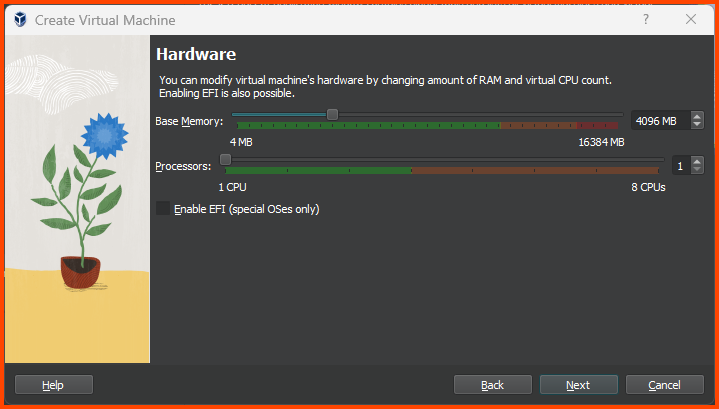
Increase the Base Memory to **`4096MB`** (4GB) and click on **`Next`**.

<figure><img src="https://blog.davidvarghese.net/assets/images/building-home-lab-part-10/ubuntu-5.png" alt=""><figcaption></figcaption></figure>

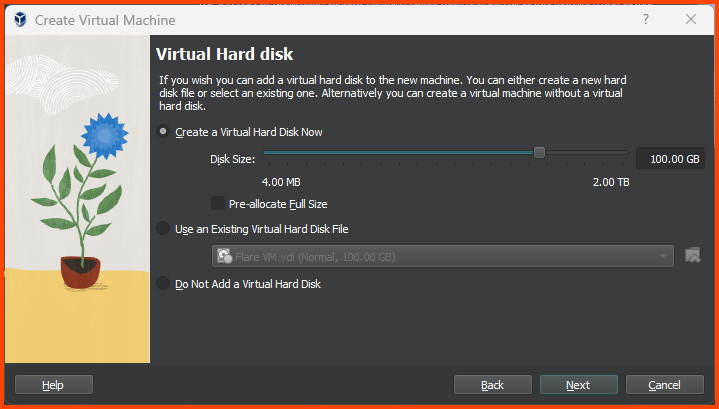
Increase the Hard Disk size to **`100GB`** and click on **`Next`**.

<figure><img src="https://blog.davidvarghese.net/assets/images/building-home-lab-part-10/ubuntu-6.png" alt=""><figcaption></figcaption></figure>

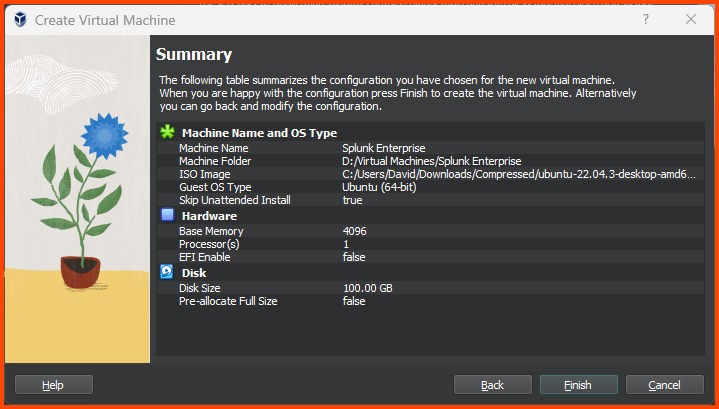
Confirm that all the settings look correct and click on **`Finish`**.

<figure><img src="https://blog.davidvarghese.net/assets/images/building-home-lab-part-10/ubuntu-7.png" alt=""><figcaption></figcaption></figure>

**Adding VM to Group**

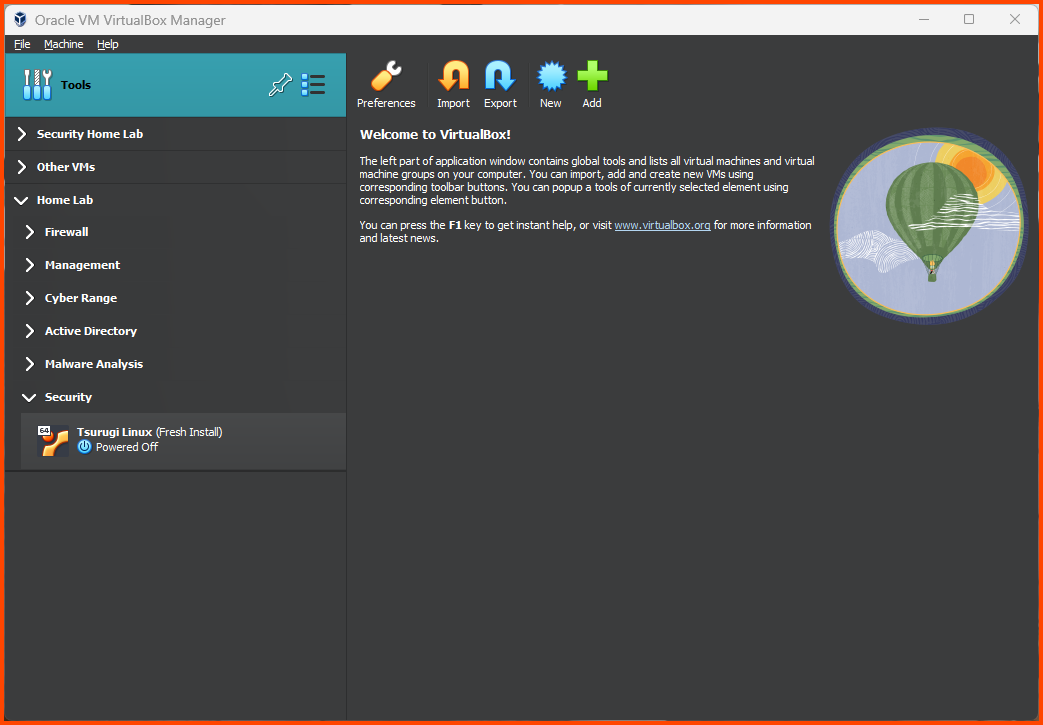
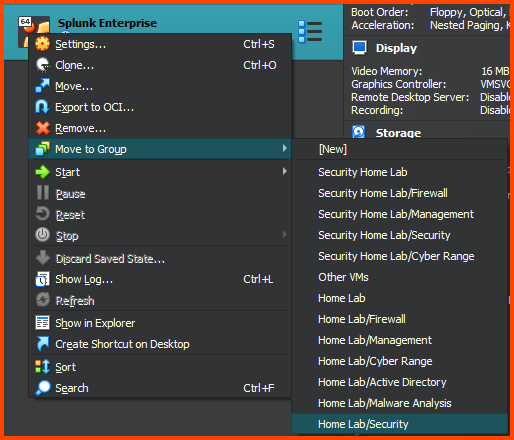
Right-click the VM and select “Move to Group” then choose **`Home Lab/Security`**.

<figure><img src="https://blog.davidvarghese.net/assets/images/building-home-lab-part-10/ubuntu-8.png" alt=""><figcaption></figcaption></figure>

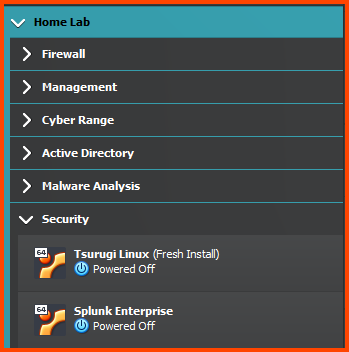
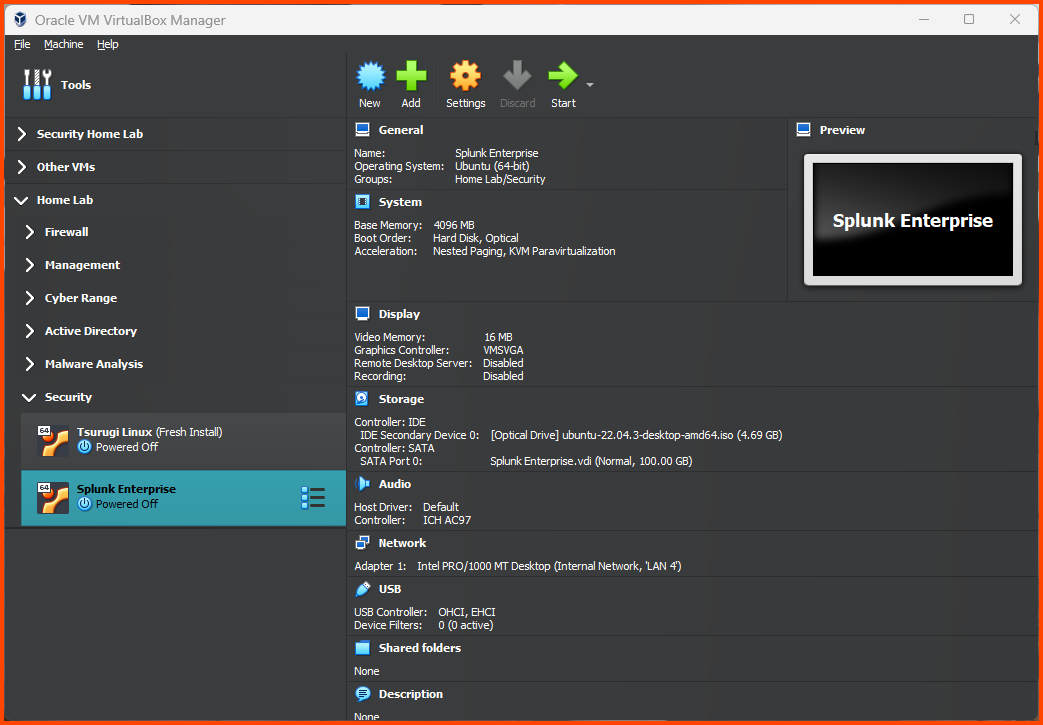
The final result should look as follows:

<figure><img src="https://blog.davidvarghese.net/assets/images/building-home-lab-part-10/ubuntu-9.png" alt=""><figcaption></figcaption></figure>

#### Configuring the VM <a href="#configuring-the-vm" id="configuring-the-vm"></a>

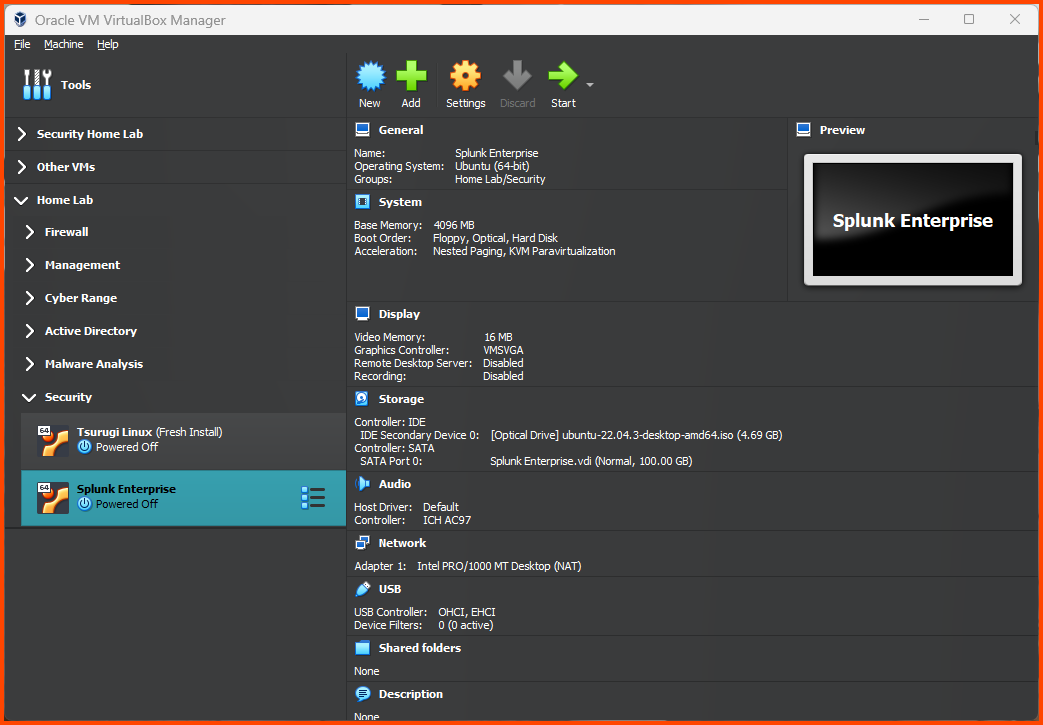
Select the VM and click on **`Settings`** from the toolbar.

<figure><img src="https://blog.davidvarghese.net/assets/images/building-home-lab-part-10/ubuntu-10.png" alt=""><figcaption></figcaption></figure>

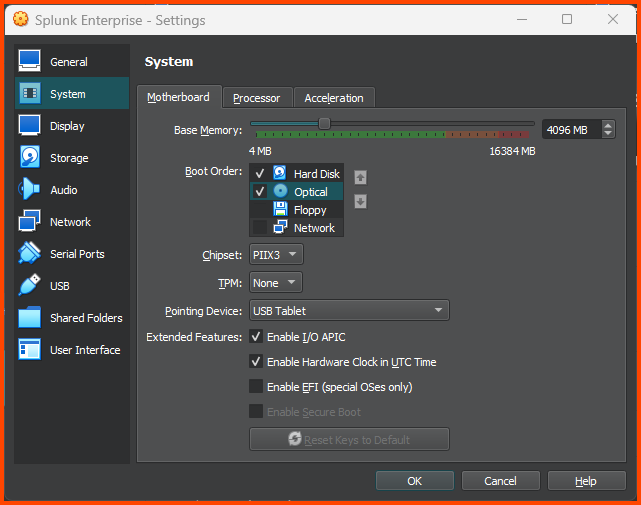
Go to **`System -> Motherboard`**. In Boot Order ensure that **`Hard Disk`** is on the top followed by **`Optical`**. Uncheck **`Floppy`**.

<figure><img src="https://blog.davidvarghese.net/assets/images/building-home-lab-part-10/ubuntu-11.png" alt=""><figcaption></figcaption></figure>

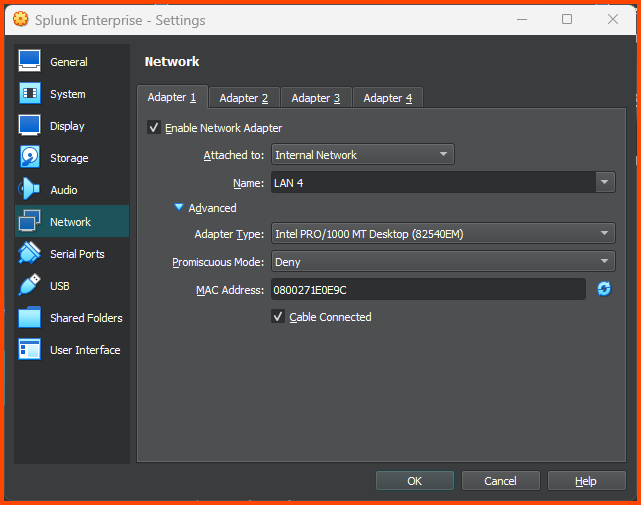
Go to **`Network -> Adapter 1`**. For the Attached to field select **`Internal Network`**. For name select **`LAN 4`**. Click on **`OK`** to save changes.

<figure><img src="https://blog.davidvarghese.net/assets/images/building-home-lab-part-10/ubuntu-12.png" alt=""><figcaption></figcaption></figure>

### Installing Ubuntu <a href="#installing-ubuntu" id="installing-ubuntu"></a>

Select the VM and click on **`Start`**.

<figure><img src="https://blog.davidvarghese.net/assets/images/building-home-lab-part-10/ubuntu-13.png" alt=""><figcaption></figcaption></figure>

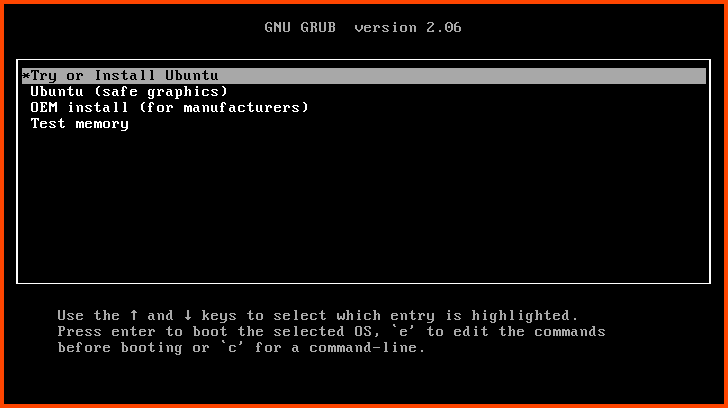
Press **`Enter`** to start the Graphical Installer.

<figure><img src="https://blog.davidvarghese.net/assets/images/building-home-lab-part-10/ubuntu-14.png" alt=""><figcaption></figcaption></figure>

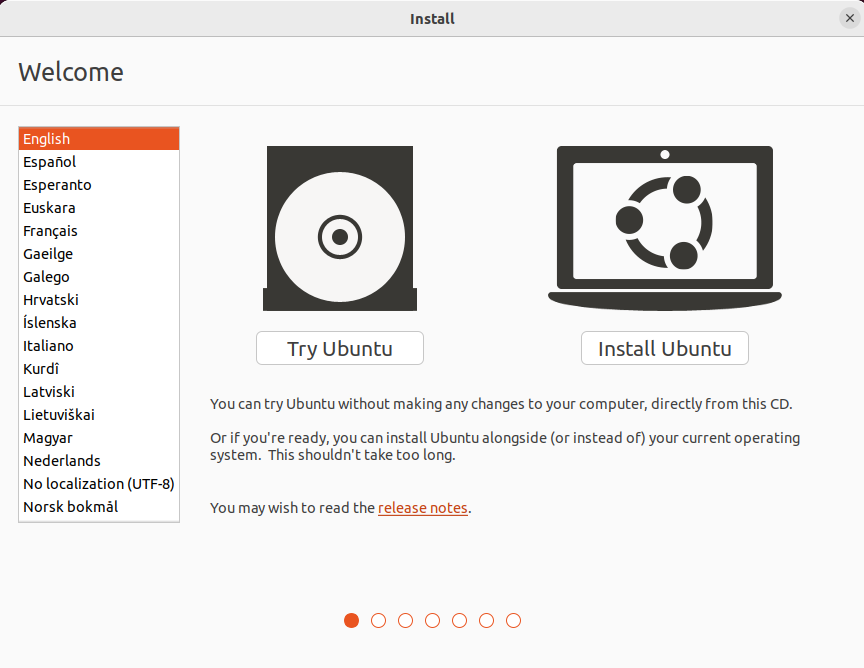
Select your language and click on “Install Ubuntu”.

<figure><img src="https://blog.davidvarghese.net/assets/images/building-home-lab-part-10/ubuntu-15.png" alt=""><figcaption></figcaption></figure>

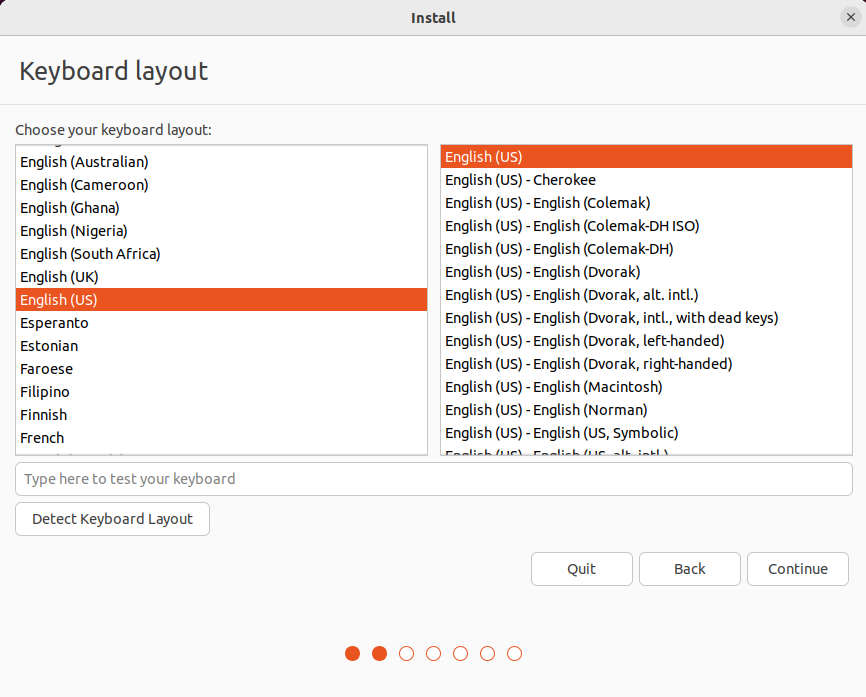
Select Keyboard Layout and click on **`Continue`**.

<figure><img src="https://blog.davidvarghese.net/assets/images/building-home-lab-part-10/ubuntu-16.png" alt=""><figcaption></figcaption></figure>

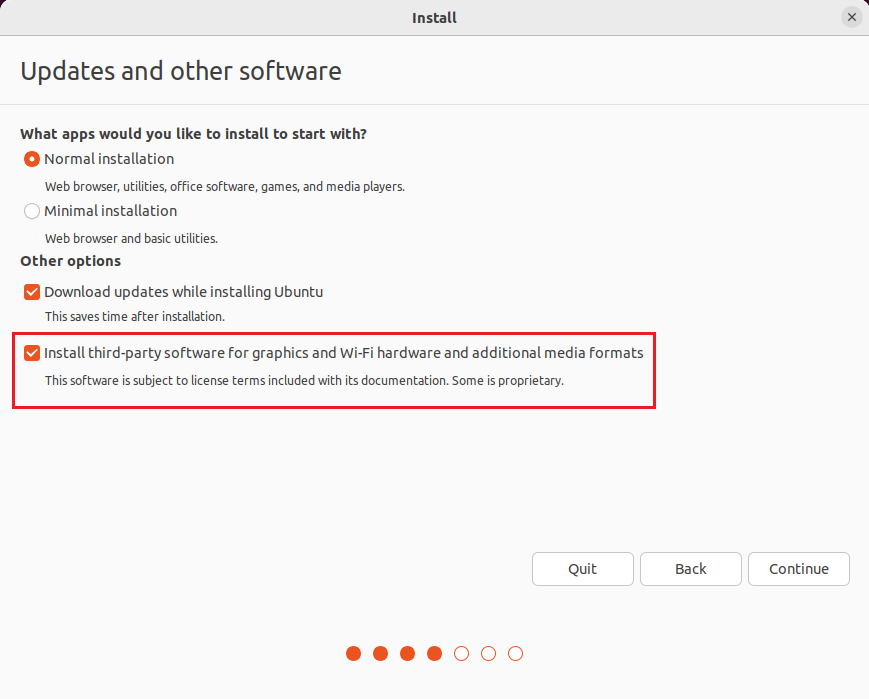
Enable “Install third-party software for graphics and Wi-Fi hardware and additional media formats” and click on **`Continue`**.

<figure><img src="https://blog.davidvarghese.net/assets/images/building-home-lab-part-10/ubuntu-17.png" alt=""><figcaption></figcaption></figure>

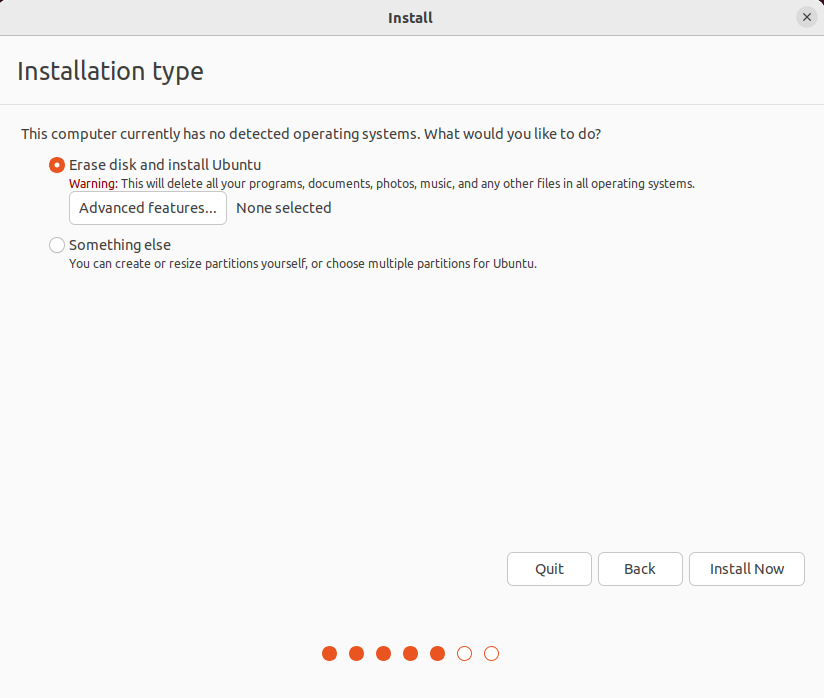
Click on **`Install Now`**.

<figure><img src="https://blog.davidvarghese.net/assets/images/building-home-lab-part-10/ubuntu-18.png" alt=""><figcaption></figcaption></figure>

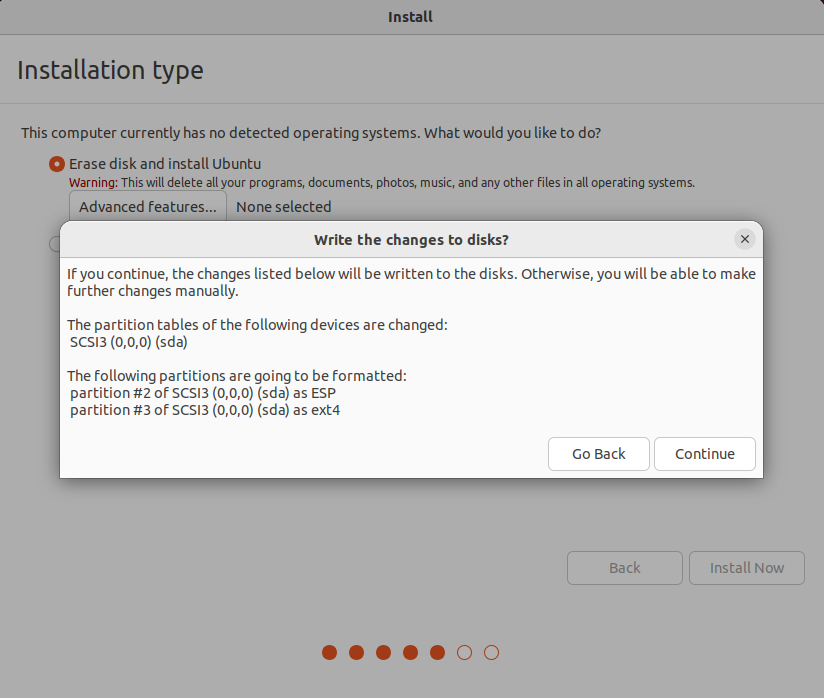
Click on **`Continue`**.

<figure><img src="https://blog.davidvarghese.net/assets/images/building-home-lab-part-10/ubuntu-19.png" alt=""><figcaption></figcaption></figure>

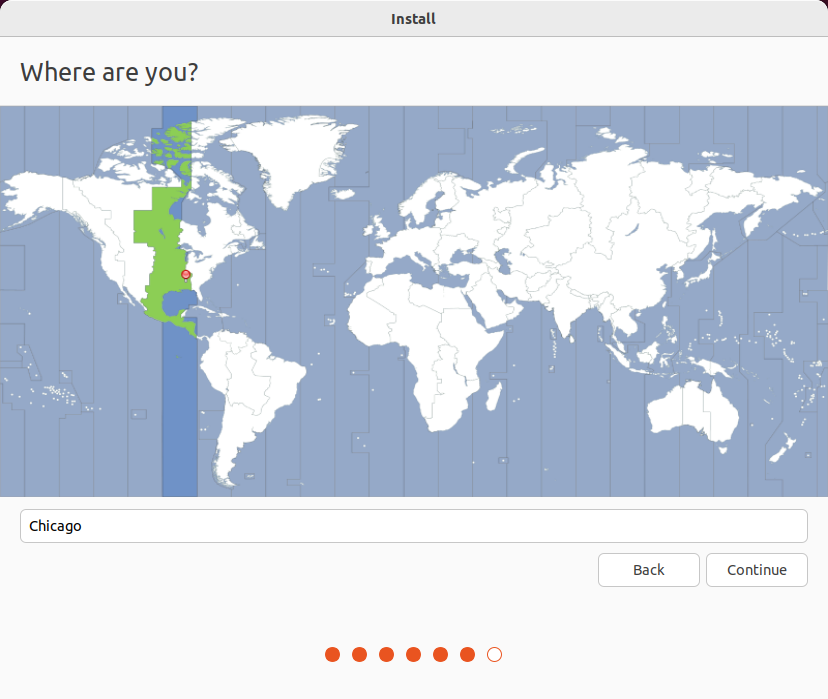
Select your location and click on **`Continue`**.

<figure><img src="https://blog.davidvarghese.net/assets/images/building-home-lab-part-10/ubuntu-20.png" alt=""><figcaption></figcaption></figure>

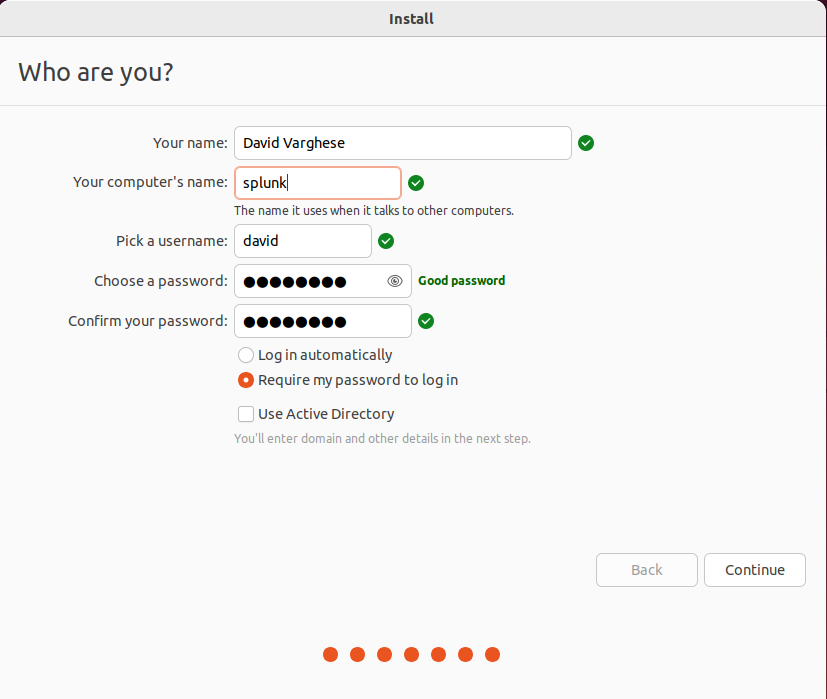
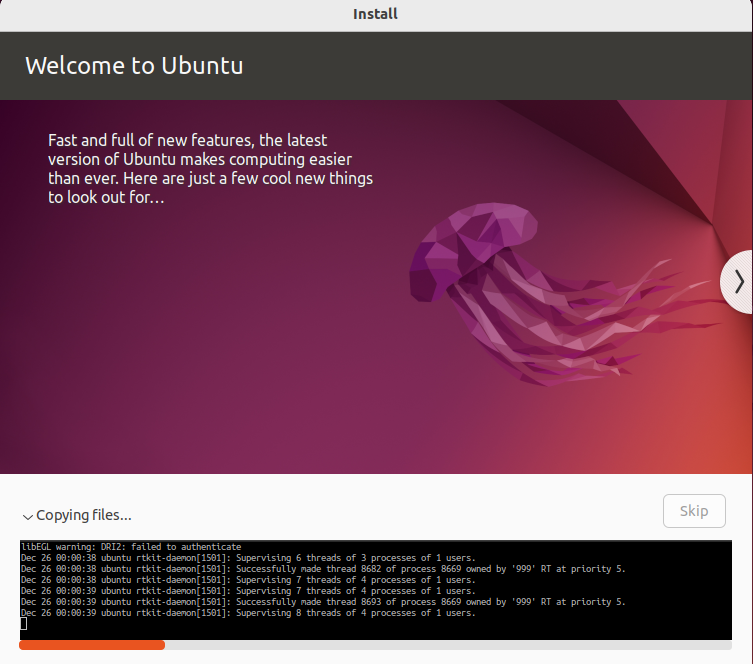
Enter the username, password and hostname and click on **`Continue`**.

<figure><img src="https://blog.davidvarghese.net/assets/images/building-home-lab-part-10/ubuntu-21.png" alt=""><figcaption></figcaption></figure>

<figure><img src="https://blog.davidvarghese.net/assets/images/building-home-lab-part-10/ubuntu-22.png" alt=""><figcaption></figcaption></figure>

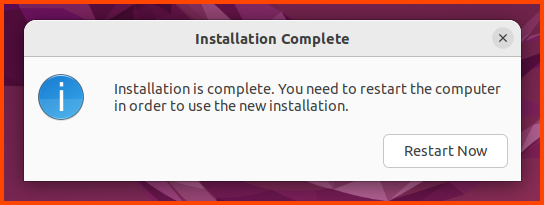
Click on **`Restart Now`** to boot into the system.

<figure><img src="https://blog.davidvarghese.net/assets/images/building-home-lab-part-10/ubuntu-23.png" alt=""><figcaption></figcaption></figure>

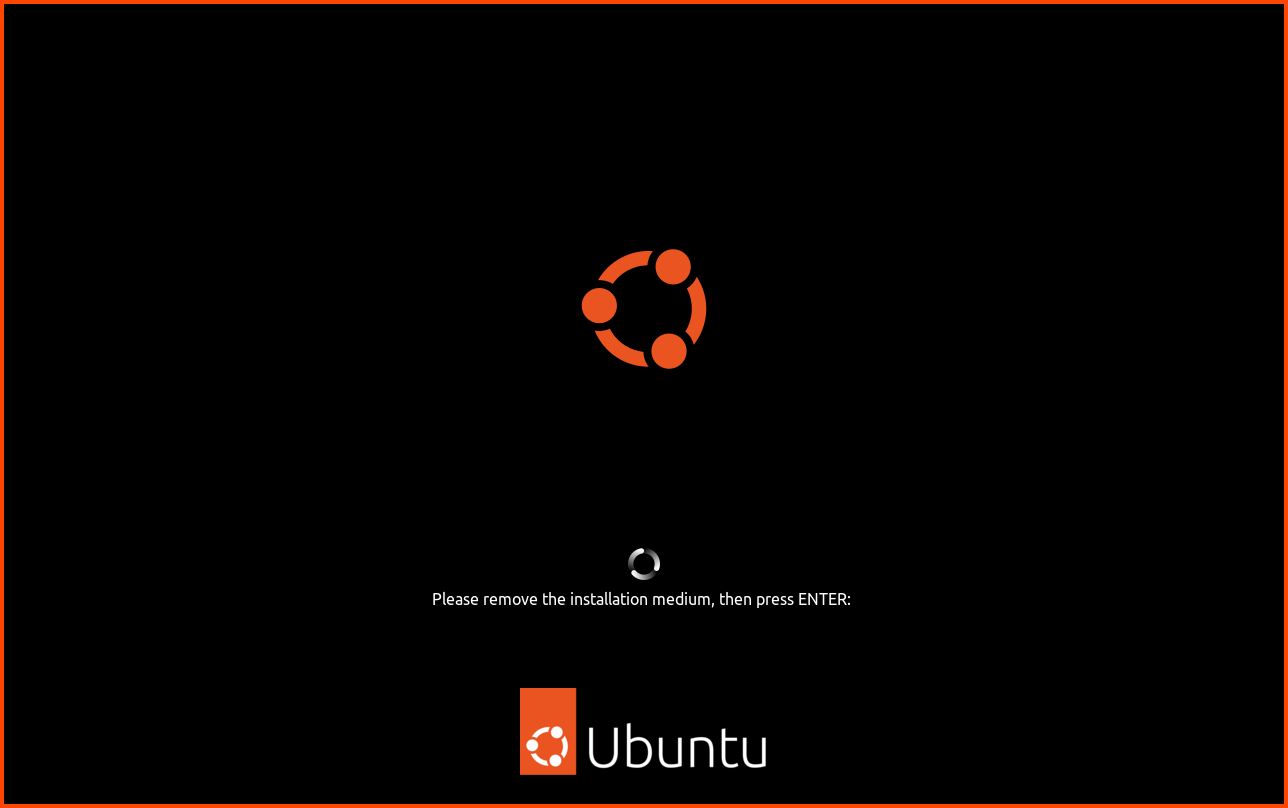
VirtualBox will automatically remove the ISO file from the disk drive. Press **`Enter`** to boot into the newly installed system.

<figure><img src="https://blog.davidvarghese.net/assets/images/building-home-lab-part-10/ubuntu-24.png" alt=""><figcaption></figcaption></figure>

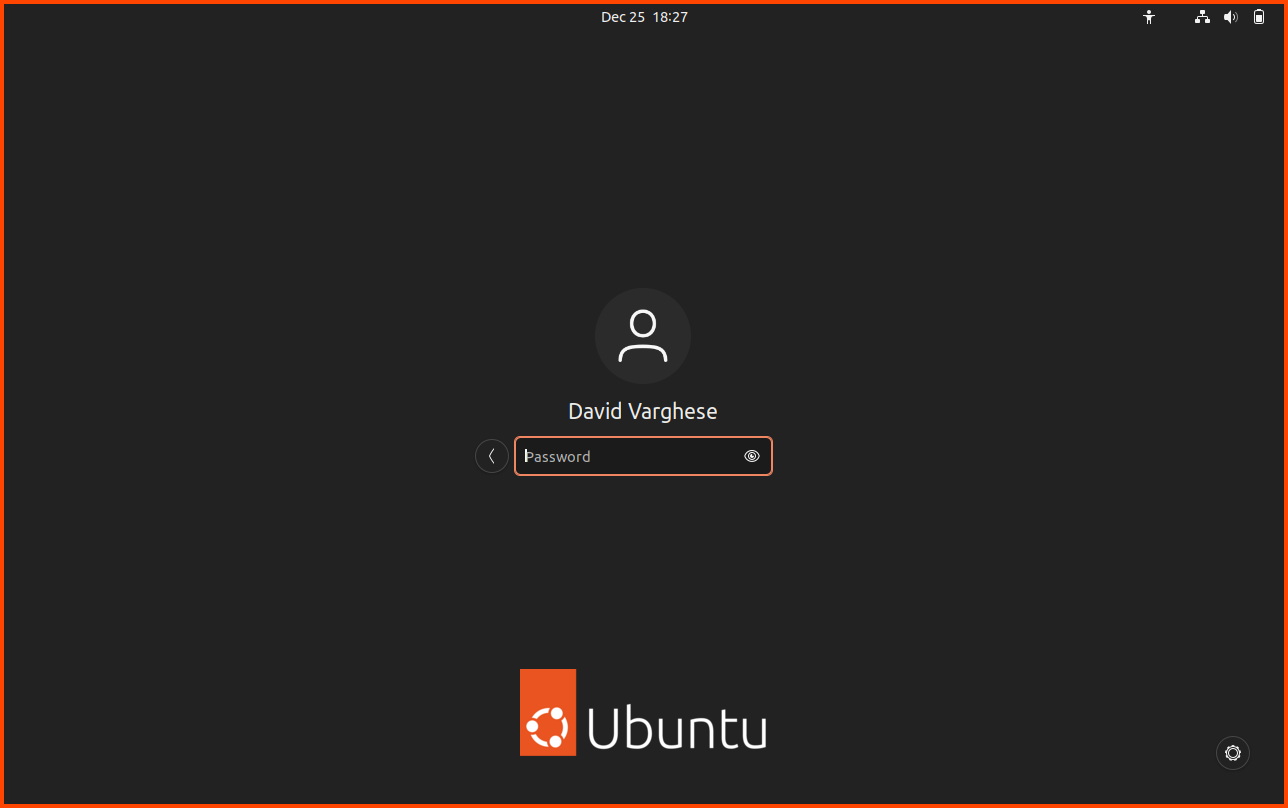
Login using your password.

<figure><img src="https://blog.davidvarghese.net/assets/images/building-home-lab-part-10/ubuntu-25.png" alt=""><figcaption></figcaption></figure>

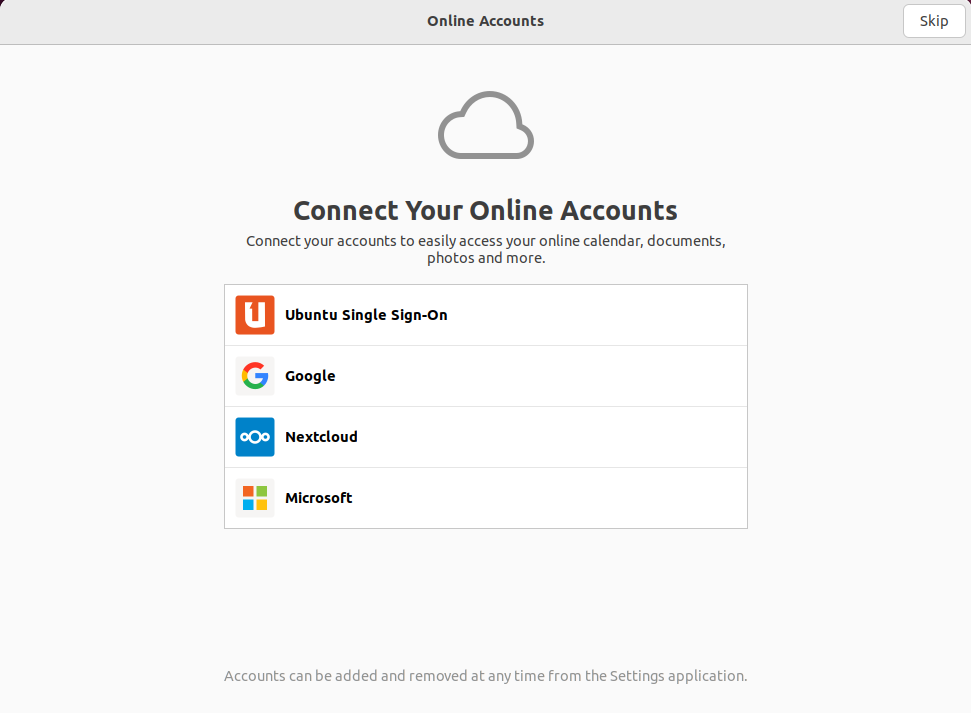
Complete the post-install setup as shown. Click on **`Skip`**.

<figure><img src="https://blog.davidvarghese.net/assets/images/building-home-lab-part-10/ubuntu-26.png" alt=""><figcaption></figcaption></figure>

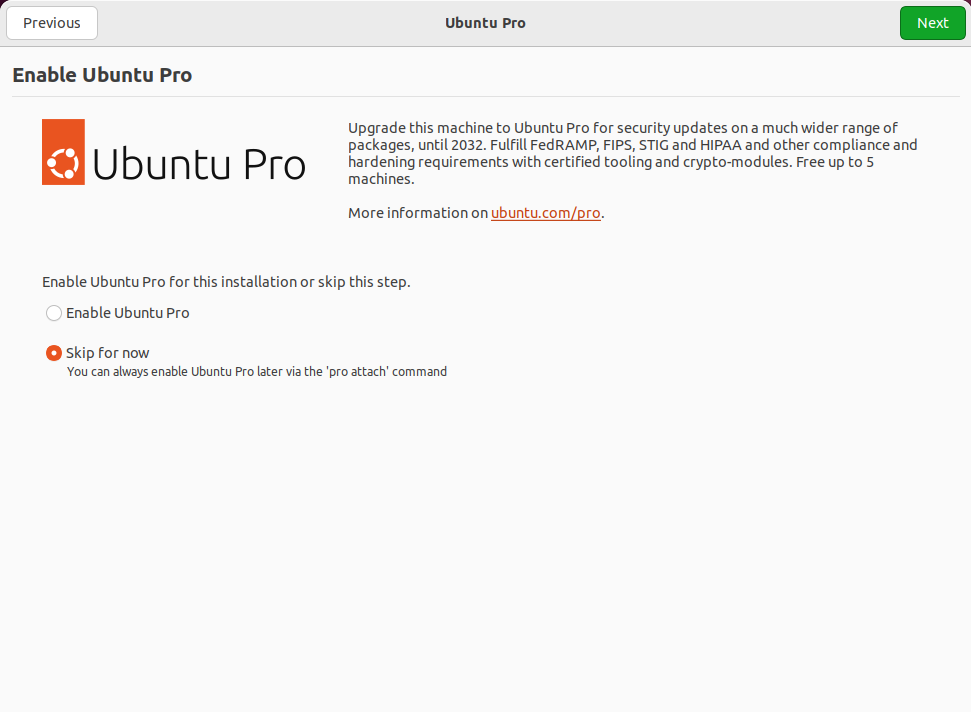
Click on **`Next`**.

<figure><img src="https://blog.davidvarghese.net/assets/images/building-home-lab-part-10/ubuntu-27.png" alt=""><figcaption></figcaption></figure>

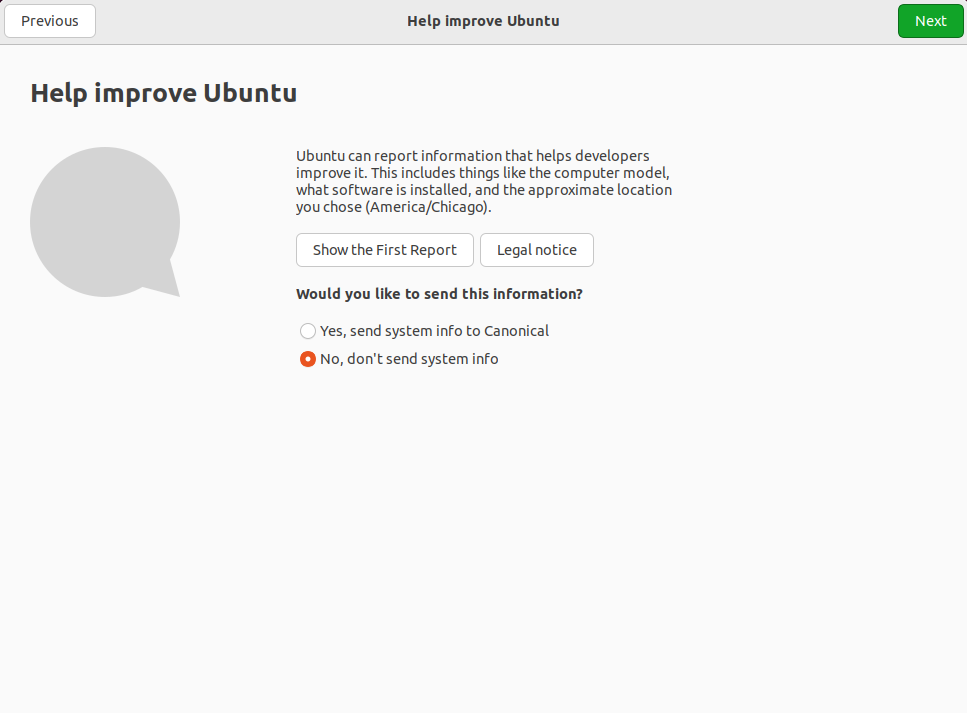
Select “No, don't send system info” and click on **`Next`**.

<figure><img src="https://blog.davidvarghese.net/assets/images/building-home-lab-part-10/ubuntu-28.png" alt=""><figcaption></figcaption></figure>

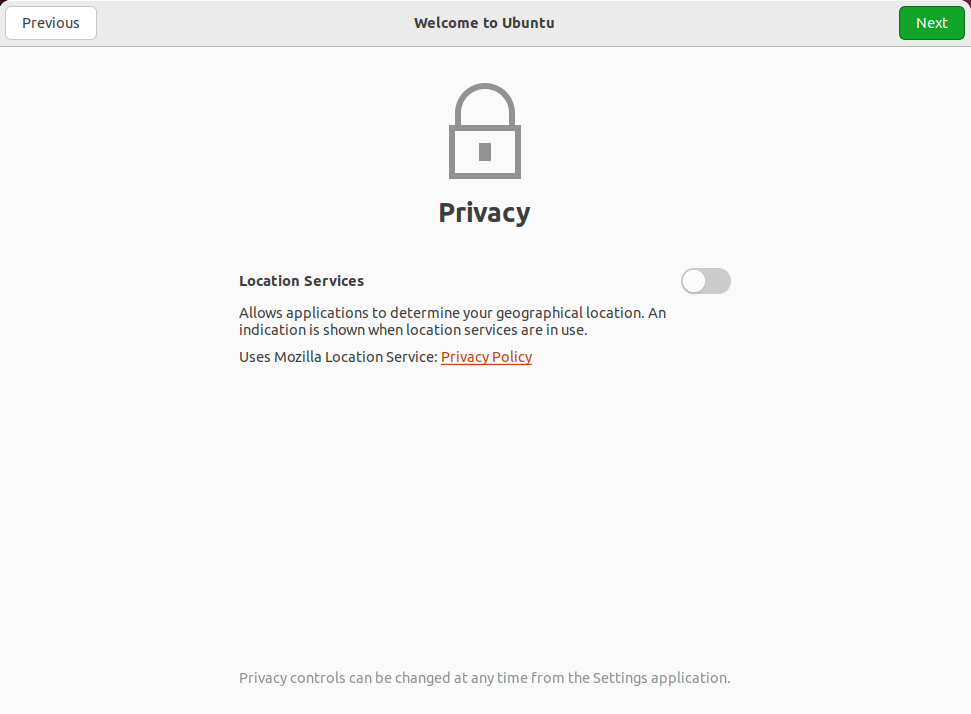
Ensure this setting is disabled and click on **`Next`**.

<figure><img src="https://blog.davidvarghese.net/assets/images/building-home-lab-part-10/ubuntu-29.png" alt=""><figcaption></figcaption></figure>

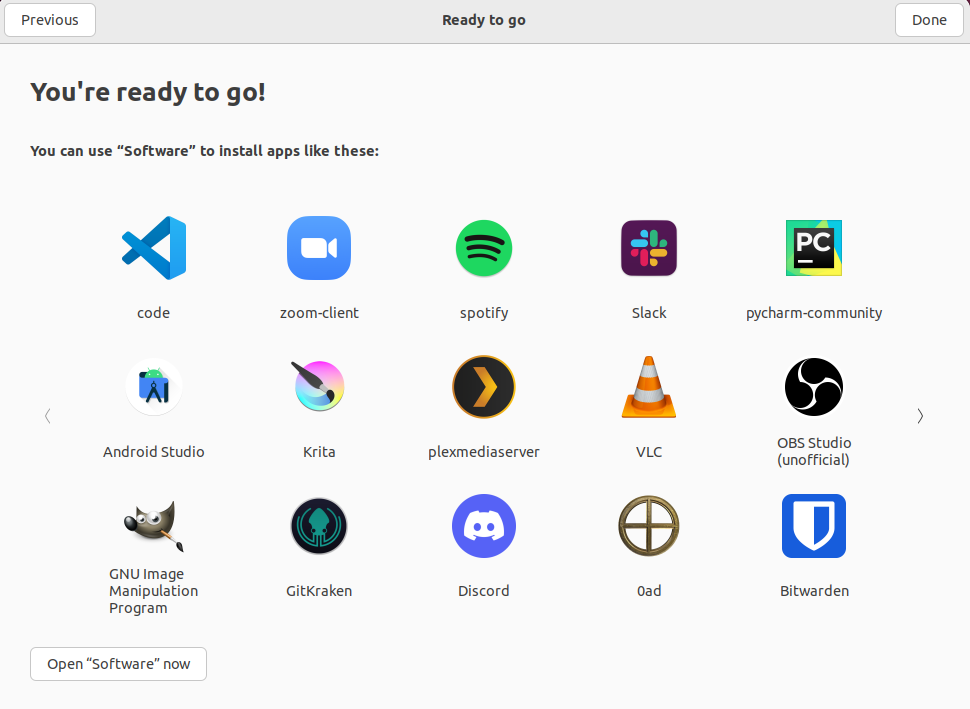
Click on **`Done`** to close the wizard.

<figure><img src="https://blog.davidvarghese.net/assets/images/building-home-lab-part-10/ubuntu-30.png" alt=""><figcaption></figcaption></figure>

#### Post-Install Configuration <a href="#post-install-configuration" id="post-install-configuration"></a>

**Install Guest Additions**

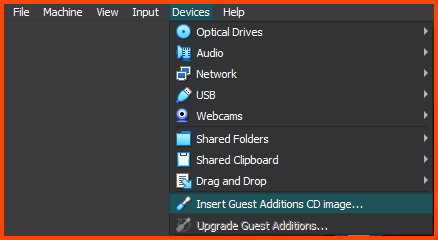
From the VM toolbar select **`Devices -> Install Guest Additions CD image`**.

<figure><img src="https://blog.davidvarghese.net/assets/images/building-home-lab-part-10/ubuntu-31.png" alt=""><figcaption></figcaption></figure>

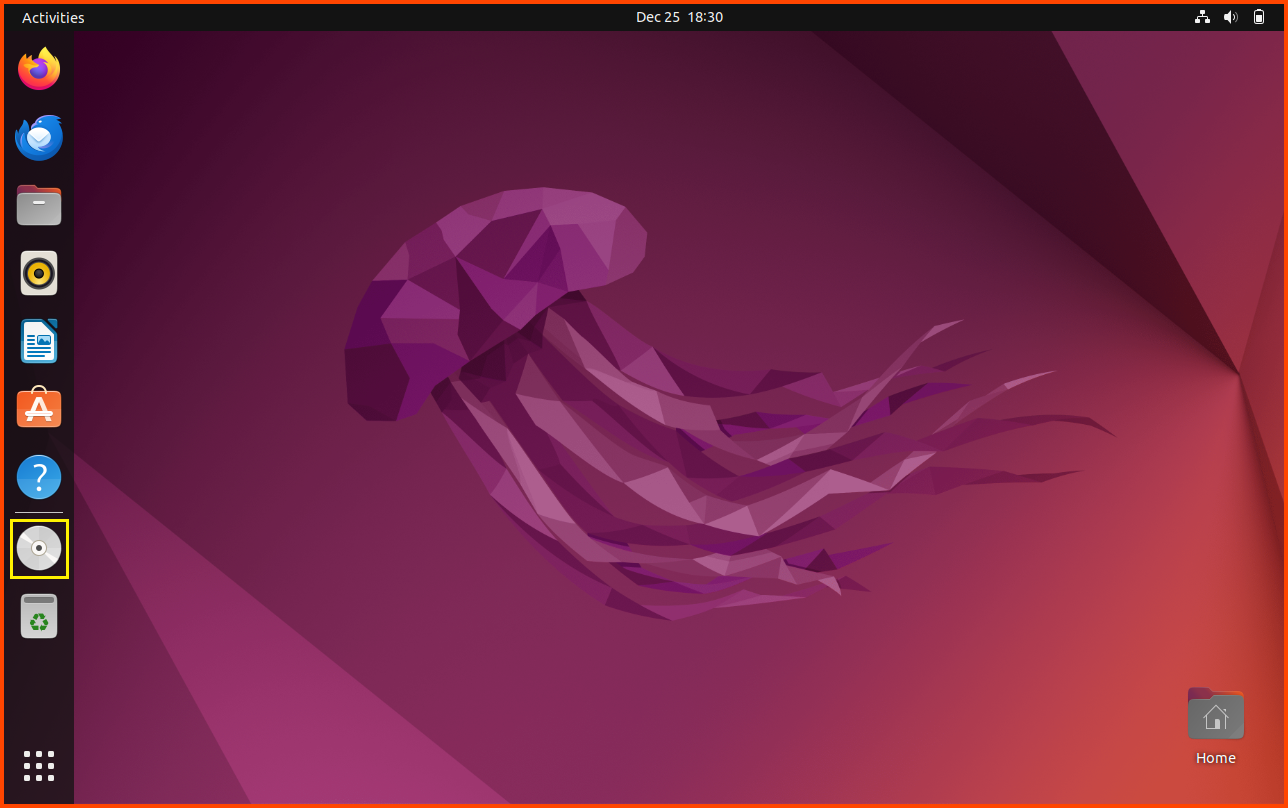
The disk will show up on the dock. Click on it to view the content of the disk.

<figure><img src="https://blog.davidvarghese.net/assets/images/building-home-lab-part-10/ubuntu-32.png" alt=""><figcaption></figcaption></figure>

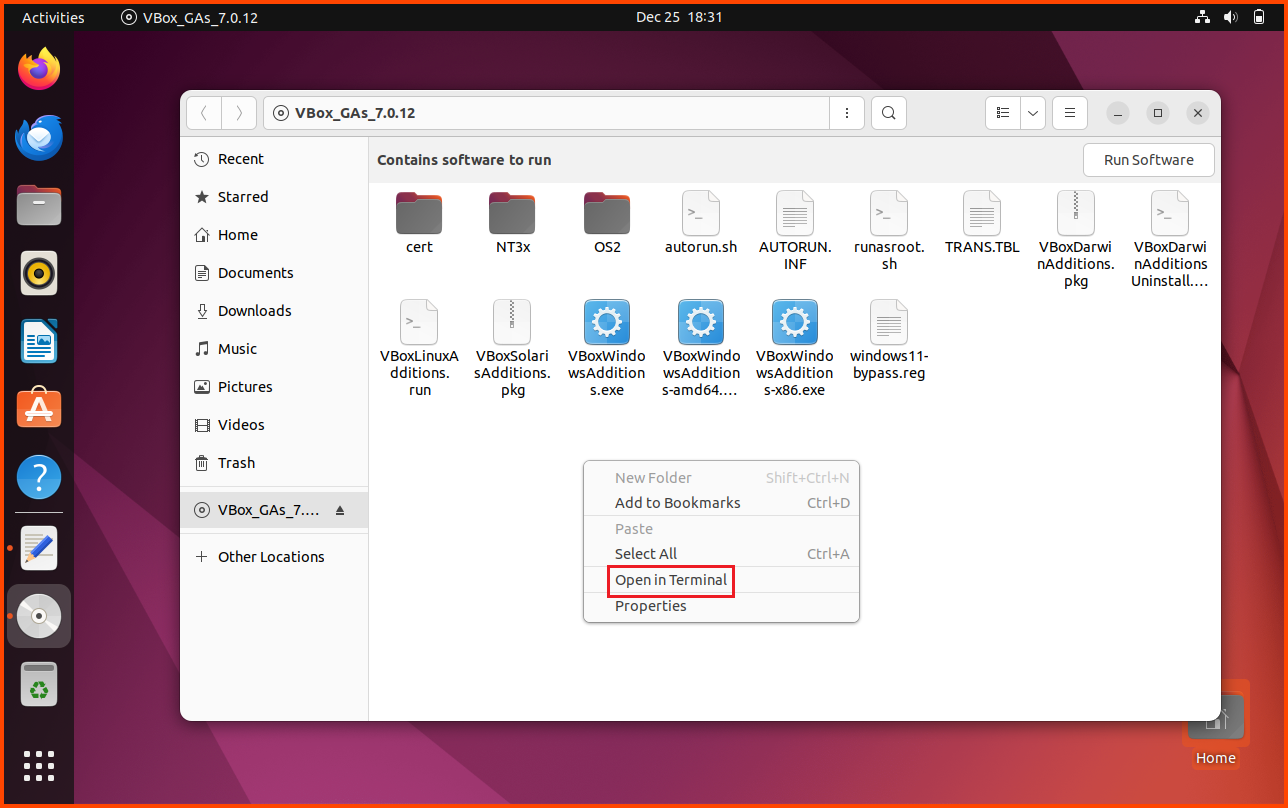
Right-click anywhere in the empty area in the File Explorer and select “Open in Terminal”.

<figure><img src="https://blog.davidvarghese.net/assets/images/building-home-lab-part-10/ubuntu-34.png" alt=""><figcaption></figcaption></figure>

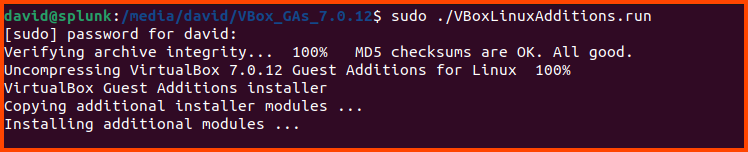
Run the following command to install Guest Additions:

```
sudo ./VBoxLinuxAdditions.run
```

<figure><img src="https://blog.davidvarghese.net/assets/images/building-home-lab-part-10/ubuntu-35.png" alt=""><figcaption></figcaption></figure>

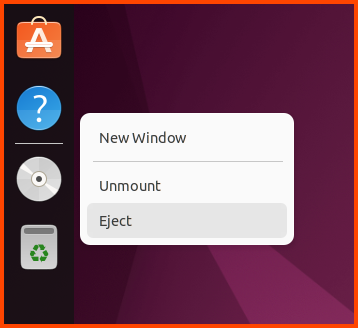
Once the installation is complete close the terminal, right-click on the disk icon in the dock and select **`Eject`**.

<figure><img src="https://blog.davidvarghese.net/assets/images/building-home-lab-part-10/ubuntu-36.png" alt=""><figcaption></figcaption></figure>

**Installing Updates**

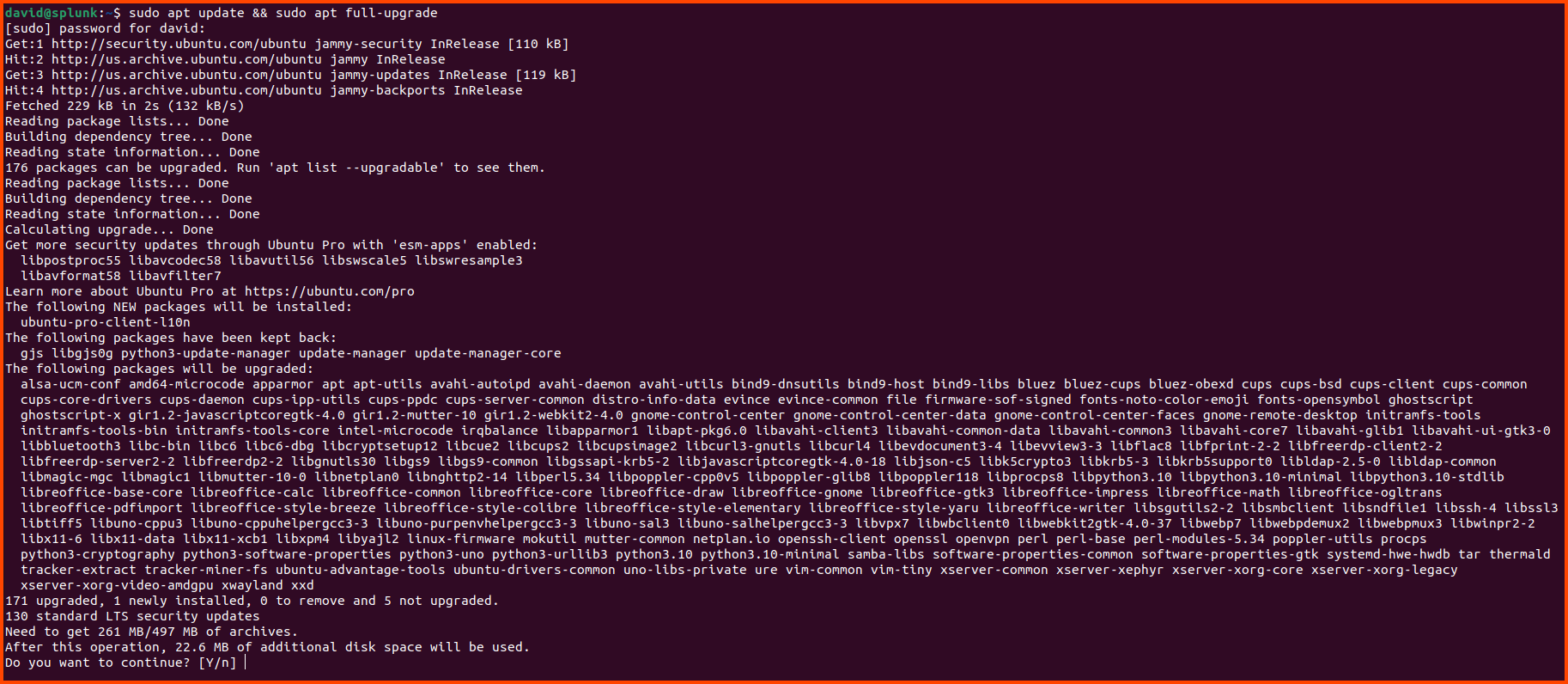
Press **`Ctrl+Alt+T`** to open a new terminal then enter the following command to update the system:

```
sudo apt update && sudo apt full-upgrade
```

Enter your password when prompted. If there are updates press **`Enter`** to start the install.

<figure><img src="https://blog.davidvarghese.net/assets/images/building-home-lab-part-10/ubuntu-37.png" alt=""><figcaption></figcaption></figure>

**Creating VM Snapshot**

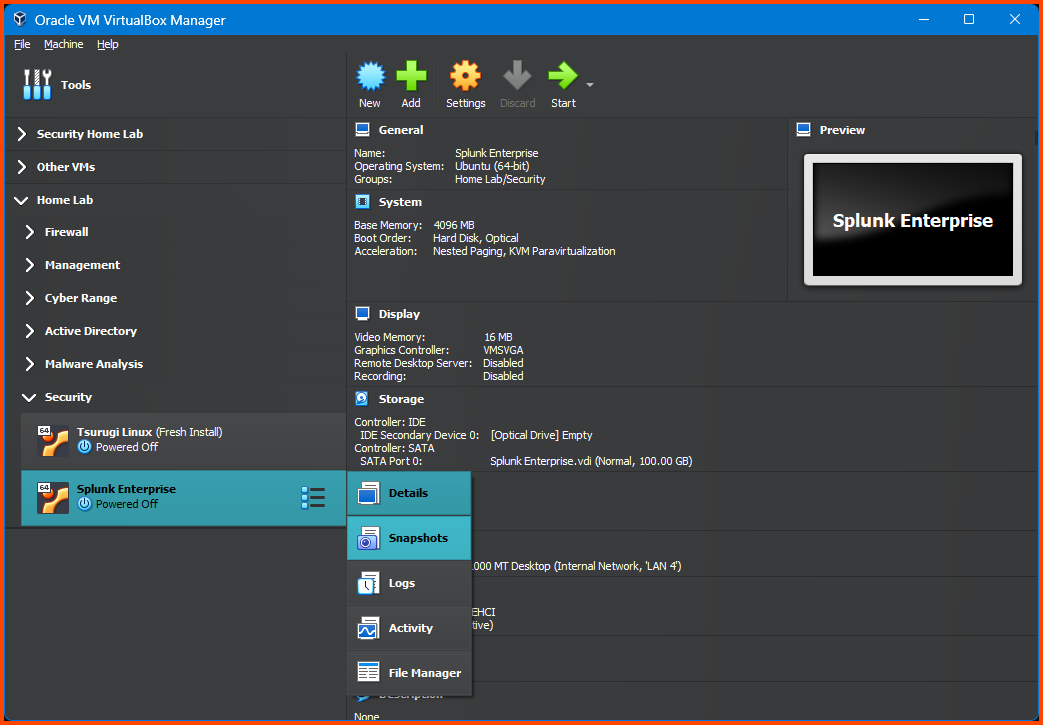
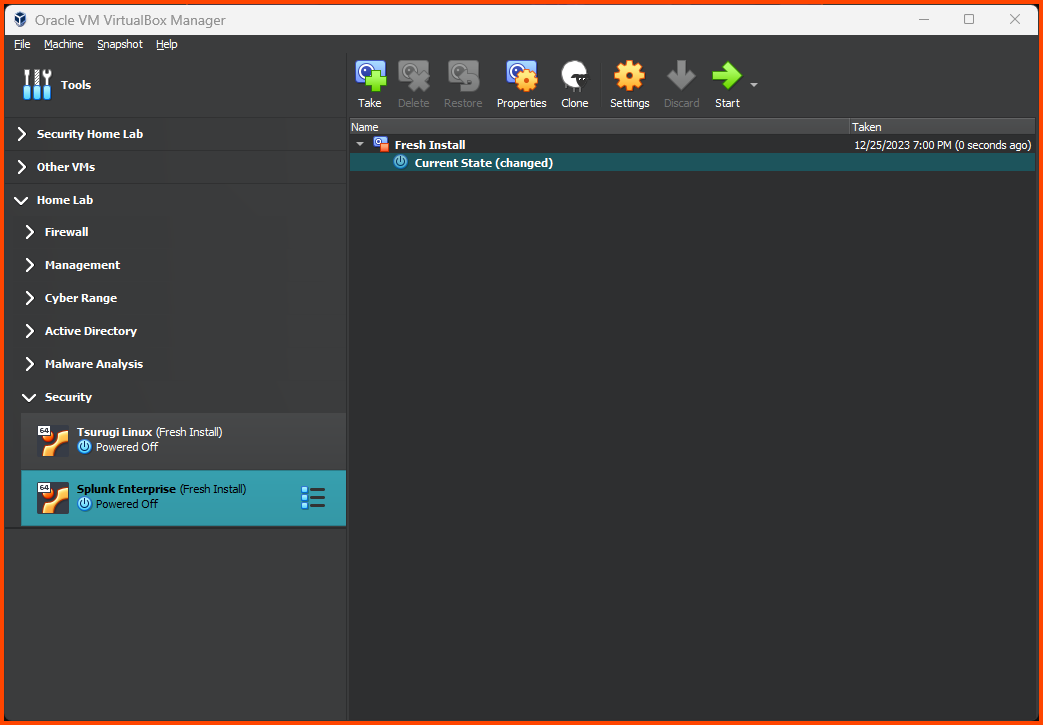
Shut down the VM. Click on the Hamburger menu beside the VM name and select **`Snapshots`**.

<figure><img src="https://blog.davidvarghese.net/assets/images/building-home-lab-part-10/ubuntu-38.png" alt=""><figcaption></figcaption></figure>

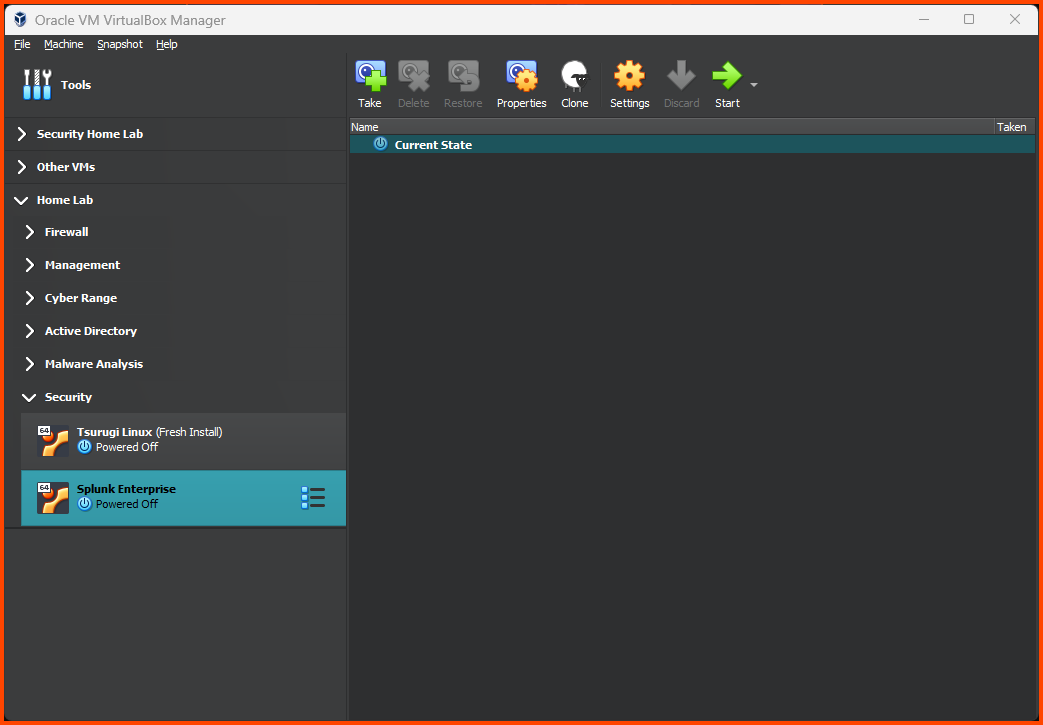
Click on **`Take`** to create a Snapshot.

<figure><img src="https://blog.davidvarghese.net/assets/images/building-home-lab-part-10/ubuntu-39.png" alt=""><figcaption></figcaption></figure>

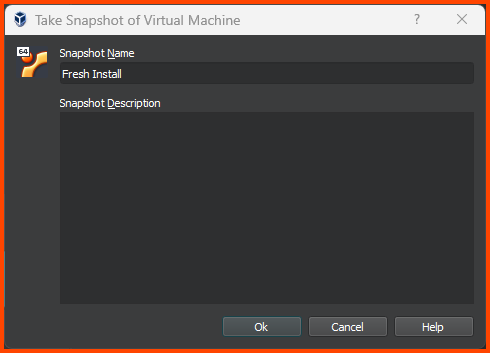
Provide a descriptive name and click on **`OK`**.

<figure><img src="https://blog.davidvarghese.net/assets/images/building-home-lab-part-8/remnux-12.png" alt=""><figcaption></figcaption></figure>

Click on the Hamburger menu and click on “Details” to return to the main page.

<figure><img src="https://blog.davidvarghese.net/assets/images/building-home-lab-part-10/ubuntu-40.png" alt=""><figcaption></figcaption></figure>

### Splunk Installation <a href="#splunk-installation" id="splunk-installation"></a>

#### Splunk Download <a href="#splunk-download" id="splunk-download"></a>

On the Ubuntu VM go to the following URL: [Splunk Enterprise Free Trial | Splunk](https://www.splunk.com/en_us/download/splunk-enterprise.html)\
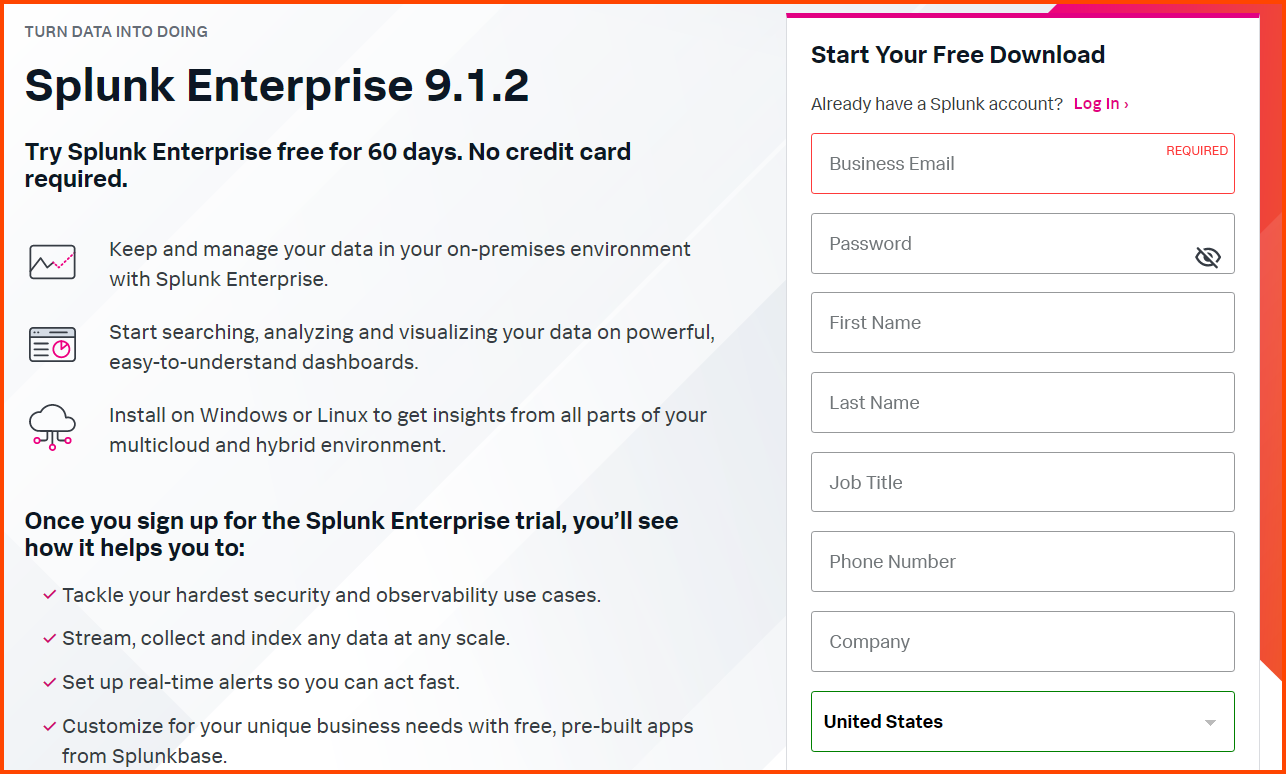
As of writing the latest version of Splunk Enterprise is **`9.1.2`**.

> To download Splunk you have to create a account.\
> Link to get v9.1.2 without an account has been provided at the end of this section.\
> If you want to use the latest version follow the steps below to create a account.

Fill in the details in the form, accept the agreement and click on “Create the Account”.

<figure><img src="https://blog.davidvarghese.net/assets/images/building-home-lab-part-10/splunk-1.png" alt=""><figcaption></figcaption></figure>

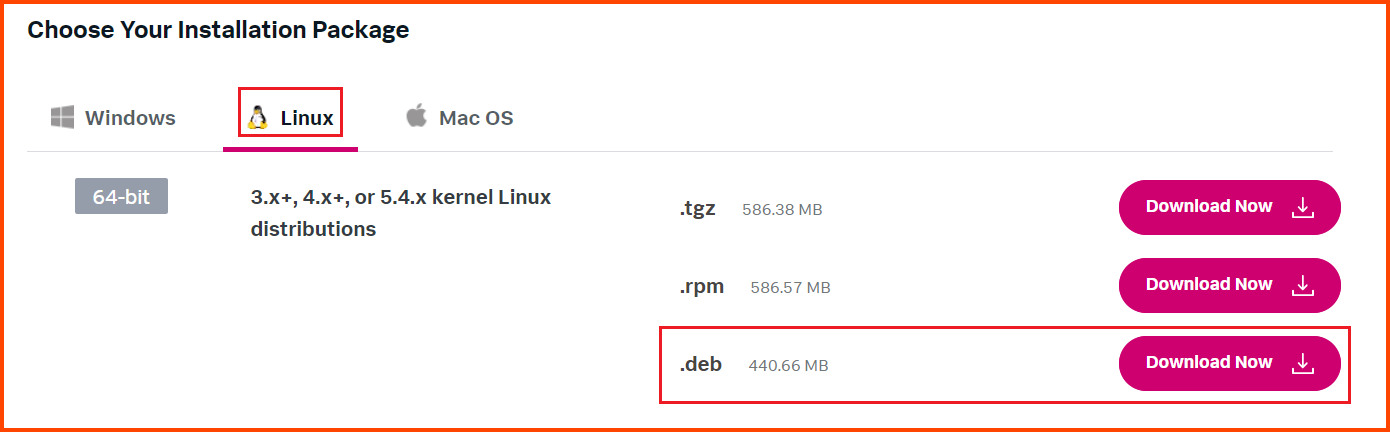
After login go to the Linux section and click on the “Download Now” button for the **`.deb`** file.

<figure><img src="https://blog.davidvarghese.net/assets/images/building-home-lab-part-10/splunk-2.png" alt=""><figcaption></figcaption></figure>

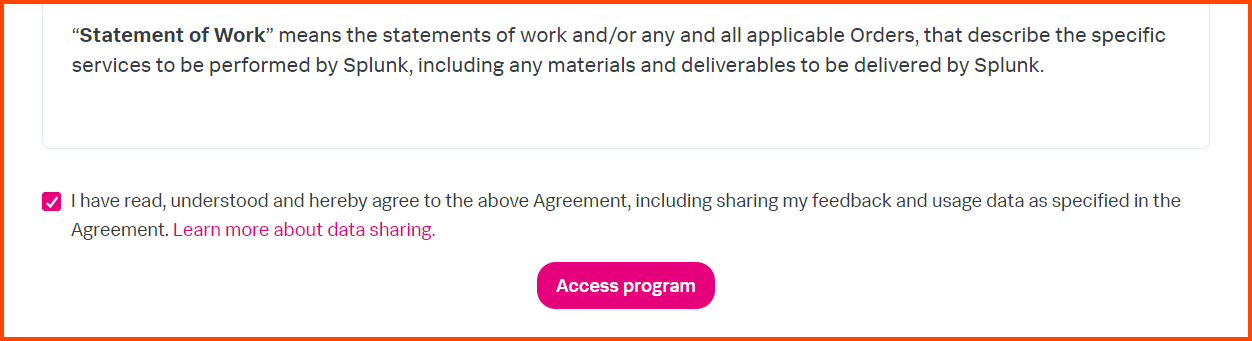
Scroll down and accept the agreement and then click on “Access program” to start the download.

<figure><img src="https://blog.davidvarghese.net/assets/images/building-home-lab-part-10/splunk-3.png" alt=""><figcaption></figcaption></figure>

Alternatively, use the following link to directly download Splunk v9.1.2:\
[Splunk Enterprise 9.1.2 - Linux (.deb) - Direct Download Link](https://download.splunk.com/products/splunk/releases/9.1.2/linux/splunk-9.1.2-b6b9c8185839-linux-2.6-amd64.deb)

#### Splunk Installation <a href="#splunk-installation-1" id="splunk-installation-1"></a>

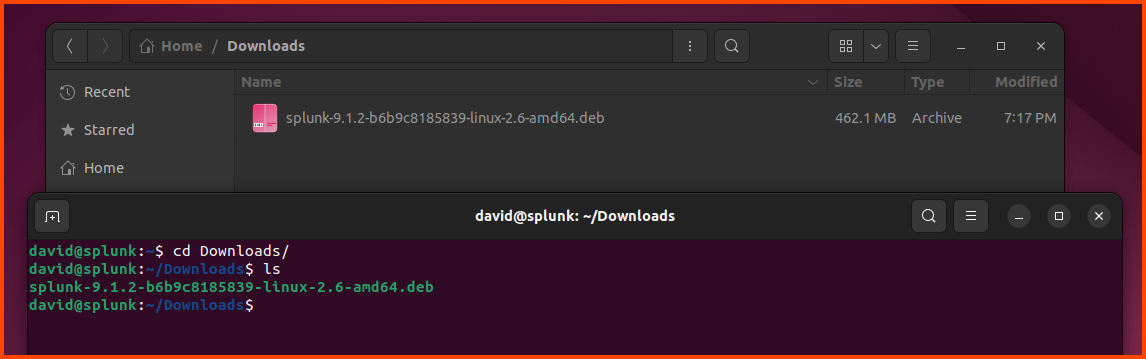
Once the download is complete we will have a **`.deb`** file. Open the Terminal (**`Ctrl+Alt+t`**) and navigate to the Downloads folder.

```
cd Downloads
```

<figure><img src="https://blog.davidvarghese.net/assets/images/building-home-lab-part-10/splunk-5.png" alt=""><figcaption></figcaption></figure>

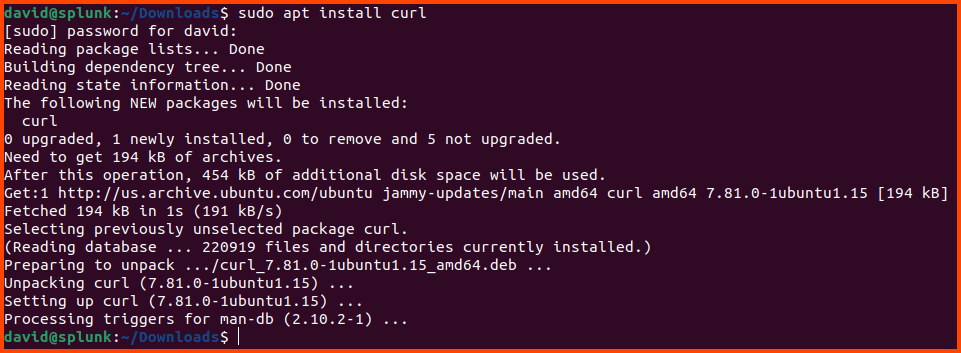
Run the following following command to install **`curl`** (dependency for Splunk):

```
sudo apt install curl
```

Enter password when prompted.

<figure><img src="https://blog.davidvarghese.net/assets/images/building-home-lab-part-10/splunk-6.png" alt=""><figcaption></figcaption></figure>

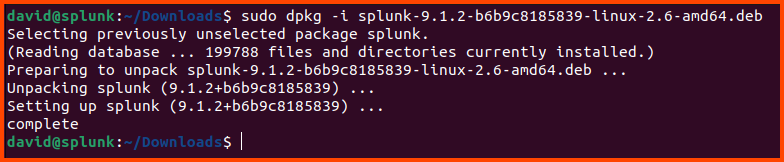
Run the following command to install Splunk:

```
sudo dpkg -i splunk-9.1.2-b6b9c8185839-linux-2.6-amd64.deb
```

<figure><img src="https://blog.davidvarghese.net/assets/images/building-home-lab-part-10/splunk-7.png" alt=""><figcaption></figcaption></figure>

> If you downloaded the latest version of Splunk the name of the downloaded file could be different from the one shown here. Use the filename that is shown on your system with the above command.

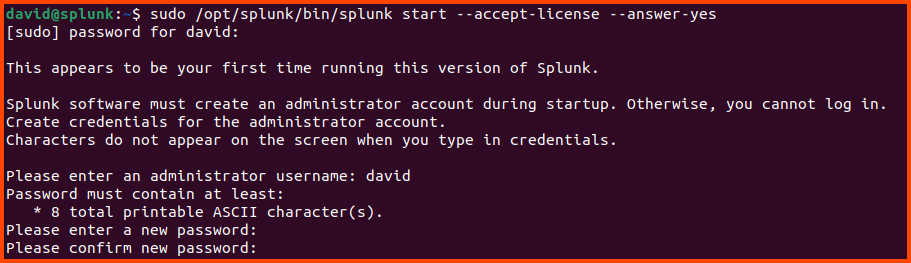
After the installation is completed use the following command to launch Splunk:

```
sudo /opt/splunk/bin/splunk start --accept-license --answer-yes
```

Provide a name and password when prompted. These credentials need to be used to log into Splunk.

<figure><img src="https://blog.davidvarghese.net/assets/images/building-home-lab-part-10/splunk-8.png" alt=""><figcaption></figcaption></figure>

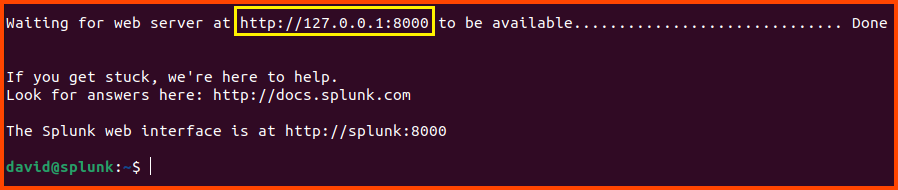
Once the setup is complete we see the Splunk is running on **`http://127.0.0.1:8000`**

<figure><img src="https://blog.davidvarghese.net/assets/images/building-home-lab-part-10/splunk-9.png" alt=""><figcaption></figcaption></figure>

Run the following to allow Splunk to start automatically when the system is booted.

```
sudo /opt/splunk/bin/splunk enable boot-start
```

<figure><img src="https://blog.davidvarghese.net/assets/images/building-home-lab-part-10/splunk-10.png" alt=""><figcaption></figcaption></figure>

> You can choose to ignore the last command to enable auto boot.\
> If you do not enable run at boot the command that was shown above to start Splunk will need to run to start Splunk.

#### Creating VM Snapshot <a href="#creating-vm-snapshot-1" id="creating-vm-snapshot-1"></a>

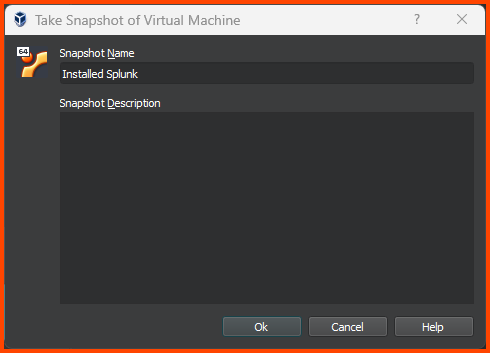
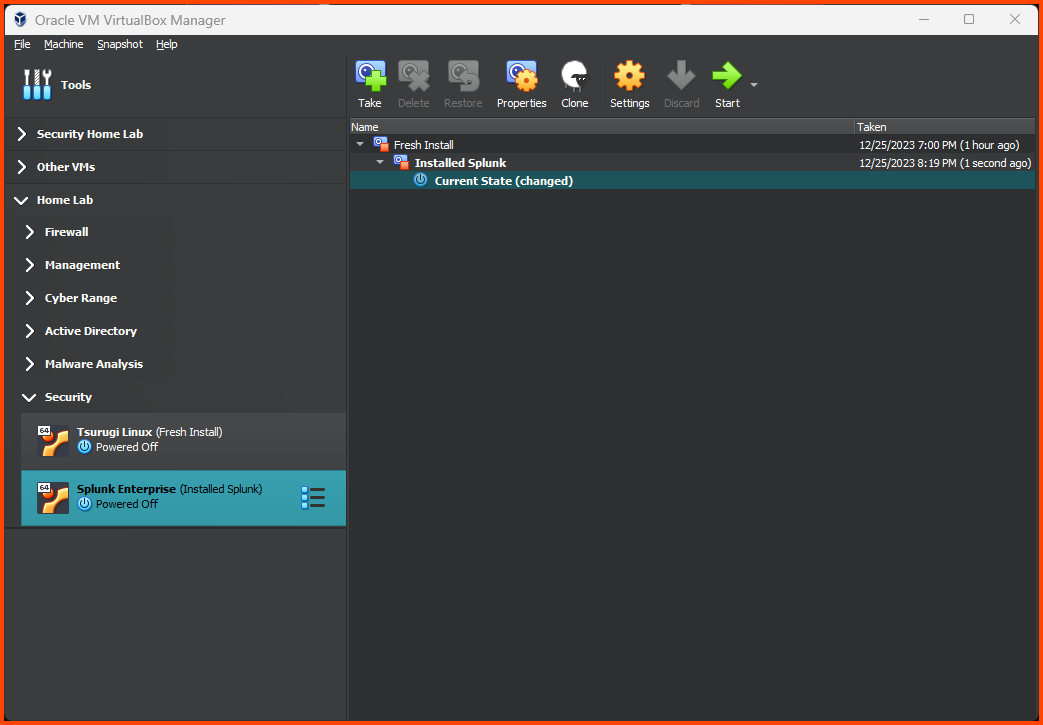
Shut down the VM. Using the Hamburger menu access the Snapshot page. Click on **`Take`** to create a Snapshot. Give the Snapshot a descriptive name.

<figure><img src="https://blog.davidvarghese.net/assets/images/building-home-lab-part-10/splunk-11.png" alt=""><figcaption></figcaption></figure>

<figure><img src="https://blog.davidvarghese.net/assets/images/building-home-lab-part-10/splunk-12.png" alt=""><figcaption></figcaption></figure>

#### Splunk Configuration <a href="#splunk-configuration" id="splunk-configuration"></a>

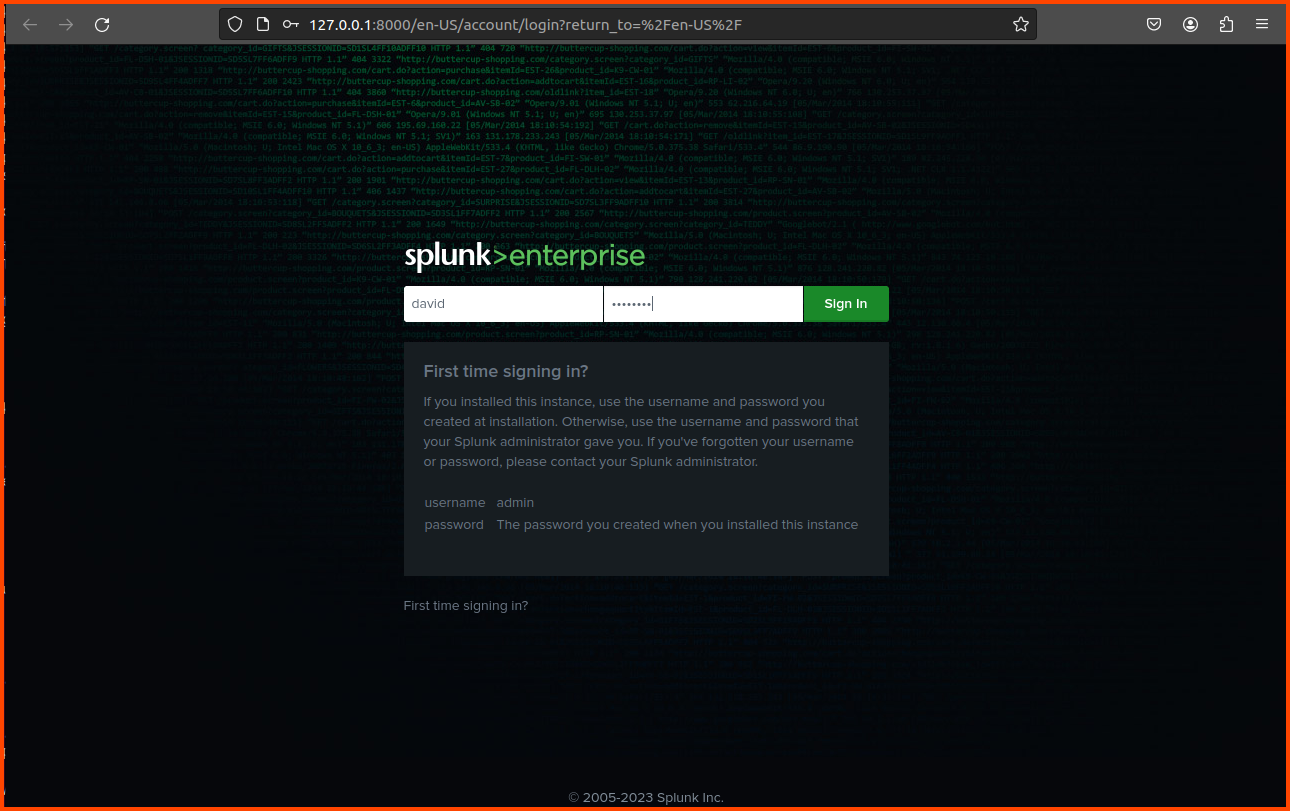
Before we can install Splunk Universal Forwarder there are a few settings we need to change in Splunk. Open Splunk by going to **`http://127.0.0.1:8000`**.

<figure><img src="https://blog.davidvarghese.net/assets/images/building-home-lab-part-10/splunk-13.png" alt=""><figcaption></figcaption></figure>

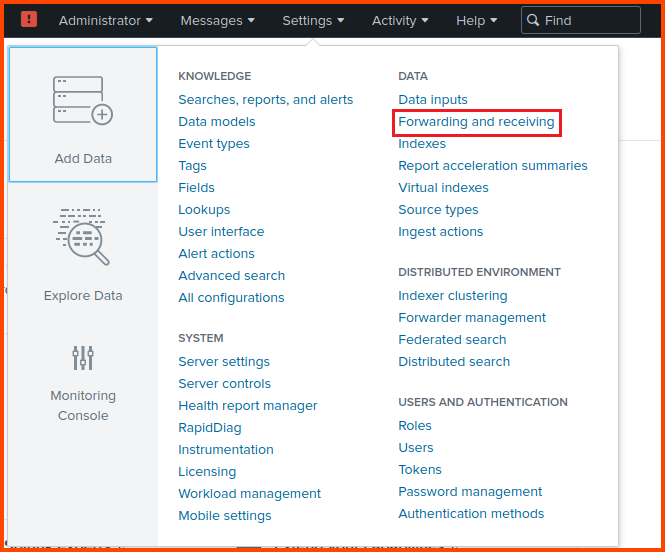
From the toolbar select **`Settings -> Forwarding and receiving`**.

<figure><img src="https://blog.davidvarghese.net/assets/images/building-home-lab-part-10/splunk-14.png" alt=""><figcaption></figcaption></figure>

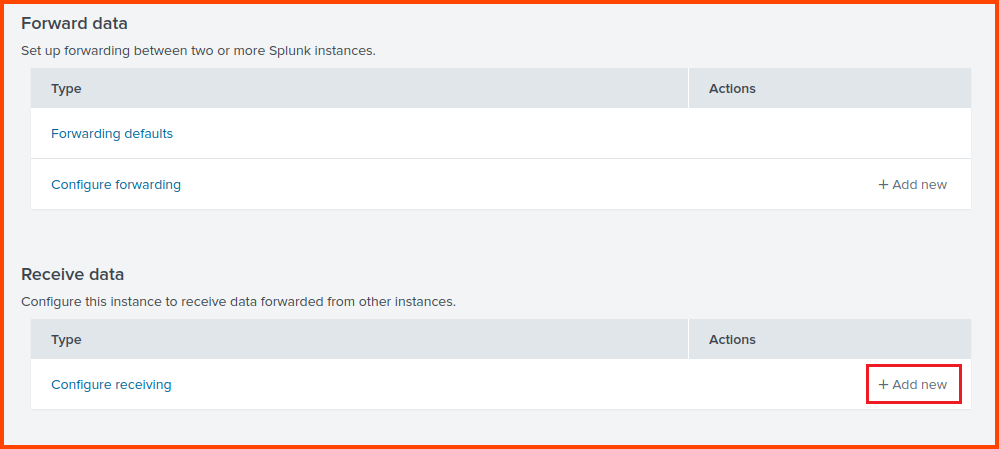
Click on “Add new” in the Receive data section.

<figure><img src="https://blog.davidvarghese.net/assets/images/building-home-lab-part-10/splunk-15.png" alt=""><figcaption></figcaption></figure>

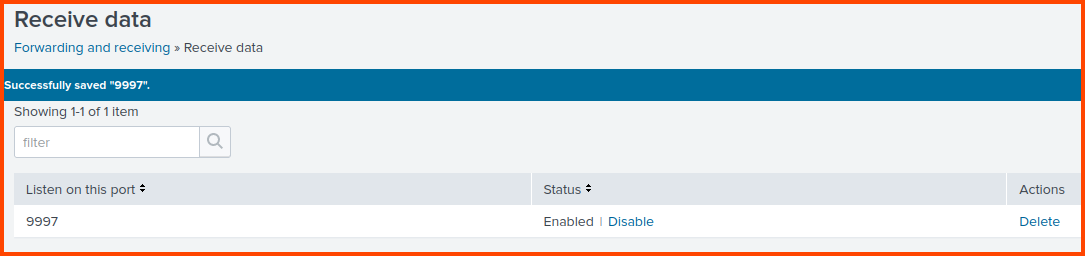
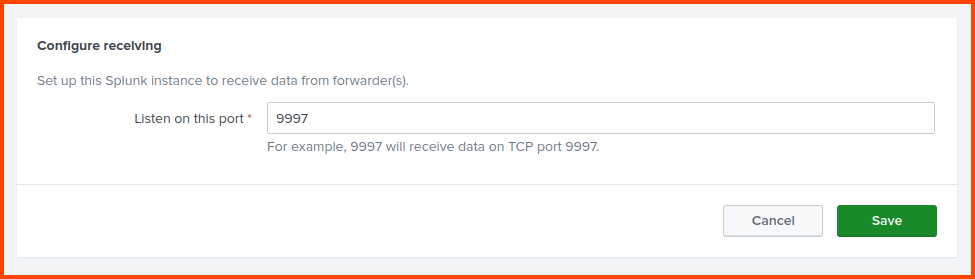
Enter **`9997`** as the port to listen for incoming data. Click on **`Save`**.

<figure><img src="https://blog.davidvarghese.net/assets/images/building-home-lab-part-10/splunk-16.png" alt=""><figcaption></figcaption></figure>

[![splunk-17](https://blog.davidvarghese.net/assets/images/building-home-lab-part-10/splunk-17.png)](https://blog.davidvarghese.net/assets/images/building-home-lab-part-10/splunk-17.png)

### Universal Forwarder Installation <a href="#universal-forwarder-installation" id="universal-forwarder-installation"></a>

The next steps need to be performed on the Domain Controller (Windows Server 2019). We are going to ingest the log data that is generated by this device into Splunk.

#### Universal Forwarder Download <a href="#universal-forwarder-download" id="universal-forwarder-download"></a>

Go to the following link to download Universal Forwarder: [Download Universal Forwarder for Remote Data Collection | Splunk](https://www.splunk.com/en_us/download/universal-forwarder.html)

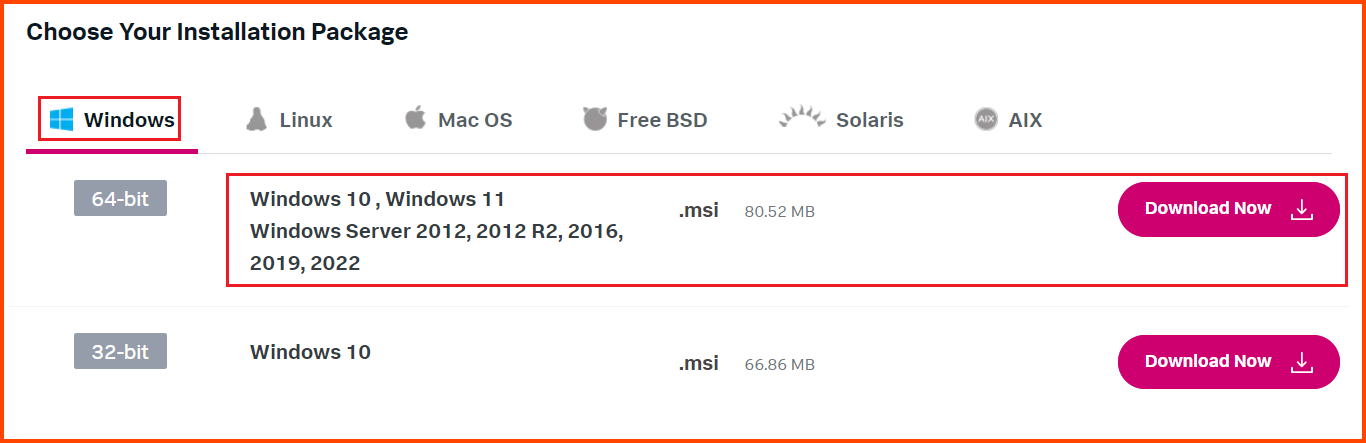
You need to log in to be able to download the setup. Select the Windows tab and then click on the Download Now button beside the 64-bit option.

<figure><img src="https://blog.davidvarghese.net/assets/images/building-home-lab-part-10/splunk-4.png" alt=""><figcaption></figcaption></figure>

Alternatively, Splunk Universal Forwarder v9.1.2 can be downloaded directly using the following link: [Splunk Universal Forwarder 9.1.2 - Windows (.msi) - Direct Download Link](https://download.splunk.com/products/universalforwarder/releases/9.1.2/windows/splunkforwarder-9.1.2-b6b9c8185839-x64-release.msi)

#### Universal Forwarder Install <a href="#universal-forwarder-install" id="universal-forwarder-install"></a>

Double-click on the **`.msi`** file to begin installation.

<figure><img src="https://blog.davidvarghese.net/assets/images/building-home-lab-part-10/splunk-18.png" alt=""><figcaption></figcaption></figure>

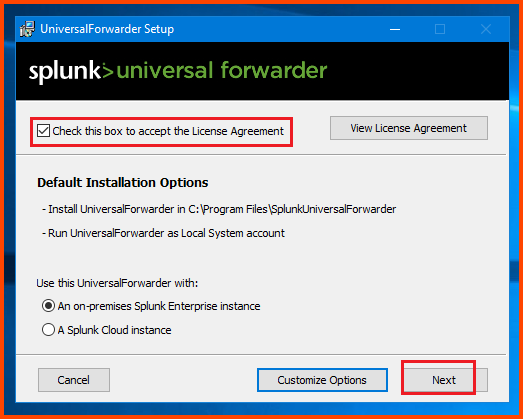
Check the box on the top to accept the agreement and then click on **`Next`**.

<figure><img src="https://blog.davidvarghese.net/assets/images/building-home-lab-part-10/splunk-19.png" alt=""><figcaption></figcaption></figure>

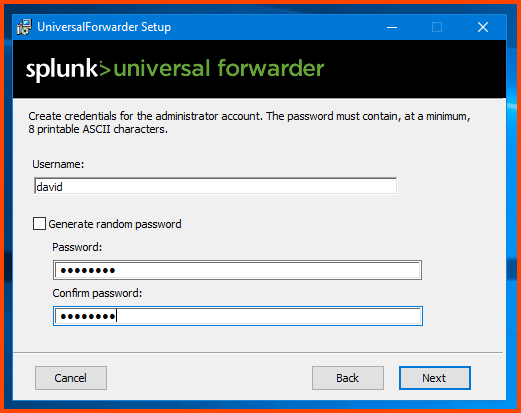
Provide a username and password for the Forwarder. I would recommend using the same credentials that were configured on Splunk.

<figure><img src="https://blog.davidvarghese.net/assets/images/building-home-lab-part-10/splunk-20.png" alt=""><figcaption></figcaption></figure>

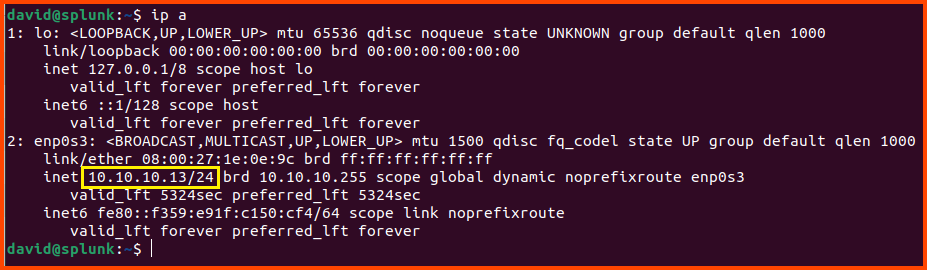
For the new step need the IP address of the Ubuntu (Splunk) VM. Use the following command to get the IP address.

```
ip a
```

Use the IP address that is shown under **`enp0s3`**.

> If in your case instead of **`enp0s3`** you see **`eth0`** use the IP address that is shown under that section.

<figure><img src="https://blog.davidvarghese.net/assets/images/building-home-lab-part-10/splunk-21.png" alt=""><figcaption></figcaption></figure>

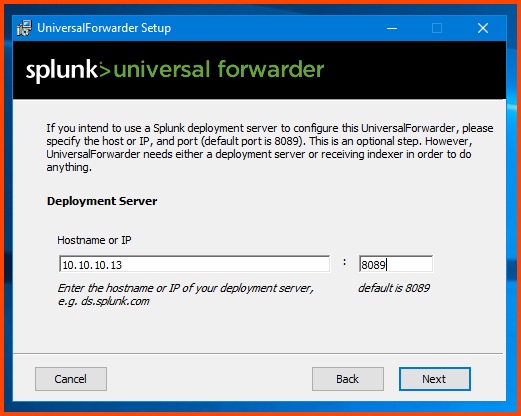
Enter the IP address of the Splunk VM (in my case **`10.10.10.13`**) and enter **`8089`** as the value for the port field then click on **`Next`**.

<figure><img src="https://blog.davidvarghese.net/assets/images/building-home-lab-part-10/splunk-22.png" alt=""><figcaption></figcaption></figure>

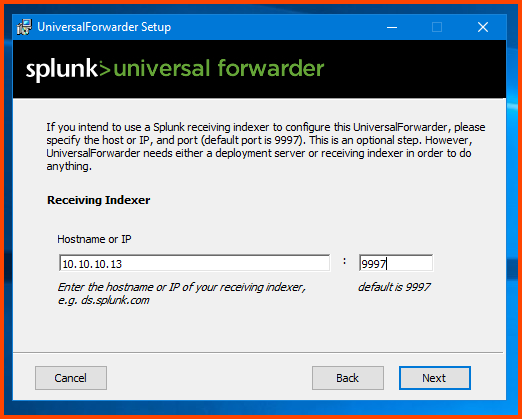
Again enter the Splunk VM IP address and for port enter **`9997`**. This is the port we configured in Splunk. Click on **`Next`** to continue.

<figure><img src="https://blog.davidvarghese.net/assets/images/building-home-lab-part-10/splunk-23.png" alt=""><figcaption></figcaption></figure>

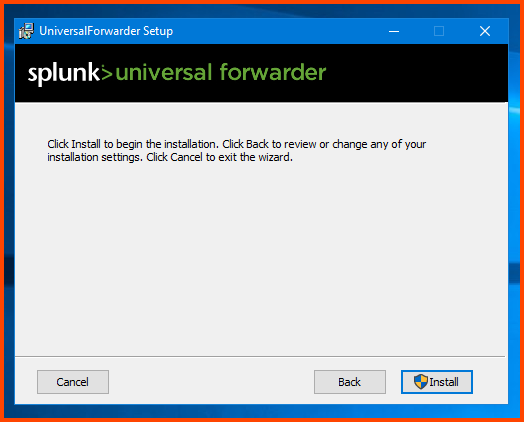
Click on **`Install`**.

<figure><img src="https://blog.davidvarghese.net/assets/images/building-home-lab-part-10/splunk-24.png" alt=""><figcaption></figcaption></figure>

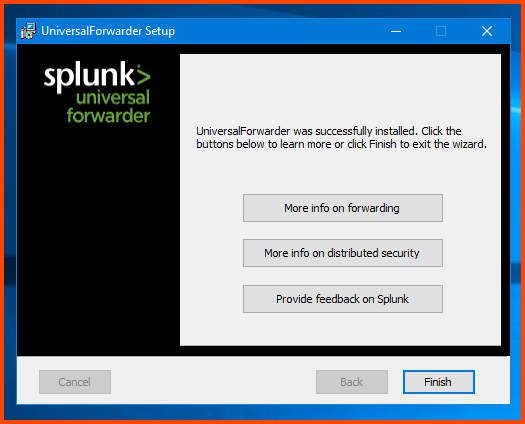
Click on **`Finish`** to close the installer.

<figure><img src="https://blog.davidvarghese.net/assets/images/building-home-lab-part-10/splunk-25.png" alt=""><figcaption></figcaption></figure>

### Data Ingestion Configuration <a href="#data-ingestion-configuration" id="data-ingestion-configuration"></a>

Now that we have Splunk and Universal Forwarder configured we need to link both the pieces together so that Splunk can collect data.

#### Adding Data Source <a href="#adding-data-source" id="adding-data-source"></a>

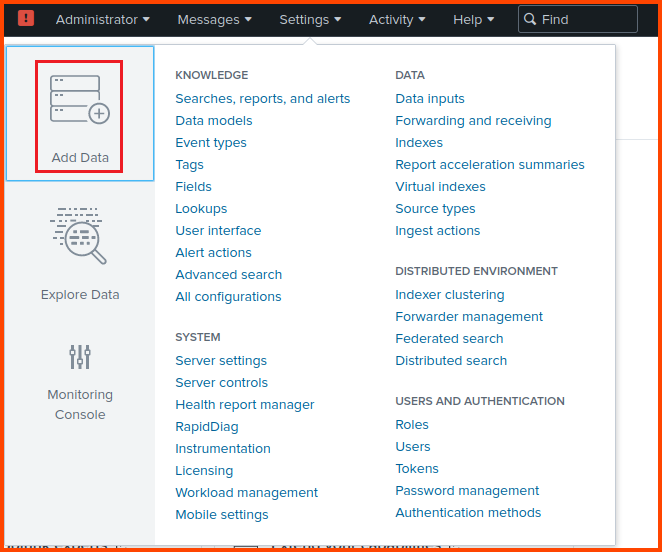
In Splunk select **`Settings -> Add Data`**.

<figure><img src="https://blog.davidvarghese.net/assets/images/building-home-lab-part-10/splunk-26.png" alt=""><figcaption></figcaption></figure>

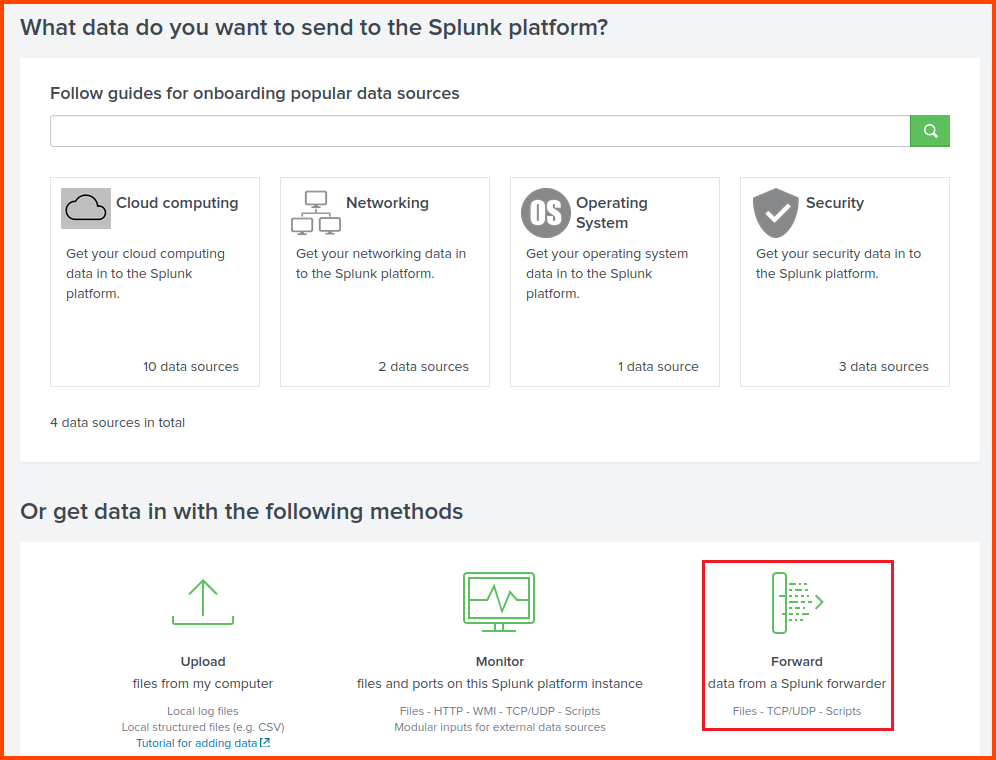
Click on **`Forward`**.

<figure><img src="https://blog.davidvarghese.net/assets/images/building-home-lab-part-10/splunk-27.png" alt=""><figcaption></figcaption></figure>

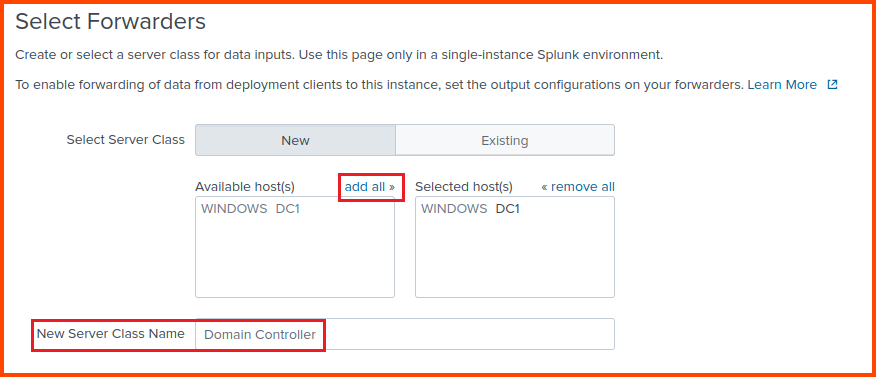
Our DC VM should automatically show up in the left box. Click on “add all” to move it to the right side. In the “New Source Class Name” field provide a name for the source. Click on **`Next`** to continue.

<figure><img src="https://blog.davidvarghese.net/assets/images/building-home-lab-part-10/splunk-28.png" alt=""><figcaption></figcaption></figure>

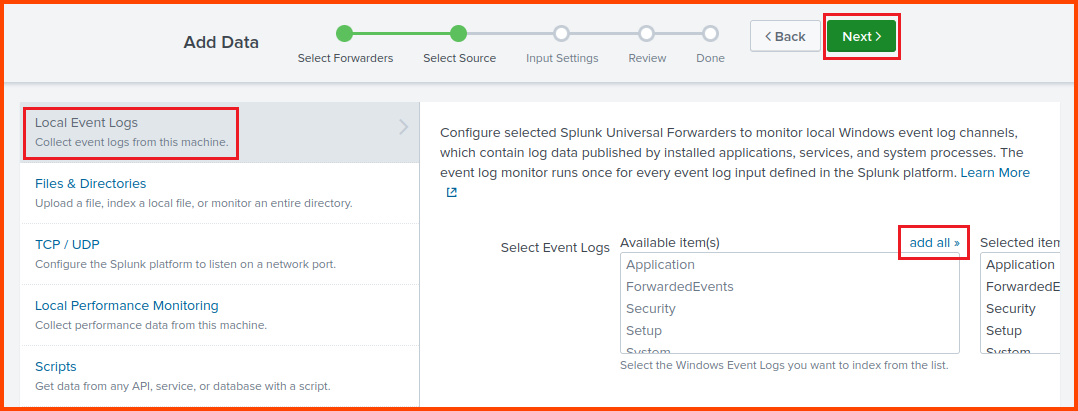
Select “Local Event Logs” then click on the “add all” button above the dropdown field to ingest all the logs generated by the DC. Click on **`Next`** once done.

<figure><img src="https://blog.davidvarghese.net/assets/images/building-home-lab-part-10/splunk-29.png" alt=""><figcaption></figcaption></figure>

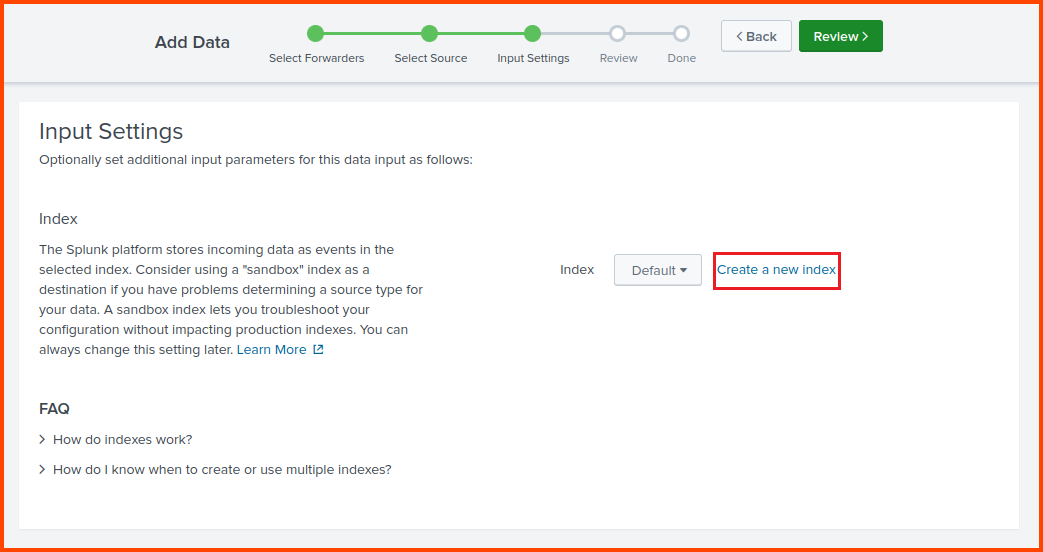
Click on “Create a new index“.Indexes are the Splunk equivalent of SQL Tables. It is used to store similar data.

<figure><img src="https://blog.davidvarghese.net/assets/images/building-home-lab-part-10/splunk-30.png" alt=""><figcaption></figcaption></figure>

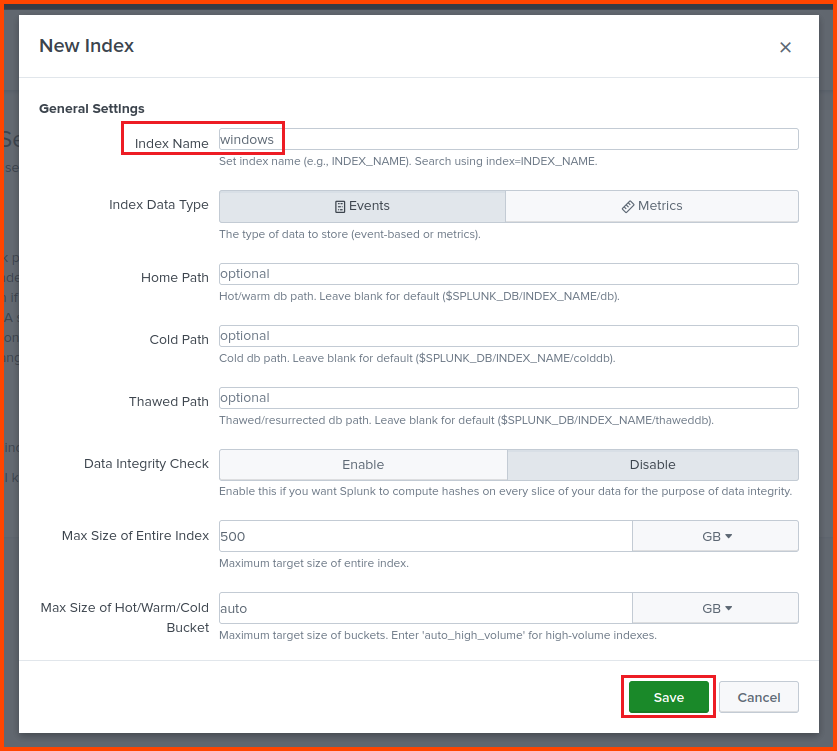
Provide the Index a name. Keep all the other fields on their default value and click on **`Save`** then click on **`Next`**.

<figure><img src="https://blog.davidvarghese.net/assets/images/building-home-lab-part-10/splunk-31.png" alt=""><figcaption></figcaption></figure>

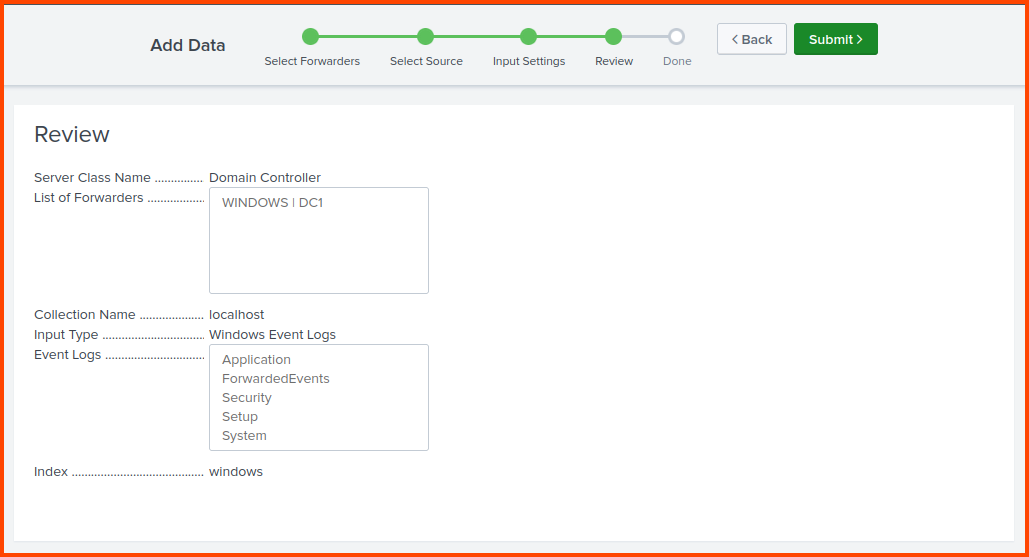
Confirm all the options look correct and click on **`Submit`**.

<figure><img src="https://blog.davidvarghese.net/assets/images/building-home-lab-part-10/splunk-32.png" alt=""><figcaption></figcaption></figure>

#### Querying Data <a href="#querying-data" id="querying-data"></a>

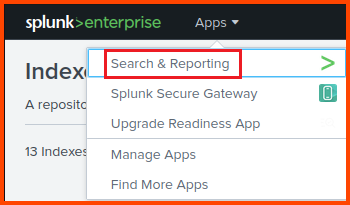
From the Splunk toolbar select **`Apps -> Search & Reporting`**.

<figure><img src="https://blog.davidvarghese.net/assets/images/building-home-lab-part-10/splunk-34.png" alt=""><figcaption></figcaption></figure>

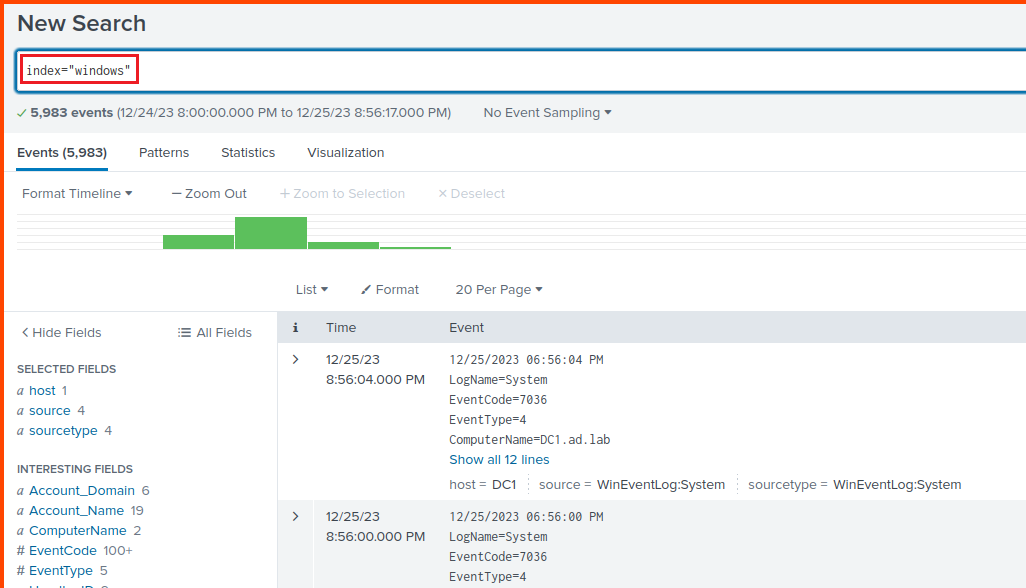
In the search box enter the following to view the ingested data:

```
index="windows"
```

In the above command “windows” is the name I gave my index.

<figure><img src="https://blog.davidvarghese.net/assets/images/building-home-lab-part-10/splunk-35.png" alt=""><figcaption></figcaption></figure>

> If the search does not return any value, wait for 2-3 minutes and then try again. If there is still no data go to the Windows VM and perform some simple actions (open applications, change settings, etc.) then after sometime you should see data flowing into Splunk.

In the next module, we will see how we can download files/malware onto the DFIR VM and then move them over to the Malware Analysis lab using SCP.


---

# Agent Instructions: Querying This Documentation

If you need additional information that is not directly available in this page, you can query the documentation dynamically by asking a question.

Perform an HTTP GET request on the current page URL with the `ask` query parameter:

```
GET https://foothold.gitbook.io/blog/home-lab-part-10.md?ask=<question>
```

The question should be specific, self-contained, and written in natural language.
The response will contain a direct answer to the question and relevant excerpts and sources from the documentation.

Use this mechanism when the answer is not explicitly present in the current page, you need clarification or additional context, or you want to retrieve related documentation sections.