# Home Lab: Part 11
In this module, we will see how we can transfer files using SCP from “Tsurugi Linux” which is on the **`SECURITY`** subnet to VMs on the **`ISOLATED`** subnet.
I recommend this approach to get Malware Samples into the Malware Analysis Lab. We can use other methods for transferring files to these VMs but since we are dealing with Malware I want to keep the samples isolated from the Internet and the host machine filesystem.
### Tsurugi Linux Static IP Assignment
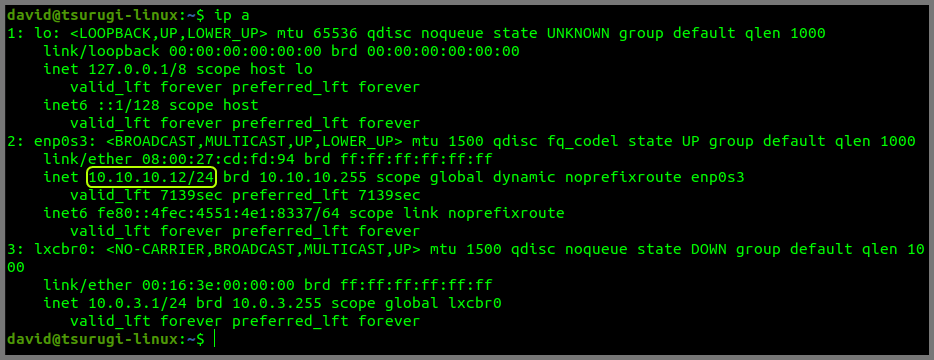
Start the pfSense VM if it is shut down. Once pfSense is up and running. Start the Tsurugi Linux VM. One the terminal and run the following command:
```
ip a
```
Tsurugi Linux has been assigned the IP Address **`10.10.10.12`** by the DHCP server.
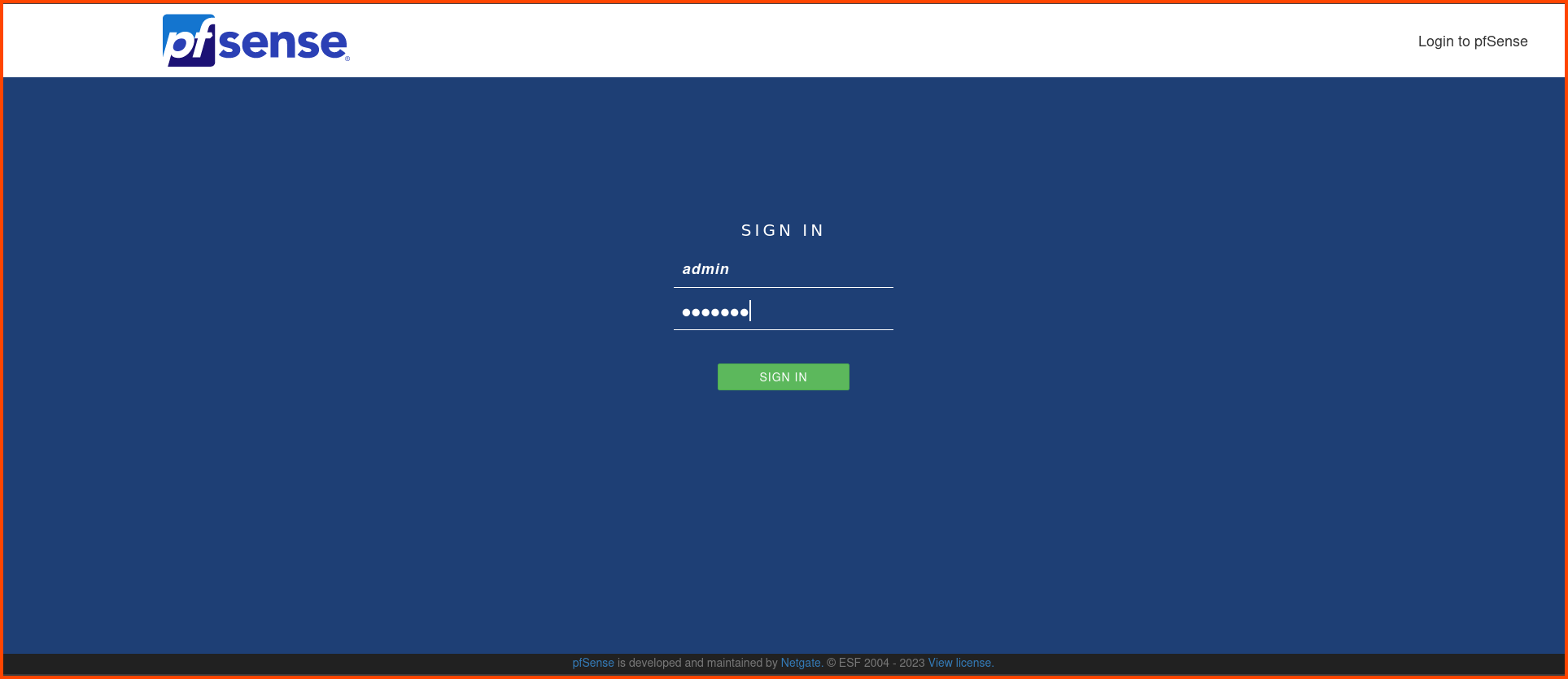
Start the Kali Linux VM and log into the pfSense Web UI.
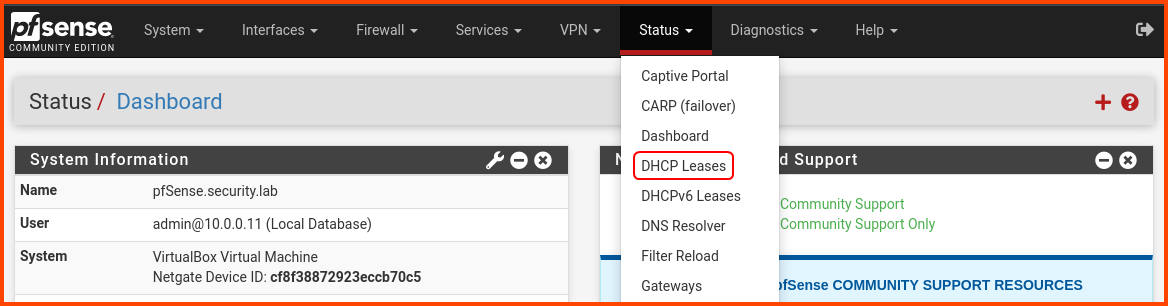
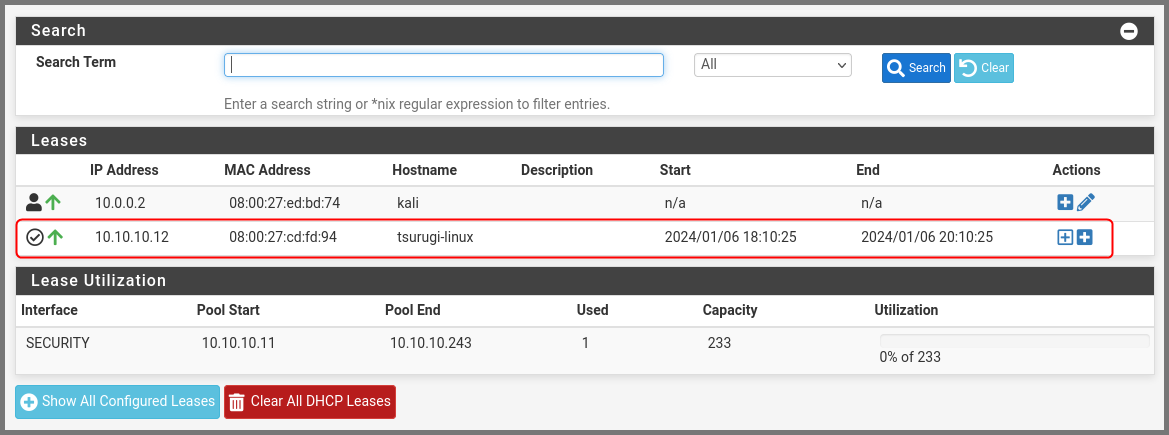
From the navigation bar select **`Status -> DHCP Leases`**.
In the **`Leases`** section find Tsurugi Linux. Click on the hollow “+” icon (Add Static IP) on the right-hand side.
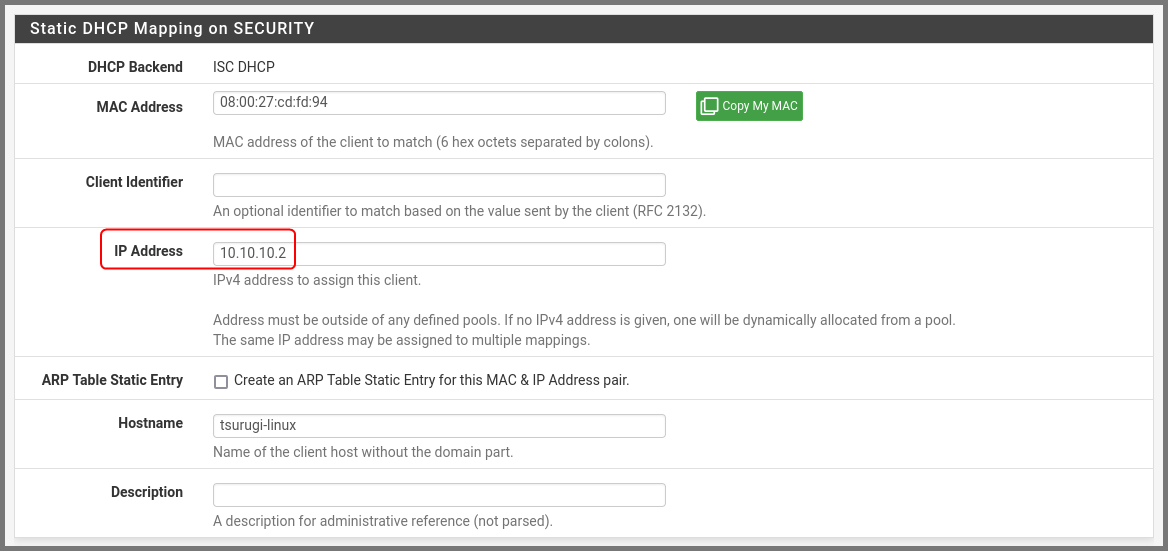
In the IP Address field enter **`10.10.10.2`**. Scroll to the bottom and click on **`Save`**.
A popup will appear at the top. Click on **`Apply Changes`**.
#### Refreshing Tsurugi Linux IP Address
On Tsurugi Linux from the terminal run the following command:
```
# Disable and then Enable the Network Adapter
sudo ip l set enp0s3 down && sudo ip l set enp0s3 up
```
Restarting the adapter will cause the dynamic IP that was assigned to the VM to be released. Run the following command to confirm the VM is using the configured static IP.
```
ip a enp0s3
```
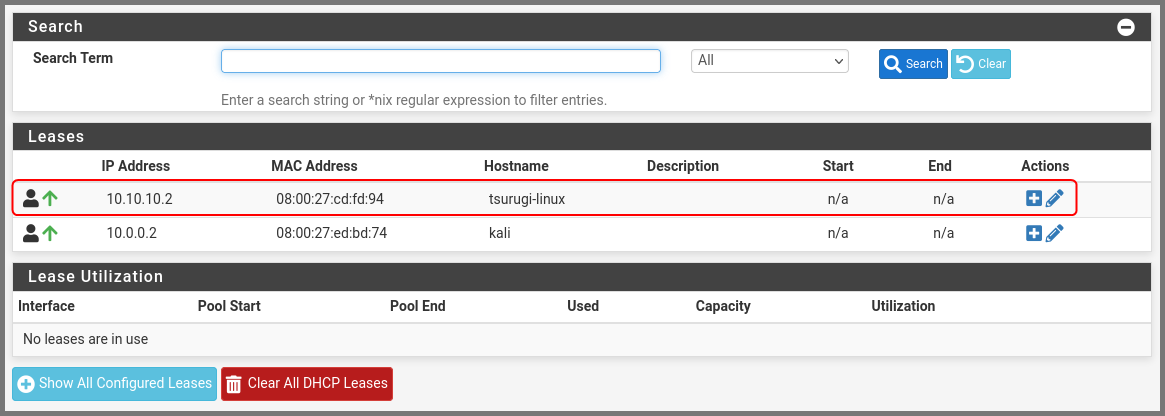
Refresh the DHCP Leases page and we should see that Tsurugi Linux is now using the IP address that we configured.
### pfSense Firewall Configuration
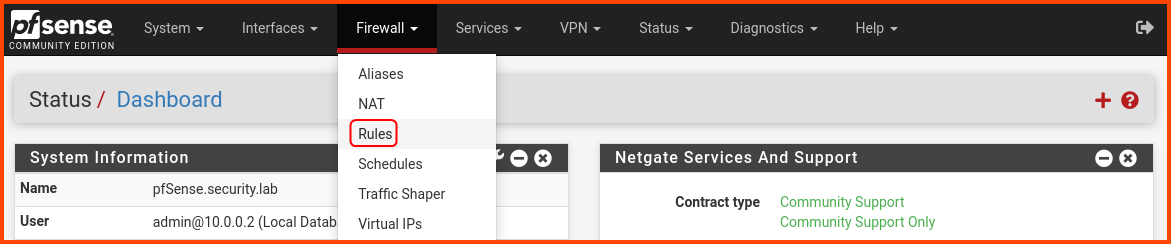
From the navigation bar select **`Firewall -> Rules`**.
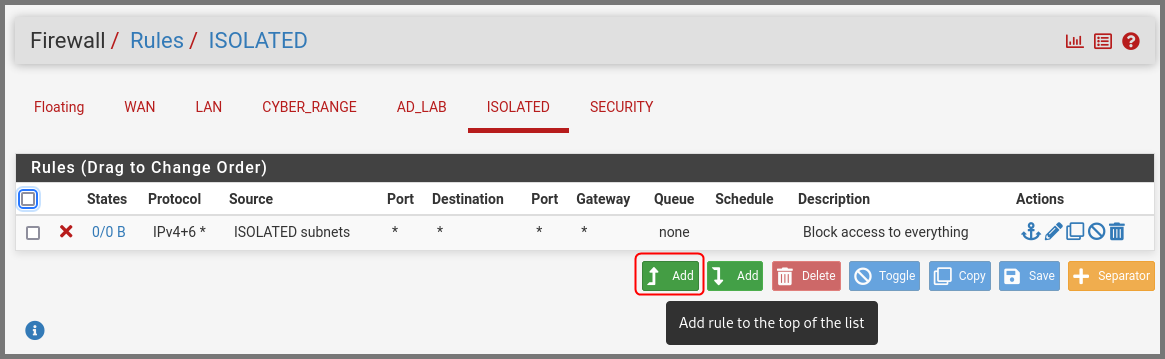
Go to the **`ISOLATED`** subnet tab. Click on the “Add rule to the top of the list” button.
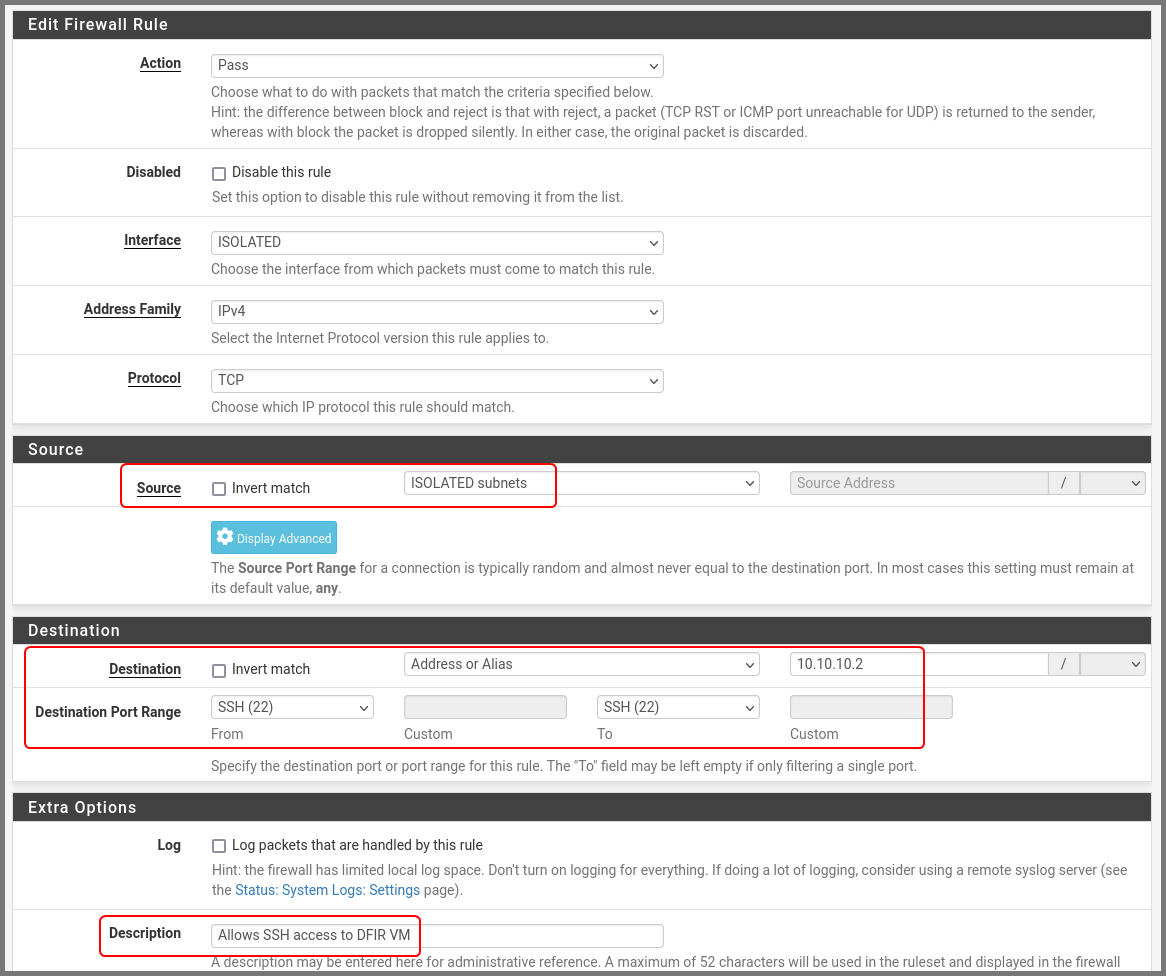
Enter the details as shown below:\
Source: **`ISOLATED subnets`**\
Destination: **`Address or Alias - 10.10.10.2`**\
Destination Port Range: **`SSH (22)`**\
Description: **`Allows SSH access to DFIR VM`**
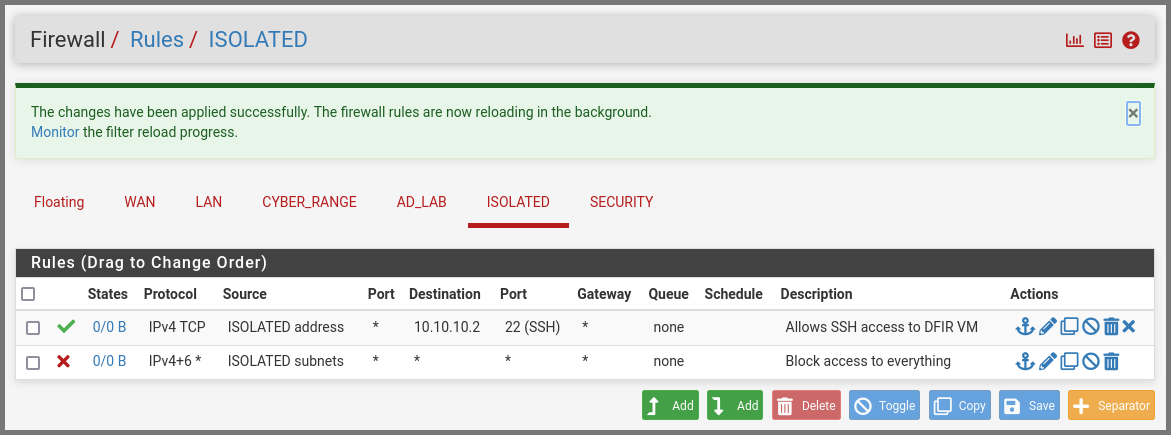
A popup will appear at the top of the page. Click on **`Apply Changes`**.
The final firewall rules will look as follows:
### Enabling SSH
#### Tsurugi Linux
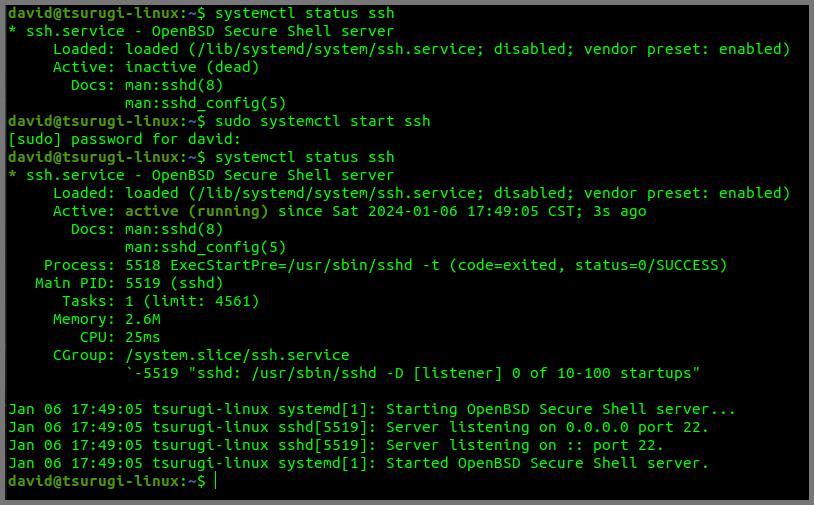
Run the following command to check if SSH is running.
```
systemctl status ssh
```
If SSH is disabled use the following command to enable it.
```
sudo systemctl start ssh
```
#### Flare VM (Windows)
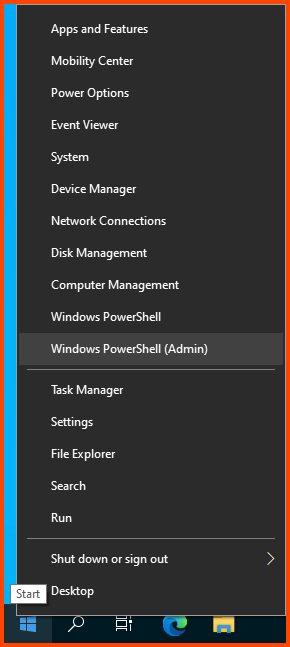
Right-click on the Start menu icon. Select **`Windows PowerShell (Admin)`**.
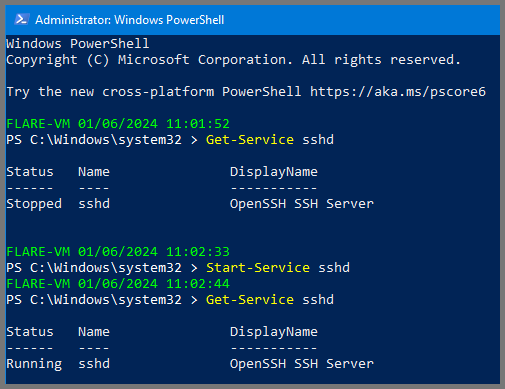
Enter the following command to check if the SSH server is running.
```
Get-Service sshd
```
Run the following to enable the SSH server.
```
Start-Service sshd
```
[How to SSH into a Windows 10 Machine from anywhere - Scott Hanselman’s Blog](https://www.hanselman.com/blog/how-to-ssh-into-a-windows-10-machine-from-linux-or-windows-or-anywhere)
#### REMnux Linux
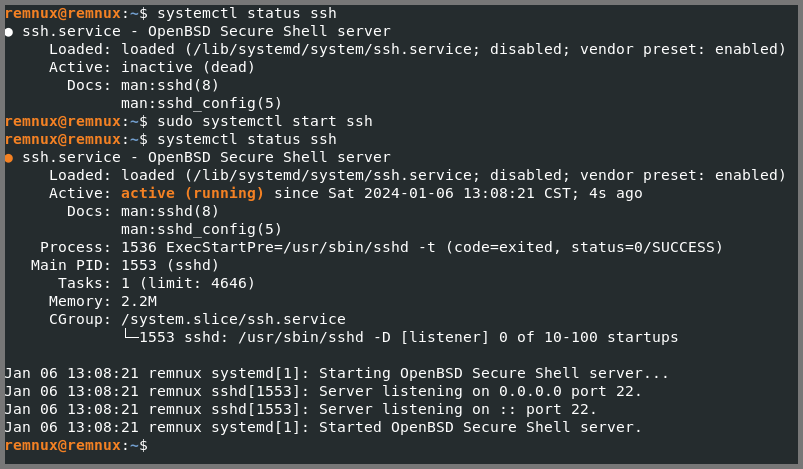
Running the following commands to check the status of SSH and enable it.
```
# Check Status
systemctl status ssh
# Enable SSH
sudo systemctl start ssh
```
### Testing SSH Connectivity
#### Finding Target VM IP Address
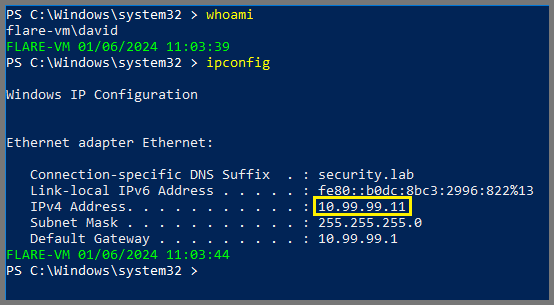
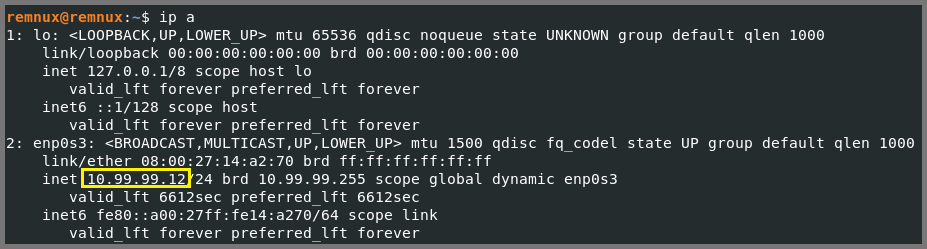
To connect to Flare VM and REMnux we need their IP address.
```
ipconfig
```
```
ip a
```
#### Connecting to Flare VM
In my case, the IP address of Flare VM is **`10.99.99.11`**.
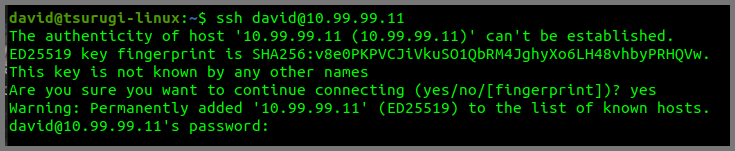
Use the following command to remote into Flare VM from Tsurugi Linux.
```
# ssh target-system-username@target-system-ip-address
ssh david@10.99.99.11
```
Type **`yes`** to add the fingerprint.\
Enter the password of the target system when prompted.
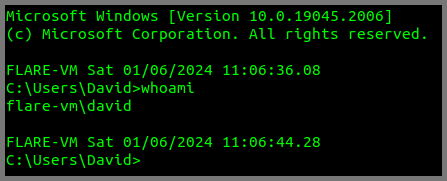
This will log you into Flare VM.
Type **`exit`** to quit the remote connection.
#### Connecting to REMnux Linux
In my case, the IP address for REMnux is **`10.99.99.12`**.
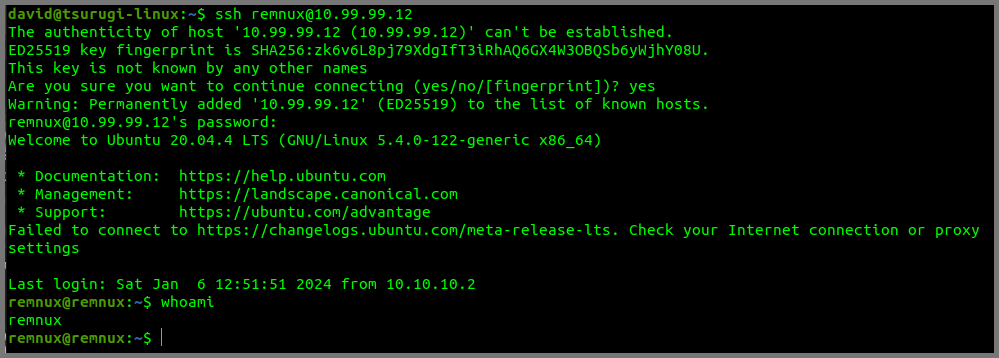
Use the following command to remote into REMnux from Tsurugi Linux.
```
# ssh target-system-username@target-system-ip-address
ssh remnux@10.99.99.12
```
Type **`yes`** to add the fingerprint.\
Enter the password of the target system when prompted.
Type **`exit`** to quit the remote connection.
### SCP File Transfer
Now we know that we can connect to the Malware Analysis Lab VMs from Tsurugi Linux.
To demonstrate how to transfer files from Tsurugi Linux to the Malware Analysis Lab VMs I will use a simple text file. To follow along run the following commands on Tsurugi Linux:
```
cd Downloads
echo "Hello Hello World" > hello.txt
cat hello.txt
```
#### File Transfer to Flare VM
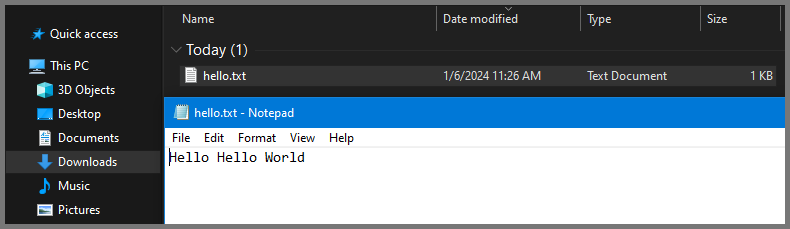
To transfer **`hello.txt`** to the target systems we will use SCP which is can command line utility that uses SSH to securely copy files over the network.
Run the following command to copy the file to Flare VM.
```
# scp file-to-copy target-ysername@target-ip-address:destination-path
scp hello.txt david@10.99.99.11:/C:/Users/David/Downloads
```
The above command will copy the file into the Downloads folder on Flare VM.
#### File Transfer to REMnux Linux
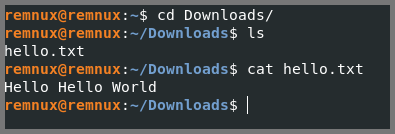
Using the same command we can move the file onto REMnux as well.
```
# scp file-to-copy target-ysername@target-ip-address:destination-path
scp hello.txt remnux@10.99.99.12:~/Downloads
```
The above command will copy the file into the Downloads folder on REMnux.
> To copy a whole folder use the **`-r`** (recursive) flag with the SCP command\
> [SCP Linux - Securely Copy Files Using SCP examples](https://linuxblog.io/linux-securely-copy-files-using-scp/)
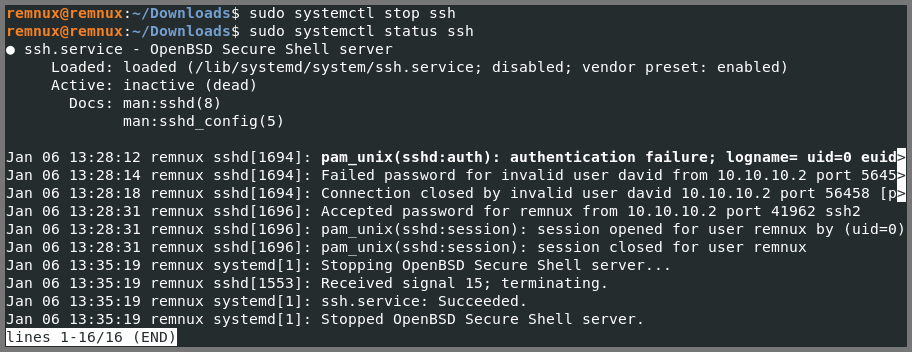
### Disabling SSH
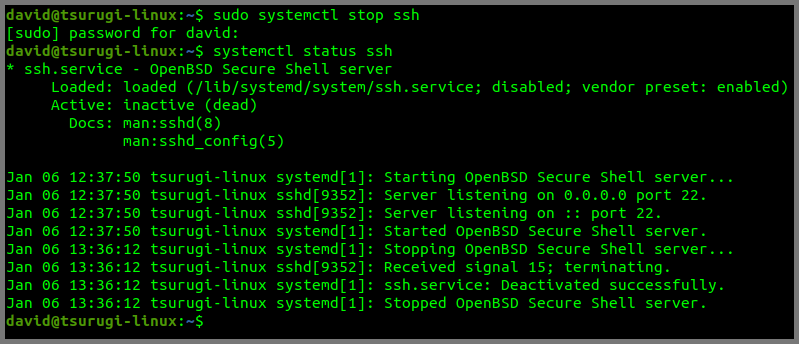
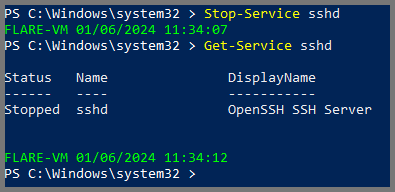
Once you copy the required files onto the Malware Analysis lab use the following commands to disable SSH on all the systems.
#### Tsurugi Linux
```
sudo systemctl stop ssh
```
#### Flare VM (Windows)
```
Stop-Service sshd
```
#### REMnux Linux
```
sudo systemctl stop ssh
```
---
# Agent Instructions: Querying This Documentation
If you need additional information that is not directly available in this page, you can query the documentation dynamically by asking a question.
Perform an HTTP GET request on the current page URL with the `ask` query parameter:
```
GET https://foothold.gitbook.io/blog/home-lab-part-11.md?ask=
```
The question should be specific, self-contained, and written in natural language.
The response will contain a direct answer to the question and relevant excerpts and sources from the documentation.
Use this mechanism when the answer is not explicitly present in the current page, you need clarification or additional context, or you want to retrieve related documentation sections.