# Home Lab: Part 4

<figure><img src="https://blog.davidvarghese.net/assets/images/building-home-lab-part-4/building-home-lab-part-4-banner.png" alt=""><figcaption></figcaption></figure>

> **Changelog**
>
> * **Feb. 23, 2025**
>   * Added instructions to disable DHCPv6 on the WAN interface.

In this module, we will finish the pending pfSense setup. After that, we will define firewall rules for the subnets we defined for our home lab.

### pfSense General Configuration <a href="#pfsense-general-configuration" id="pfsense-general-configuration"></a>

#### Web Portal Setup <a href="#web-portal-setup" id="web-portal-setup"></a>

On the Kali Linux VM, open the web browser and navigate to **`https://10.0.0.1`**.

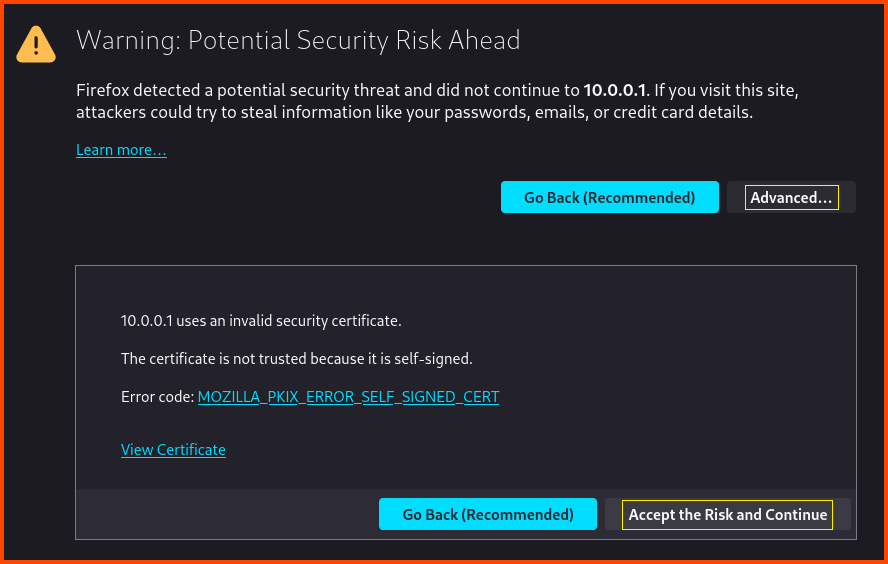
You will get the following message Warning: Potential Security Risk Ahead. This warning can be ignored. We get this warning because the URL that we are trying to access does not use the secure HTTP (HTTPS). Click on **`Advanced`** and then click on **`Accept the Risk and Continue`**.

<figure><img src="https://blog.davidvarghese.net/assets/images/building-home-lab-part-4/pfsense-26.png" alt=""><figcaption></figcaption></figure>

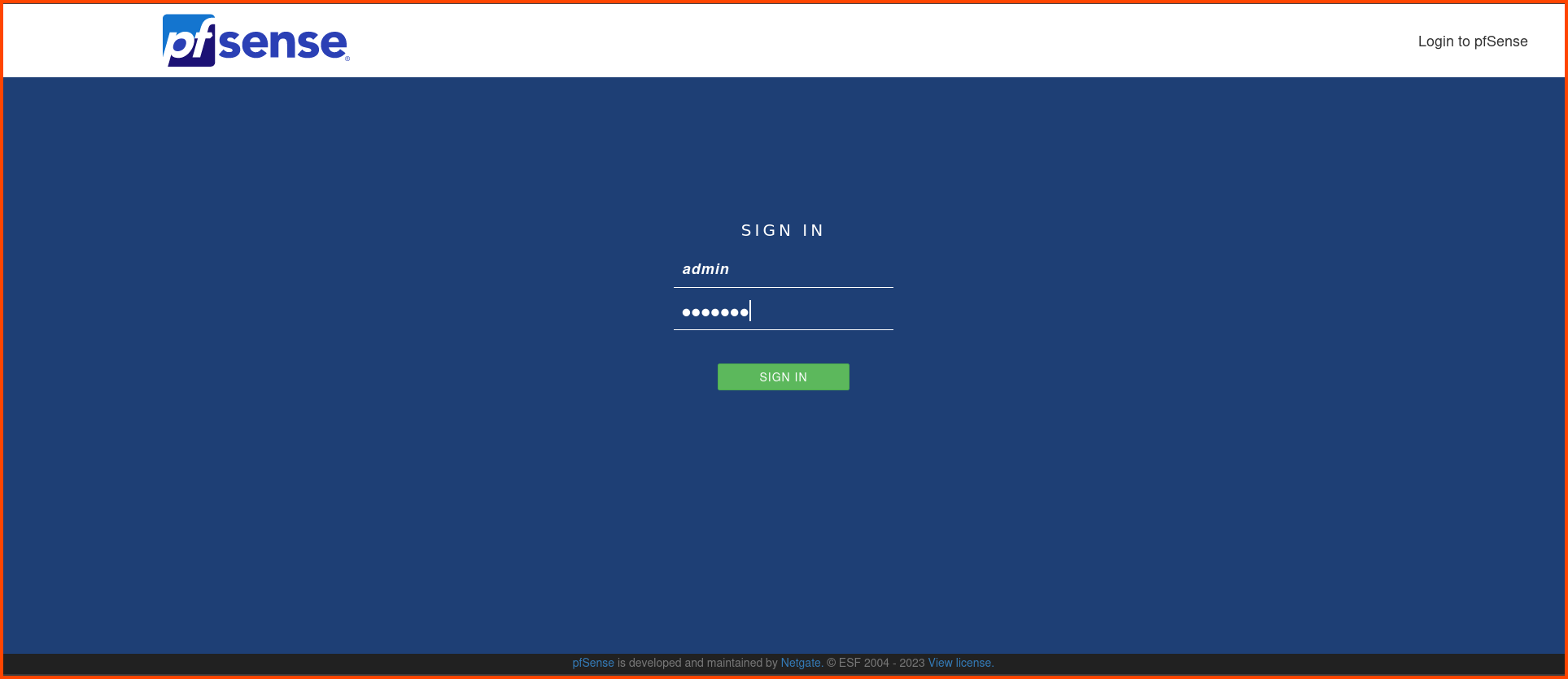
This will open the pfSense Web UI login page. Login using the default credentials.\
Username: **`admin`**\
Password: **`pfsense`**

<figure><img src="https://blog.davidvarghese.net/assets/images/building-home-lab-part-4/pfsense-27.png" alt=""><figcaption></figcaption></figure>

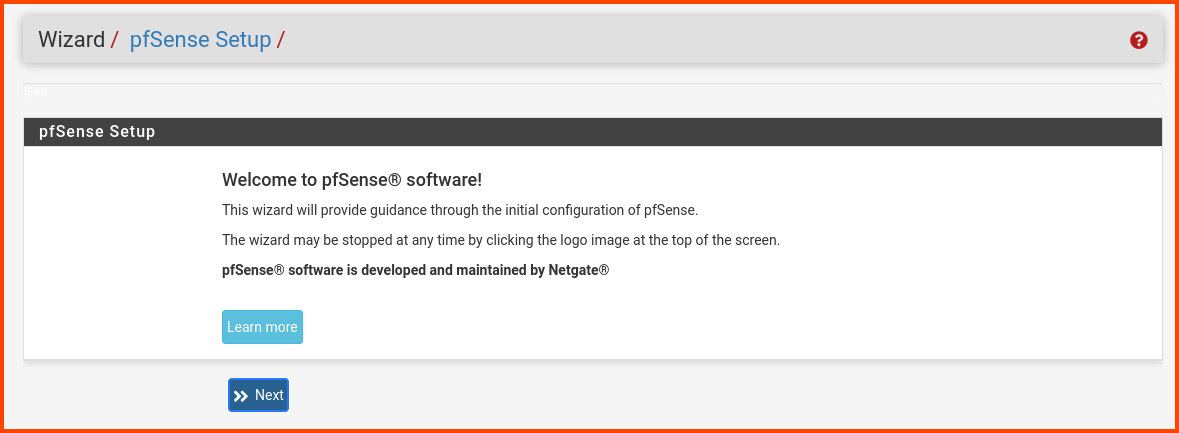
Click on **`Next`**.

<figure><img src="https://blog.davidvarghese.net/assets/images/building-home-lab-part-4/pfsense-28.png" alt=""><figcaption></figcaption></figure>

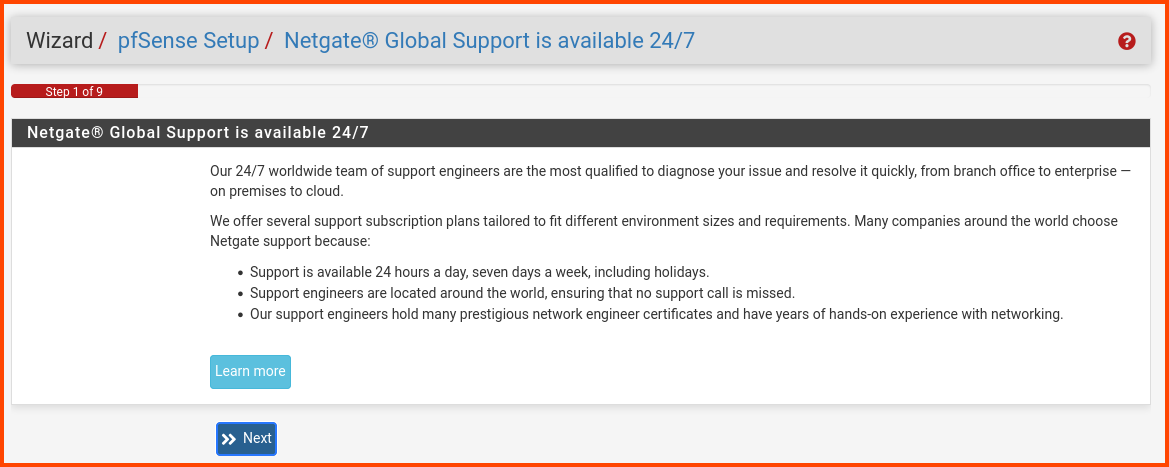
Click **`Next`** again.

<figure><img src="https://blog.davidvarghese.net/assets/images/building-home-lab-part-4/pfsense-29.png" alt=""><figcaption></figcaption></figure>

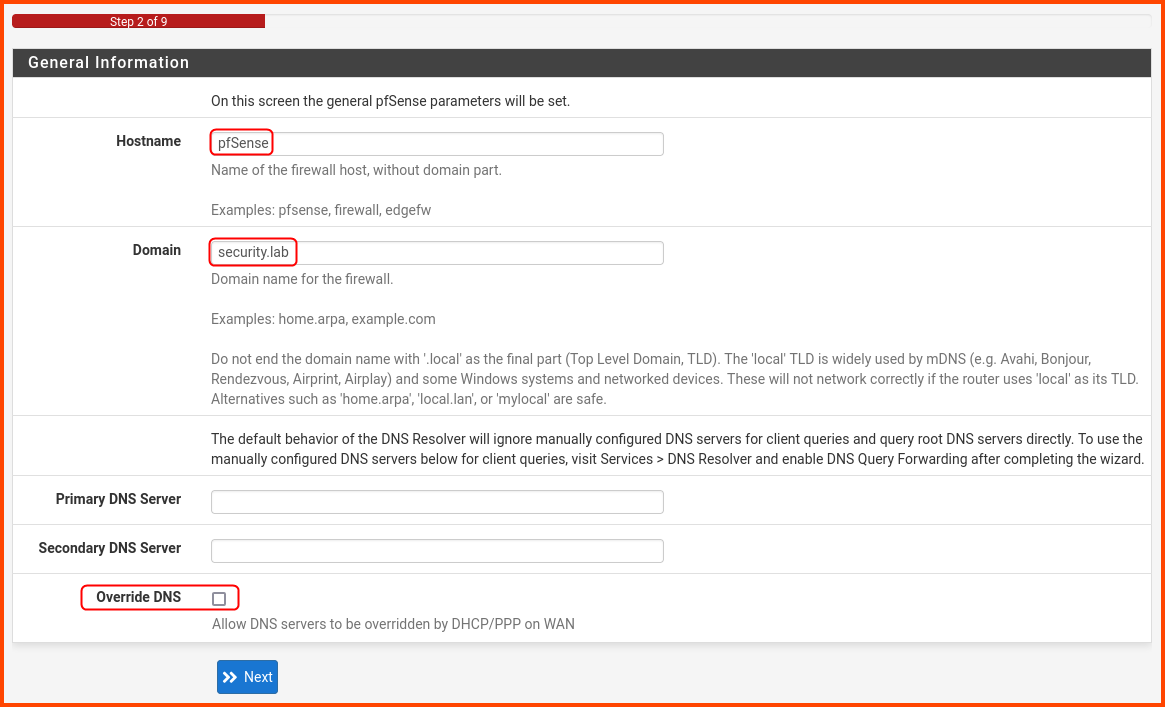
In the **`General Information`** section. Provide a Hostname and Domain name. This can be any name you choose. The hostname can be used to identify the pfSense VM on the network. Uncheck the Override DNS option and then click **`Next`**.

<figure><img src="https://blog.davidvarghese.net/assets/images/building-home-lab-part-4/pfsense-30.png" alt=""><figcaption></figcaption></figure>

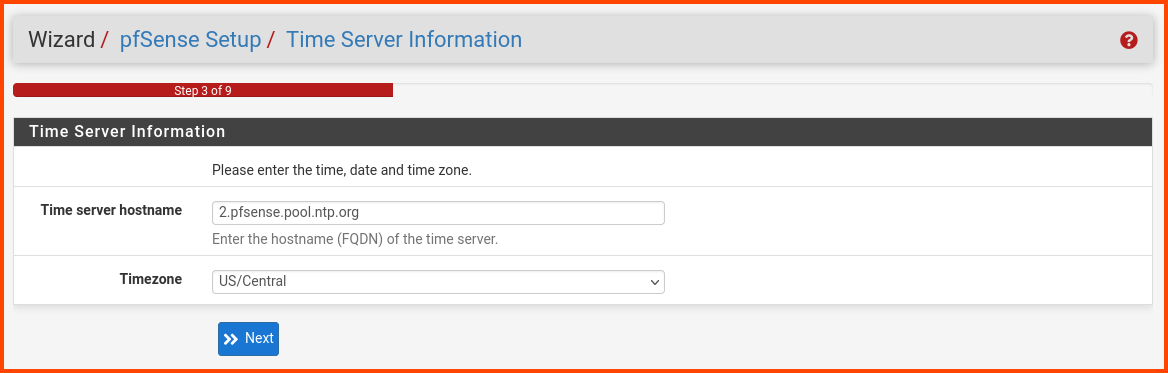
Select your Timezone and then click **`Next`**.

<figure><img src="https://blog.davidvarghese.net/assets/images/building-home-lab-part-4/pfsense-31.png" alt=""><figcaption></figcaption></figure>

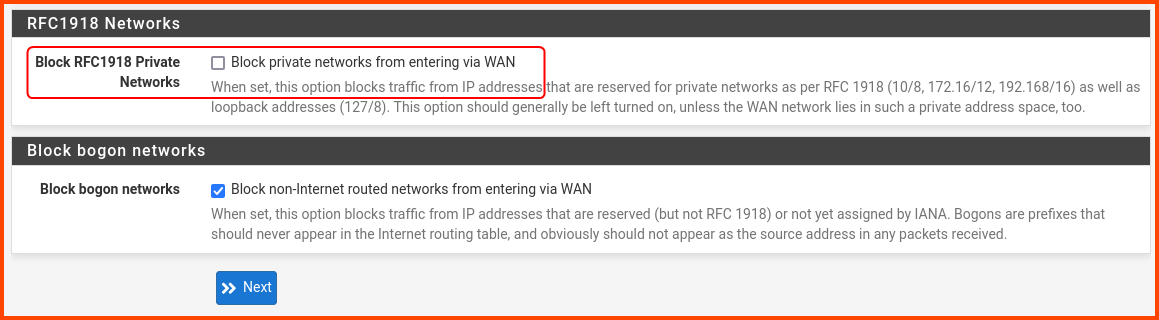
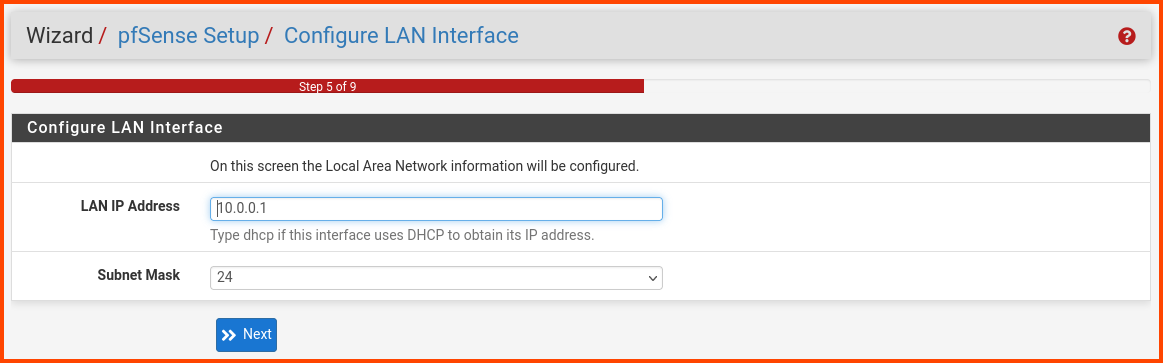
Scroll to the bottom of the page and look for the **`RFC1918 Networks`** section. Uncheck the Block RFC1918 Private Networks option.

<figure><img src="https://blog.davidvarghese.net/assets/images/building-home-lab-part-4/pfsense-32.png" alt=""><figcaption></figcaption></figure>

> We disable this option because our WAN interface is not an real WAN interface. It uses an private IP address instead of an public IP address which would be used by a real WAN interface to connect to the Internet.\
> Our WAN interface uses a private IP address to send data packets to the host system which then sends the data packets to the router present in the network.

Don’t change any value on this page. Click on **`Next`**.

<figure><img src="https://blog.davidvarghese.net/assets/images/building-home-lab-part-4/pfsense-33.png" alt=""><figcaption></figcaption></figure>

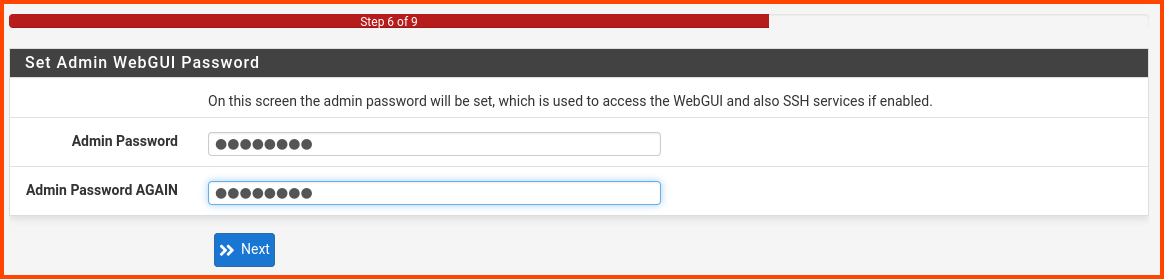
Enter a new password for the admin user. Store the password in a secure place.

<figure><img src="https://blog.davidvarghese.net/assets/images/building-home-lab-part-4/pfsense-34.png" alt=""><figcaption></figcaption></figure>

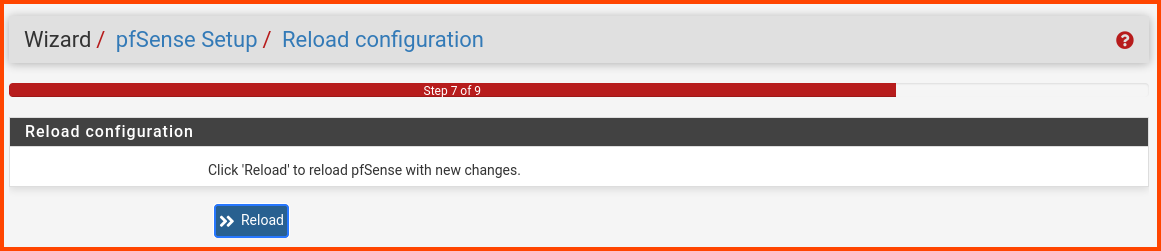
Click on **`Reload`** to apply the changes.

<figure><img src="https://blog.davidvarghese.net/assets/images/building-home-lab-part-4/pfsense-35.png" alt=""><figcaption></figcaption></figure>

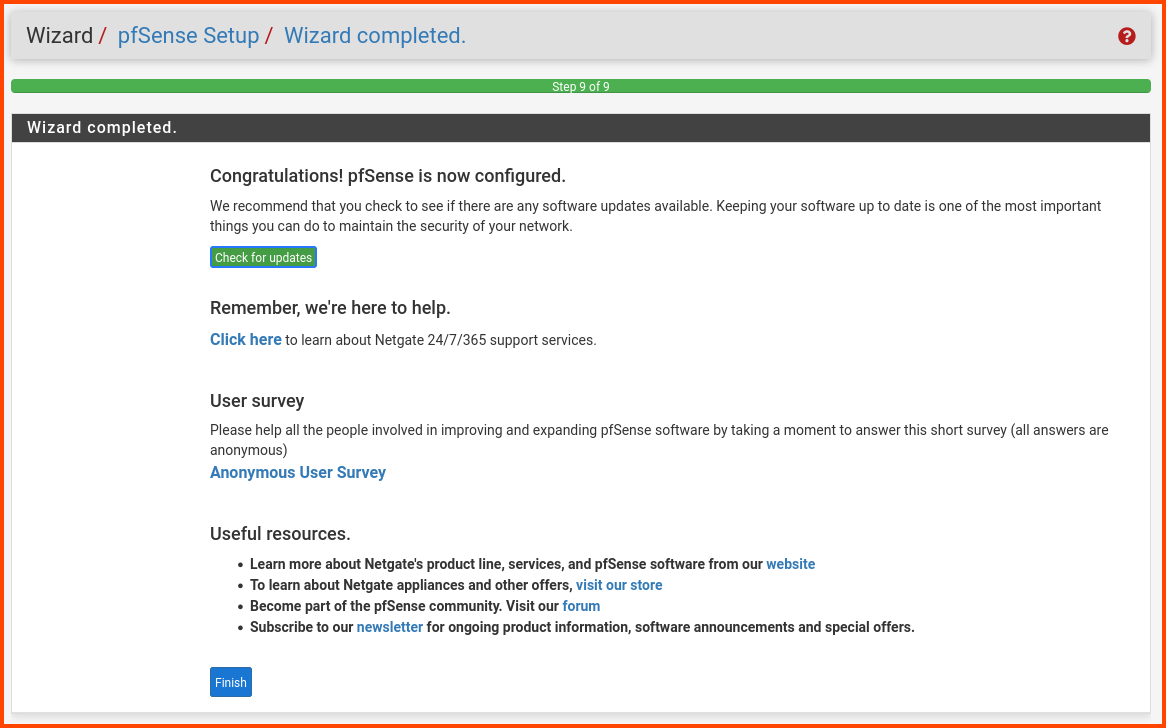
Click on **`Finish`**.

<figure><img src="https://blog.davidvarghese.net/assets/images/building-home-lab-part-4/pfsense-36.png" alt=""><figcaption></figcaption></figure>

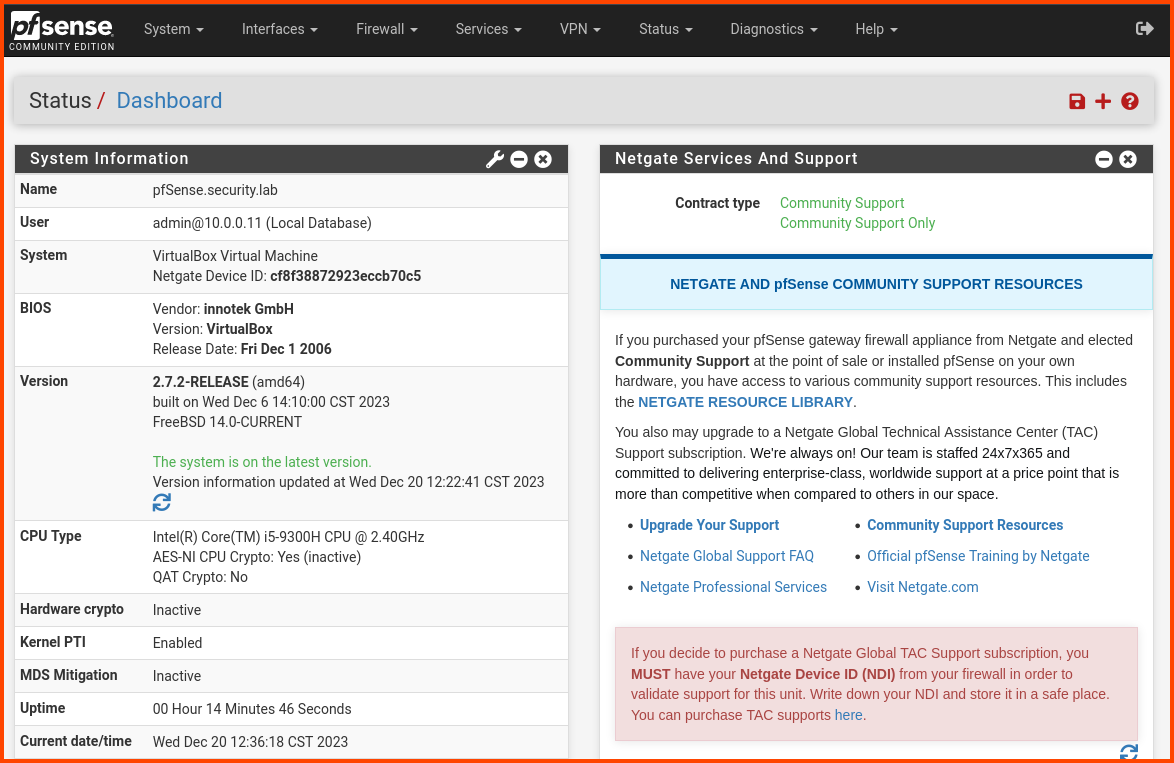
Once the onboarding is complete we will be able to access the pfSense dashboard.

<figure><img src="https://blog.davidvarghese.net/assets/images/building-home-lab-part-4/pfsense-37.png" alt=""><figcaption></figcaption></figure>

#### Interface Renaming <a href="#interface-renaming" id="interface-renaming"></a>

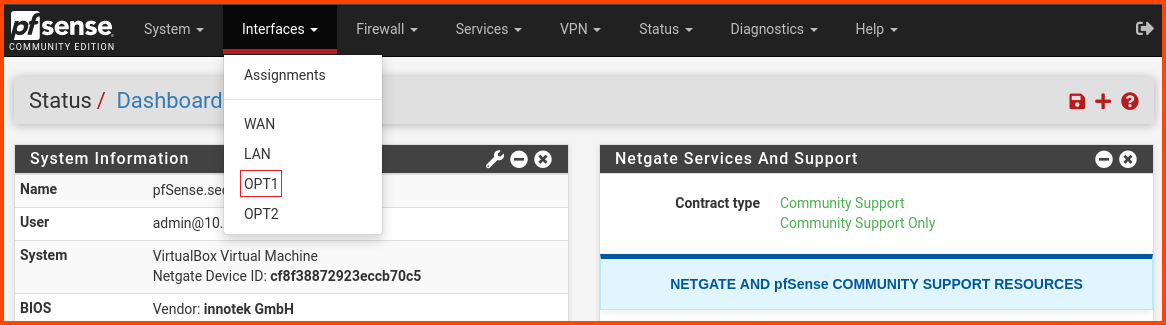
From the navigation bar select **`Interfaces -> OPT1`**.

<figure><img src="https://blog.davidvarghese.net/assets/images/building-home-lab-part-4/pfsense-38.png" alt=""><figcaption></figcaption></figure>

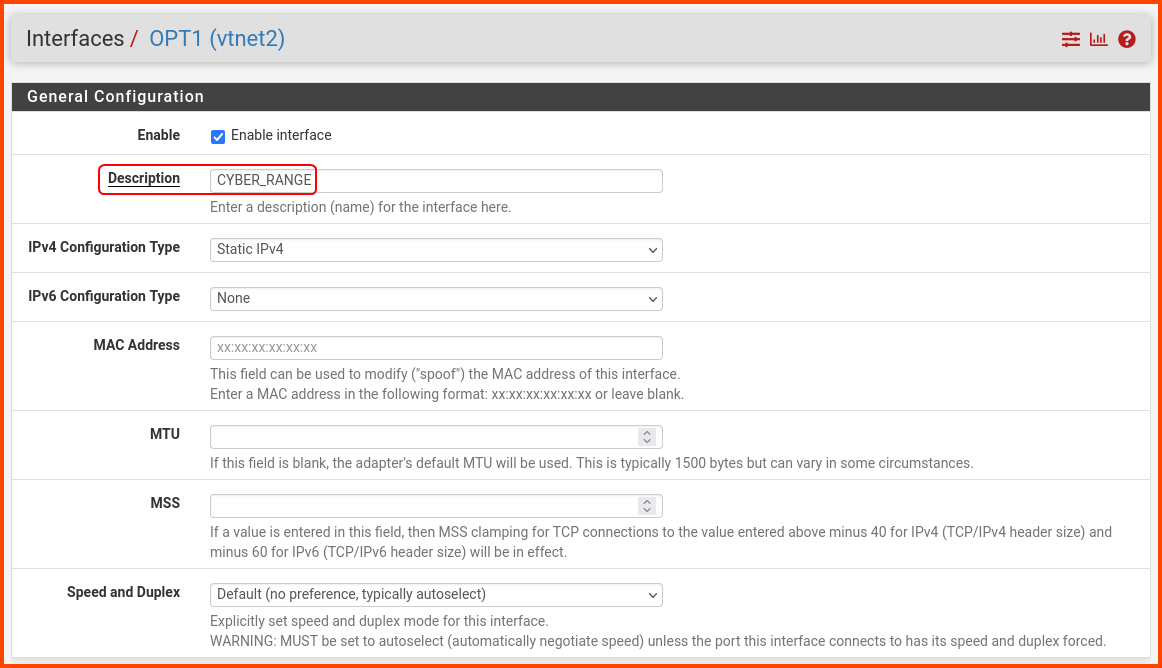
In the Description field enter **`CYBER_RANGE`**. Scroll to the bottom and click on **`Save`**.

<figure><img src="https://blog.davidvarghese.net/assets/images/building-home-lab-part-4/pfsense-39.png" alt=""><figcaption></figcaption></figure>

At the top of the page, a new popup will appear. Click on **`Apply Changes`**.

<figure><img src="https://blog.davidvarghese.net/assets/images/building-home-lab-part-4/pfsense-40.png" alt=""><figcaption></figcaption></figure>

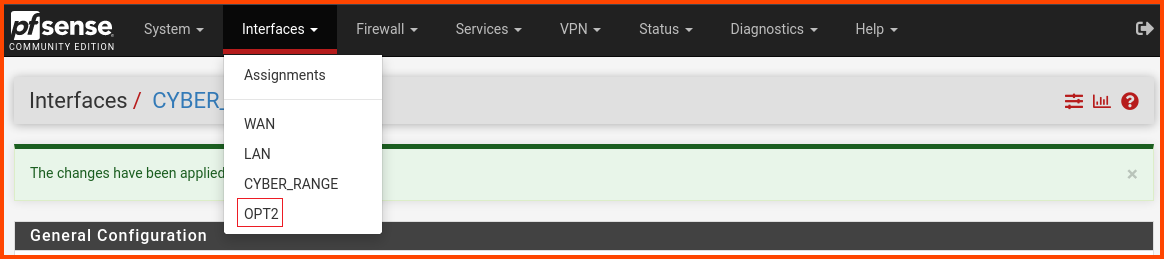
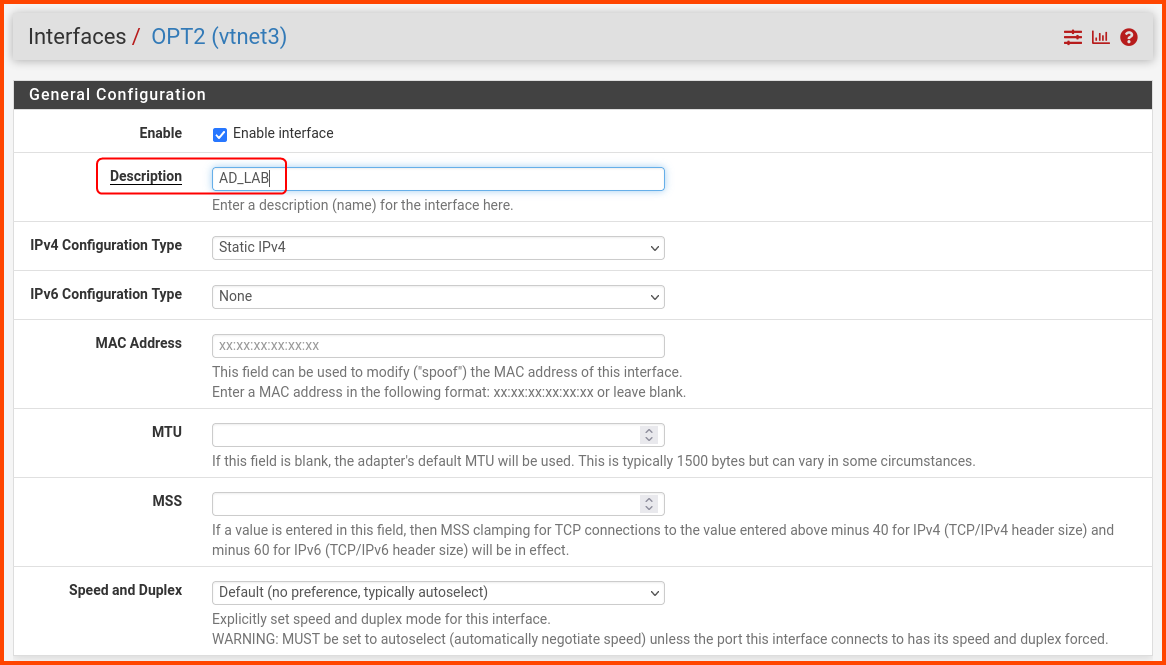
From the navigation bar select **`Interfaces -> OPT2`**.

<figure><img src="https://blog.davidvarghese.net/assets/images/building-home-lab-part-4/pfsense-41.png" alt=""><figcaption></figcaption></figure>

In the Description field enter **`AD_LAB`**. Scroll to the bottom of the page and click on **`Save`**. A popup will appear at the top of the page click on **`Apply Changes`**.

<figure><img src="https://blog.davidvarghese.net/assets/images/building-home-lab-part-4/pfsense-42.png" alt=""><figcaption></figcaption></figure>

#### DNS Resolver Configuration <a href="#dns-resolver-configuration" id="dns-resolver-configuration"></a>

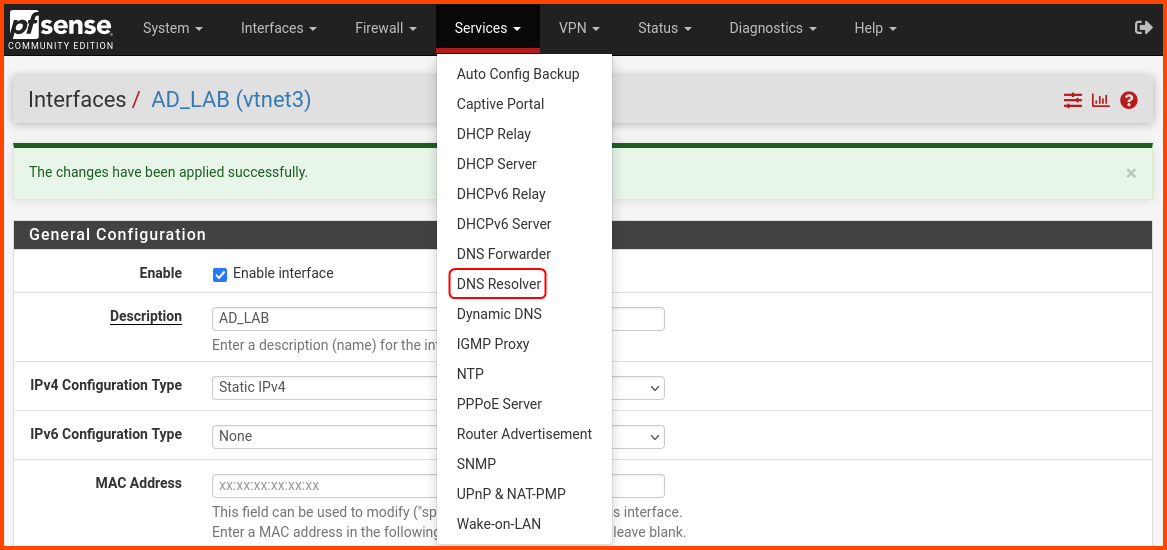
From the navigation bar select **`Services -> DNS Resolver`**.

<figure><img src="https://blog.davidvarghese.net/assets/images/building-home-lab-part-4/pfsense-43.png" alt=""><figcaption></figcaption></figure>

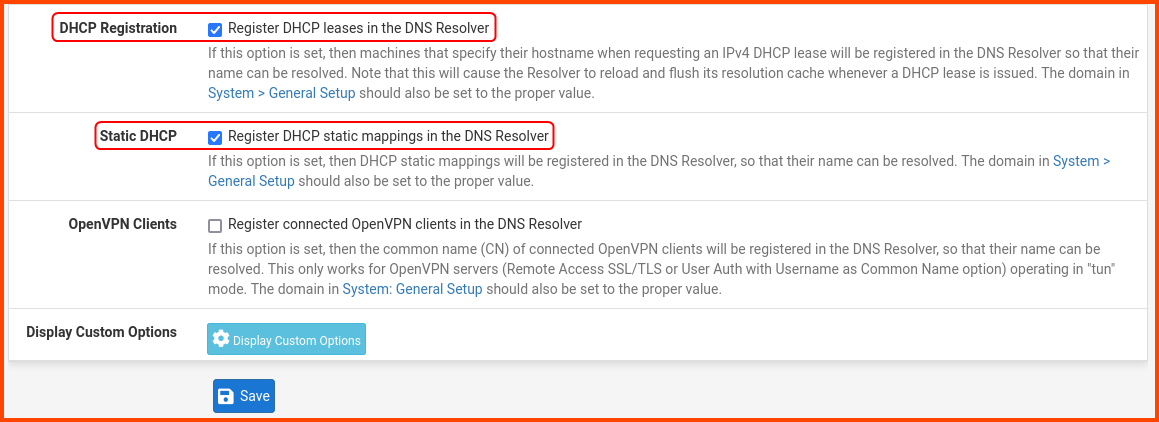
Scroll to the bottom of the page, look for the highlighted options and enable them. No need to save just yet. Scroll to the top of the page.

<figure><img src="https://blog.davidvarghese.net/assets/images/building-home-lab-part-4/pfsense-44.png" alt=""><figcaption></figcaption></figure>

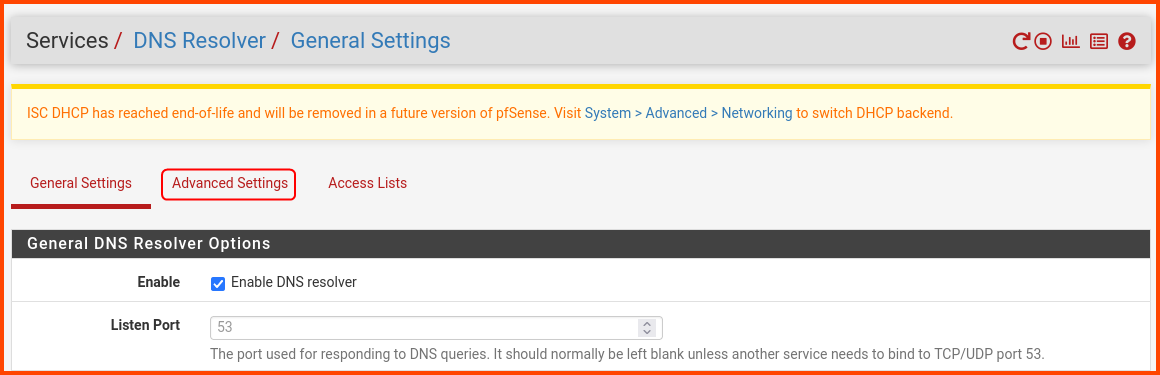
Click on **`Advanced Settings`**.

<figure><img src="https://blog.davidvarghese.net/assets/images/building-home-lab-part-4/pfsense-45.png" alt=""><figcaption></figcaption></figure>

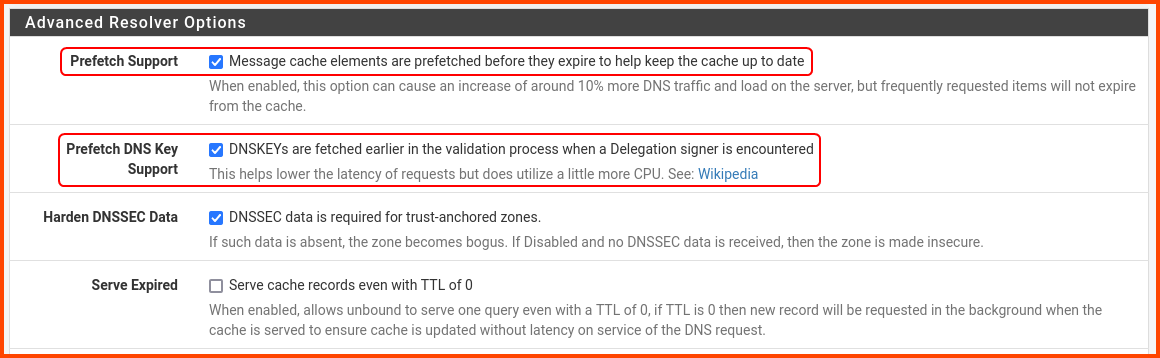
Scroll down to the **`Advanced Resolver Options`** section and enable the highlighted options. Scroll to the end and click on **`Save`**.

<figure><img src="https://blog.davidvarghese.net/assets/images/building-home-lab-part-4/pfsense-46.png" alt=""><figcaption></figcaption></figure>

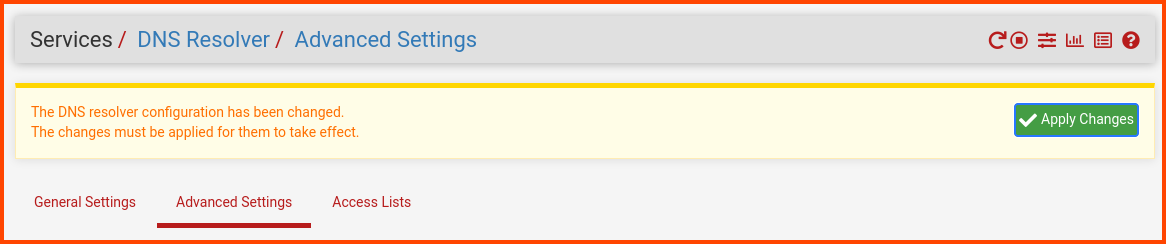
A popup will appear at the top of the page. Click on **`Apply Changes`**.

<figure><img src="https://blog.davidvarghese.net/assets/images/building-home-lab-part-4/pfsense-47.png" alt=""><figcaption></figcaption></figure>

#### Disabling DHCPv6 <a href="#disabling-dhcpv6" id="disabling-dhcpv6"></a>

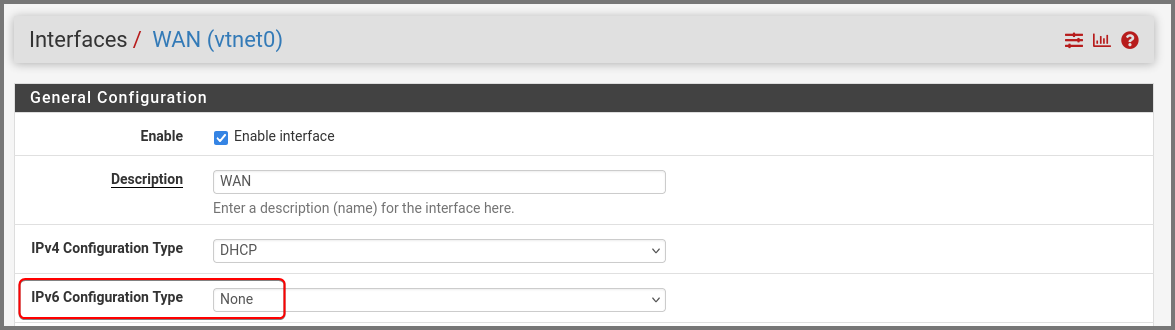
Newer versions of VirtualBox/pfSense seem to prefer IPv6 for dynamic IP address assignment. You can disable DHCPv6 to prevent IPv6 addresses from being assigned to the WAN interface.

From the navigation bar select **`Interfaces -> WAN`**.

<figure><img src="https://blog.davidvarghese.net/assets/images/building-home-lab-part-4/pfsense-121.png" alt=""><figcaption></figcaption></figure>

Set IPv6 Configuration Type to **`None`**. Scroll to the bottom and click on **`Save`**.

<figure><img src="https://blog.davidvarghese.net/assets/images/building-home-lab-part-4/pfsense-120.png" alt=""><figcaption></figcaption></figure>

At the top of the page, a new popup will appear. Click on **`Apply Changes`**.

<figure><img src="https://blog.davidvarghese.net/assets/images/building-home-lab-part-4/pfsense-122.png" alt=""><figcaption></figcaption></figure>

Restart the pfSense VM. Now, the WAN interface should have an IPv4 address.

#### Advanced Configuration <a href="#advanced-configuration" id="advanced-configuration"></a>

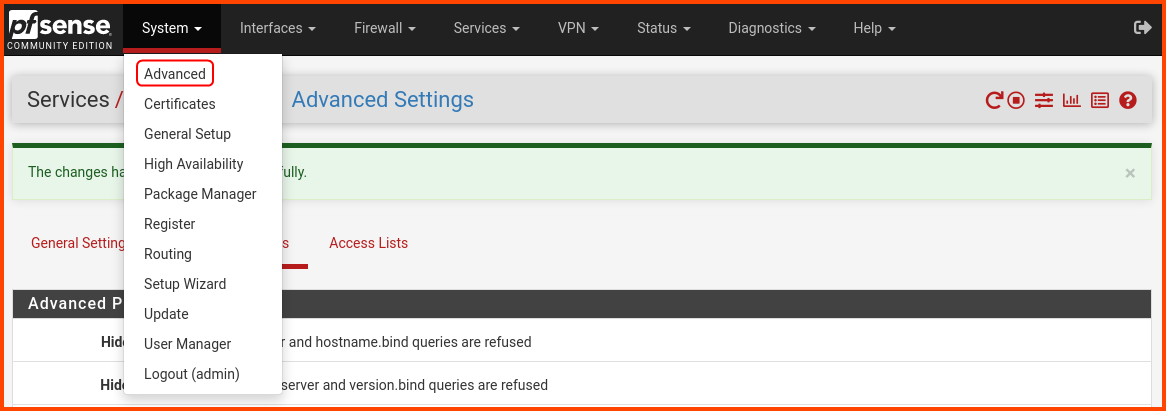
From the navigation bar select **`System -> Advanced`**.

<figure><img src="https://blog.davidvarghese.net/assets/images/building-home-lab-part-4/pfsense-48.png" alt=""><figcaption></figcaption></figure>

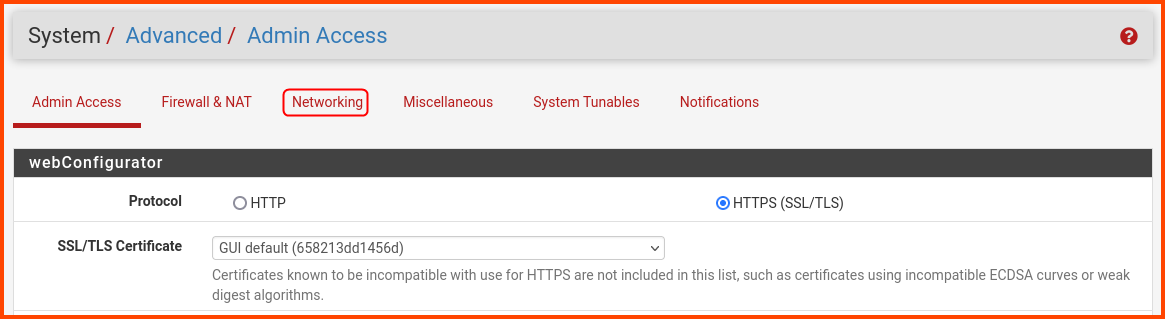
Go to the **`Networking`** tab

<figure><img src="https://blog.davidvarghese.net/assets/images/building-home-lab-part-4/pfsense-49.png" alt=""><figcaption></figcaption></figure>

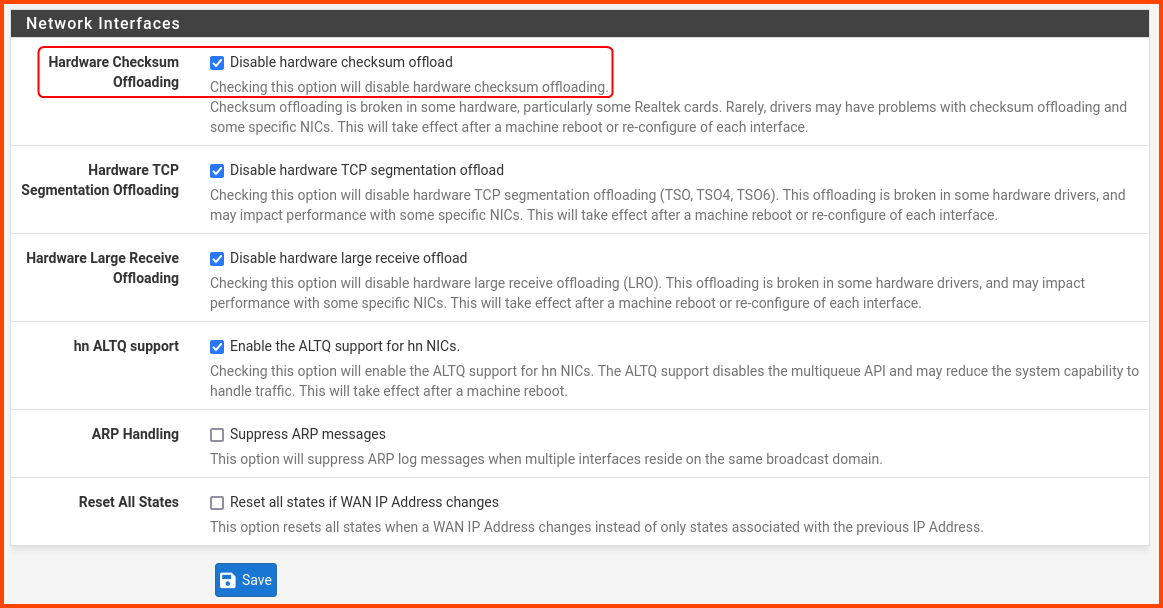
Scroll to the end in the **`Network Interfaces`** section and enable the highlighted option. This option should improve the performance of pfSense. Click on **`Save`**.

<figure><img src="https://blog.davidvarghese.net/assets/images/building-home-lab-part-4/pfsense-50.png" alt=""><figcaption></figcaption></figure>

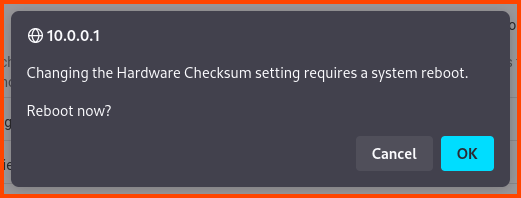
A popup will appear click on **`OK`** to reboot pfSense.

<figure><img src="https://blog.davidvarghese.net/assets/images/building-home-lab-part-4/pfsense-51.png" alt=""><figcaption></figcaption></figure>

The following page will be shown while pfSense applies the changes.

<figure><img src="https://blog.davidvarghese.net/assets/images/building-home-lab-part-4/pfsense-52.png" alt=""><figcaption></figcaption></figure>

Once the reboot is complete we will be asked to log in again. Use the new password to access the Dashboard.

<figure><img src="https://blog.davidvarghese.net/assets/images/building-home-lab-part-4/pfsense-27.png" alt=""><figcaption></figcaption></figure>

### Kali Linux Static IP Assignment <a href="#kali-linux-static-ip-assignment" id="kali-linux-static-ip-assignment"></a>

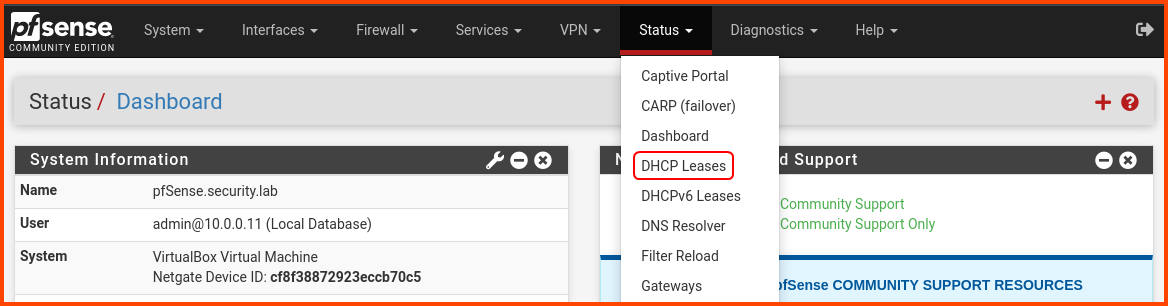
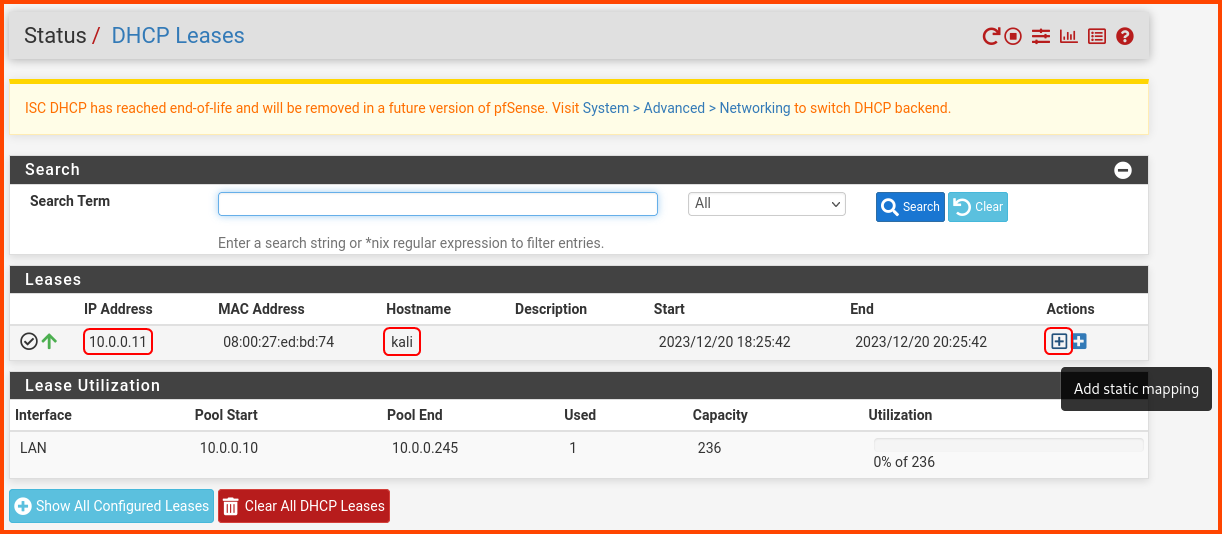
From the navigation bar select **`Status -> DHCP Leases`**.

<figure><img src="https://blog.davidvarghese.net/assets/images/building-home-lab-part-4/pfsense-53.png" alt=""><figcaption></figcaption></figure>

In the **`Leases`** section, we should see the Kali Linux VM with its current IP address. Click on the highlighted **`+`** icon to assign a static IP to Kali Linux. The static IP will make it easier for us to apply firewall rules to interfaces that should only be able to reach the Kali VM.

<figure><img src="https://blog.davidvarghese.net/assets/images/building-home-lab-part-4/pfsense-54.png" alt=""><figcaption></figcaption></figure>

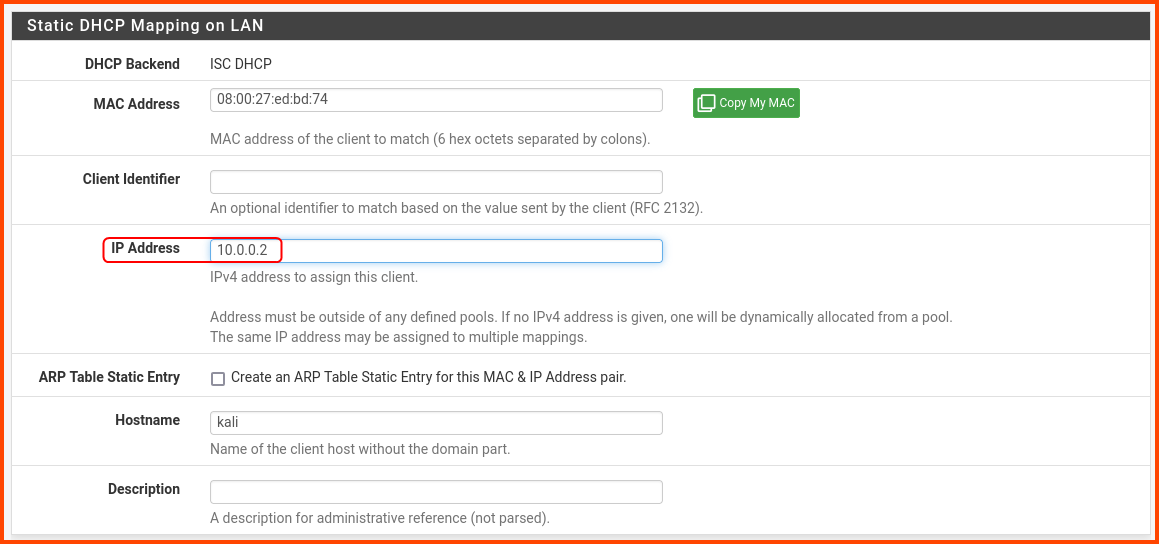
In the IP Address input enter **`10.0.0.2`**. Scroll to the bottom and click on **`Save`**.

<figure><img src="https://blog.davidvarghese.net/assets/images/building-home-lab-part-4/pfsense-55.png" alt=""><figcaption></figcaption></figure>

A popup will show up at the top of the page. Click on **`Apply Changes`**.

<figure><img src="https://blog.davidvarghese.net/assets/images/building-home-lab-part-4/pfsense-56.png" alt=""><figcaption></figcaption></figure>

#### Refresh Kali Linux IP Address <a href="#refresh-kali-linux-ip-address" id="refresh-kali-linux-ip-address"></a>

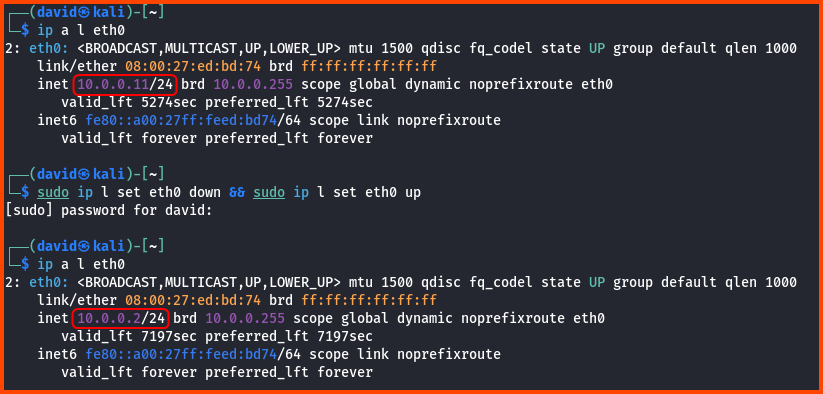
Open a terminal on the VM. Use the following command to see the current IP address.

```
ip a l eth0
```

We want the VM to release the current IP address and use the static IP that was reserved. This can be achieved using the following command:

```
sudo ip l set eth0 down && sudo ip l set eth0 up
```

Enter password when prompted. To confirm that the VM is using the static IP run the following command:

```
ip a l eth0
```

<figure><img src="https://blog.davidvarghese.net/assets/images/building-home-lab-part-4/pfsense-57.png" alt=""><figcaption></figcaption></figure>

### pfSense Firewall Configuration <a href="#pfsense-firewall-configuration" id="pfsense-firewall-configuration"></a>

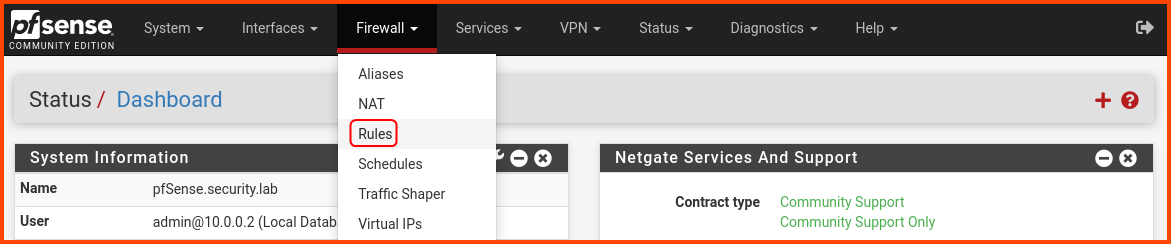
From the navigation bar select **`Firewall -> Rules`**.

<figure><img src="https://blog.davidvarghese.net/assets/images/building-home-lab-part-4/pfsense-58.png" alt=""><figcaption></figcaption></figure>

#### LAN Rules <a href="#lan-rules" id="lan-rules"></a>

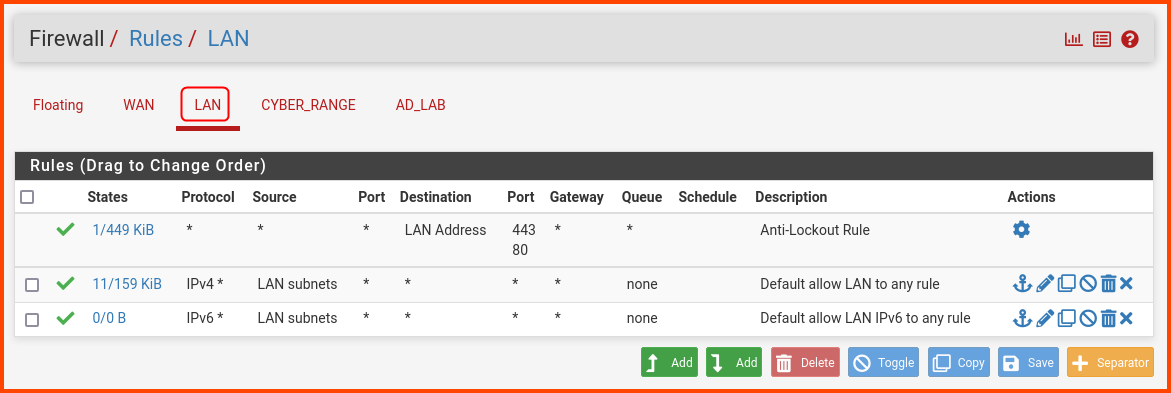
Go to the **`LAN`** tab. The LAN tab will have some predefined rules.

<figure><img src="https://blog.davidvarghese.net/assets/images/building-home-lab-part-4/pfsense-59.png" alt=""><figcaption></figcaption></figure>

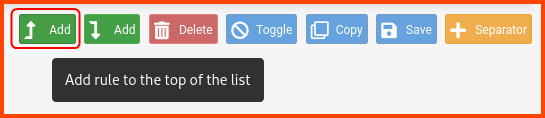
Click on the “Add rule to top” button to create a new rule.

<figure><img src="https://blog.davidvarghese.net/assets/images/building-home-lab-part-4/pfsense-60.png" alt=""><figcaption></figcaption></figure>

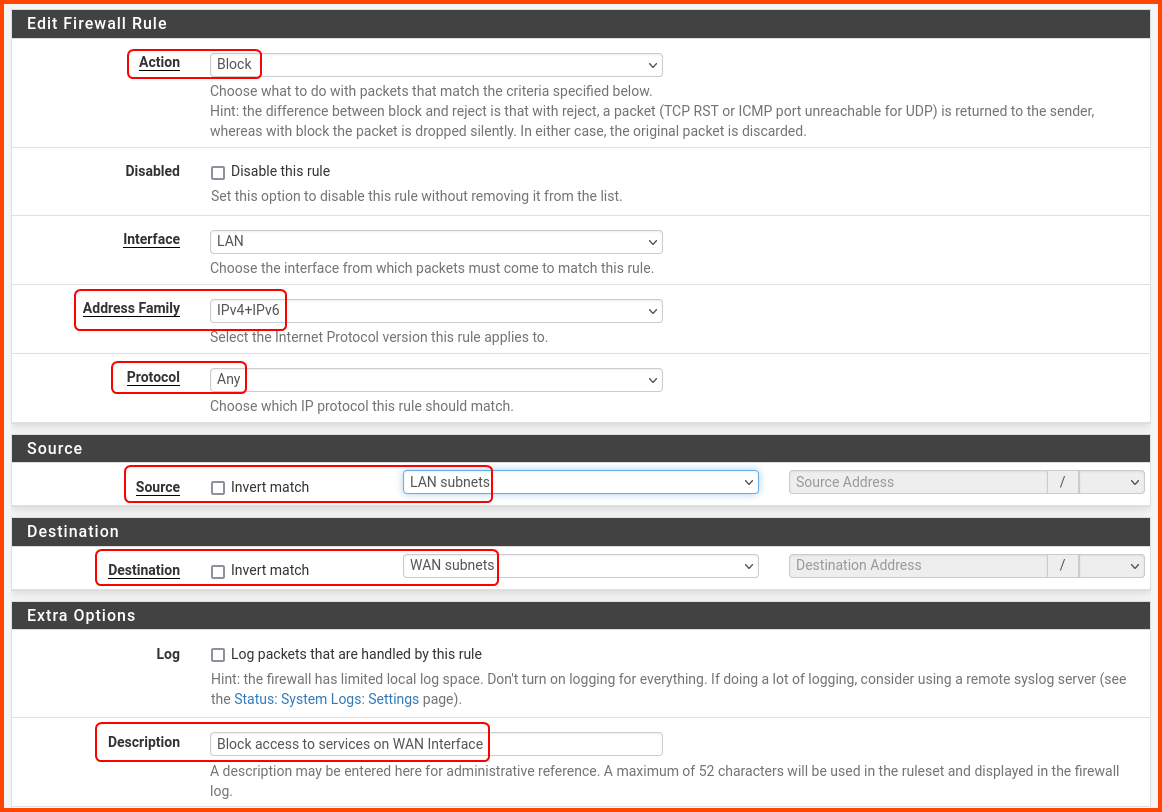
Change the following options:\
Action: **`Block`**\
Address Family: **`Ipv4+IPv6`**\
Protocol: **`Any`**\
Source: **`LAN subnets`**\
Destination: **`WAN subnets`**\
Description: **`Block access to services on WAN interface`**

Scroll to the bottom and click on **`Save`**.

<figure><img src="https://blog.davidvarghese.net/assets/images/building-home-lab-part-4/pfsense-61.png" alt=""><figcaption></figcaption></figure>

A popup will appear at the top of the page. Click on **`Apply Changes`**.

<figure><img src="https://blog.davidvarghese.net/assets/images/building-home-lab-part-4/pfsense-62.png" alt=""><figcaption></figcaption></figure>

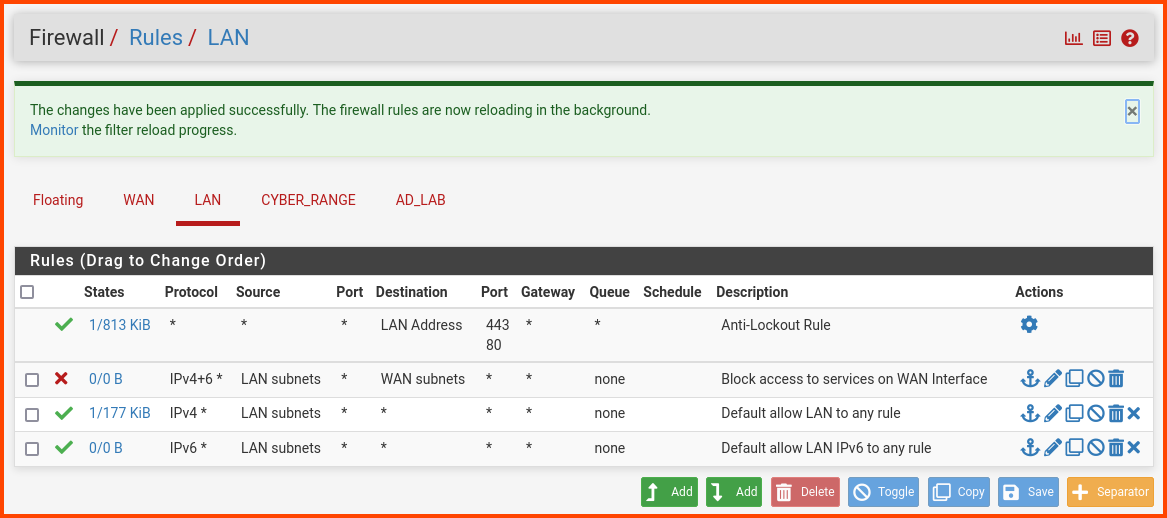
The final LAN rules should look as follows.

<figure><img src="https://blog.davidvarghese.net/assets/images/building-home-lab-part-4/pfsense-63.png" alt=""><figcaption></figcaption></figure>

The order of the rules is important. If the order is not correct. Drag the rules around till it matches the above image.

#### CYBER\_RANGE Rules <a href="#cyber_range-rules" id="cyber_range-rules"></a>

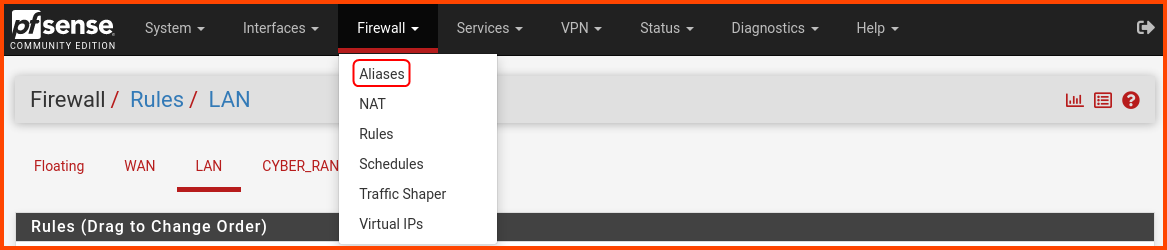
Before creating the rules for **`CYBER_RANGE`** we need to create a Alias. From the navigation bar select **`Firewall -> Aliases`**.

<figure><img src="https://blog.davidvarghese.net/assets/images/building-home-lab-part-4/pfsense-64.png" alt=""><figcaption></figcaption></figure>

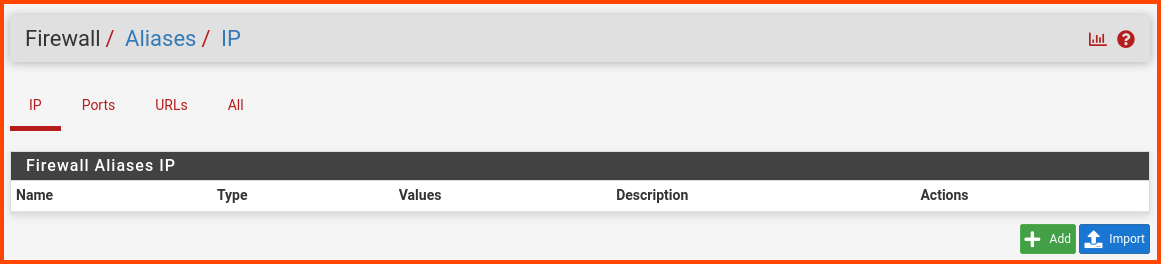
In the IP tab click on **`Add`** to create a new alias.

<figure><img src="https://blog.davidvarghese.net/assets/images/building-home-lab-part-4/pfsense-65.png" alt=""><figcaption></figcaption></figure>

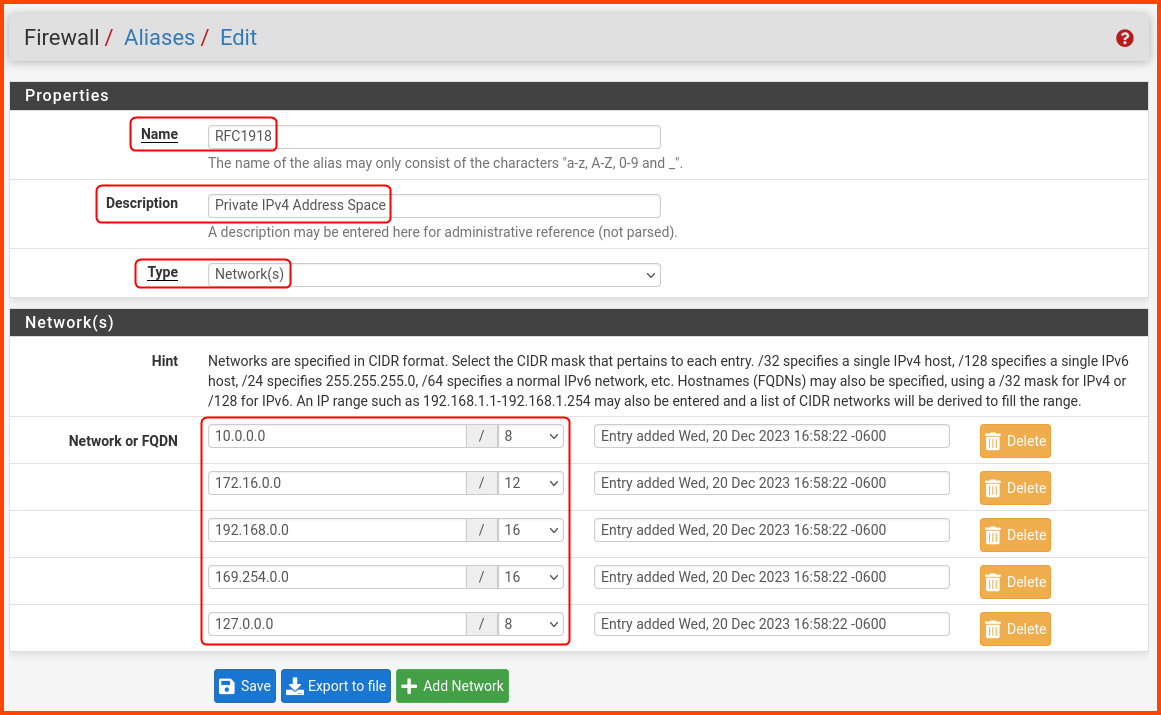
Enter the following details:\
Name: **`RFC1918`**\
Description: **`Private IPv4 Address Space`**\
Type: **`Network(s)`**\
Network 1: **`10.0.0.0/8`**\
Network 2: **`172.16.0.0/12`**\
Network 3: **`192.168.0.0/16`**\
Network 4: **`169.254.0.0/16`**\
Network 5: **`127.0.0.0/8`**

Click on **`Save`** to create an alias.

<figure><img src="https://blog.davidvarghese.net/assets/images/building-home-lab-part-4/pfsense-66.png" alt=""><figcaption></figcaption></figure>

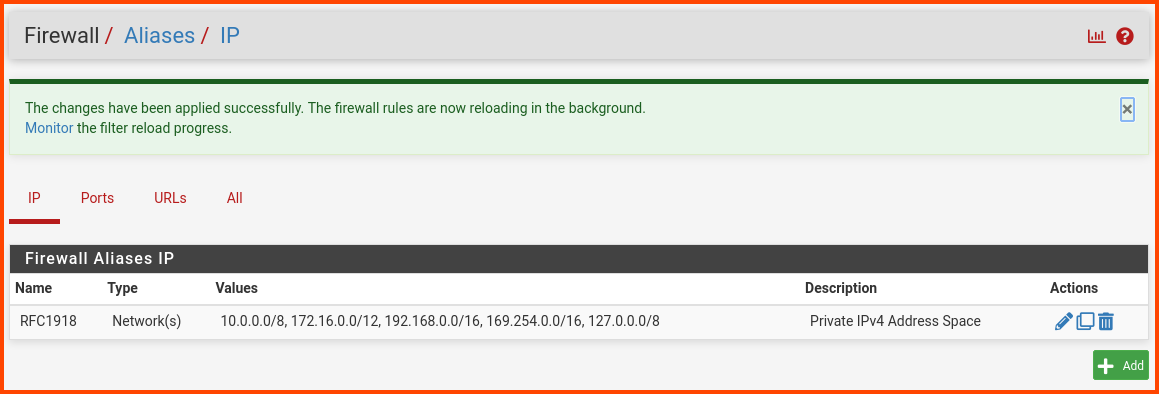
A popup will show up at the top click on **`Apply Changes`**.

<figure><img src="https://blog.davidvarghese.net/assets/images/building-home-lab-part-4/pfsense-67.png" alt=""><figcaption></figcaption></figure>

The final result should be as follows:

<figure><img src="https://blog.davidvarghese.net/assets/images/building-home-lab-part-4/pfsense-68.png" alt=""><figcaption></figcaption></figure>

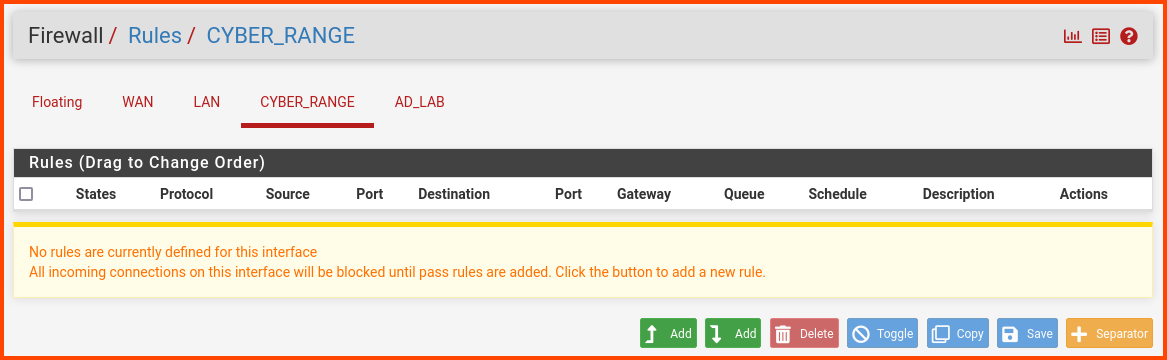
From the navigation bar select **`Firewall -> Rules`**. Select the **`CYBER_RANGE`** tab.

<figure><img src="https://blog.davidvarghese.net/assets/images/building-home-lab-part-4/pfsense-69.png" alt=""><figcaption></figcaption></figure>

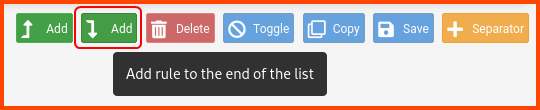
Use the “Add rule to end” button for all the rules.

<figure><img src="https://blog.davidvarghese.net/assets/images/building-home-lab-part-4/pfsense-71.png" alt=""><figcaption></figcaption></figure>

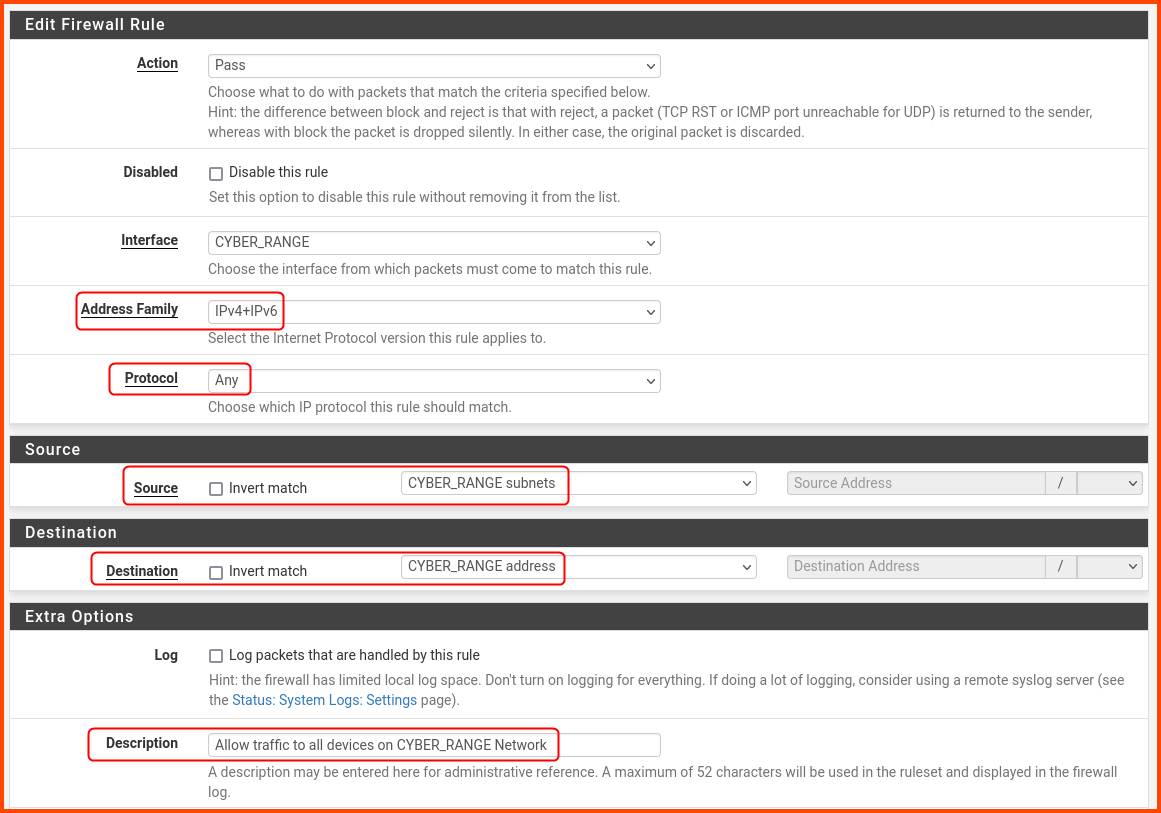
Configure the rule as follows: Address Family: **`IPv4+IPv6`**\
Protocol: **`Any`**\
Source: **`CYBER_RANGE subnets`**\
Destination: **`CYBER_RANGE address`**\
Description: **`Allow traffic to all devices on the CYBER_RANGE network`**

Scroll to the bottom and click on **`Save`**.

<figure><img src="https://blog.davidvarghese.net/assets/images/building-home-lab-part-4/pfsense-70.png" alt=""><figcaption></figcaption></figure>

A popup will appear at the top to save the changes, no need to click on that just yet. Click on the “Add rule to end” button to create a new rule.

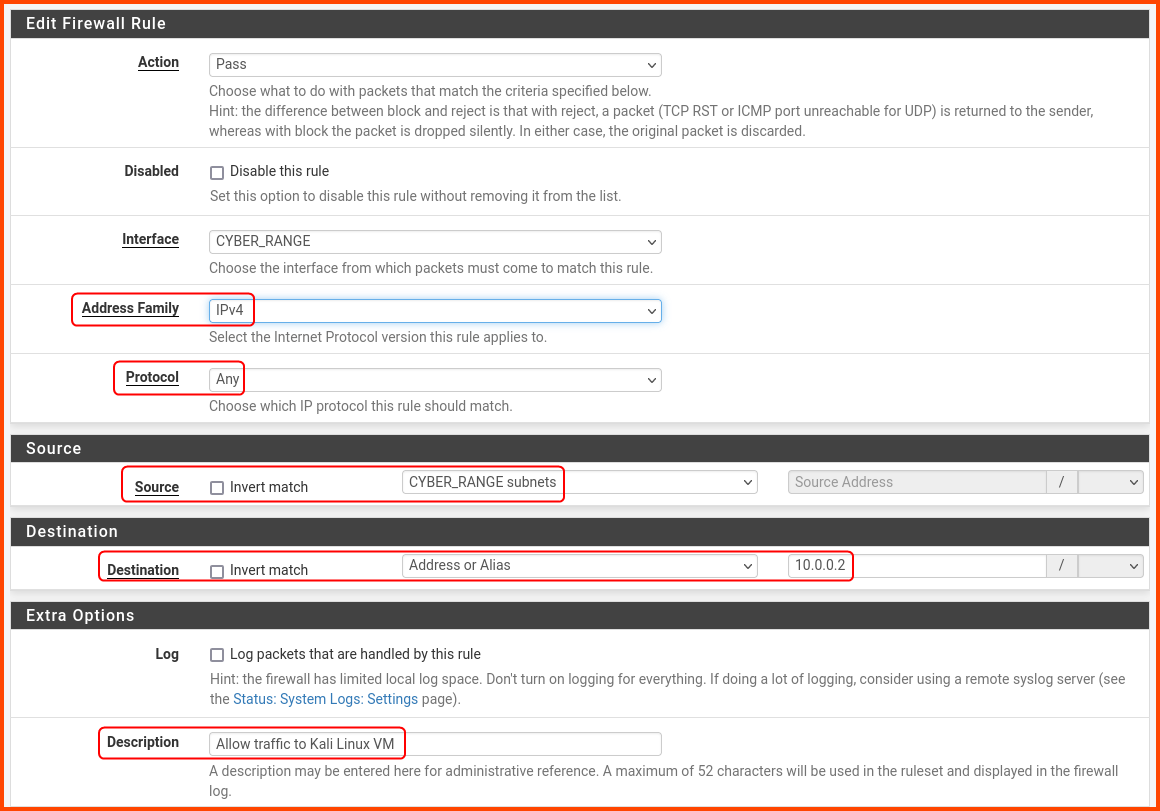
The rule has the following details:\
Protocol: **`Any`**\
Source: **`CYBER_RANGE subnets`**\
Destination: **`Address or Alias - 10.0.0.2`**\
Description: **`Allow traffic to Kali Linux VM`**

Scroll to the bottom and click on **`Save`**.

<figure><img src="https://blog.davidvarghese.net/assets/images/building-home-lab-part-4/pfsense-72.png" alt=""><figcaption></figcaption></figure>

Click on the “Add rule to end” button to create a new rule.

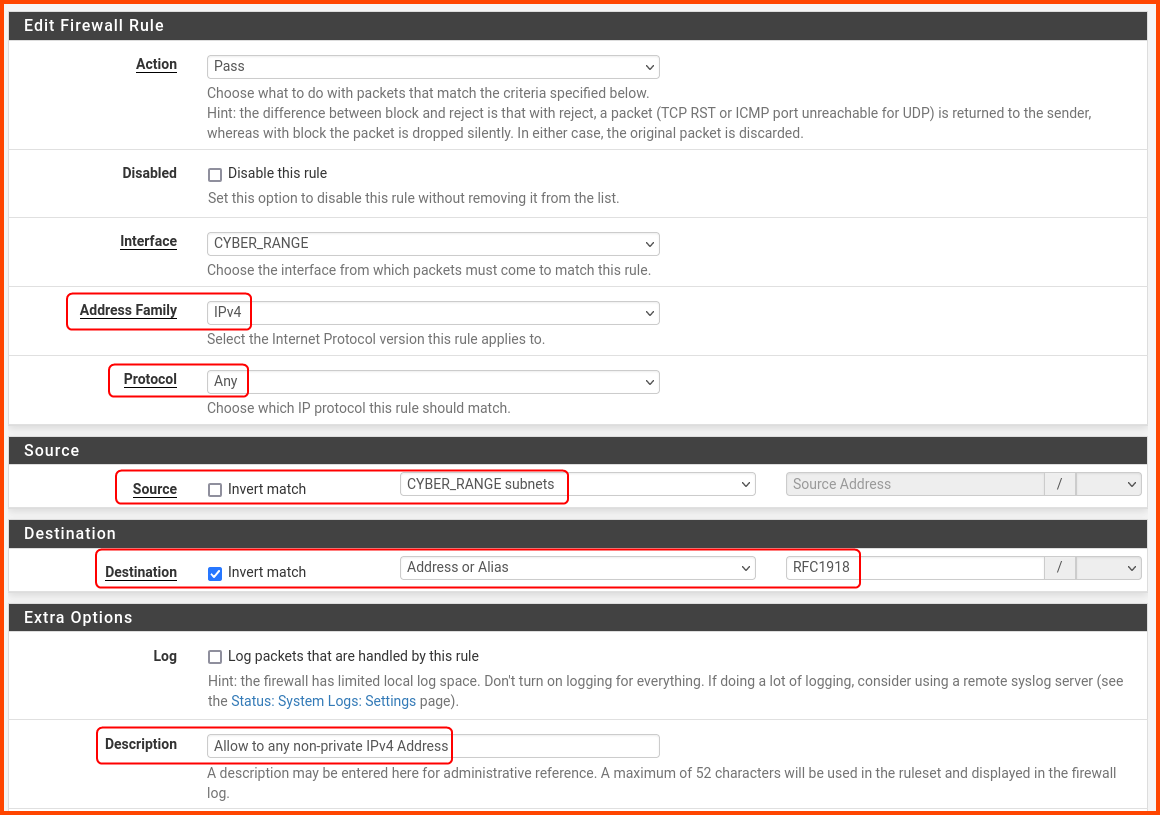
Create a rule with the following settings:\
Protocol: **`Any`**\
Source: **`CYBER_RANGE subnets`**\
Destination: **`Address or Alias - RFC1918`** (Select Invert match)\
Description: **`Allow to any non-private IPv4 Address`**

Scroll to the bottom and click on **`Save`**.

<figure><img src="https://blog.davidvarghese.net/assets/images/building-home-lab-part-4/pfsense-73.png" alt=""><figcaption></figcaption></figure>

Click on the “Add rule to end” button to create a new rule.

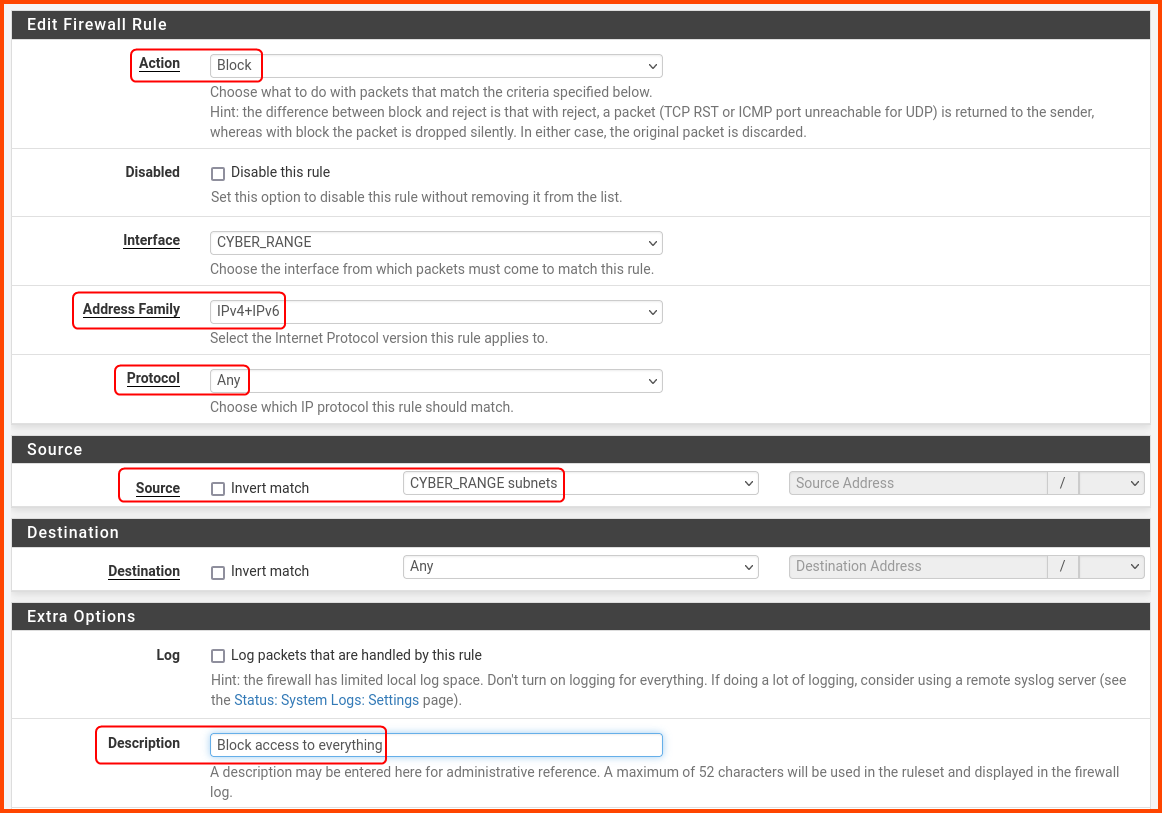
Create a rule with the following settings:\
Action: **`Block`**\
Address Family: **`IPv4+IPv6`**\
Protocol: **`Any`**\
Source: **`CYBER_RANGE subnets`**\
Description: **`Block access to everything`**

Scroll to the bottom and click on **`Save`**.

<figure><img src="https://blog.davidvarghese.net/assets/images/building-home-lab-part-4/pfsense-74.png" alt=""><figcaption></figcaption></figure>

Click on the **`Apply Changes`** button in the popup at the top of the screen.

<figure><img src="https://blog.davidvarghese.net/assets/images/building-home-lab-part-4/pfsense-75.png" alt=""><figcaption></figcaption></figure>

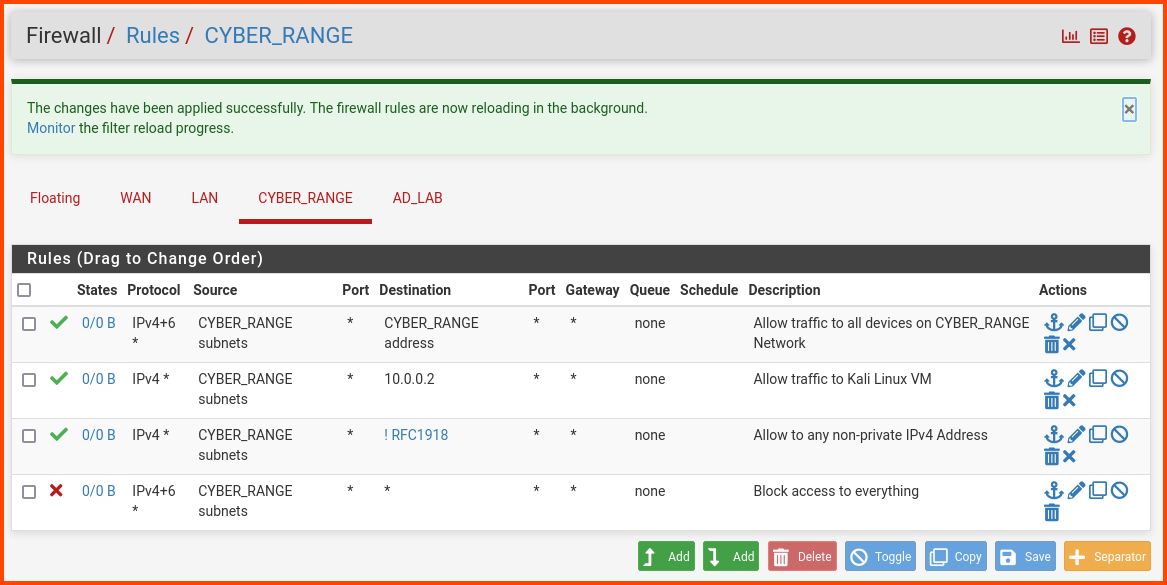
The final rules should look as follows:

<figure><img src="https://blog.davidvarghese.net/assets/images/building-home-lab-part-4/pfsense-76.png" alt=""><figcaption></figcaption></figure>

#### AD\_LAB Rules <a href="#ad_lab-rules" id="ad_lab-rules"></a>

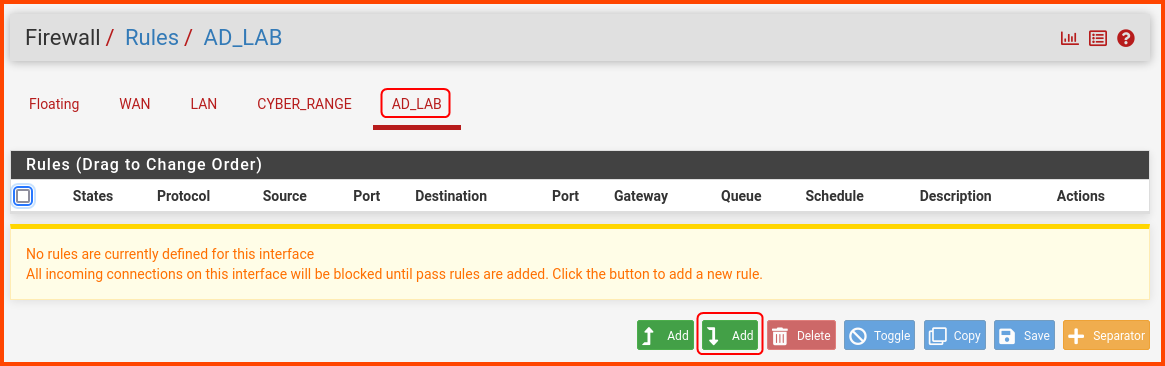
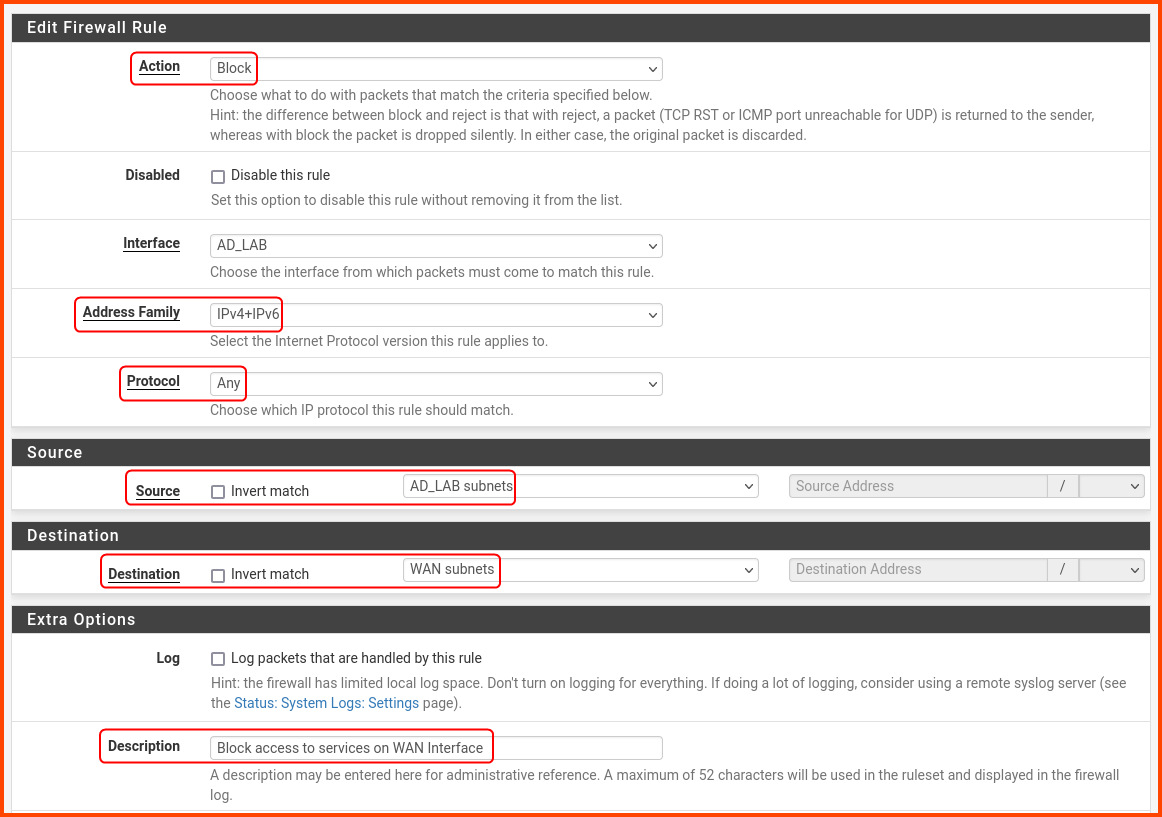
Click on the **`AD_LAB`** tab. Use the “Add rule to end” button to create new rules.

<figure><img src="https://blog.davidvarghese.net/assets/images/building-home-lab-part-4/pfsense-77.png" alt=""><figcaption></figcaption></figure>

Create a rule with the following settings:\
Action: **`Block`**\
Address Family: **`IPv4+IPv6`**\
Protocol: **`Any`**\
Source: **`AD_LAB subnets`**\
Destination: **`WAN subnets`**\
Description: **`Block access to services on WAN interface`**

Scroll to the bottom and click on **`Save`**.

<figure><img src="https://blog.davidvarghese.net/assets/images/building-home-lab-part-4/pfsense-78.png" alt=""><figcaption></figcaption></figure>

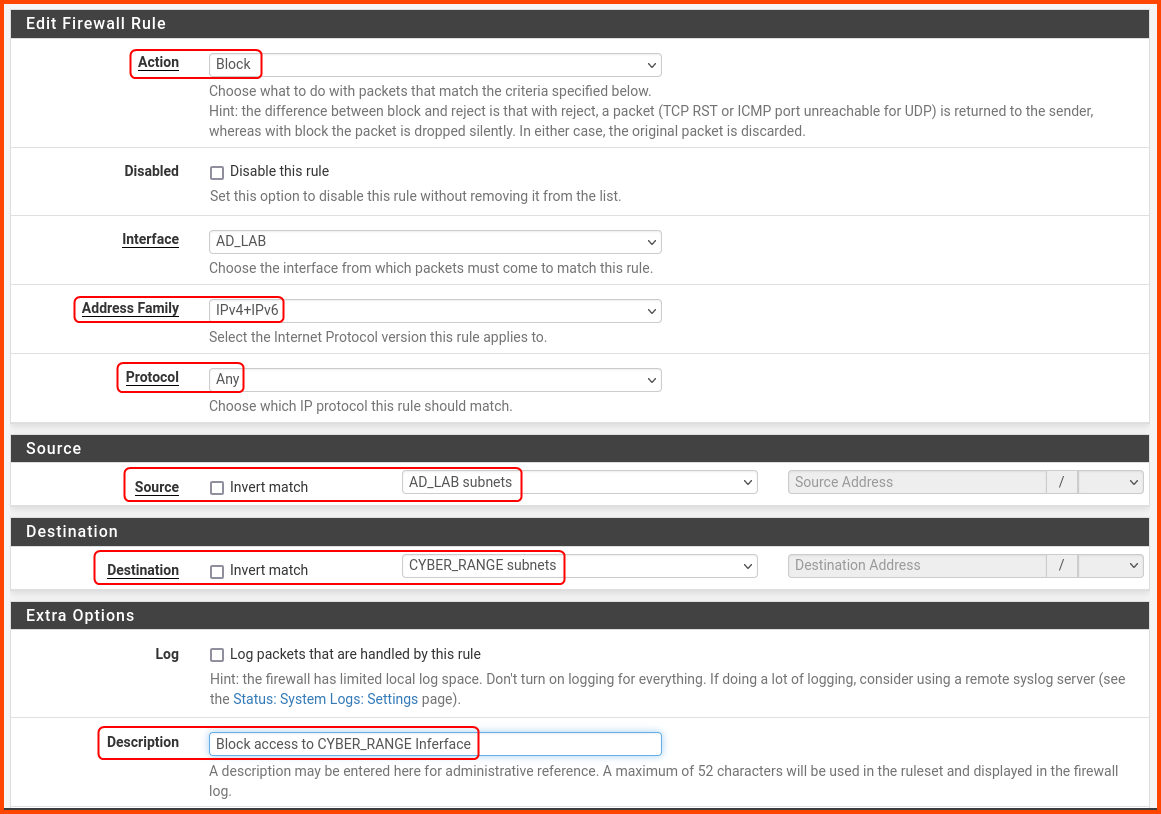
A popup will appear at the top to save the changes, no need to click on that just yet. Click on the “Add rule to end” button to create a new rule.

The rule has the following details:\
Action: **`Block`**\
Address Family: **`IPv4+IPv6`**\
Protocol: **`Any`**\
Source: **`AD_LAB subnets`**\
Destination: **`CYBER_RANGE subnets`**\
Description: **`Block traffic to CYBER_RANGE interface`**

Scroll to the bottom and click on **`Save`**.

<figure><img src="https://blog.davidvarghese.net/assets/images/building-home-lab-part-4/pfsense-79.png" alt=""><figcaption></figcaption></figure>

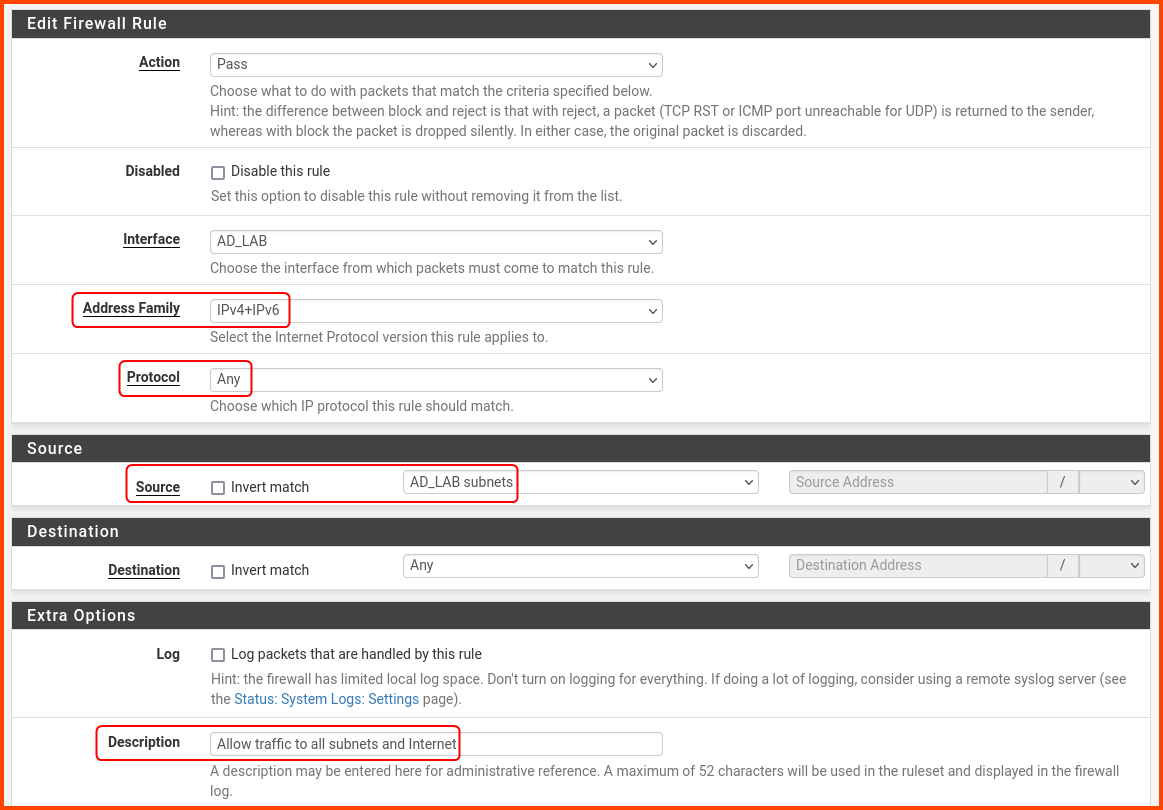
Click on the “Add rule to end” button to create a new rule.

The rule has the following details:\
Address Family: **`IPv4+IPv6`**\
Protocol: **`Any`**\
Source: **`AD_LAB subnets`**\
Description: **`Allow traffic to all other subnets and Internet`**

Scroll to the bottom and click on **`Save`**.

<figure><img src="https://blog.davidvarghese.net/assets/images/building-home-lab-part-4/pfsense-80.png" alt=""><figcaption></figcaption></figure>

Click on the **`Apply Changes`** button in the popup at the top of the screen.

<figure><img src="https://blog.davidvarghese.net/assets/images/building-home-lab-part-4/pfsense-81.png" alt=""><figcaption></figcaption></figure>

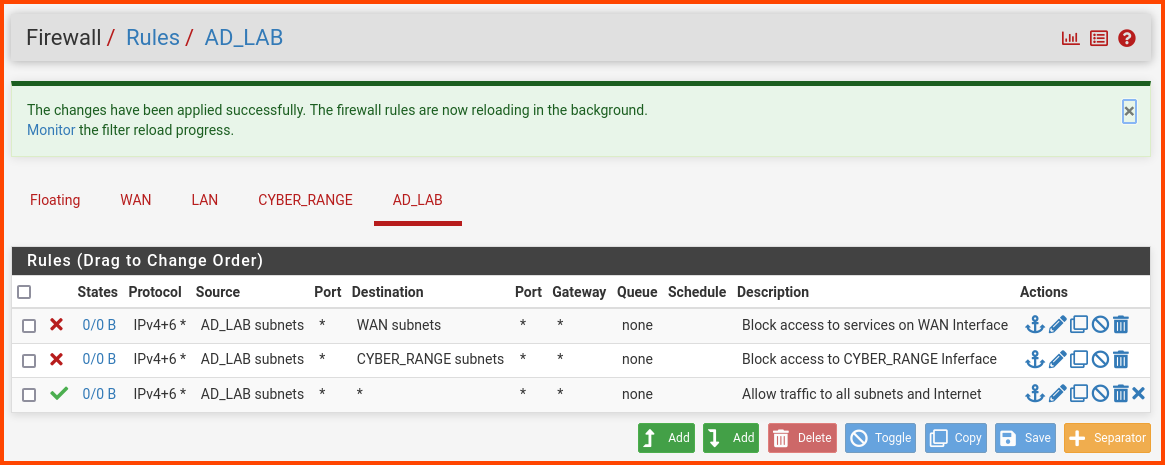
The final rules should look as follows:

<figure><img src="https://blog.davidvarghese.net/assets/images/building-home-lab-part-4/pfsense-82.png" alt=""><figcaption></figcaption></figure>

### pfSense Reboot <a href="#pfsense-reboot" id="pfsense-reboot"></a>

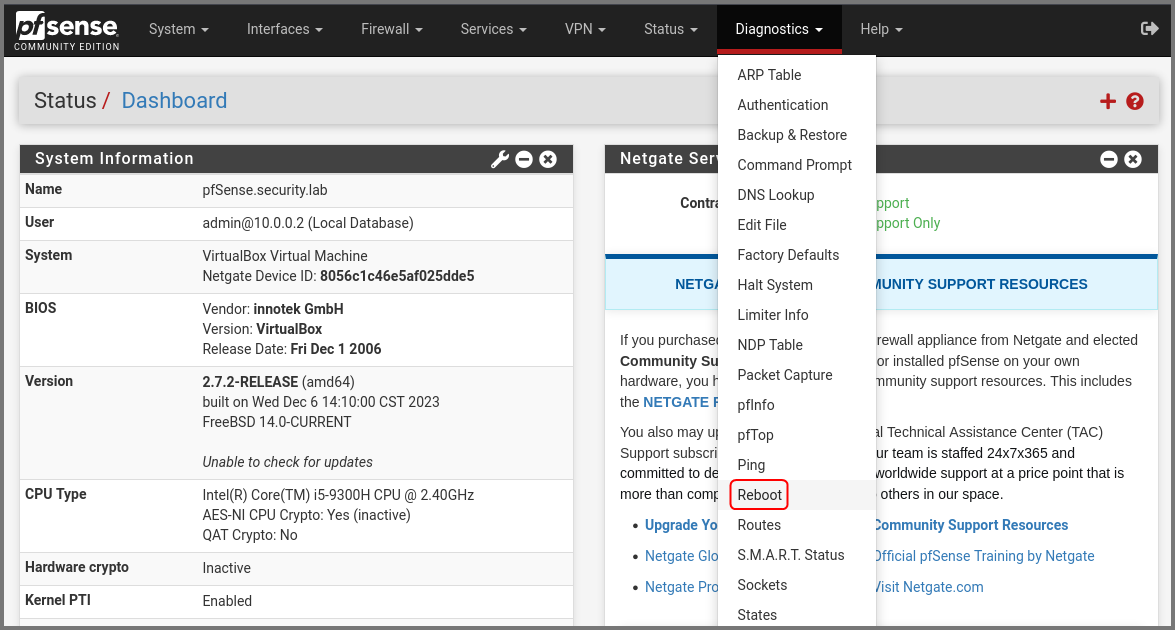
Now we need to restart pfSense to persist the firewall rules. From the navigation bar select **`Diagnostics -> Reboot`**.

<figure><img src="https://blog.davidvarghese.net/assets/images/building-home-lab-part-4/pfsense-118.png" alt=""><figcaption></figcaption></figure>

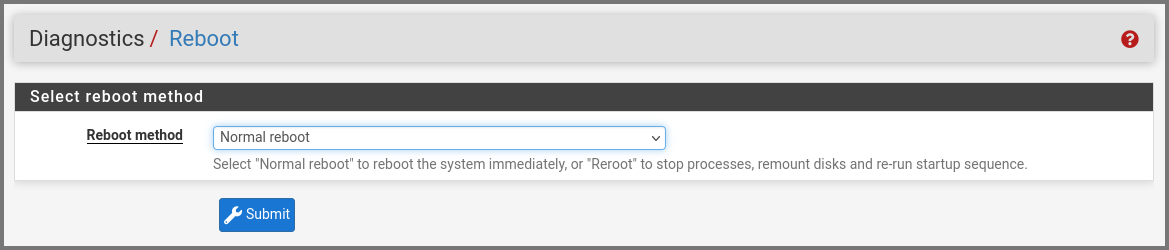
Click on **`Submit`**.

<figure><img src="https://blog.davidvarghese.net/assets/images/building-home-lab-part-4/pfsense-119.png" alt=""><figcaption></figcaption></figure>

Once pfSense boots up you will be redirected to the login page.

In the next module, we will add some vulnerable VMs to the **`CYBER_RANGE`** interface and then we will test our connectivity to them from the Kali Linux VM.


---

# Agent Instructions: Querying This Documentation

If you need additional information that is not directly available in this page, you can query the documentation dynamically by asking a question.

Perform an HTTP GET request on the current page URL with the `ask` query parameter:

```
GET https://foothold.gitbook.io/blog/home-lab-part-4.md?ask=<question>
```

The question should be specific, self-contained, and written in natural language.
The response will contain a direct answer to the question and relevant excerpts and sources from the documentation.

Use this mechanism when the answer is not explicitly present in the current page, you need clarification or additional context, or you want to retrieve related documentation sections.