# Home Lab: Part 7

<figure><img src="https://blog.davidvarghese.net/assets/images/building-home-lab-part-7/building-home-lab-part-7-banner.png" alt=""><figcaption></figcaption></figure>

In the previous module, we installed Windows Server 2019, installed AD Domain Services, configured DHCP and set up a DNS Forwarder. In this module, we will continue building out the AD Lab by completing the Domain Controller setup and adding devices to the AD environment.

### Windows Server 2019 Setup <a href="#windows-server-2019-setup" id="windows-server-2019-setup"></a>

#### Domain Configuration <a href="#domain-configuration" id="domain-configuration"></a>

**Certificate Service Installation**

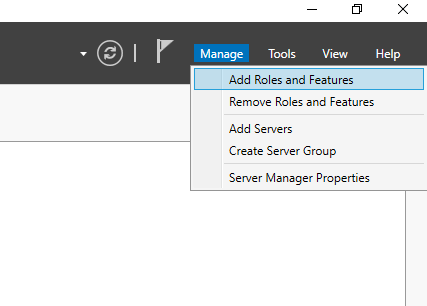
Select **`Manage`** from the top right corner of Server Manager and then select “Add Roles and Features”.

<figure><img src="https://blog.davidvarghese.net/assets/images/building-home-lab-part-6/dc-28.png" alt=""><figcaption></figcaption></figure>

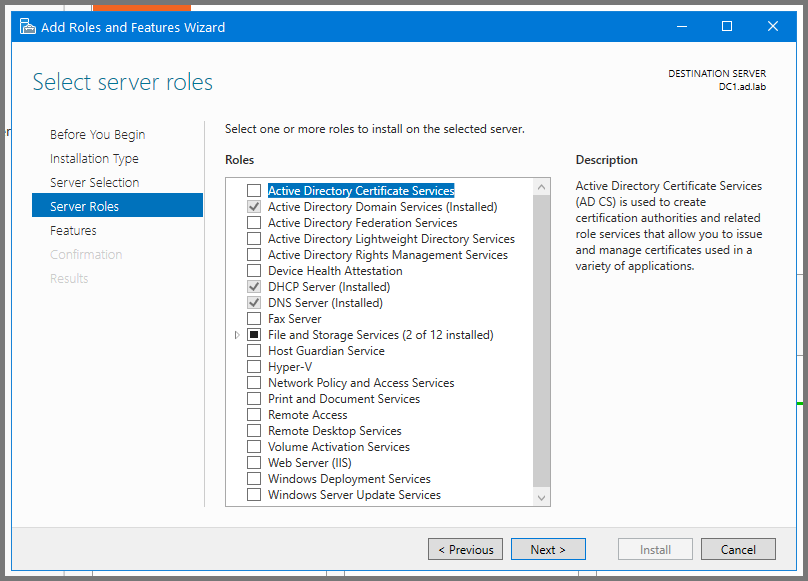
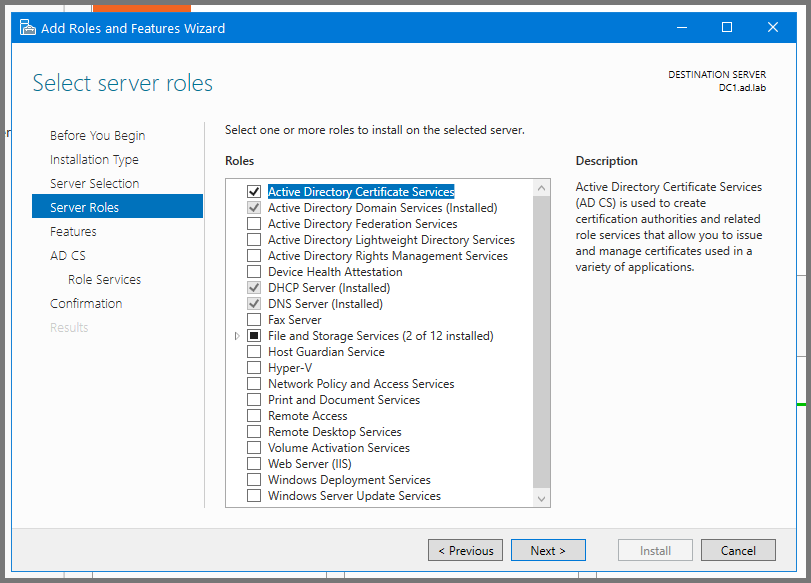
Click **`Next`** till you reach the Server Roles page. Enable “Active Directory Certificate Services”.

<figure><img src="https://blog.davidvarghese.net/assets/images/building-home-lab-part-7/dc-107.png" alt=""><figcaption></figcaption></figure>

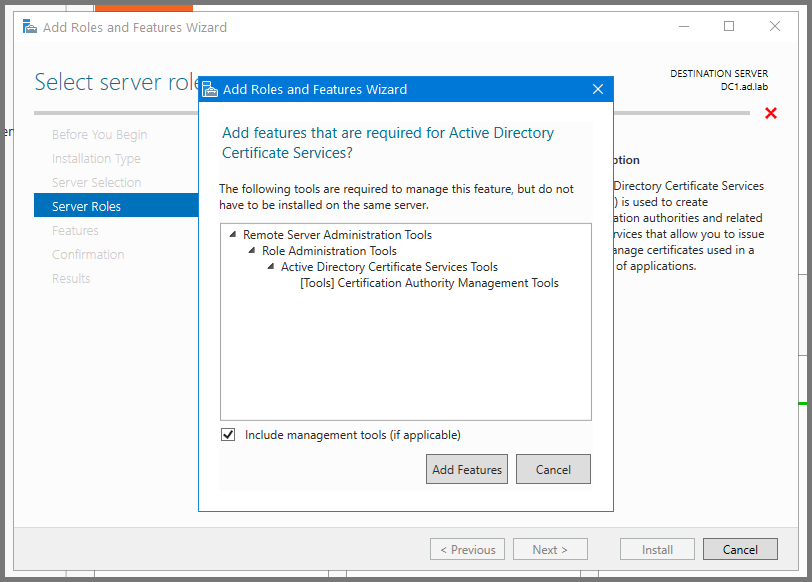
Click on **`Add Features`**.

<figure><img src="https://blog.davidvarghese.net/assets/images/building-home-lab-part-7/dc-108.png" alt=""><figcaption></figcaption></figure>

Click on **`Next`** to continue.

<figure><img src="https://blog.davidvarghese.net/assets/images/building-home-lab-part-7/dc-109.png" alt=""><figcaption></figcaption></figure>

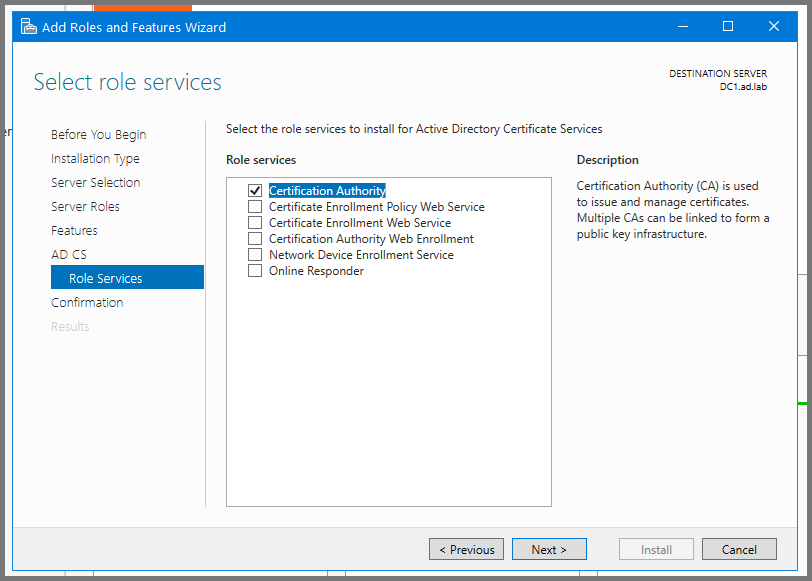
Click **`Next`** till you reach the **`Role Services`** Page. Enable “Certificate Authority”. Click on **`Next`** to continue.

<figure><img src="https://blog.davidvarghese.net/assets/images/building-home-lab-part-7/dc-110.png" alt=""><figcaption></figcaption></figure>

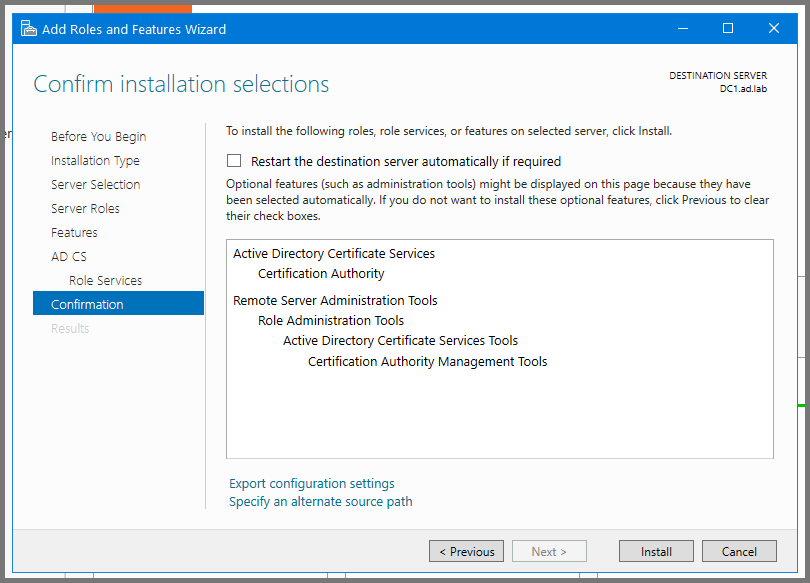
Click on **`Install`** to start the setup.

<figure><img src="https://blog.davidvarghese.net/assets/images/building-home-lab-part-7/dc-111.png" alt=""><figcaption></figcaption></figure>

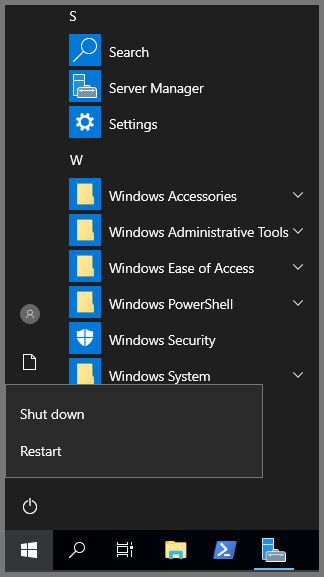
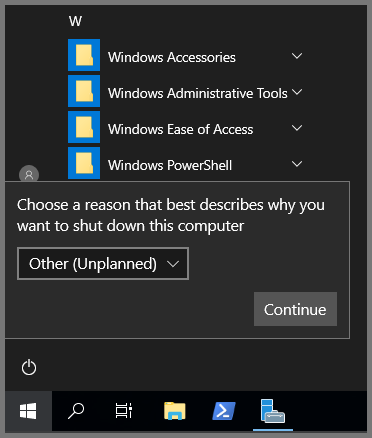
After the installation is complete the server has to be restarted. Open the Start Menu, click on the Power icon and then select **`Restart`**.

<figure><img src="https://blog.davidvarghese.net/assets/images/building-home-lab-part-7/dc-119.png" alt=""><figcaption></figcaption></figure>

Click on **`Continue`** to restart the system.

<figure><img src="https://blog.davidvarghese.net/assets/images/building-home-lab-part-7/dc-120.png" alt=""><figcaption></figcaption></figure>

**Certificate Service Configuration**

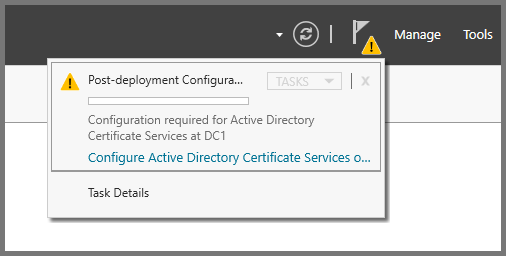
After the restart once Server Manager loads. Click on the Flag icon on the top right side and select “Configure Active Directory Certificate Services”

<figure><img src="https://blog.davidvarghese.net/assets/images/building-home-lab-part-7/dc-112.png" alt=""><figcaption></figcaption></figure>

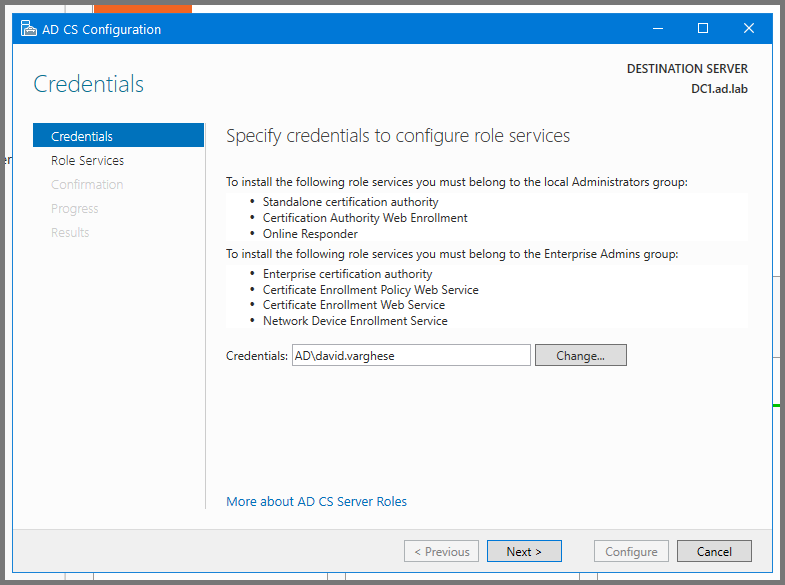
Click on **`Next`**.

<figure><img src="https://blog.davidvarghese.net/assets/images/building-home-lab-part-7/dc-113.png" alt=""><figcaption></figcaption></figure>

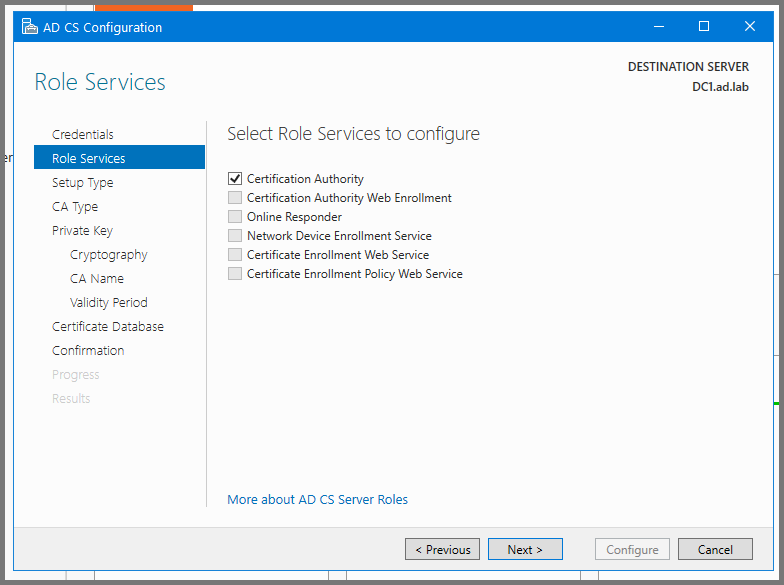
Enable “Certification Authority” and click on **`Next`**.

<figure><img src="https://blog.davidvarghese.net/assets/images/building-home-lab-part-7/dc-114.png" alt=""><figcaption></figcaption></figure>

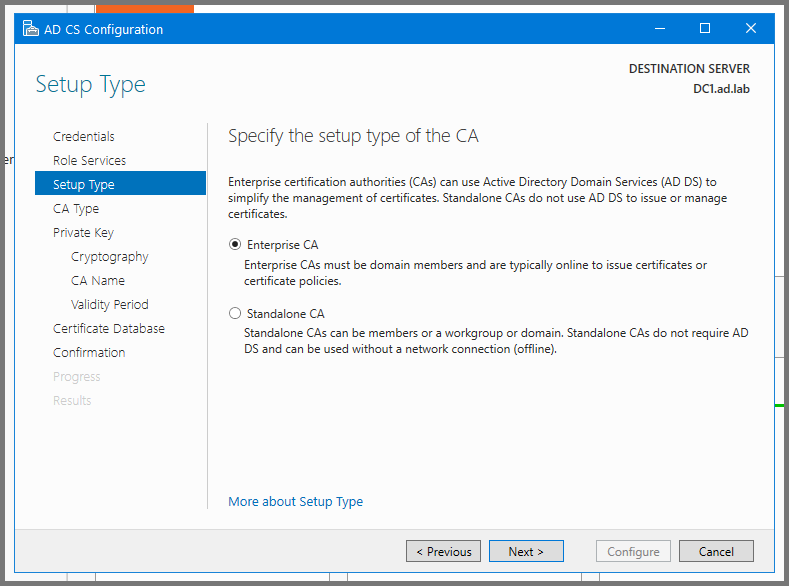
Click on **`Next`**.

<figure><img src="https://blog.davidvarghese.net/assets/images/building-home-lab-part-7/dc-115.png" alt=""><figcaption></figcaption></figure>

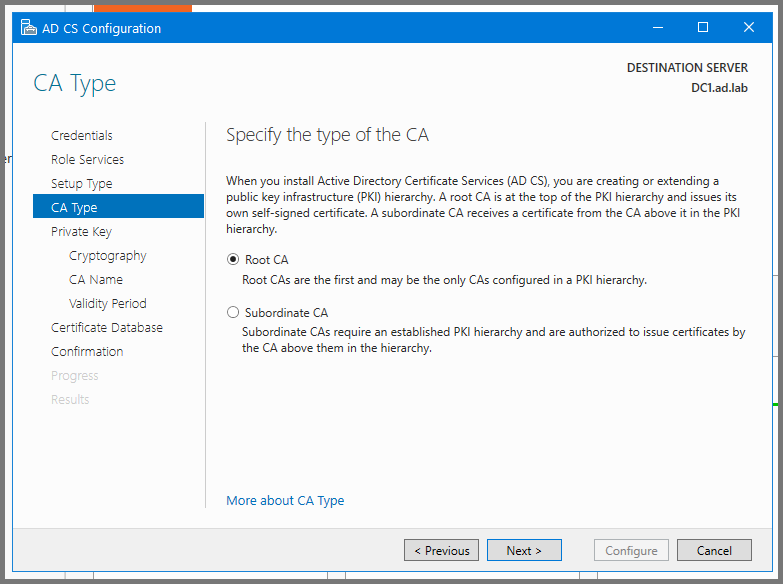
Click on **`Next`**.

<figure><img src="https://blog.davidvarghese.net/assets/images/building-home-lab-part-7/dc-116.png" alt=""><figcaption></figcaption></figure>

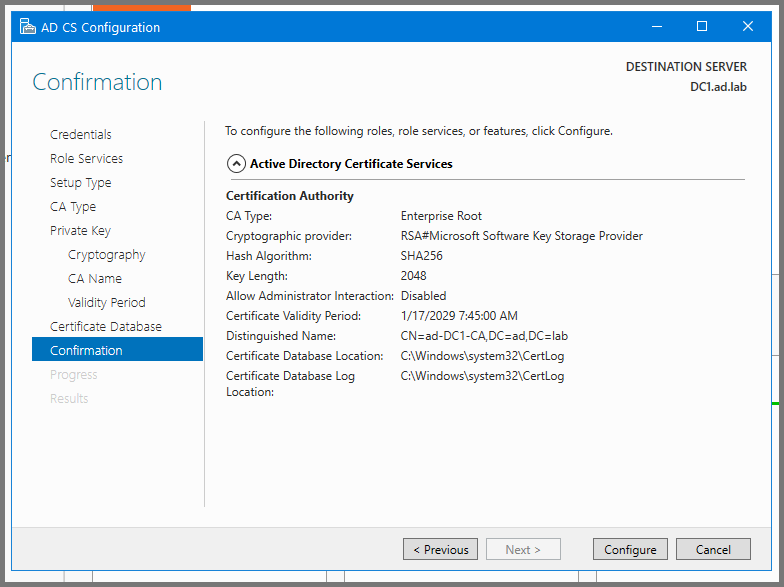
Click on **`Next`** till you reach the Confirmation page. Click on **`Configure`** to save the changes.

<figure><img src="https://blog.davidvarghese.net/assets/images/building-home-lab-part-7/dc-117.png" alt=""><figcaption></figcaption></figure>

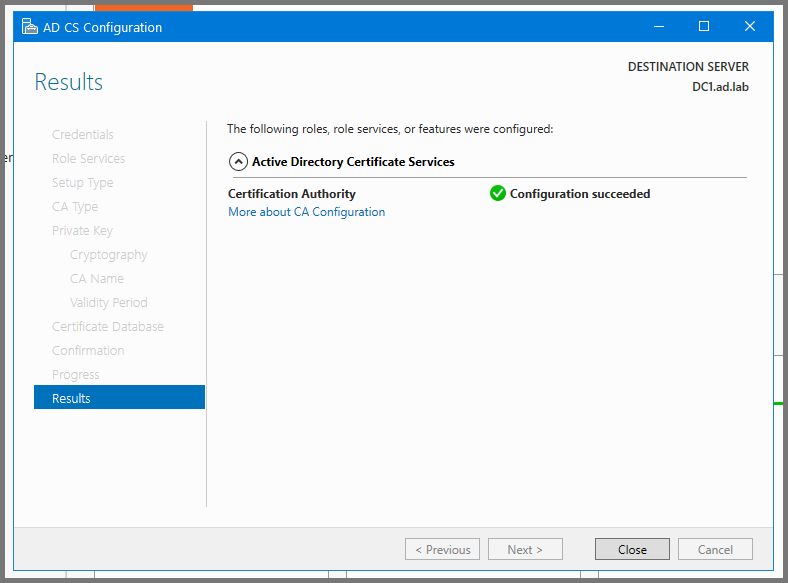
Click on **`Close`**.

<figure><img src="https://blog.davidvarghese.net/assets/images/building-home-lab-part-7/dc-118.png" alt=""><figcaption></figcaption></figure>

#### User Configuration <a href="#user-configuration" id="user-configuration"></a>

**AD Admin Setup**

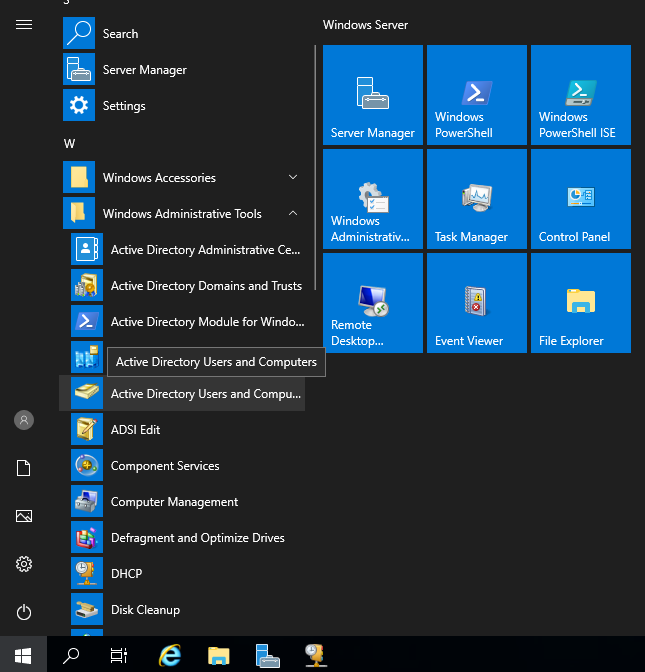
Open the Start menu click on “Windows Administrative Tools” and then select **`Active Directory Users and Computers`**.

<figure><img src="https://blog.davidvarghese.net/assets/images/building-home-lab-part-7/dc-64.png" alt=""><figcaption></figcaption></figure>

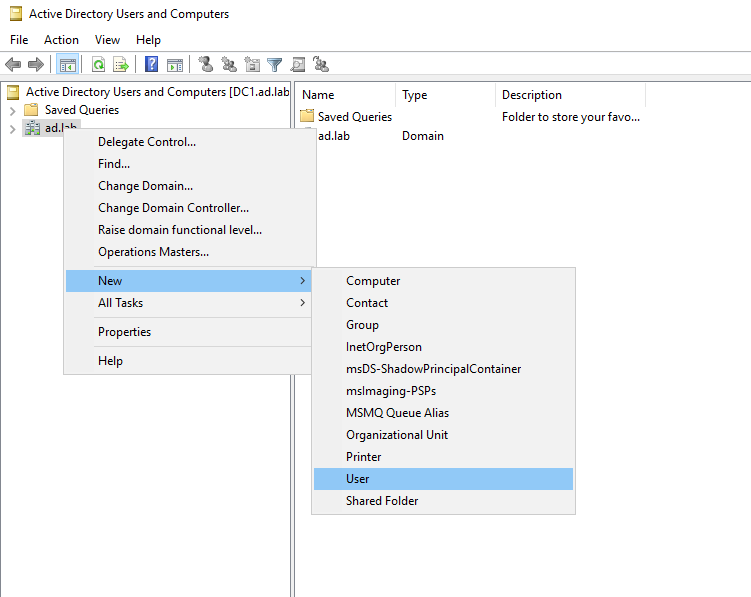
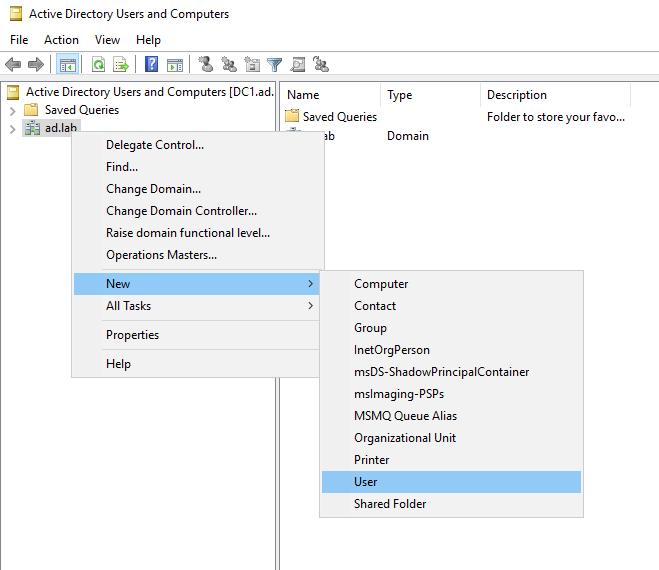
Right-click on the domain name (in my case **`ad.lab`**) in the sidebar. Then select **`New -> User`**.

<figure><img src="https://blog.davidvarghese.net/assets/images/building-home-lab-part-7/dc-65.png" alt=""><figcaption></figcaption></figure>

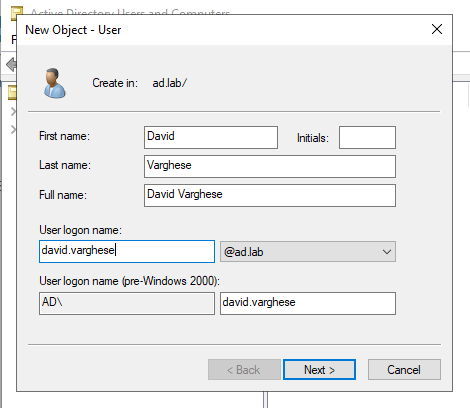
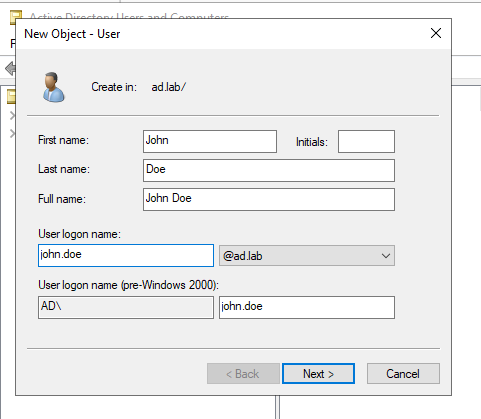
Enter the First Name, Last Name and User logon name for the new user. This user will be the **`Administrator`** for the Domain Controller.

<figure><img src="https://blog.davidvarghese.net/assets/images/building-home-lab-part-7/dc-66.png" alt=""><figcaption></figcaption></figure>

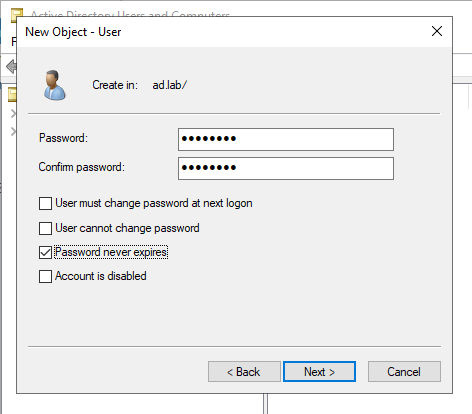
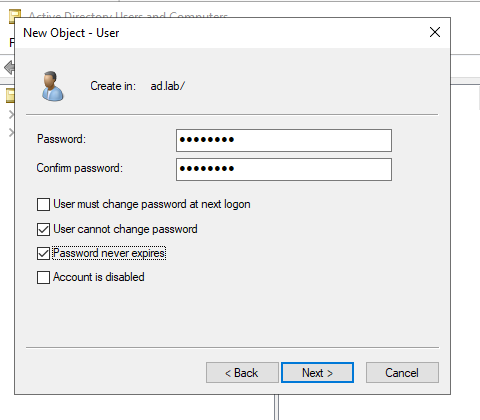
Enter the Password for the user. Uncheck all options leaving “Password never expires”. Click on **`Next`** to create the user.

<figure><img src="https://blog.davidvarghese.net/assets/images/building-home-lab-part-7/dc-67.png" alt=""><figcaption></figcaption></figure>

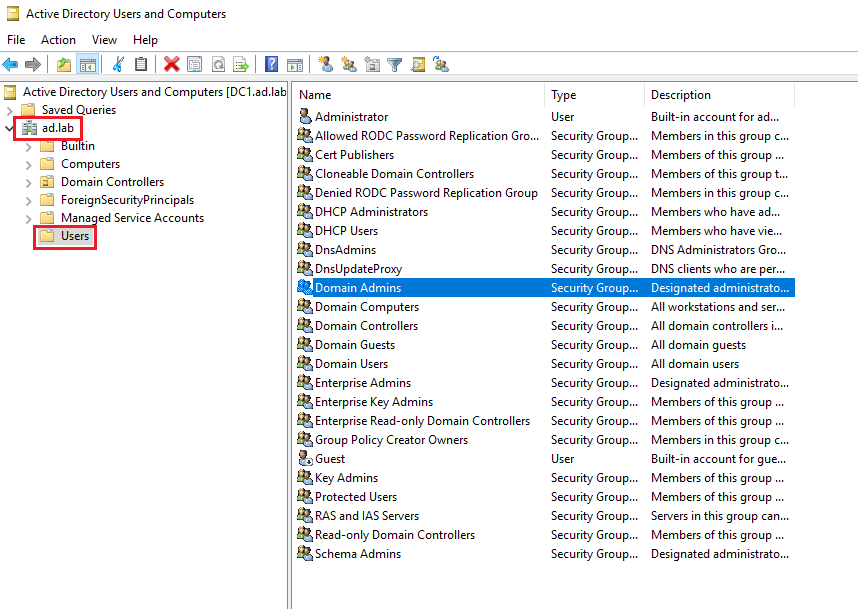
Expand the dropdown on the domain name from the sidebar. Click on **`Users`**. Then double-click on “Domain Admins”.

<figure><img src="https://blog.davidvarghese.net/assets/images/building-home-lab-part-7/dc-68.png" alt=""><figcaption></figcaption></figure>

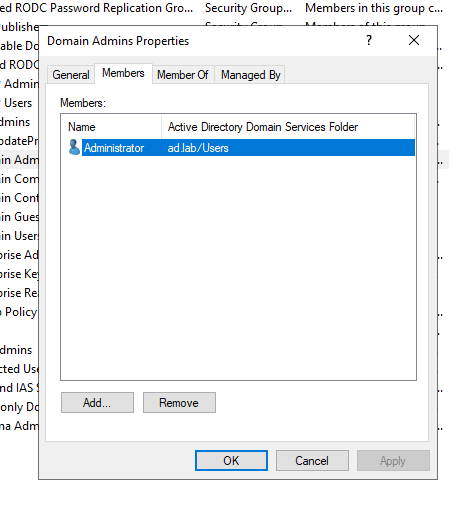
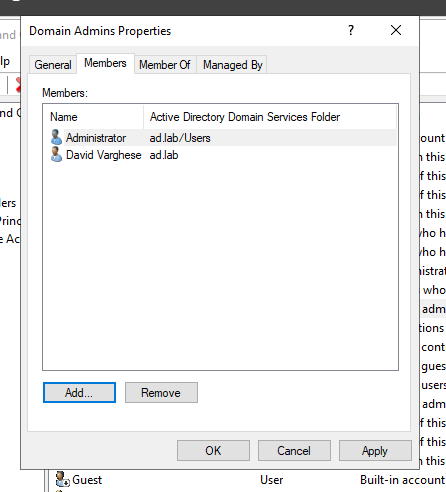
Go to **`Members -> Add`**.

<figure><img src="https://blog.davidvarghese.net/assets/images/building-home-lab-part-7/dc-69.png" alt=""><figcaption></figcaption></figure>

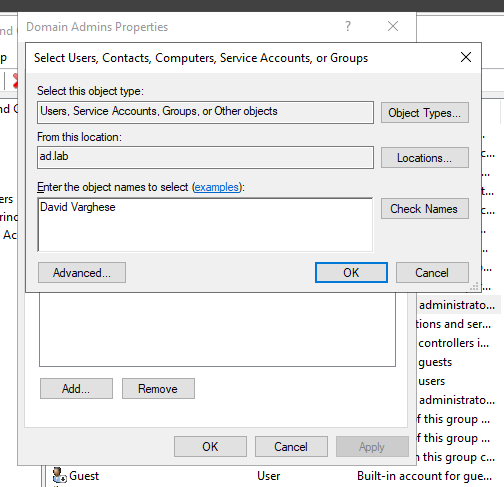
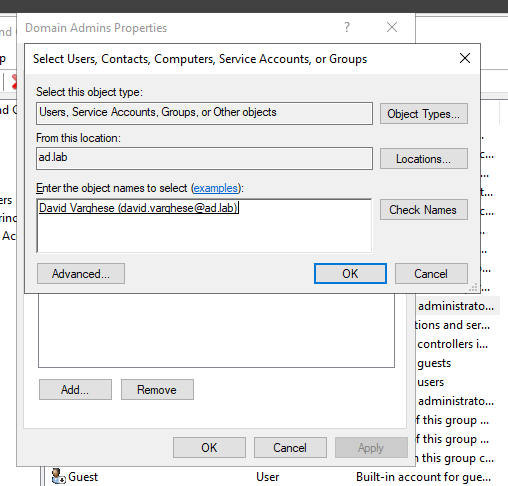
Enter the name of the user and check on **`Check Names`**.

<figure><img src="https://blog.davidvarghese.net/assets/images/building-home-lab-part-7/dc-70.png" alt=""><figcaption></figcaption></figure>

Click on **`OK`**.

<figure><img src="https://blog.davidvarghese.net/assets/images/building-home-lab-part-7/dc-71.png" alt=""><figcaption></figcaption></figure>

Click on **`Apply`** then **`OK`** to persist the changes.

<figure><img src="https://blog.davidvarghese.net/assets/images/building-home-lab-part-7/dc-72.png" alt=""><figcaption></figcaption></figure>

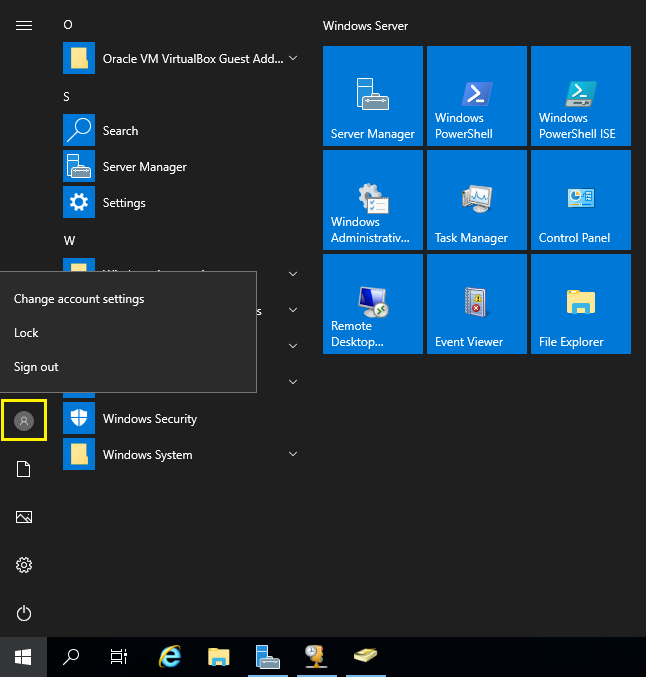
Open the Start menu and then click on the user logo and then select **`Sign out`**.

<figure><img src="https://blog.davidvarghese.net/assets/images/building-home-lab-part-7/dc-73.png" alt=""><figcaption></figcaption></figure>

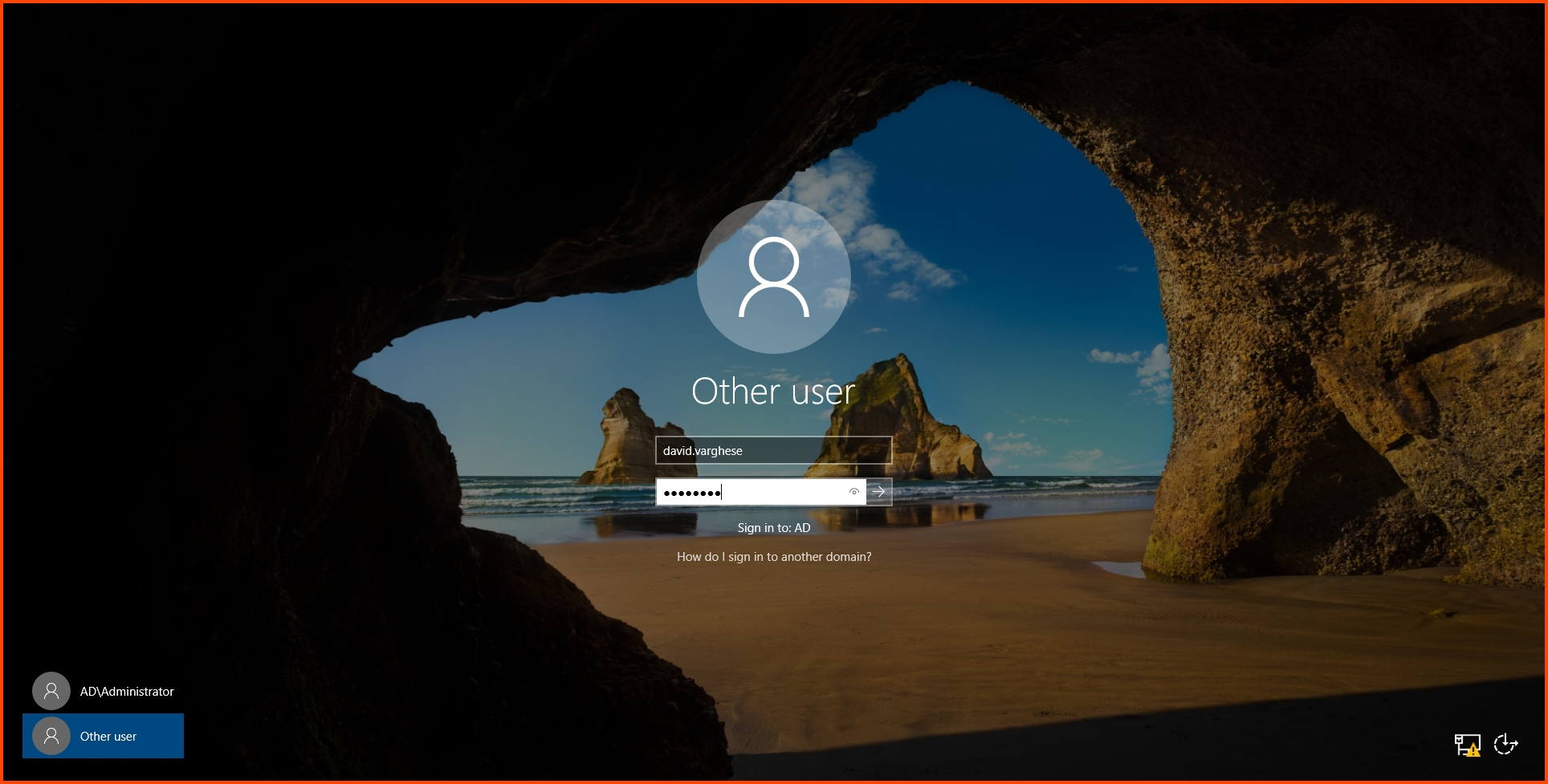
From the login screen select “Other user”. Then enter the login name and password that was configured for your domain administrator.

<figure><img src="https://blog.davidvarghese.net/assets/images/building-home-lab-part-7/dc-74.png" alt=""><figcaption></figcaption></figure>

**AD User 1 Setup**

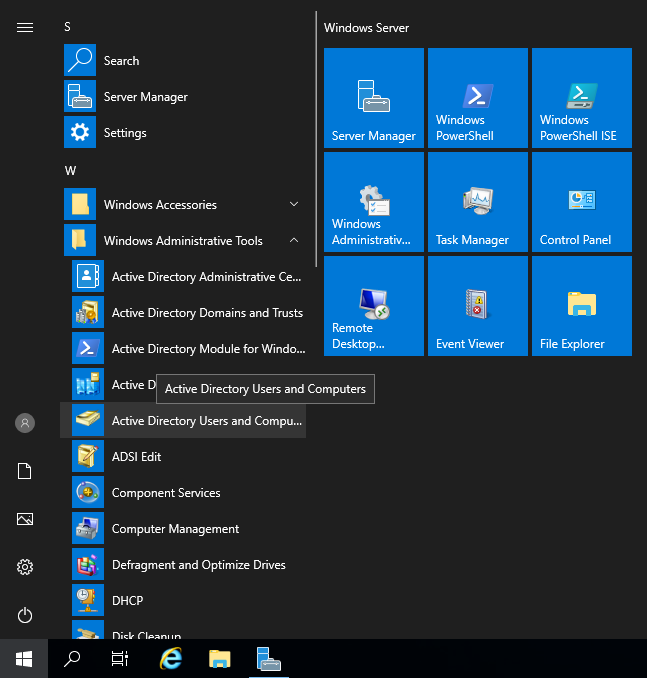
Open the Start menu. Select “Windows Administrative Tools” and then choose **`Active Directory Users and Computers`**.

<figure><img src="https://blog.davidvarghese.net/assets/images/building-home-lab-part-7/dc-75.png" alt=""><figcaption></figcaption></figure>

Right-click on the domain name from the sidebar. Select **`New -> User`**.

<figure><img src="https://blog.davidvarghese.net/assets/images/building-home-lab-part-7/dc-76.png" alt=""><figcaption></figcaption></figure>

Enter the details for the user.

<figure><img src="https://blog.davidvarghese.net/assets/images/building-home-lab-part-7/dc-77.png" alt=""><figcaption></figcaption></figure>

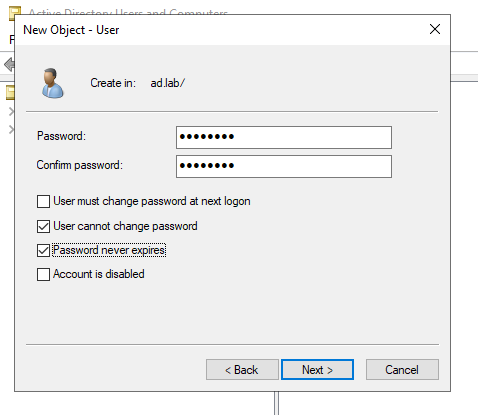
Give the user a password. Check the “User cannot change password” and “Password never expires” options. Click **`Next`** to create a user.

<figure><img src="https://blog.davidvarghese.net/assets/images/building-home-lab-part-7/dc-78.png" alt=""><figcaption></figcaption></figure>

**AD User 2 Setup**

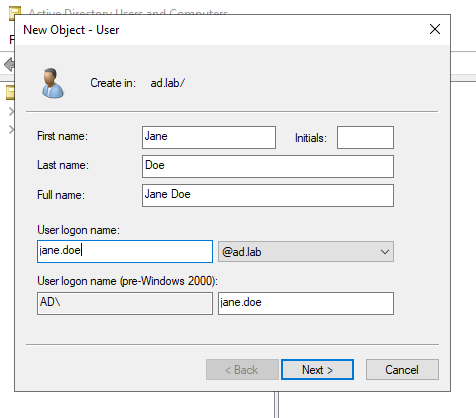
Follow the same steps as above to create a second AD User.

<figure><img src="https://blog.davidvarghese.net/assets/images/building-home-lab-part-7/dc-76.png" alt=""><figcaption></figcaption></figure>

<figure><img src="https://blog.davidvarghese.net/assets/images/building-home-lab-part-7/dc-79.png" alt=""><figcaption></figcaption></figure>

<figure><img src="https://blog.davidvarghese.net/assets/images/building-home-lab-part-7/dc-80.png" alt=""><figcaption></figcaption></figure>

### Making AD Lab Exploitable <a href="#making-a-d-lab-exploitable" id="making-a-d-lab-exploitable"></a>

To make the Active Directory Lab vulnerable we need to change some settings. We will use a PowerShell script and change so and Group Policies to achieve the desired result.

> You can skip this section and continue from the “Windows 10 Enterprise VM1 Setup” step if you do not plan to make your Active Directory Lab vulnerable to attacks

#### Running Vulnerable AD Script <a href="#running-vulnerable-a-d-script" id="running-vulnerable-a-d-script"></a>

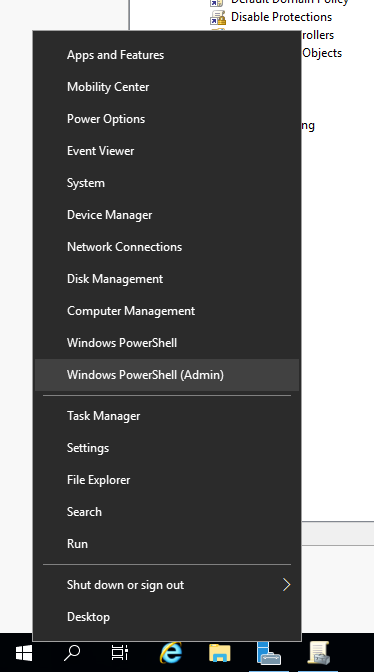
Right-click on the Start menu and select **`Windows PowerShell (Admin)`**.

<figure><img src="https://blog.davidvarghese.net/assets/images/building-home-lab-part-7/dc-91.png" alt=""><figcaption></figcaption></figure>

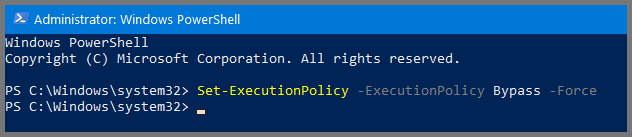
Run the following command:

```
# Allow Execution of Scripts
Set-ExecutionPolicy -ExecutionPolicy Bypass -Force
```

<figure><img src="https://blog.davidvarghese.net/assets/images/building-home-lab-part-7/dc-121.png" alt=""><figcaption></figcaption></figure>

```
# Download and Execute Script
[System.Net.WebClient]::new().DownloadString('https://raw.githubusercontent.com/WaterExecution/vulnerable-AD-plus/master/vulnadplus.ps1') -replace 'change\.me', 'ad.lab' | Invoke-Expression
```

> Replace **`ad.lab`** with the name you have used for your Active Directory Domain before running the above command.

The above command constants of the following steps: **`[System.Net.WebClient]::new().DownloadString()`**: Downloads the Script\
\&#xNAN;**`-replace`**: Change string present in the script\
\&#xNAN;**`Invoke-Expression`**: Execute the Script

<figure><img src="https://blog.davidvarghese.net/assets/images/building-home-lab-part-7/dc-122.png" alt=""><figcaption></figcaption></figure>

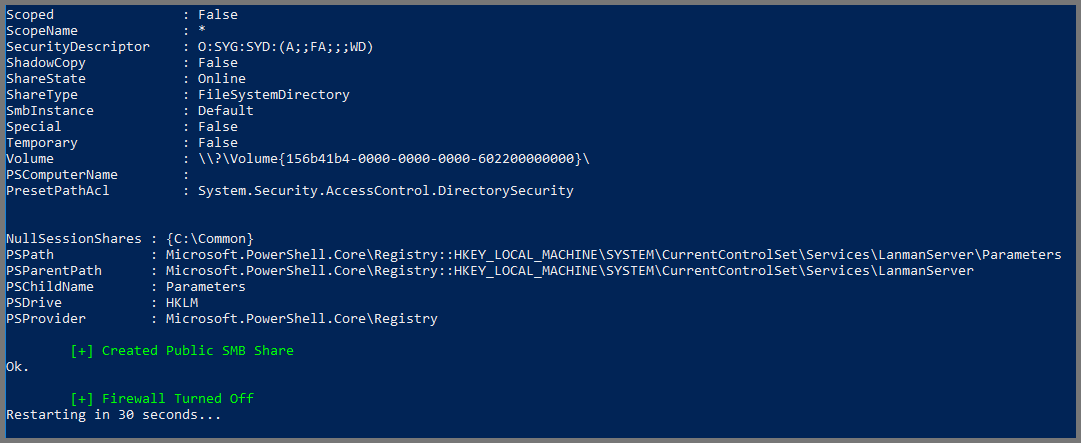
Once the script reaches the end. It will wait for 30 seconds and then restart the system.

<figure><img src="https://blog.davidvarghese.net/assets/images/building-home-lab-part-7/dc-123.png" alt=""><figcaption></figcaption></figure>

#### Group Policy Configuration <a href="#group-policy-configuration" id="group-policy-configuration"></a>

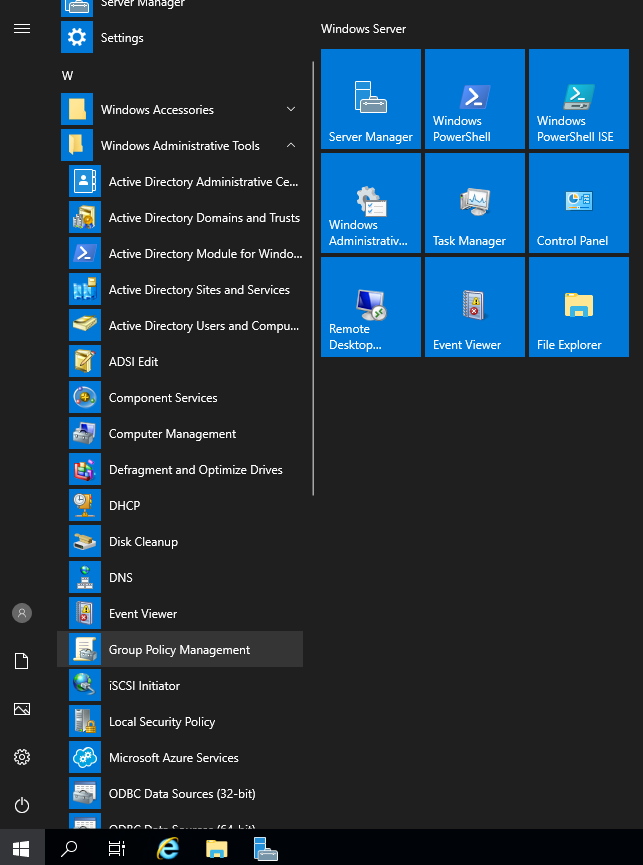
After the system restarts open the Start menu and click on “Windows Administrative Tools” then choose **`Group Policy Management`**.

<figure><img src="https://blog.davidvarghese.net/assets/images/building-home-lab-part-7/dc-81.png" alt=""><figcaption></figcaption></figure>

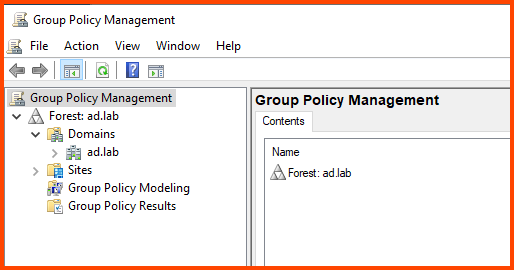
Expand “Forest” and then expand “Domains”.

<figure><img src="https://blog.davidvarghese.net/assets/images/building-home-lab-part-7/dc-102.png" alt=""><figcaption></figcaption></figure>

**Disable Windows Defender and Firewall**

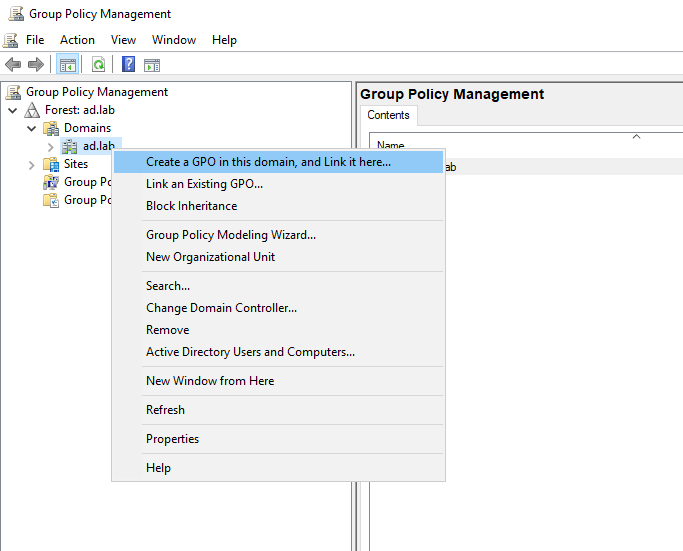
Right-click on the domain name. Select “Create a GPO in the domain and link here”.

<figure><img src="https://blog.davidvarghese.net/assets/images/building-home-lab-part-7/dc-82.png" alt=""><figcaption></figcaption></figure>

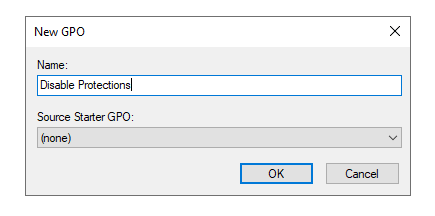
Give the GPO the name **`Disable Protections`**.

<figure><img src="https://blog.davidvarghese.net/assets/images/building-home-lab-part-7/dc-83.png" alt=""><figcaption></figcaption></figure>

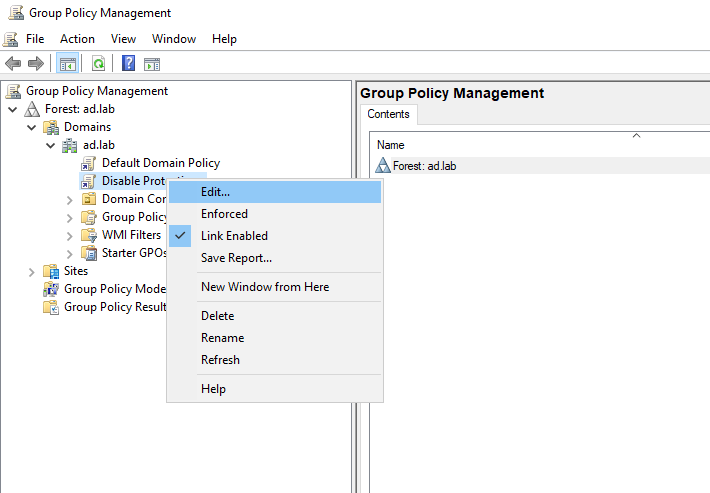
Expand the domain name. Right-click on “Disable Protections” and choose **`Edit`**.

<figure><img src="https://blog.davidvarghese.net/assets/images/building-home-lab-part-7/dc-84.png" alt=""><figcaption></figcaption></figure>

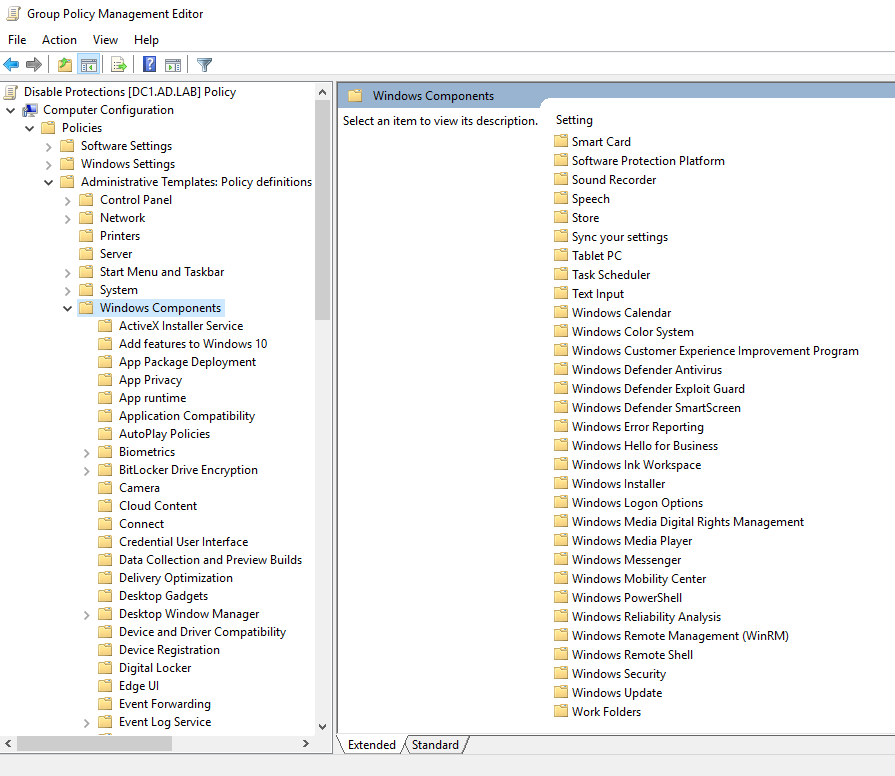
This will open the Group Policy Management Editor. From the sidebar go to the following folder: **`Computer Configuration -> Policies -> Administrative Templates -> Windows Components -> Windows Defender Antivirus`**.

<figure><img src="https://blog.davidvarghese.net/assets/images/building-home-lab-part-7/dc-85.png" alt=""><figcaption></figcaption></figure>

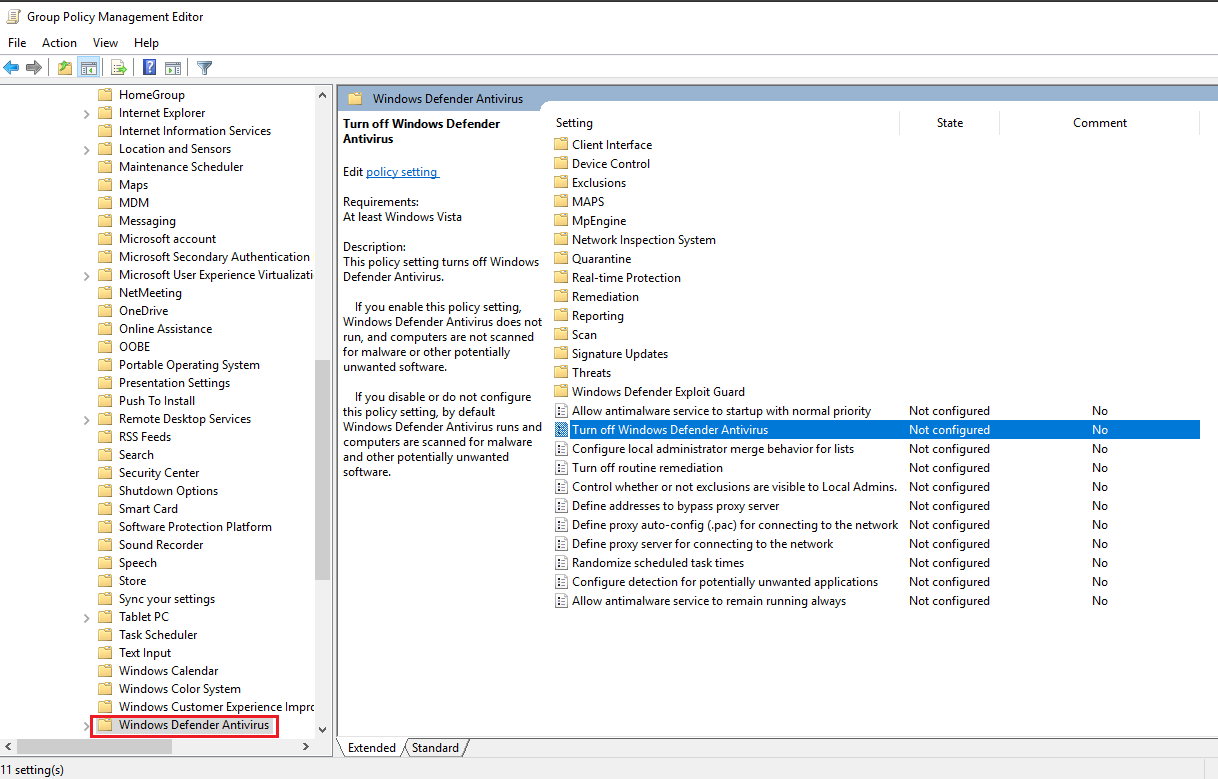
Select “Windows Defender Antivirus”. From the right side select “Turn off Windows Defender Antivirus” and click on **`Edit policy setting`**.

<figure><img src="https://blog.davidvarghese.net/assets/images/building-home-lab-part-7/dc-86.png" alt=""><figcaption></figcaption></figure>

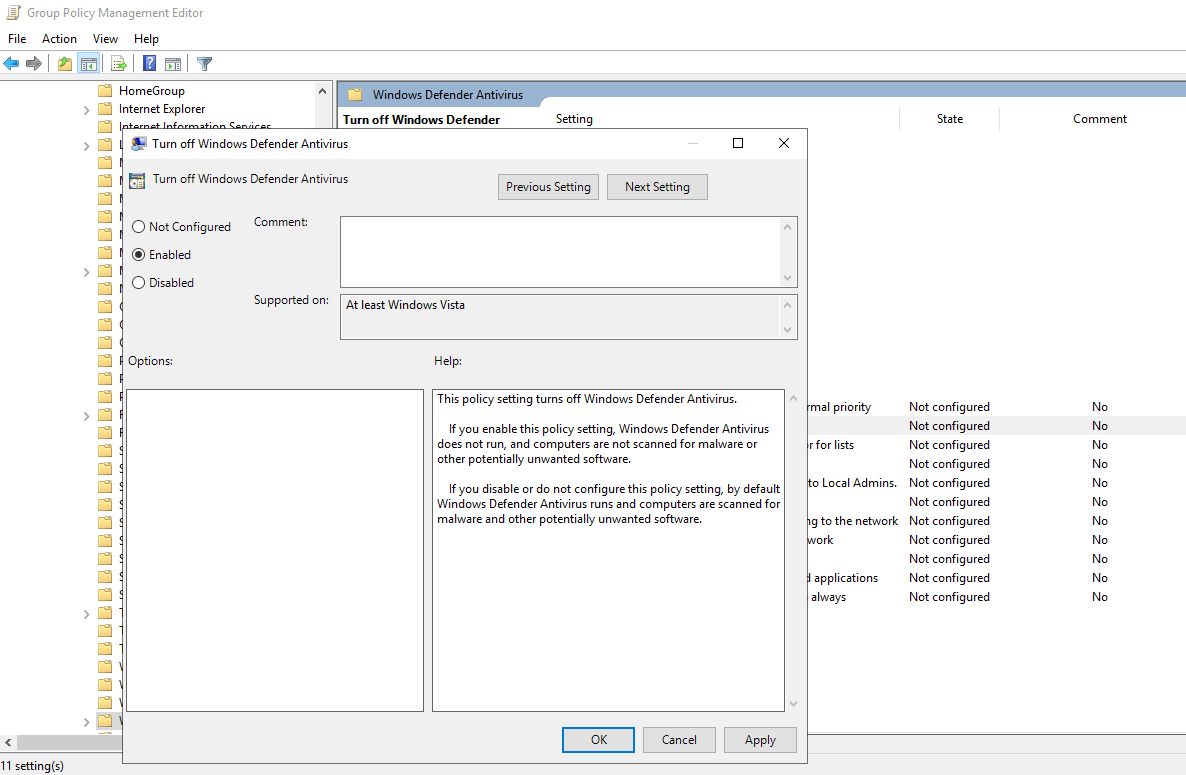
Set it to **`Enabled`**. Click on **`Apply`** then **`OK`** to save the changes.

<figure><img src="https://blog.davidvarghese.net/assets/images/building-home-lab-part-7/dc-87.png" alt=""><figcaption></figcaption></figure>

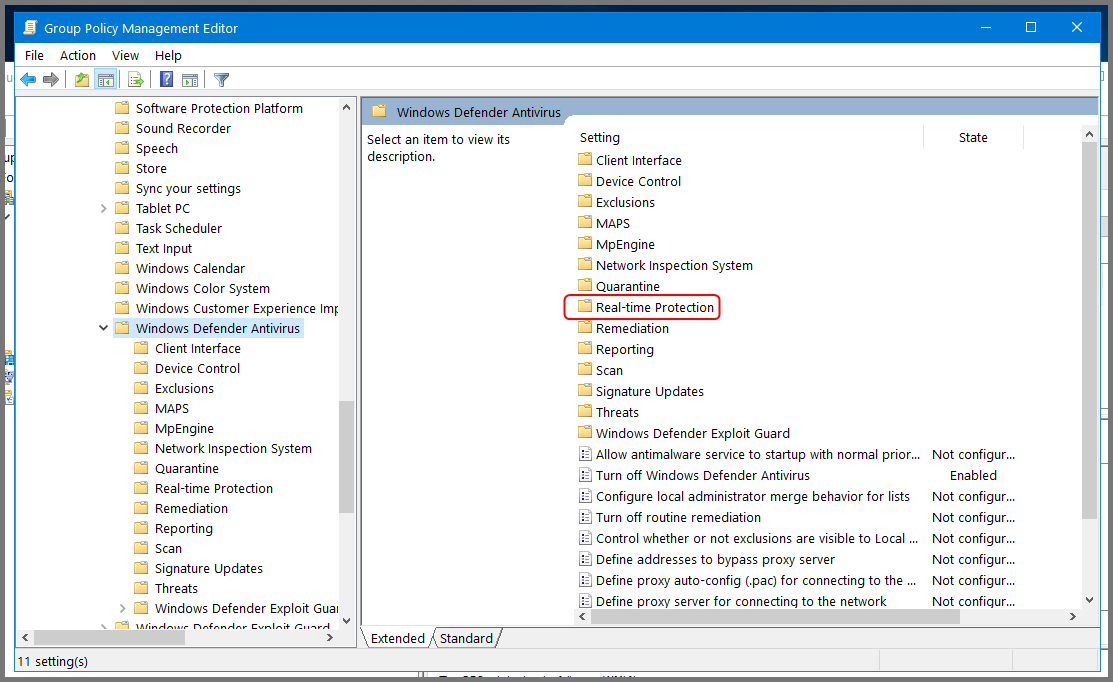
Double-click on **`Real-time Protection`**.

<figure><img src="https://blog.davidvarghese.net/assets/images/building-home-lab-part-7/dc-104.png" alt=""><figcaption></figcaption></figure>

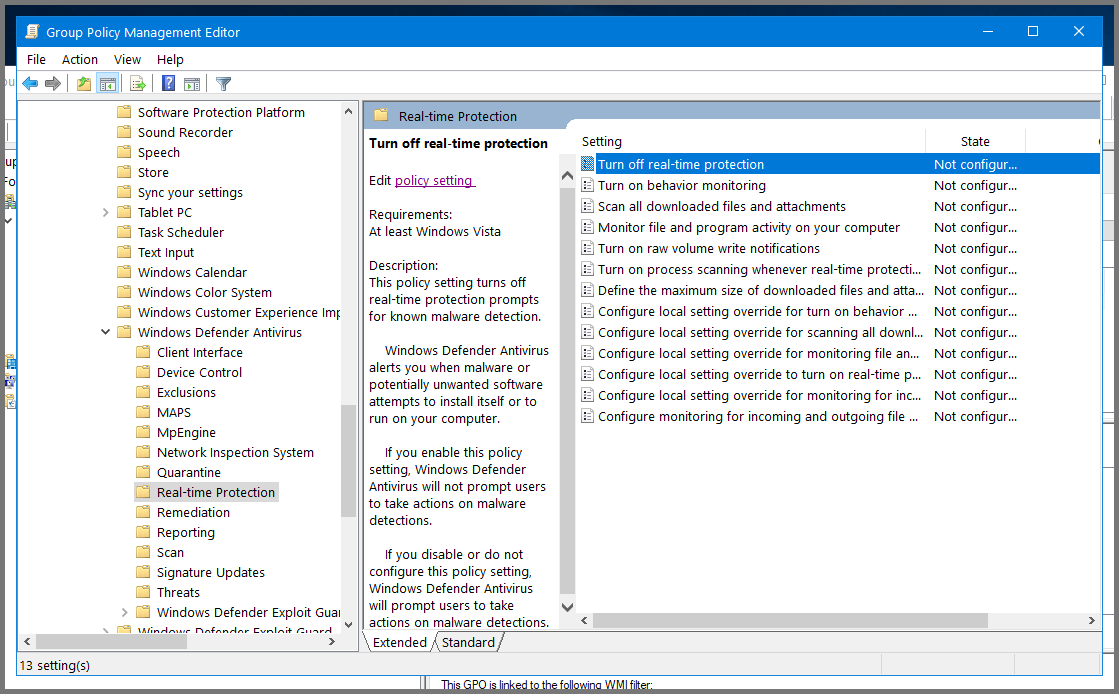
Select “Turn off real-time protection” and then click on “Edit policy settings”

<figure><img src="https://blog.davidvarghese.net/assets/images/building-home-lab-part-7/dc-105.png" alt=""><figcaption></figcaption></figure>

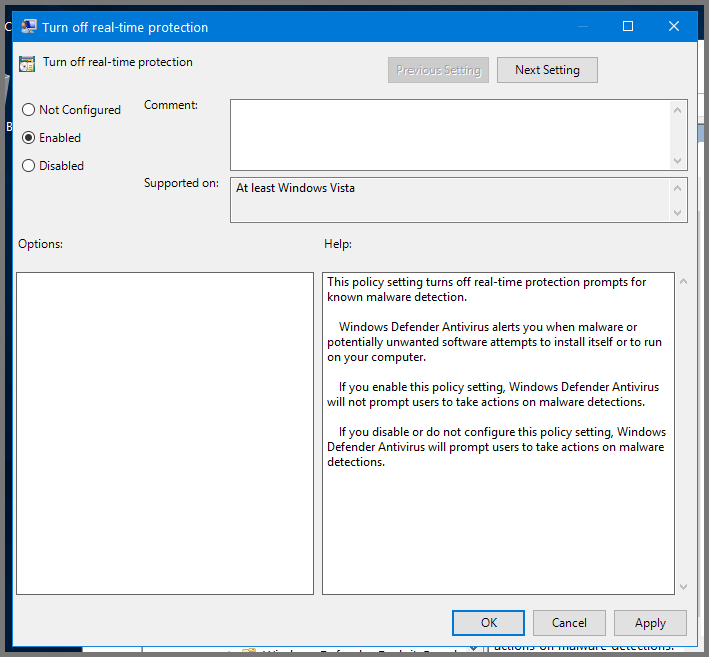
Set it to **`Enabled`**. Click on **`Apply`** then **`OK`** to save the changes.

<figure><img src="https://blog.davidvarghese.net/assets/images/building-home-lab-part-7/dc-106.png" alt=""><figcaption></figcaption></figure>

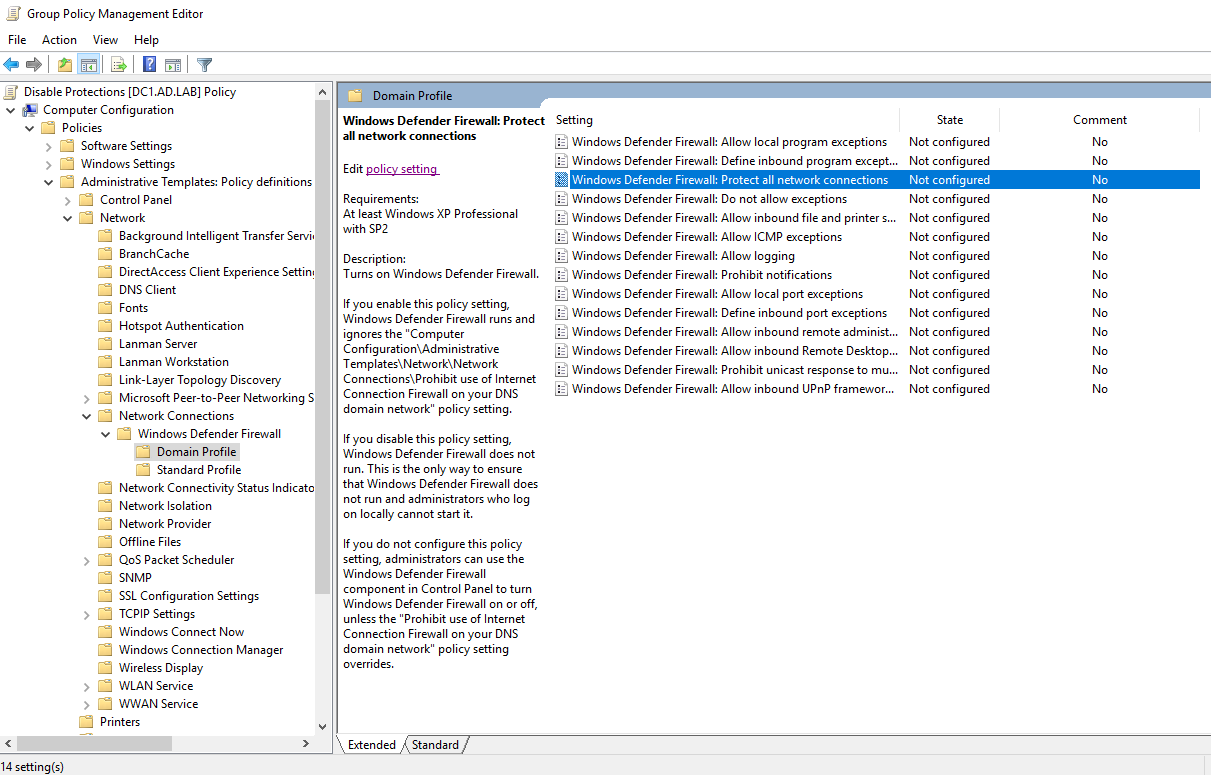
Expand the sidebar folders to the following: **`Computer Configuration -> Policies -> Administrative Templates -> Network -> Network Connections -> Windows Defender Firewall -> Domain Profile`**.

Select “Windows Defender Firewall: Protect all network connections”. Click on “Edit policy settings”.

<figure><img src="https://blog.davidvarghese.net/assets/images/building-home-lab-part-7/dc-88.png" alt=""><figcaption></figcaption></figure>

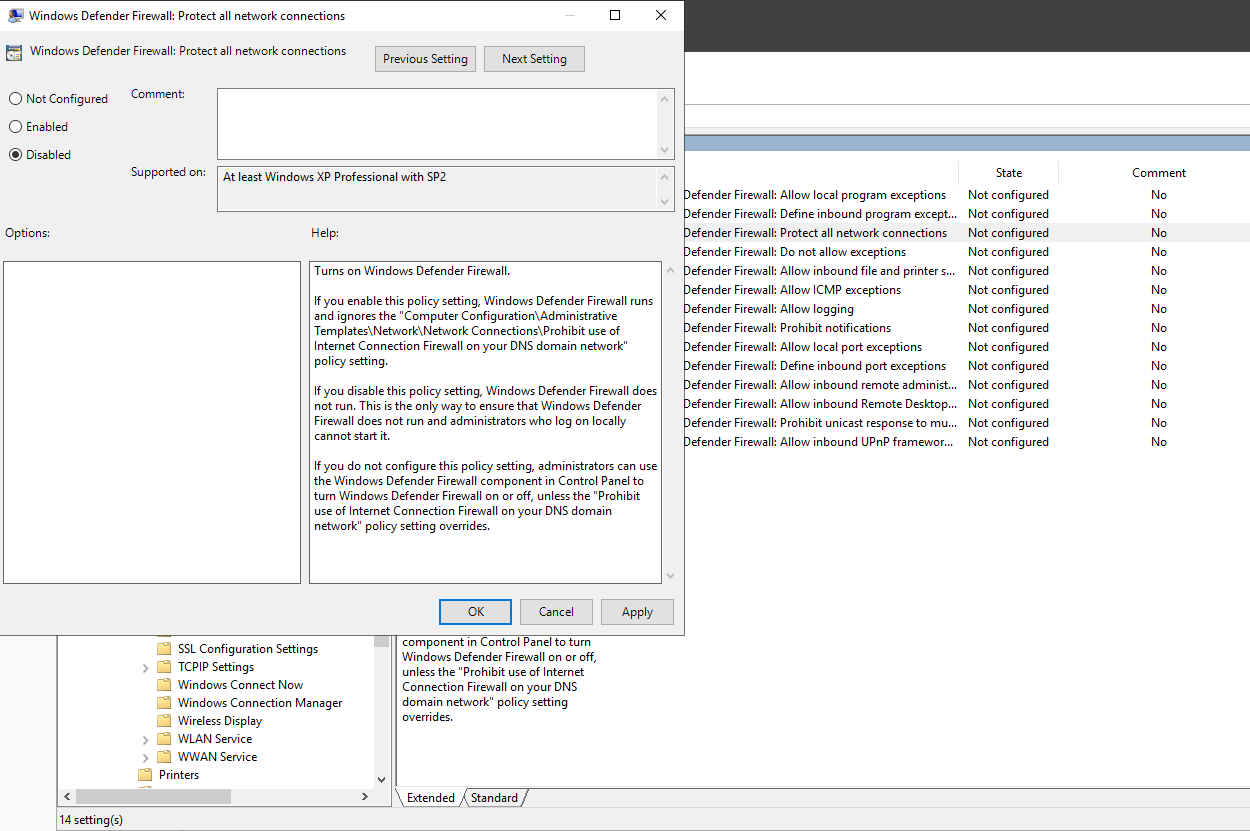
Set it to **`Disabled`**. Click on **`Apply`** then **`OK`** to save the changes.

<figure><img src="https://blog.davidvarghese.net/assets/images/building-home-lab-part-7/dc-89.png" alt=""><figcaption></figcaption></figure>

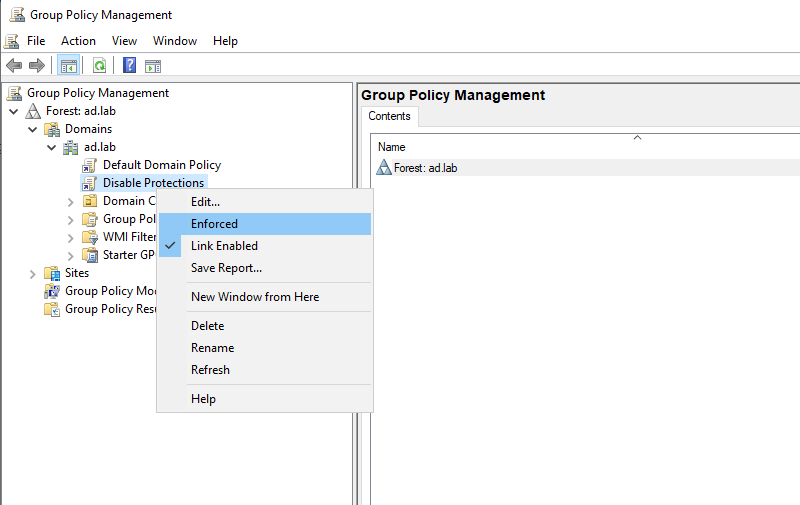
Close Group Policy Management Editor. From the sidebar of Group Policy Management right-click on “Disable Protections” and choose “Enforced”.

<figure><img src="https://blog.davidvarghese.net/assets/images/building-home-lab-part-7/dc-90.png" alt=""><figcaption></figcaption></figure>

**Enable Remote Login for Local Admins**

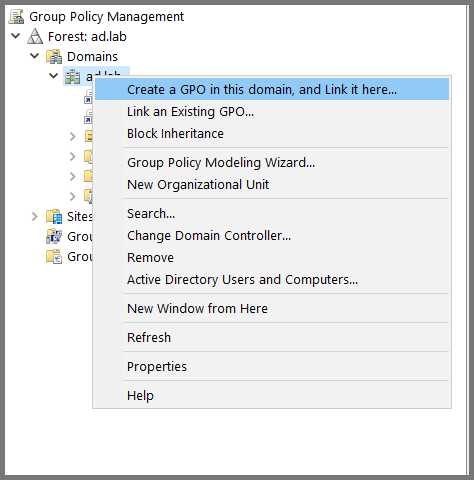
Right-click on the domain name. Select “Create a GPO in the domain and link here”.

<figure><img src="https://blog.davidvarghese.net/assets/images/building-home-lab-part-7/dc-124.png" alt=""><figcaption></figcaption></figure>

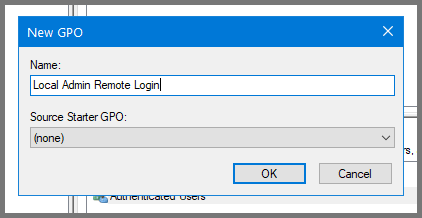
Give the GPO the name **`Local Admin Remote Login`**.

<figure><img src="https://blog.davidvarghese.net/assets/images/building-home-lab-part-7/dc-125.png" alt=""><figcaption></figcaption></figure>

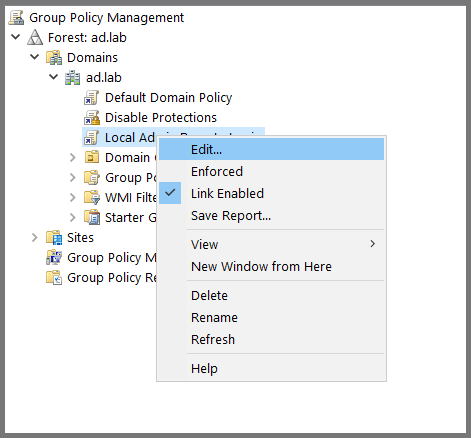
Right-click on “Local Admin Remote Login” and choose **`Edit`**.

<figure><img src="https://blog.davidvarghese.net/assets/images/building-home-lab-part-7/dc-126.png" alt=""><figcaption></figcaption></figure>

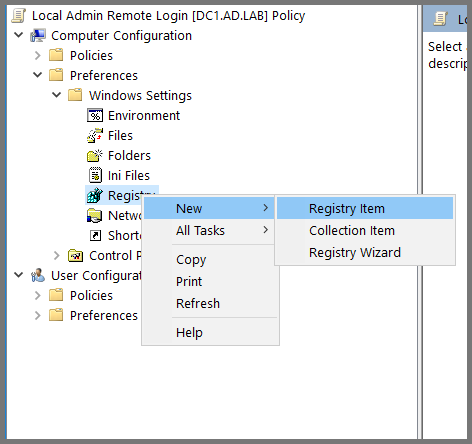
Using the sidebar descend into **`Computer Configuration -> Preferences -> Windows Settings -> Registry`**. Then, right-click **`Registry`** and choose **`New -> Registry Item`**.

<figure><img src="https://blog.davidvarghese.net/assets/images/building-home-lab-part-7/dc-127.png" alt=""><figcaption></figcaption></figure>

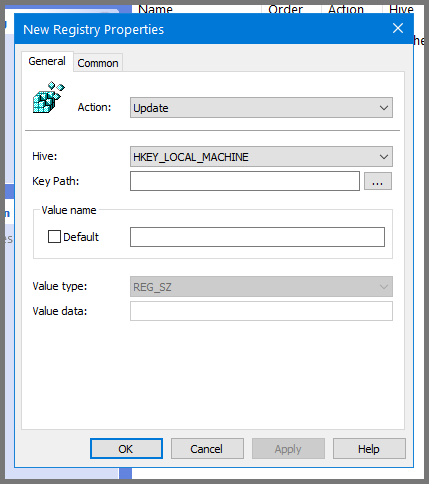
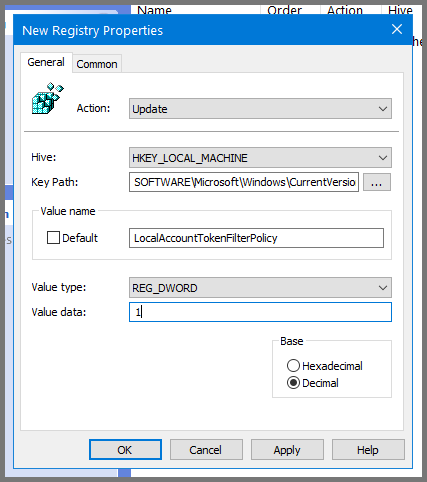
For the Hive field select **`HKEY_LOCAL_MACHINE`**. To fill the value in the “Key Path” field click on the **`...`** button.

<figure><img src="https://blog.davidvarghese.net/assets/images/building-home-lab-part-7/dc-128.png" alt=""><figcaption></figcaption></figure>

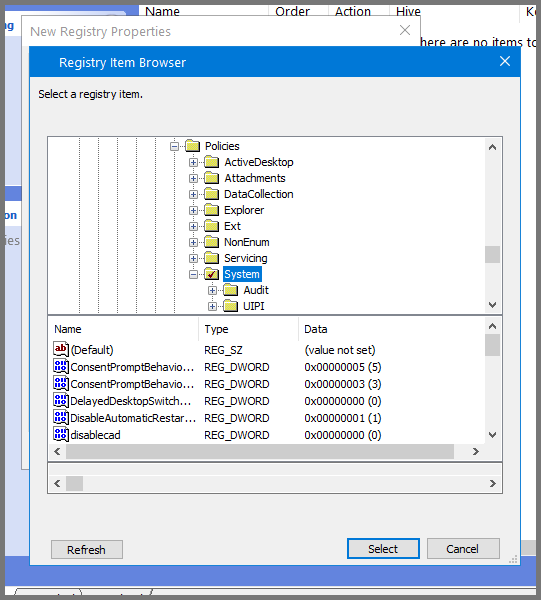
In the window that opens up navigate to the following directory: **`SOFTWARE\Microsoft\Windows\CurrentVersion\Policies\System`**

<figure><img src="https://blog.davidvarghese.net/assets/images/building-home-lab-part-7/dc-129.png" alt=""><figcaption></figcaption></figure>

Enter the following for the remaining fields:\
Value name: **`LocalAccountTokenFilterPolicy`**\
Value type: **`REG_DWORD`**\
Value data: **`1`**

Click on **`Apply`** then **`OK`**. Close Group Policy Management Editor.

<figure><img src="https://blog.davidvarghese.net/assets/images/building-home-lab-part-7/dc-130.png" alt=""><figcaption></figcaption></figure>

**Enable WinRM Server**

Right-click on the domain name. Select “Create a GPO in the domain and link here”.

<figure><img src="https://blog.davidvarghese.net/assets/images/building-home-lab-part-7/dc-124.png" alt=""><figcaption></figcaption></figure>

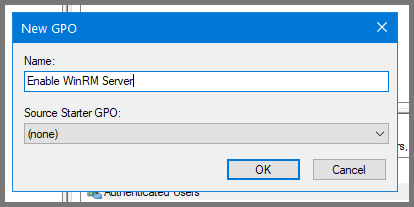
Give the GPO the name **`Enable WinRM Server`**.

<figure><img src="https://blog.davidvarghese.net/assets/images/building-home-lab-part-7/dc-131.png" alt=""><figcaption></figcaption></figure>

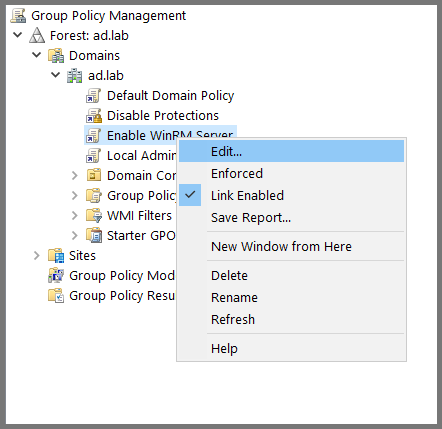
Right-click on “Enable WinRM Server” and choose **`Edit`**.

<figure><img src="https://blog.davidvarghese.net/assets/images/building-home-lab-part-7/dc-132.png" alt=""><figcaption></figcaption></figure>

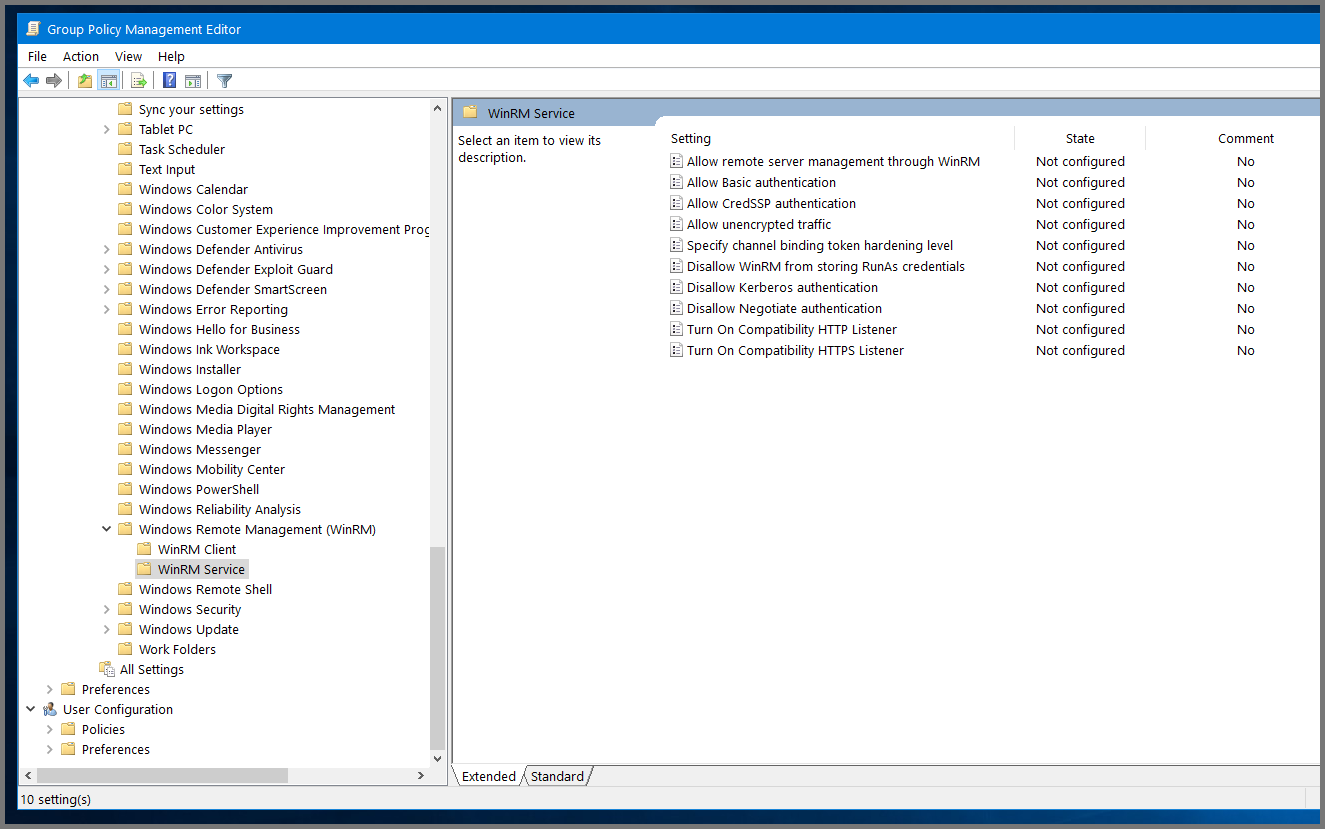
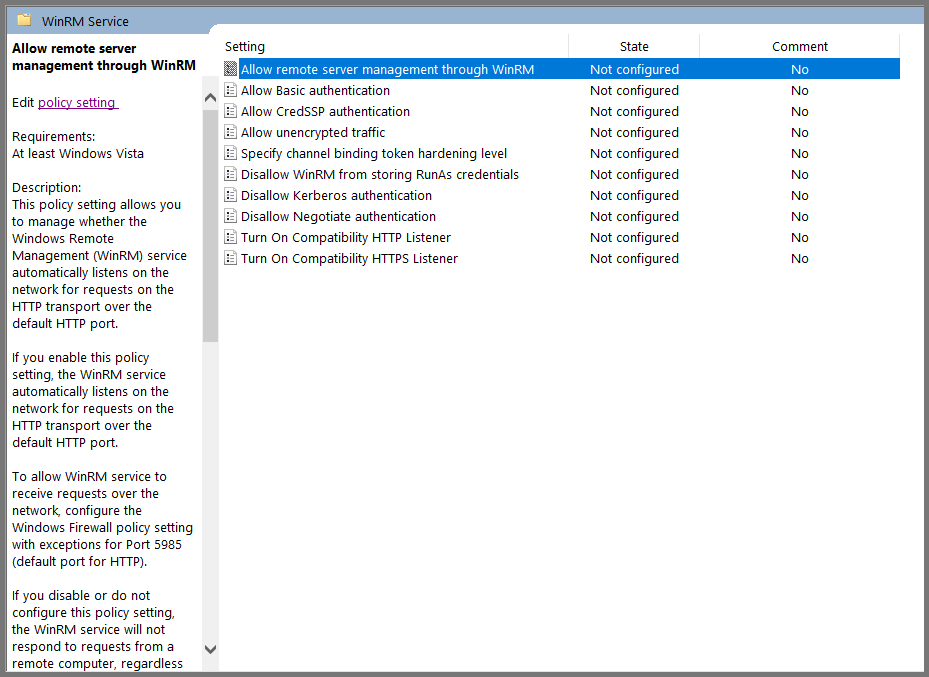
Using the sidebar go to the following folder: **`Computer Configuration -> Policies -> Administrative Templates -> Windows Components -> Windows Remote Management (WinRM) -> WinRM Service`**.

<figure><img src="https://blog.davidvarghese.net/assets/images/building-home-lab-part-7/dc-133.png" alt=""><figcaption></figcaption></figure>

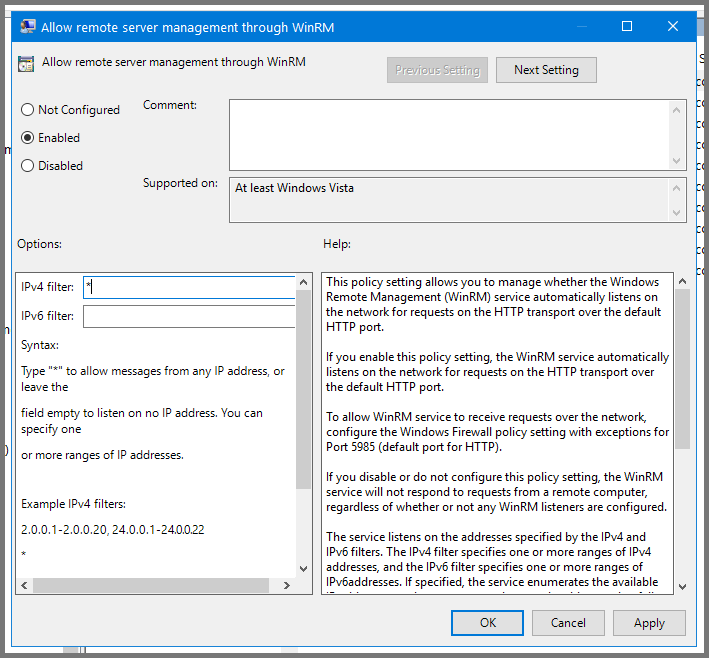
Select “Allow remote server management through WinRM” and then click on “Edit policy settings”.

<figure><img src="https://blog.davidvarghese.net/assets/images/building-home-lab-part-7/dc-134.png" alt=""><figcaption></figcaption></figure>

Set the policy to **`Enabled`**. In the IPv4 filter field enter **`*`**. Click on **`Apply`** then **`OK`**.

<figure><img src="https://blog.davidvarghese.net/assets/images/building-home-lab-part-7/dc-135.png" alt=""><figcaption></figcaption></figure>

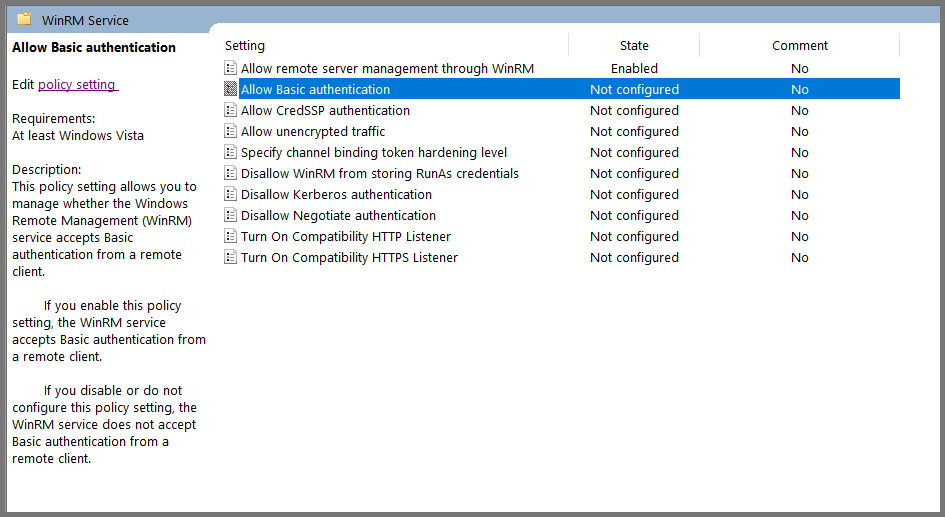
Select “Allow Basic authentication” and click on “Edit policy settings”.

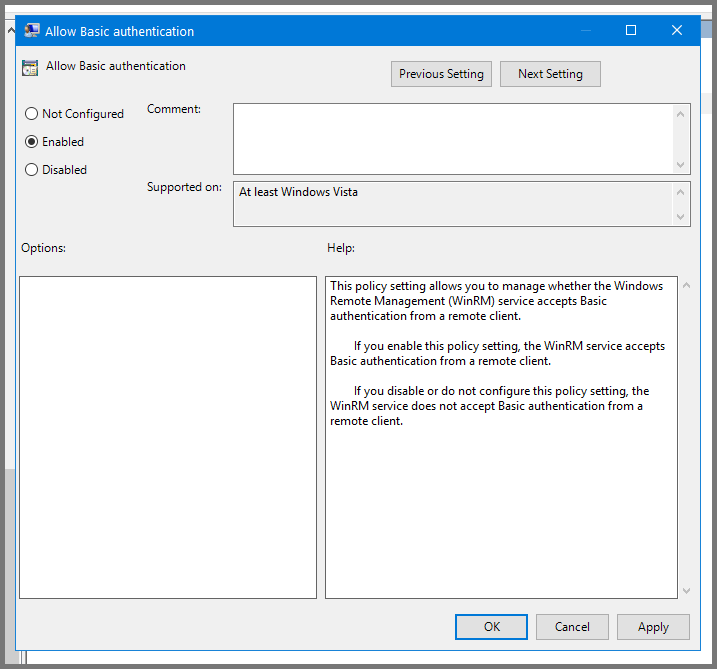
<figure><img src="https://blog.davidvarghese.net/assets/images/building-home-lab-part-7/dc-136.png" alt=""><figcaption></figcaption></figure>

Set the policy to **`Enabled`**. Click on **`Apply`** and then **`OK`**.

<figure><img src="https://blog.davidvarghese.net/assets/images/building-home-lab-part-7/dc-137.png" alt=""><figcaption></figcaption></figure>

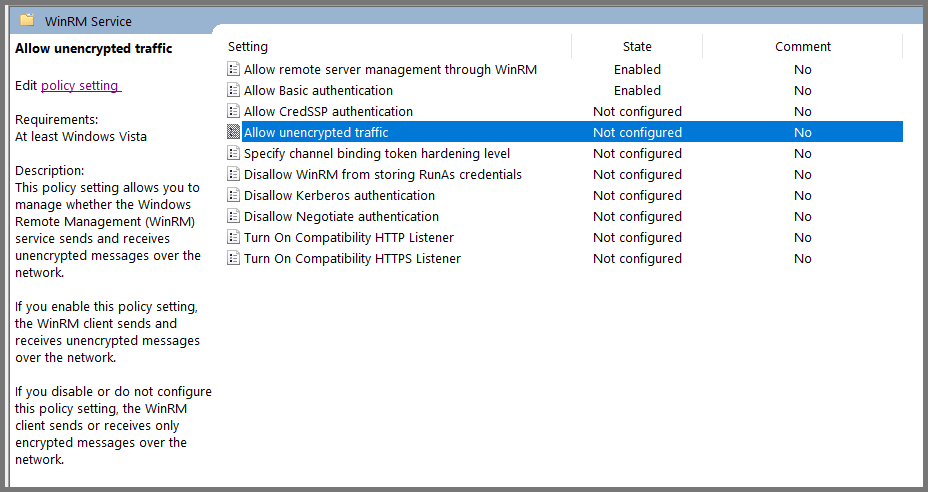
Select “Allow unencrypted traffic” and click on “Edit policy settings”.

<figure><img src="https://blog.davidvarghese.net/assets/images/building-home-lab-part-7/dc-138.png" alt=""><figcaption></figcaption></figure>

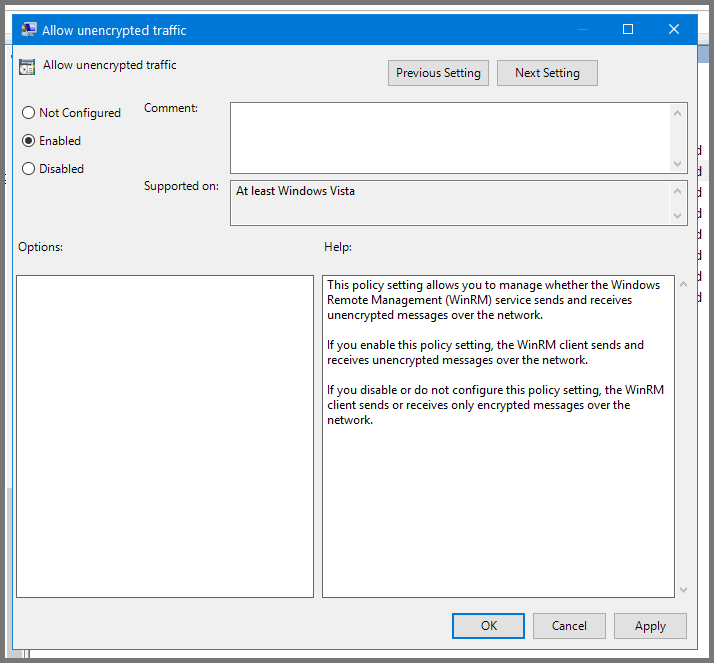
Set the policy to **`Enabled`**. Click on **`Apply`** then **`OK`**.

<figure><img src="https://blog.davidvarghese.net/assets/images/building-home-lab-part-7/dc-139.png" alt=""><figcaption></figcaption></figure>

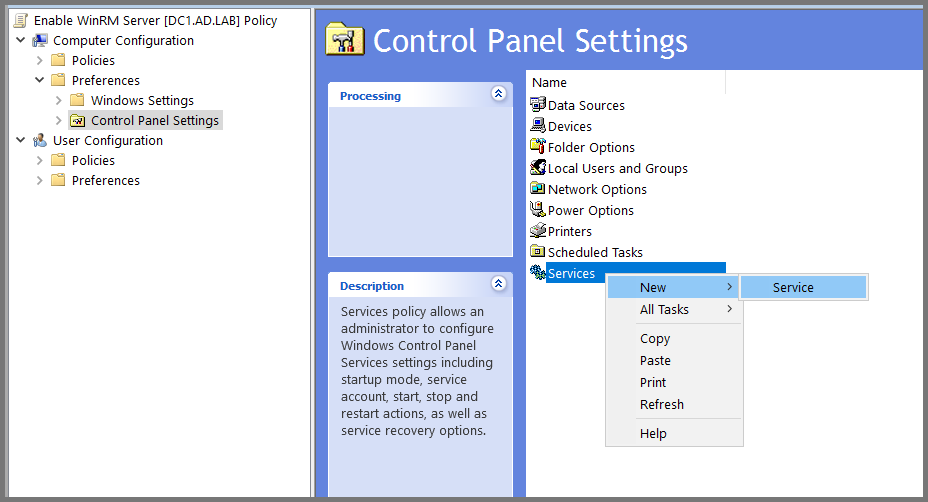
In the sidebar navigate to: **`Computer Configuration -> Preferences -> Control Panel Settings`**. Right-click on Services and select **`New -> Service`**.

<figure><img src="https://blog.davidvarghese.net/assets/images/building-home-lab-part-7/dc-140.png" alt=""><figcaption></figcaption></figure>

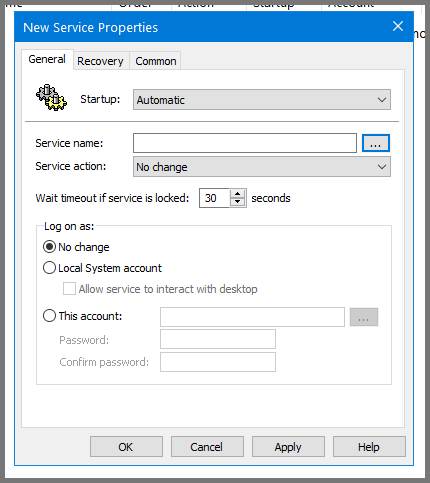
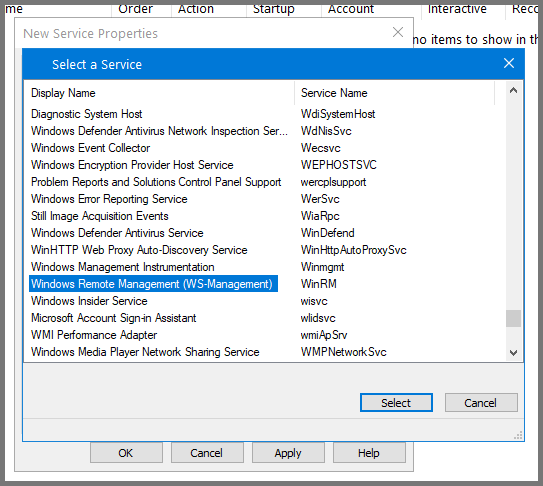
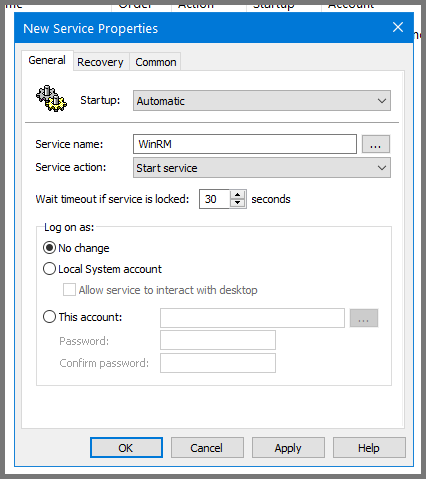
Select Startup to **`Automatic`**. Use the **`...`** button to select the Server name.

<figure><img src="https://blog.davidvarghese.net/assets/images/building-home-lab-part-7/dc-141.png" alt=""><figcaption></figcaption></figure>

Select “Windows Remote Management (WS-Management)” and click on **`Select`**.

<figure><img src="https://blog.davidvarghese.net/assets/images/building-home-lab-part-7/dc-142.png" alt=""><figcaption></figcaption></figure>

For Service action select **`Start service`**. Click on **`Apply`** then **`OK`**.

<figure><img src="https://blog.davidvarghese.net/assets/images/building-home-lab-part-7/dc-143.png" alt=""><figcaption></figcaption></figure>

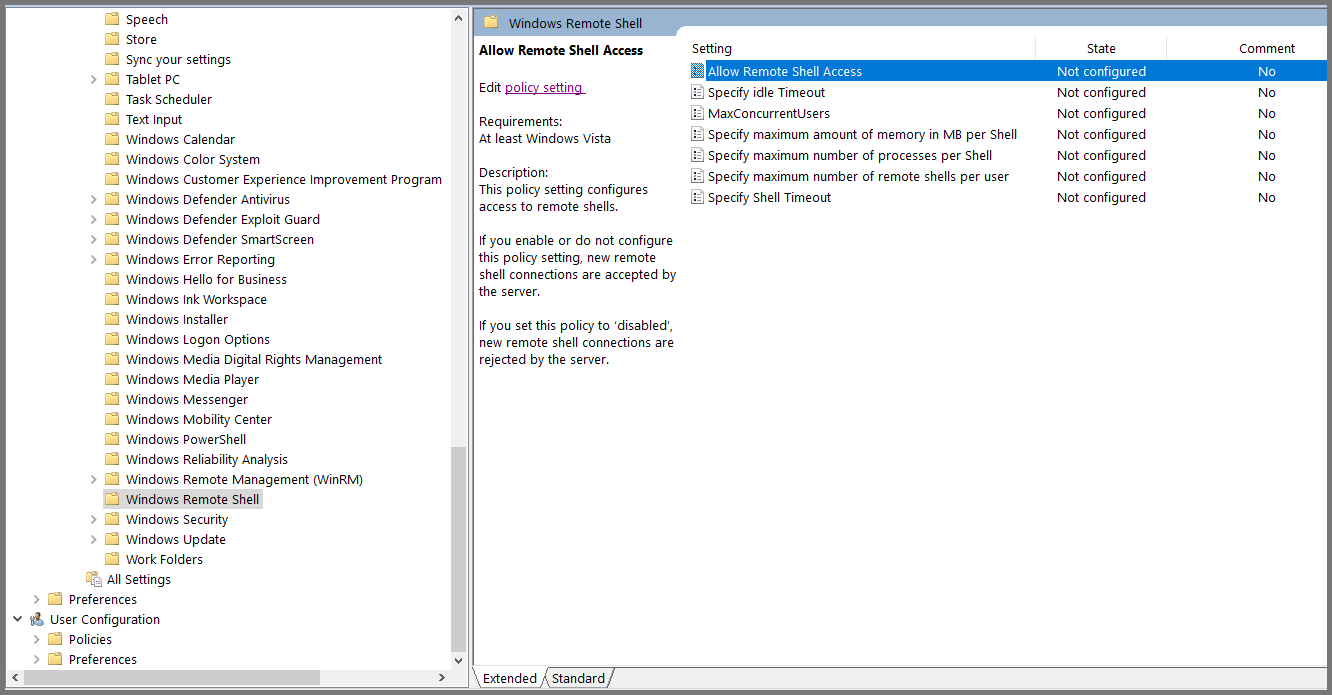
Using the sidebar navigate to the following location: **`Computer Configuration -> Policies -> Administrative Templates -> Windows Components -> Windows Remote Shell`**

Select “Allow Remote Shell Access” and click on “Edit policy setting”.

<figure><img src="https://blog.davidvarghese.net/assets/images/building-home-lab-part-7/dc-144.png" alt=""><figcaption></figcaption></figure>

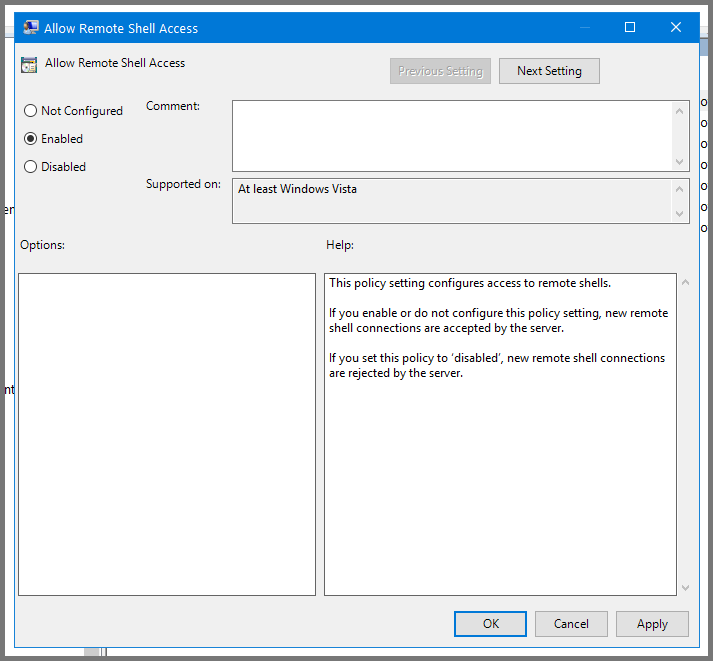
Set the policy to **`Enabled`**. Click on **`Apply`** then **`OK`**. Close the Group Policy Management Editor.

<figure><img src="https://blog.davidvarghese.net/assets/images/building-home-lab-part-7/dc-145.png" alt=""><figcaption></figcaption></figure>

**Enable RDP (Remote Desktop Protocol)**

Right-click on the domain name. Select “Create a GPO in the domain and link here”.

<figure><img src="https://blog.davidvarghese.net/assets/images/building-home-lab-part-7/dc-124.png" alt=""><figcaption></figcaption></figure>

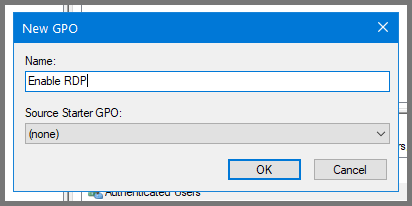
Give the GPO the name **`Enable RDP`**.

<figure><img src="https://blog.davidvarghese.net/assets/images/building-home-lab-part-7/dc-146.png" alt=""><figcaption></figcaption></figure>

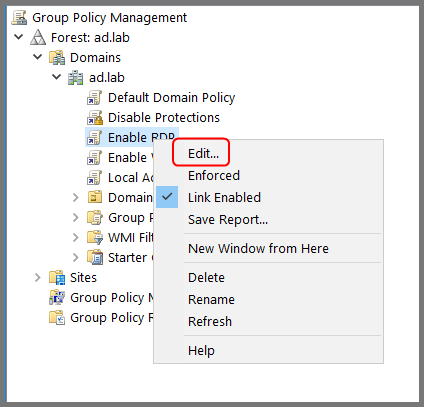
Right-click on “Enable RDP” and select **`Edit`**.

<figure><img src="https://blog.davidvarghese.net/assets/images/building-home-lab-part-7/dc-147.png" alt=""><figcaption></figcaption></figure>

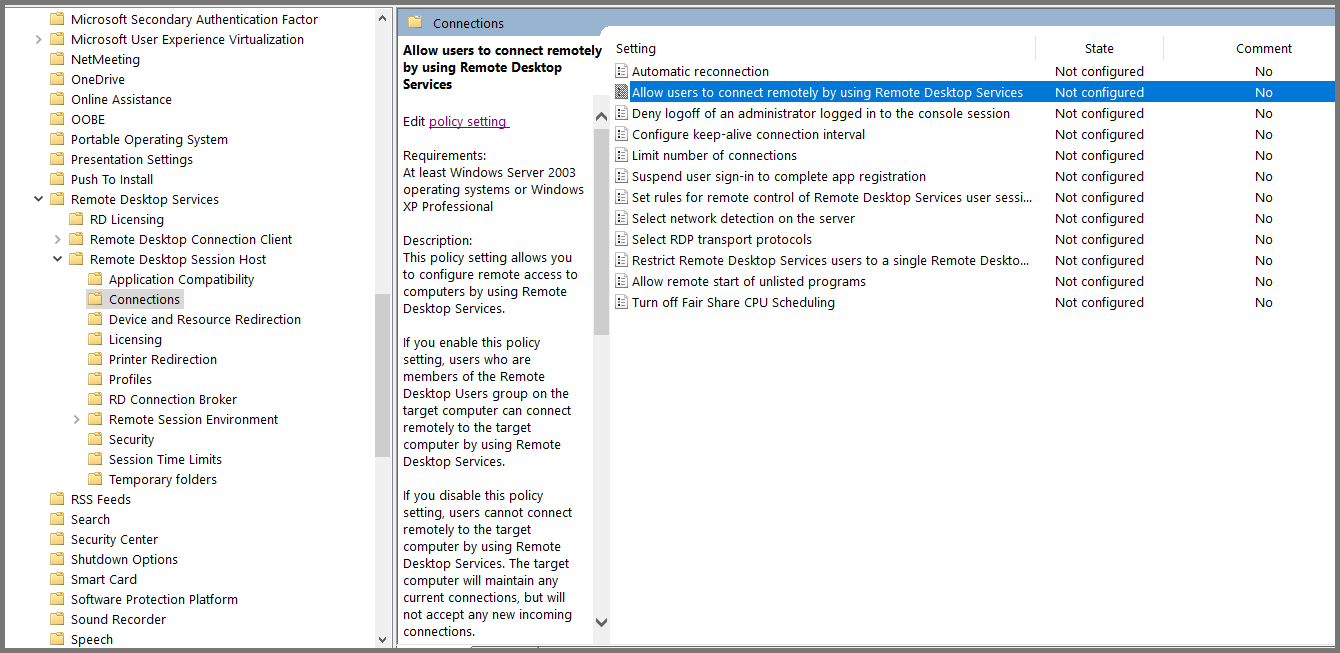
Using the sidebar navigate to the following folder: **`Computer Configuration -> Policies -> Administrative Templates -> Windows Components -> Remote Desktop Services -> Remote Desktop Session Host -> Connections`**.

Select “Allow users to connect remotely using Remote Desktop Services” and click on “Edit policy settings”.

<figure><img src="https://blog.davidvarghese.net/assets/images/building-home-lab-part-7/dc-148.png" alt=""><figcaption></figcaption></figure>

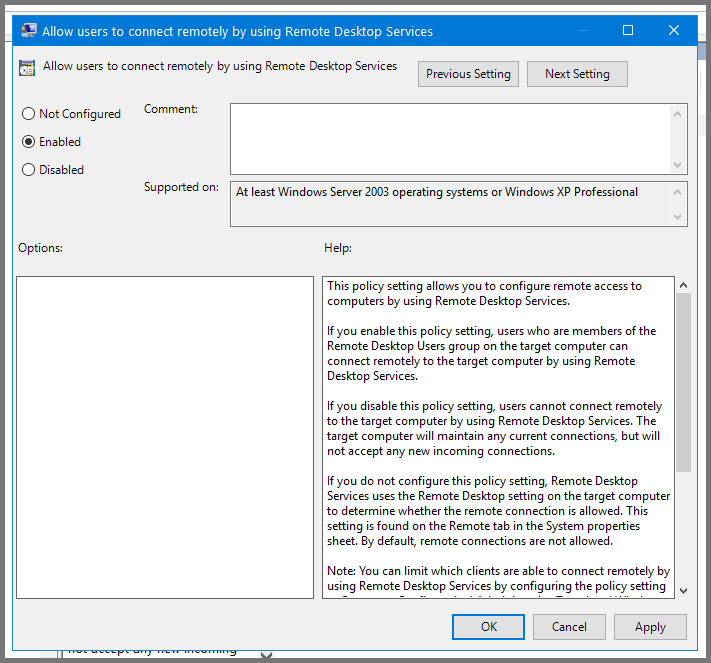
Set the policy to **`Enabled`**. Click on **`Apply`** then **`OK`**. Close Group Policy Management Editor.

<figure><img src="https://blog.davidvarghese.net/assets/images/building-home-lab-part-7/dc-149.png" alt=""><figcaption></figcaption></figure>

**Enable RPC (Remote Procedure Call)**

Right-click on the domain name. Select “Create a GPO in the domain and link here”.

<figure><img src="https://blog.davidvarghese.net/assets/images/building-home-lab-part-7/dc-124.png" alt=""><figcaption></figcaption></figure>

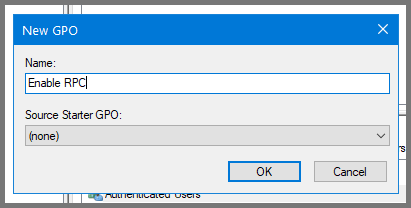
Give the GPO the name **`Enable RPC`**.

<figure><img src="https://blog.davidvarghese.net/assets/images/building-home-lab-part-7/dc-150.png" alt=""><figcaption></figcaption></figure>

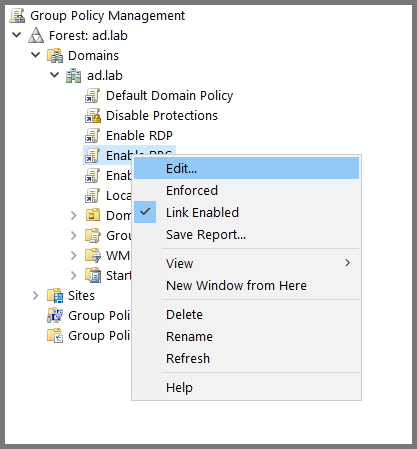
Right-click on “Enable RPC” and select **`Edit`**.

<figure><img src="https://blog.davidvarghese.net/assets/images/building-home-lab-part-7/dc-151.png" alt=""><figcaption></figcaption></figure>

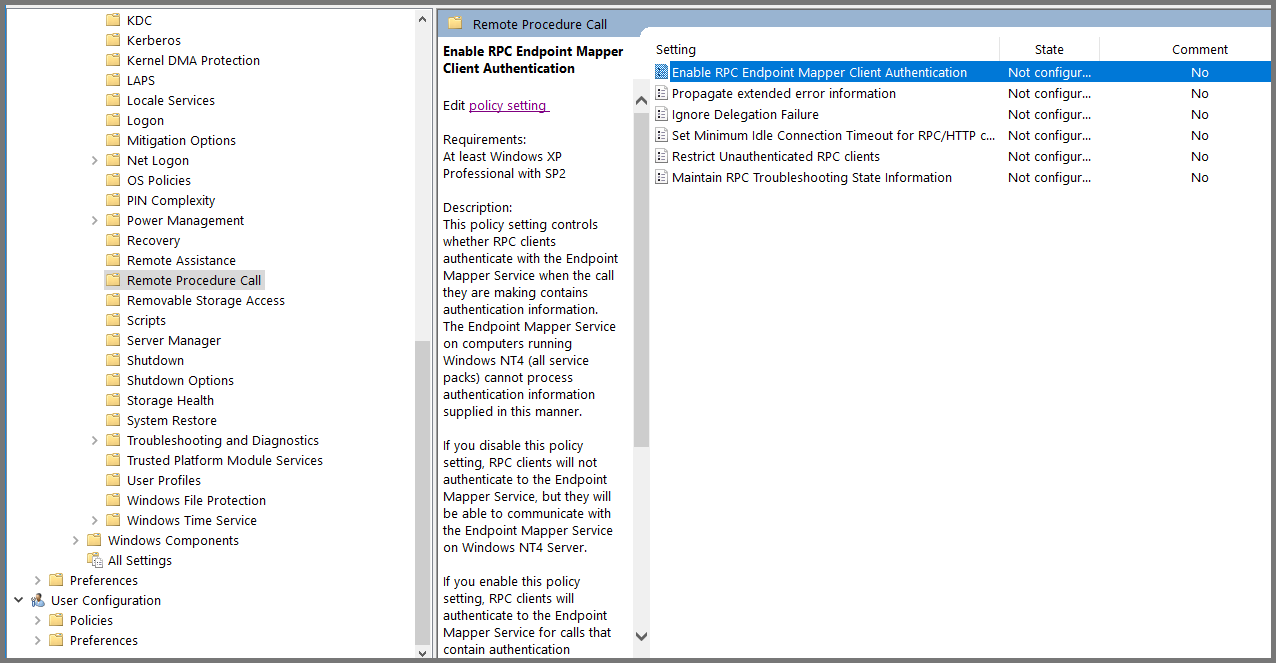
Using the sidebar navigate to the following folder: **`Computer Configuration -> Administrative Templates -> System -> Remote Procedure Call`**.

Select “Enable RPC Endpoint Mapper Client Authentication” and click on “Edit policy settings”.

<figure><img src="https://blog.davidvarghese.net/assets/images/building-home-lab-part-7/dc-152.png" alt=""><figcaption></figcaption></figure>

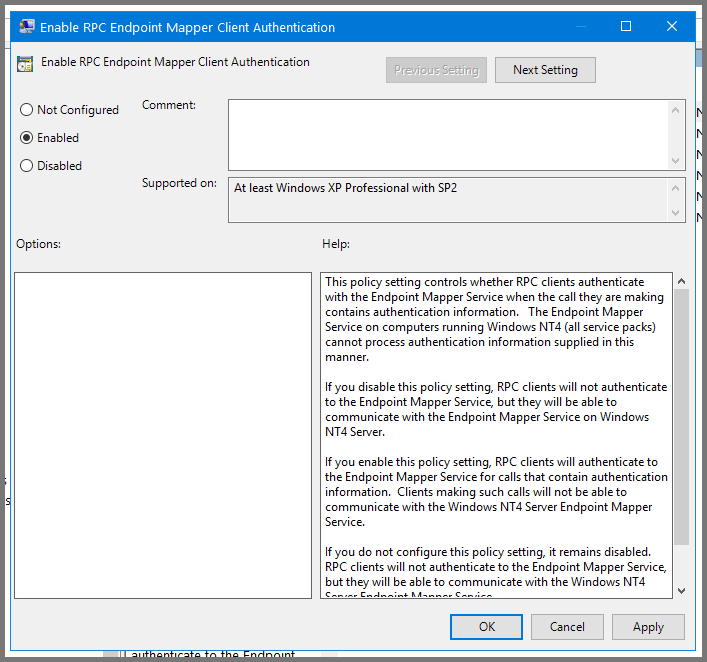
Set the policy to **`Enabled`**. Click on **`Apply`** then **`OK`**. Close Group Policy Management Editor.

<figure><img src="https://blog.davidvarghese.net/assets/images/building-home-lab-part-7/dc-153.png" alt=""><figcaption></figcaption></figure>

**Enforce the Domain Policies**

Right-click on the Start menu and select **`Windows PowerShell (Admin)`**.

<figure><img src="https://blog.davidvarghese.net/assets/images/building-home-lab-part-7/dc-91.png" alt=""><figcaption></figcaption></figure>

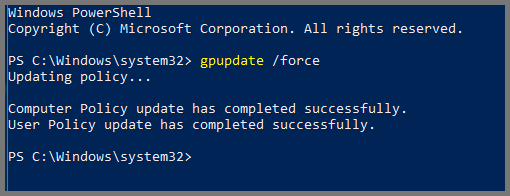
In the terminal enter the following:

```
gpupdate /force
```

<figure><img src="https://blog.davidvarghese.net/assets/images/building-home-lab-part-7/dc-92.png" alt=""><figcaption></figcaption></figure>

Now whenever a new device joins our AD environment the Group Policies that apply to all the devices will automatically be applied to them. With this, we have completed the Domain Controller setup.

> For the rest of the module the DC VM should be left powered on. To use the AD lab DC should be the first VM that is launched.

### Windows 10 Enterprise VM1 Setup <a href="#windows-10-enterprise-vm1-setup" id="windows-10-enterprise-vm1-setup"></a>

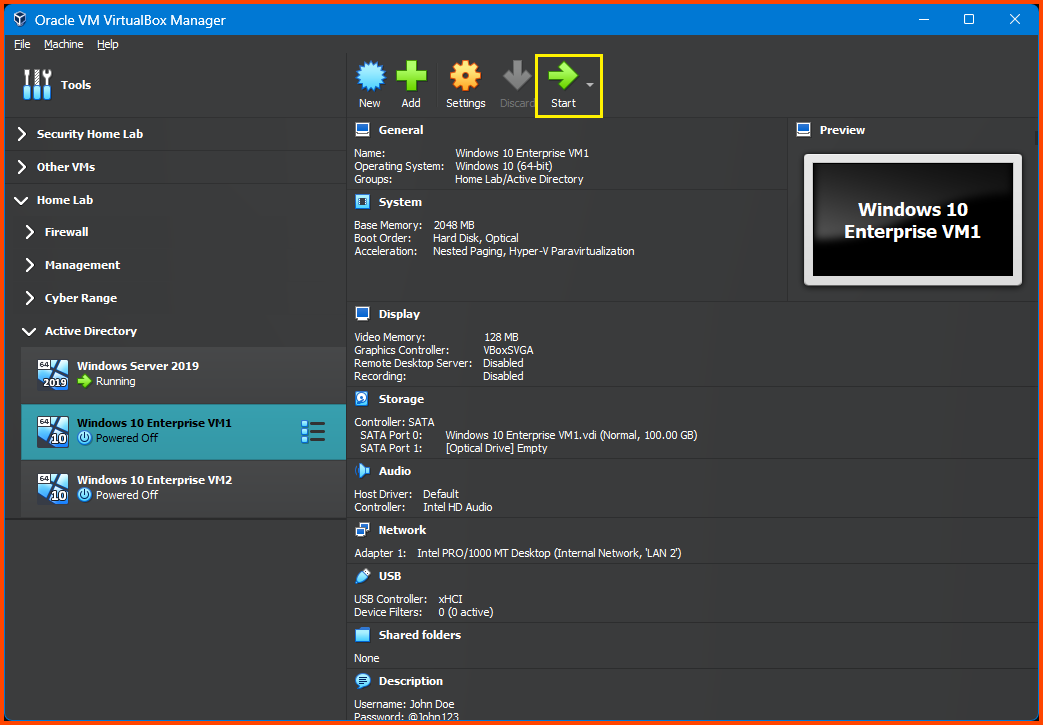
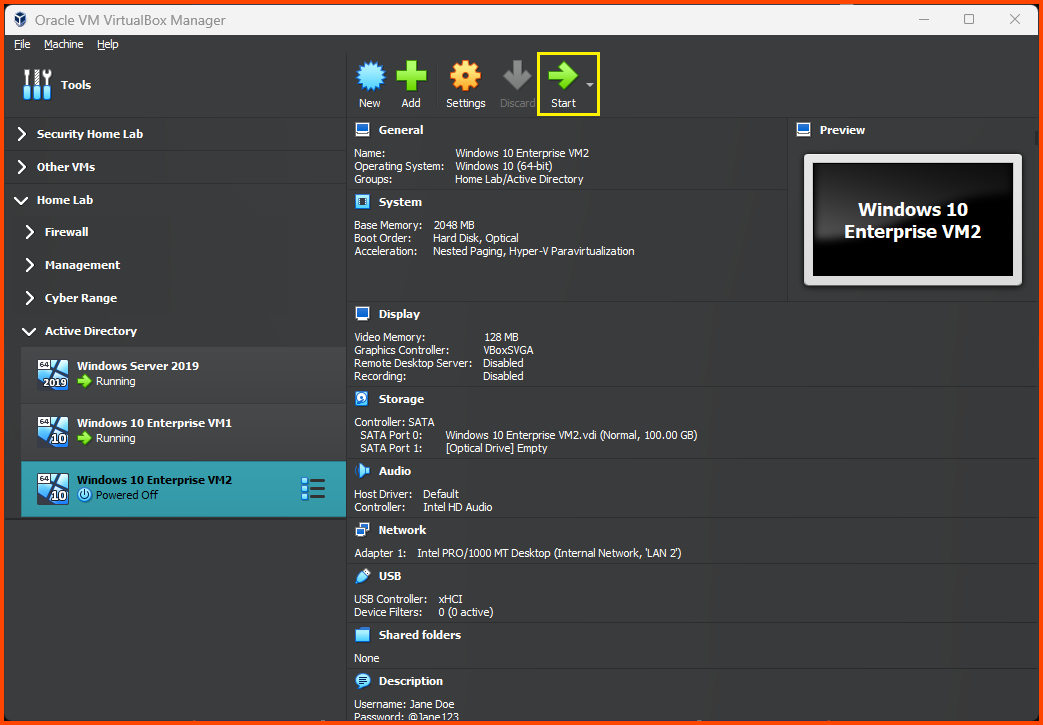
Select Windows 10 Enterprise VM1 from the sidebar then click on **`Start`**.

<figure><img src="https://blog.davidvarghese.net/assets/images/building-home-lab-part-7/user-45.png" alt=""><figcaption></figcaption></figure>

#### OS Installation <a href="#os-installation" id="os-installation"></a>

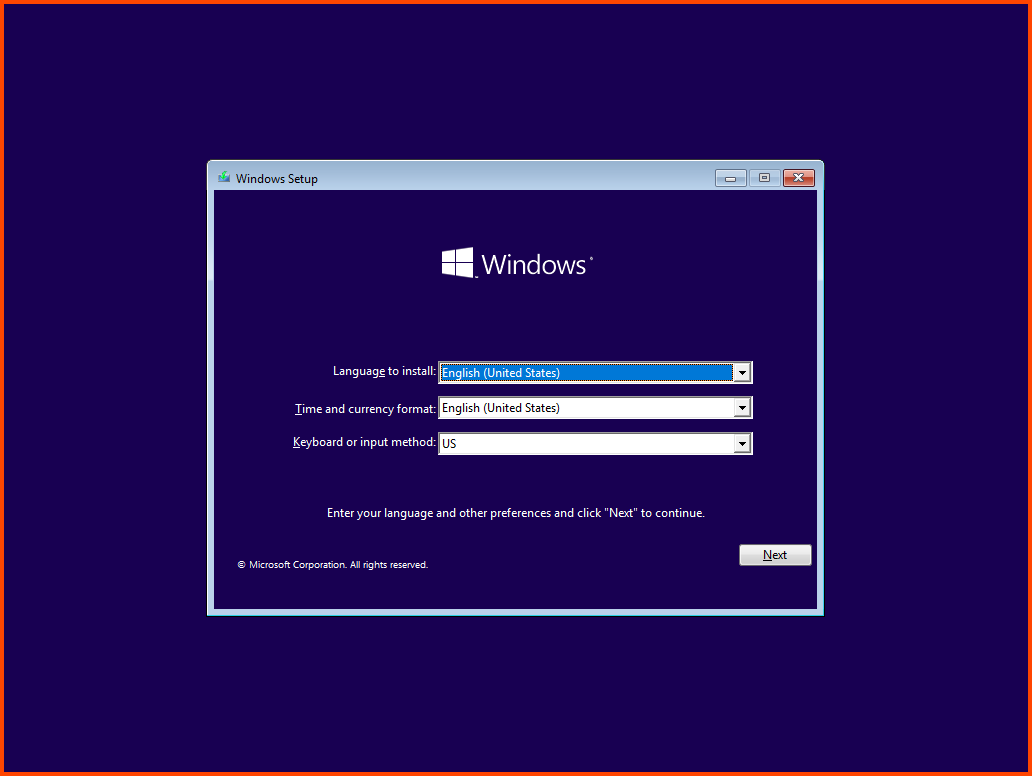
Click on **`Next`**.

<figure><img src="https://blog.davidvarghese.net/assets/images/building-home-lab-part-7/user-1.png" alt=""><figcaption></figcaption></figure>

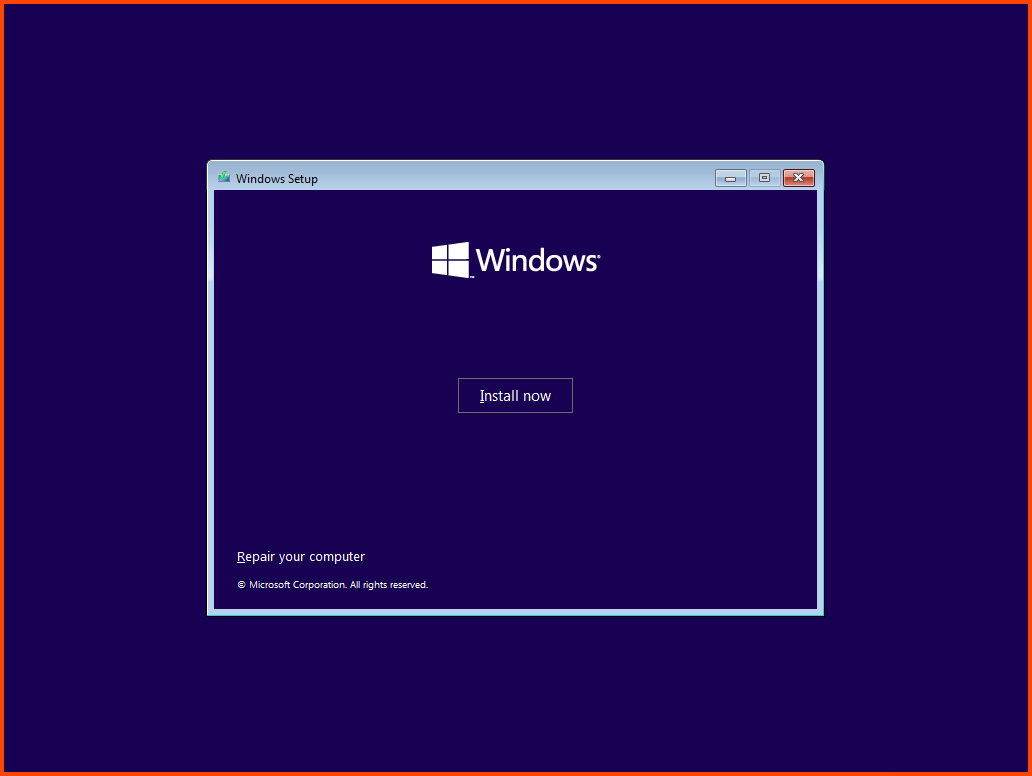
Click on **`Install now`**.

<figure><img src="https://blog.davidvarghese.net/assets/images/building-home-lab-part-7/user-2.png" alt=""><figcaption></figcaption></figure>

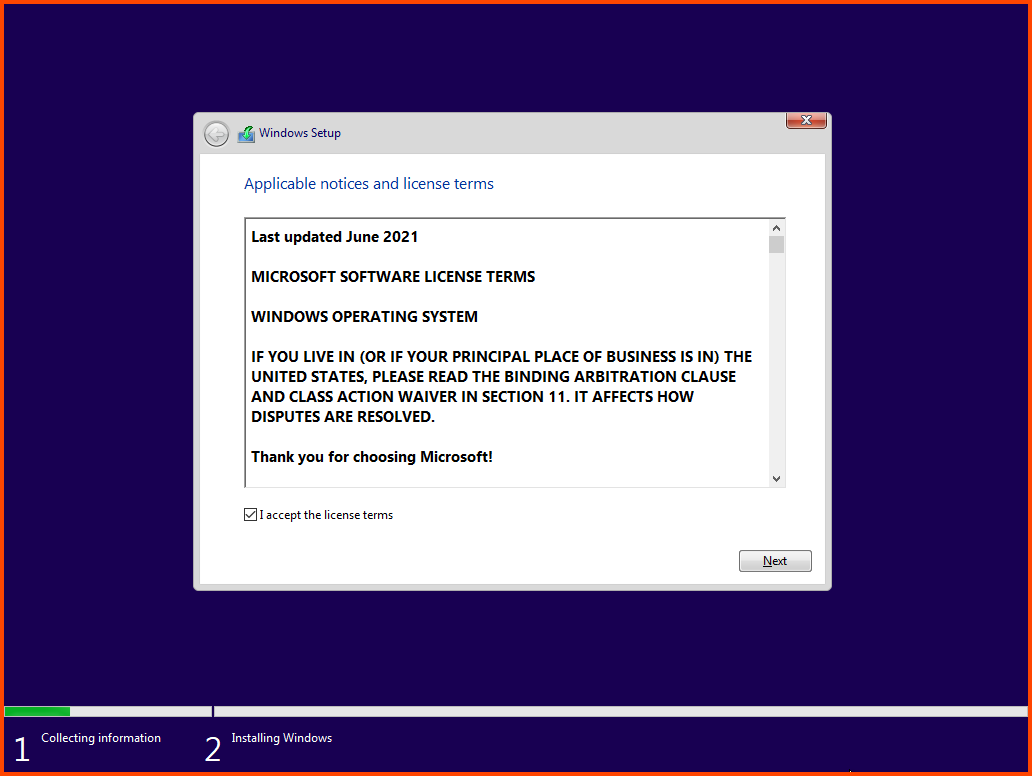
Accept the agreement and then click on **`Next`**.

<figure><img src="https://blog.davidvarghese.net/assets/images/building-home-lab-part-7/user-3.png" alt=""><figcaption></figcaption></figure>

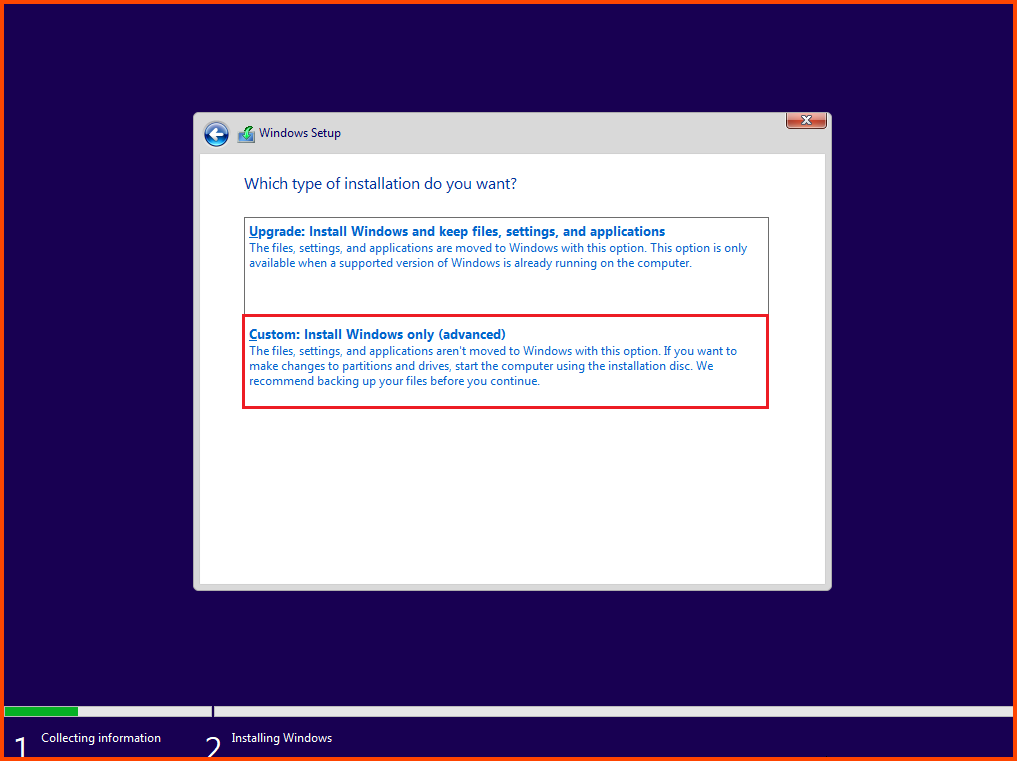
Select “Custom: Install Windows only (advanced)”.

<figure><img src="https://blog.davidvarghese.net/assets/images/building-home-lab-part-7/user-4.png" alt=""><figcaption></figcaption></figure>

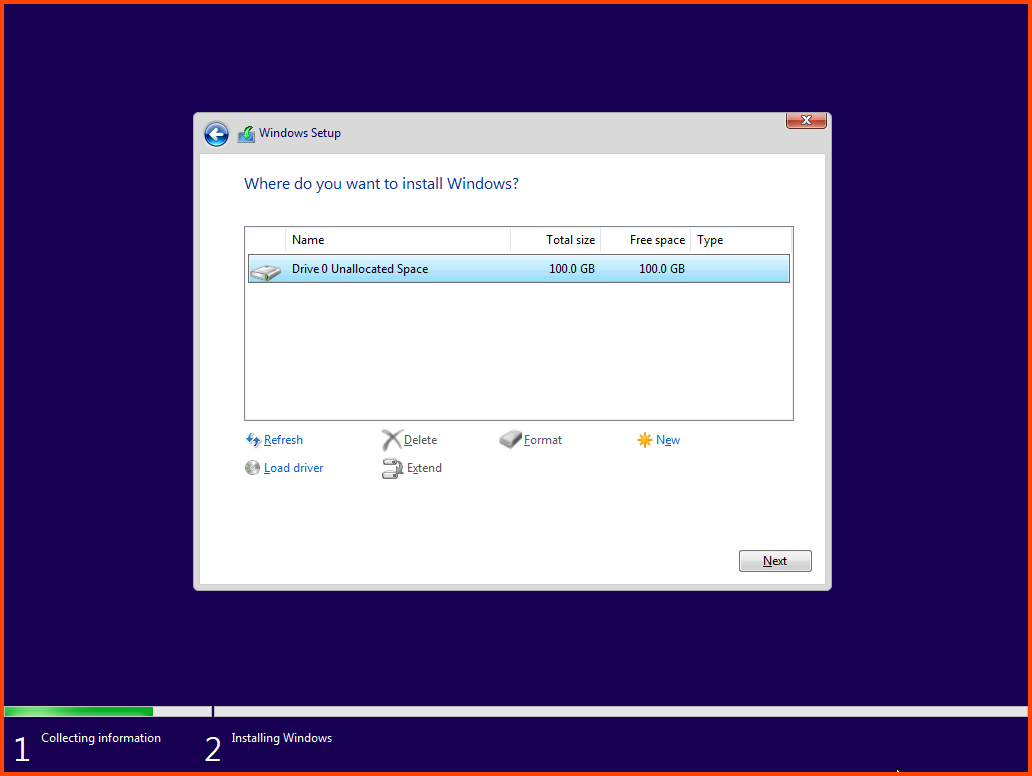
Select **`Disk 0`** and then click on **`Next`**.

<figure><img src="https://blog.davidvarghese.net/assets/images/building-home-lab-part-7/user-5.png" alt=""><figcaption></figcaption></figure>

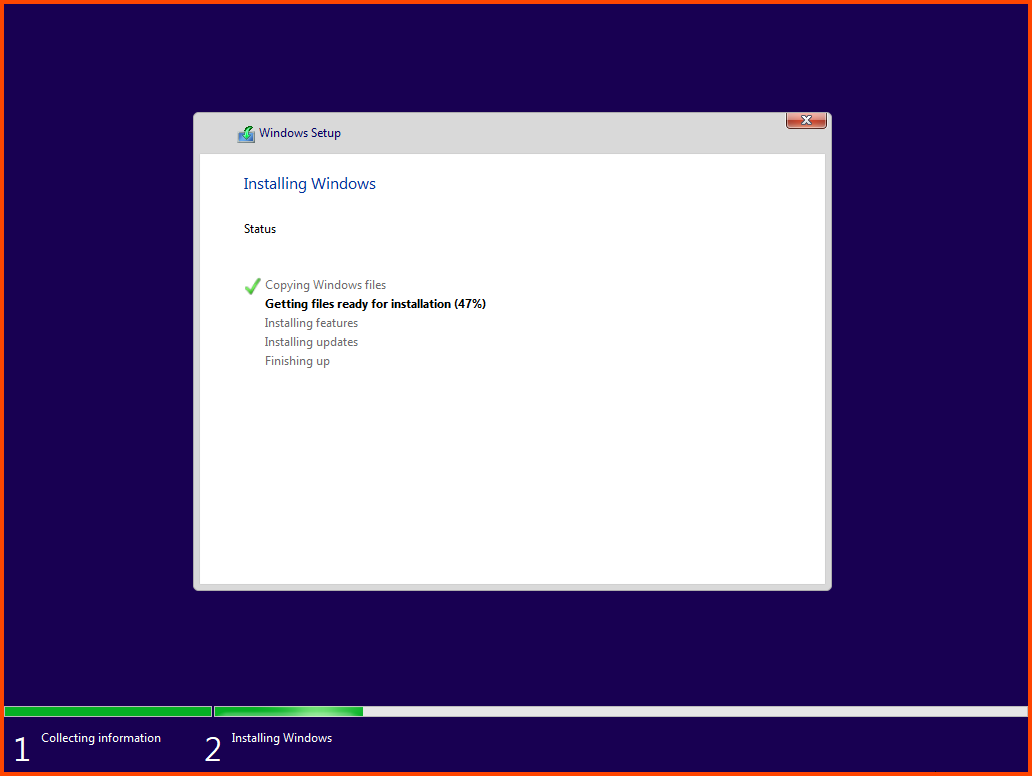
The VM will reboot multiple times during the installation.

<figure><img src="https://blog.davidvarghese.net/assets/images/building-home-lab-part-7/user-6.png" alt=""><figcaption></figcaption></figure>

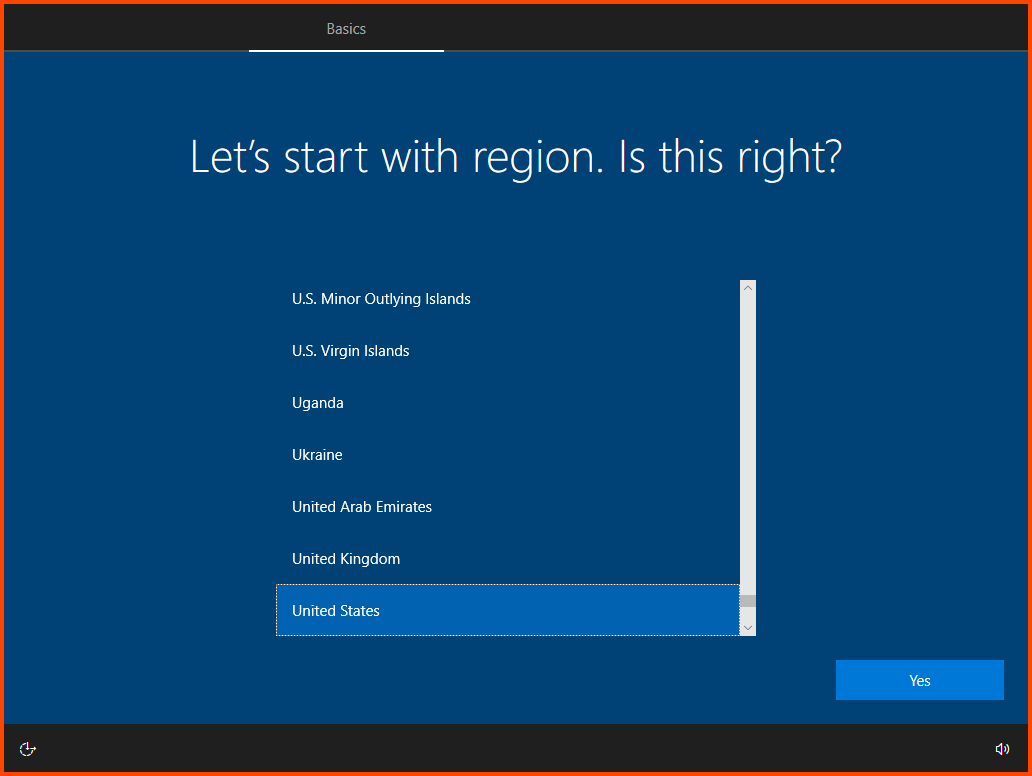
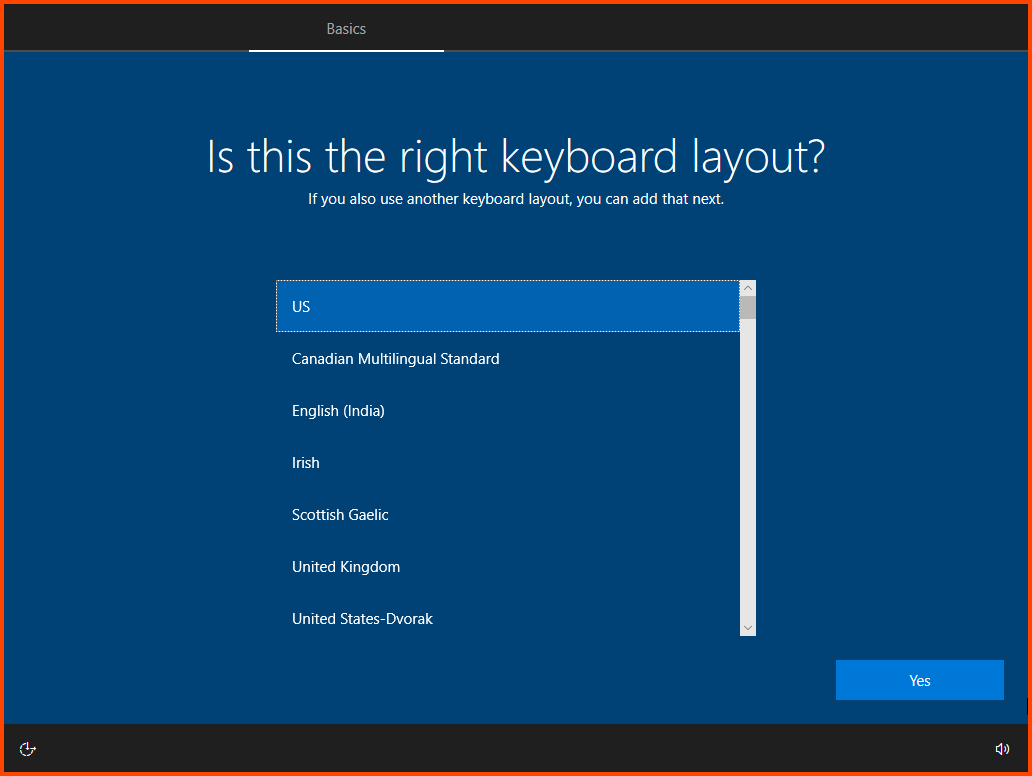
Select your **`Region`** and **`Keyboard Layout`**.

<figure><img src="https://blog.davidvarghese.net/assets/images/building-home-lab-part-7/user-7.png" alt=""><figcaption></figcaption></figure>

<figure><img src="https://blog.davidvarghese.net/assets/images/building-home-lab-part-7/user-8.png" alt=""><figcaption></figcaption></figure>

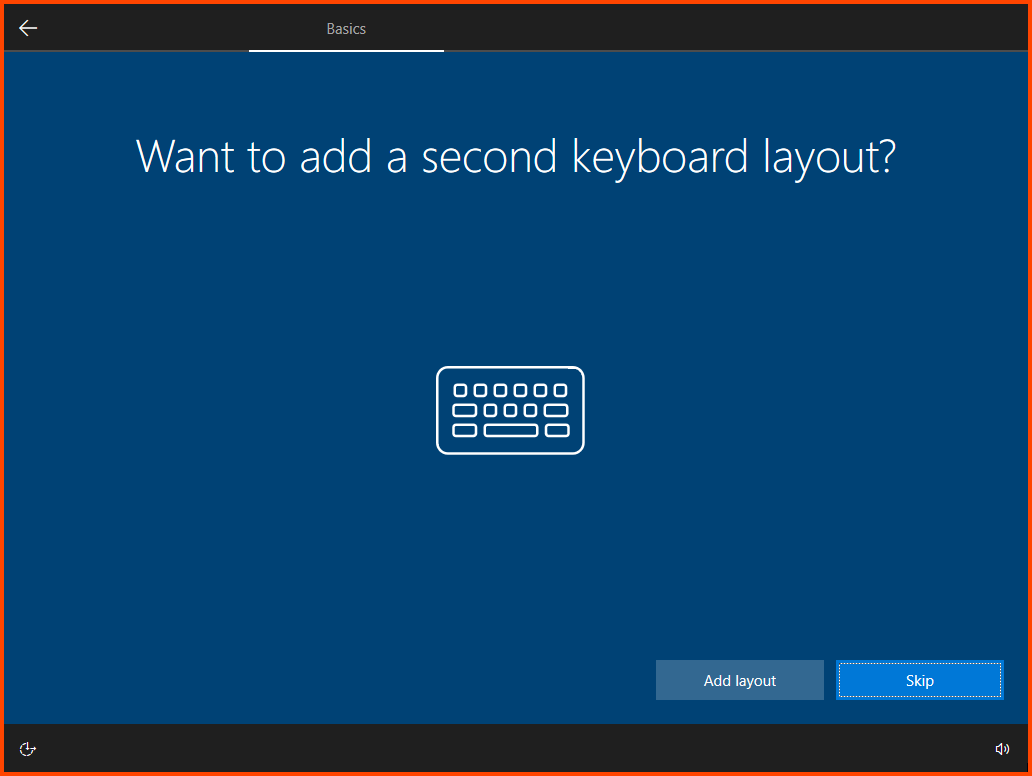
Click on **`Skip`**.

<figure><img src="https://blog.davidvarghese.net/assets/images/building-home-lab-part-7/user-9.png" alt=""><figcaption></figcaption></figure>

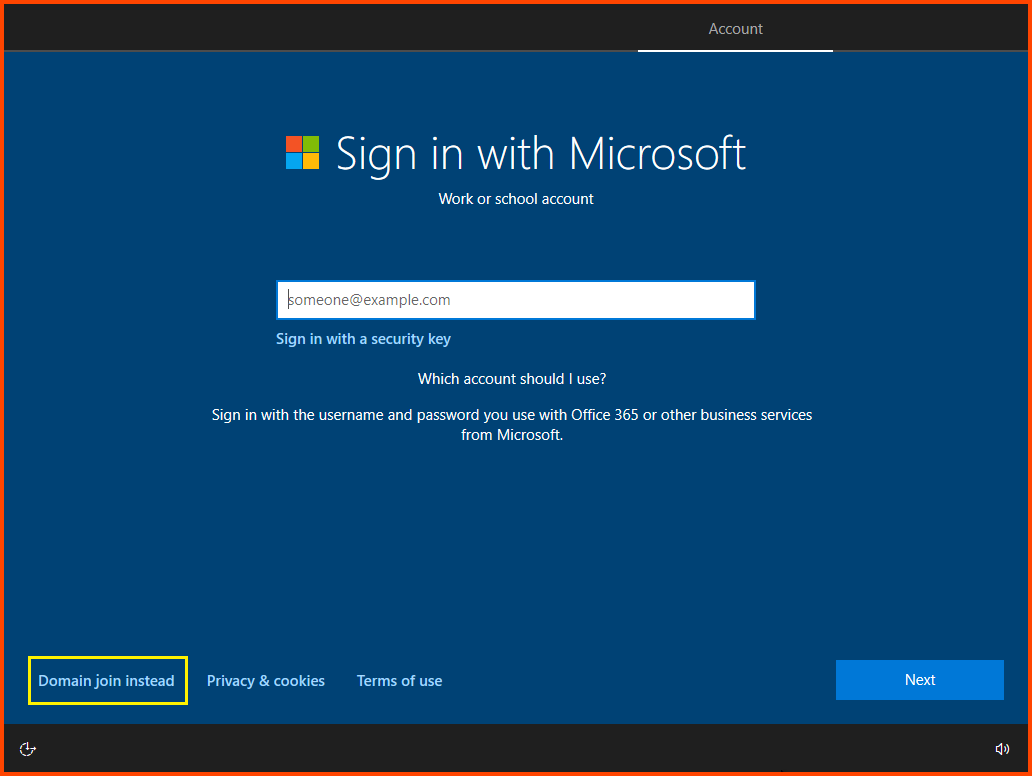
Select “Domain join instead”. This will allow us to configure a local account.

<figure><img src="https://blog.davidvarghese.net/assets/images/building-home-lab-part-7/user-10.png" alt=""><figcaption></figcaption></figure>

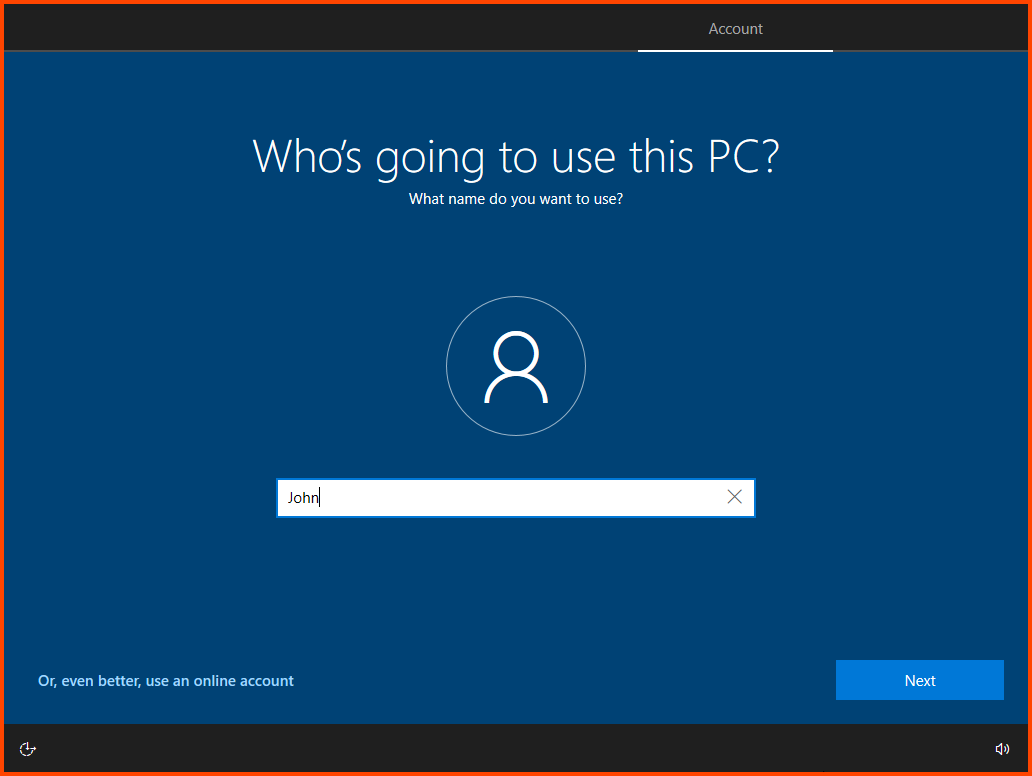
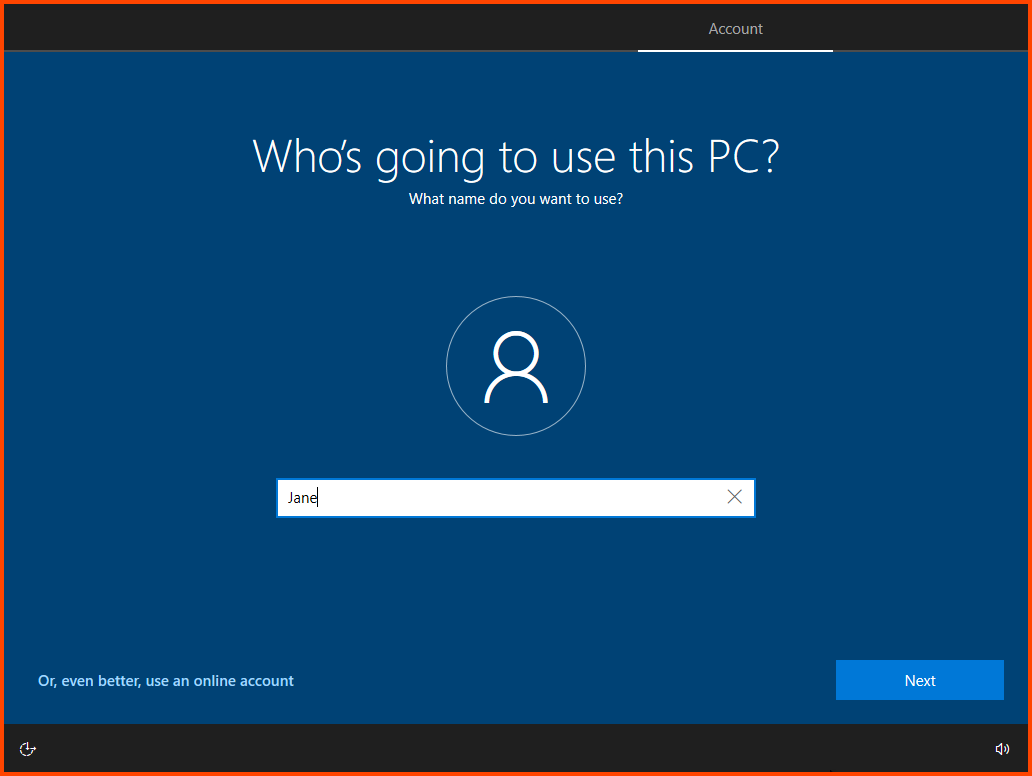
Enter a username and click on **`Next`**.

<figure><img src="https://blog.davidvarghese.net/assets/images/building-home-lab-part-7/user-11.png" alt=""><figcaption></figcaption></figure>

> You can provide any username in this step but to avoid confusion I would recommend using the First Name of one of the non-admin users that was created in AD. In my case the two AD users are John Doe and Jane Doe. For this VM I have choose John, when i configure the 2nd VM I will use Jane.

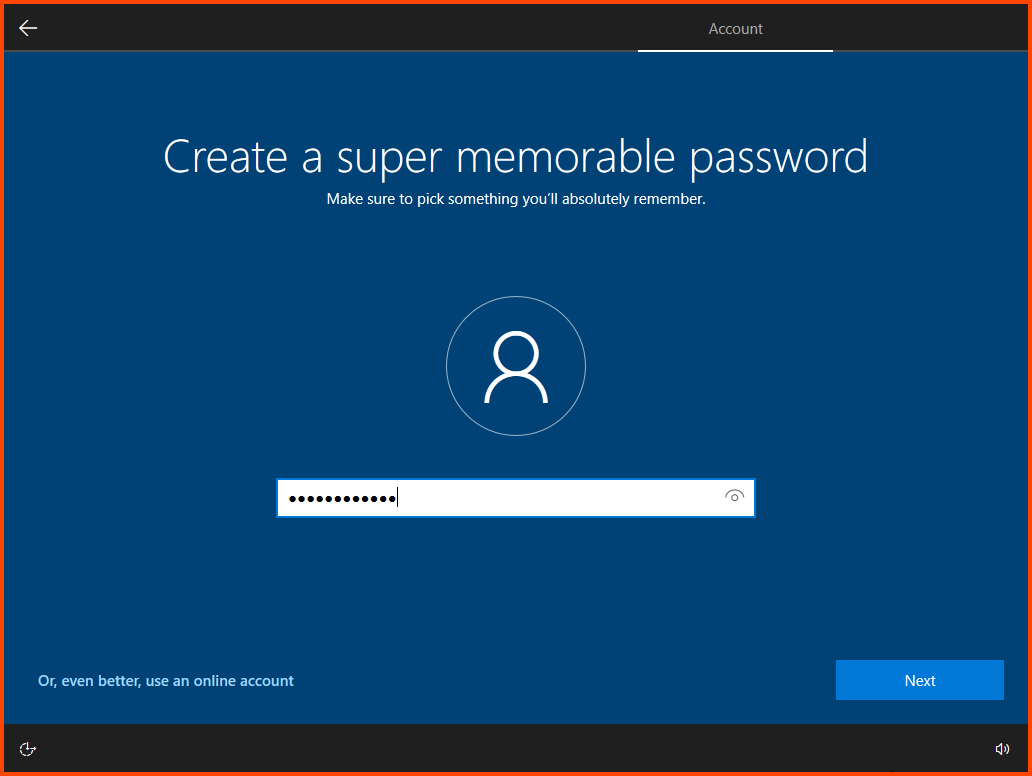
Enter a password and click on **`Next`**.

This password can be different from the password that was configured in Active Directory.

<figure><img src="https://blog.davidvarghese.net/assets/images/building-home-lab-part-7/user-12.png" alt=""><figcaption></figcaption></figure>

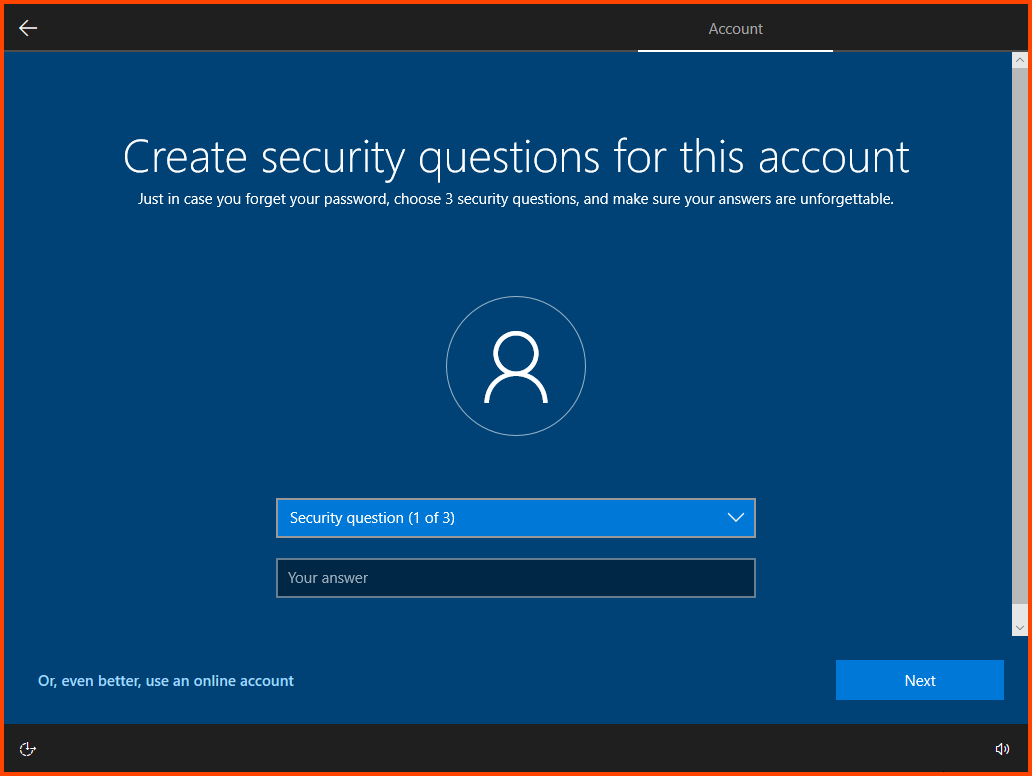
Configure the “Security Questions” for the user. Remember to note down these details in a secure location.

<figure><img src="https://blog.davidvarghese.net/assets/images/building-home-lab-part-7/user-13.png" alt=""><figcaption></figcaption></figure>

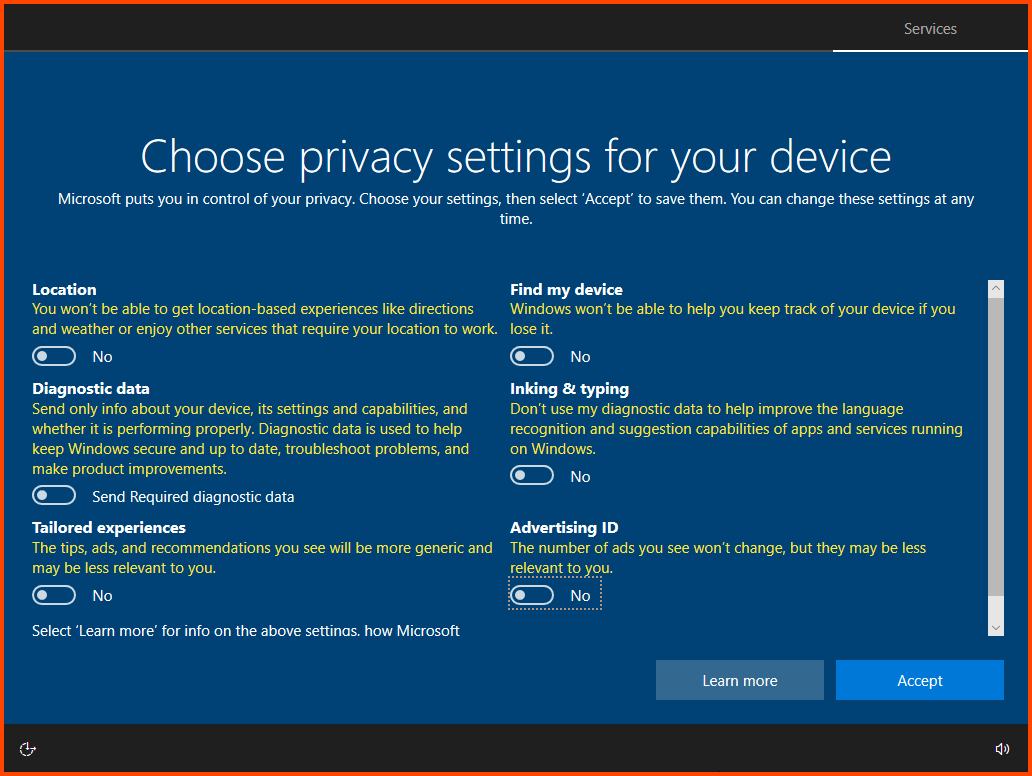
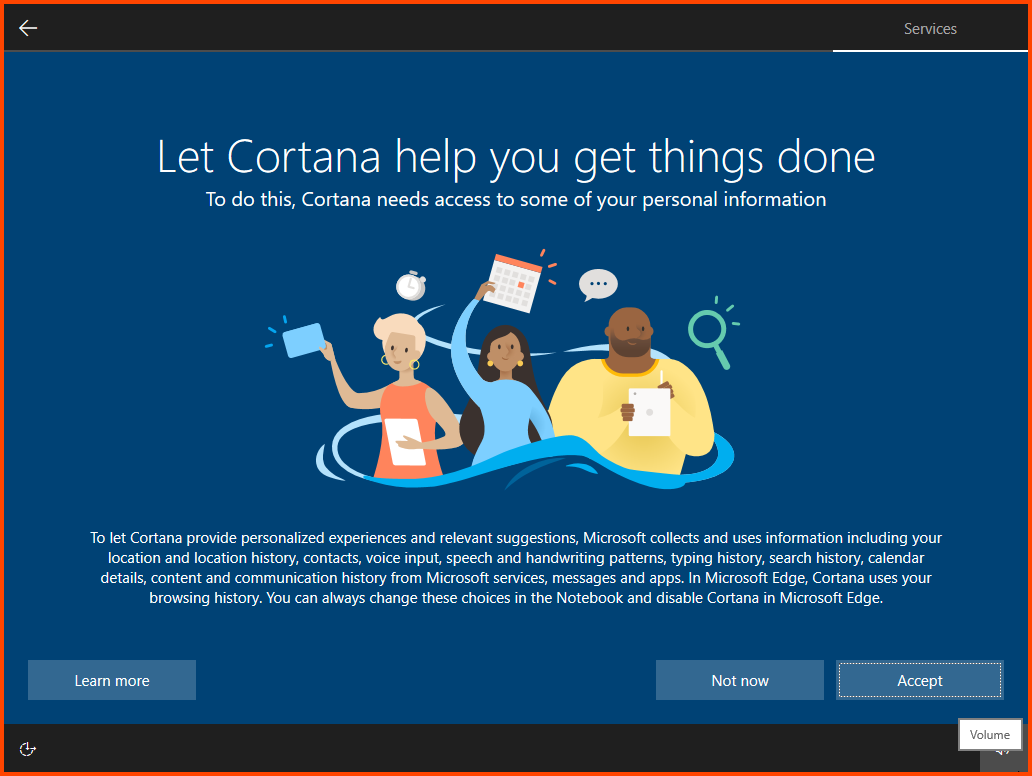
Disable all the features that are shown. Then click on **`Accept`**.

<figure><img src="https://blog.davidvarghese.net/assets/images/building-home-lab-part-7/user-14.png" alt=""><figcaption></figcaption></figure>

Select **`Not now`**.

<figure><img src="https://blog.davidvarghese.net/assets/images/building-home-lab-part-7/user-15.png" alt=""><figcaption></figcaption></figure>

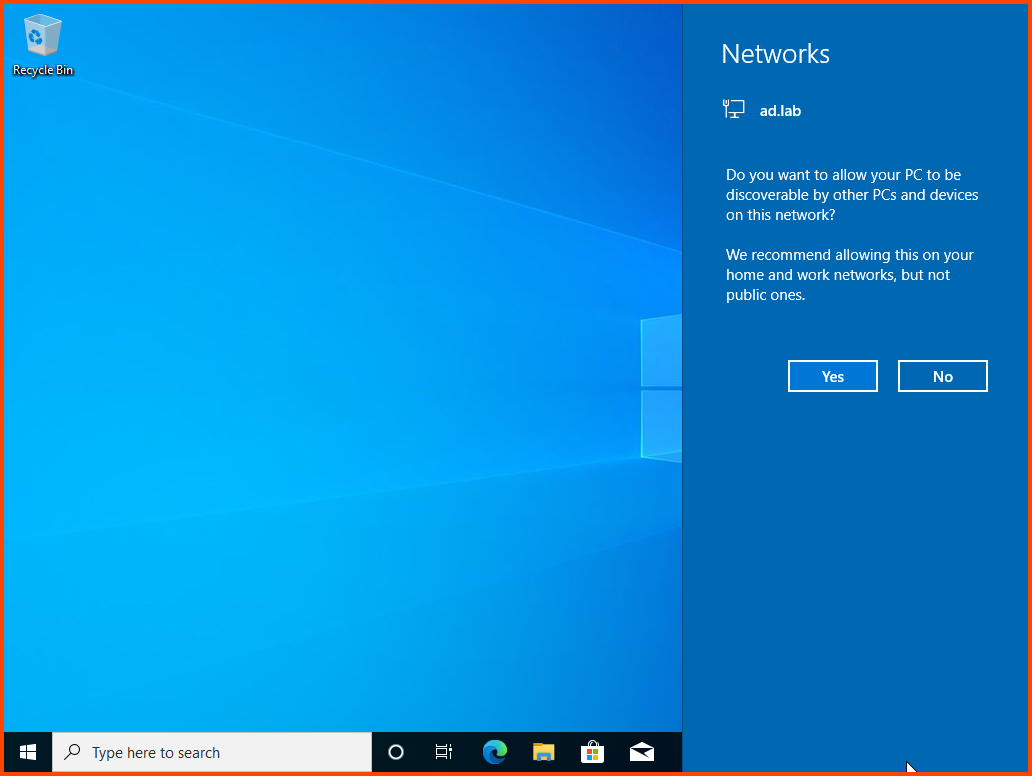
Once on the desktop a prompt to allow internet access should show up click on **`Yes`**.

<figure><img src="https://blog.davidvarghese.net/assets/images/building-home-lab-part-7/user-16.png" alt=""><figcaption></figcaption></figure>

#### Guest Additions Installation <a href="#guest-additions-installation" id="guest-additions-installation"></a>

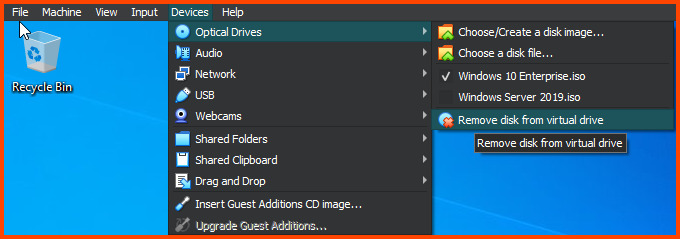
Similar to the Windows 2019 Server VM we need to install Guest Additions to enable Fullscreen mode. From the VM toolbar select **`Devices -> Remove disk for virtual drive`**. This will remove the Windows 10 image.

<figure><img src="https://blog.davidvarghese.net/assets/images/building-home-lab-part-7/user-17.png" alt=""><figcaption></figcaption></figure>

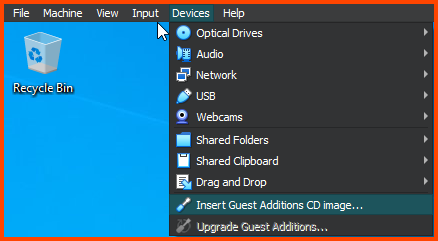
Click on **`Devices -> Insert Guest Additions CD image`**.

<figure><img src="https://blog.davidvarghese.net/assets/images/building-home-lab-part-7/user-18.png" alt=""><figcaption></figcaption></figure>

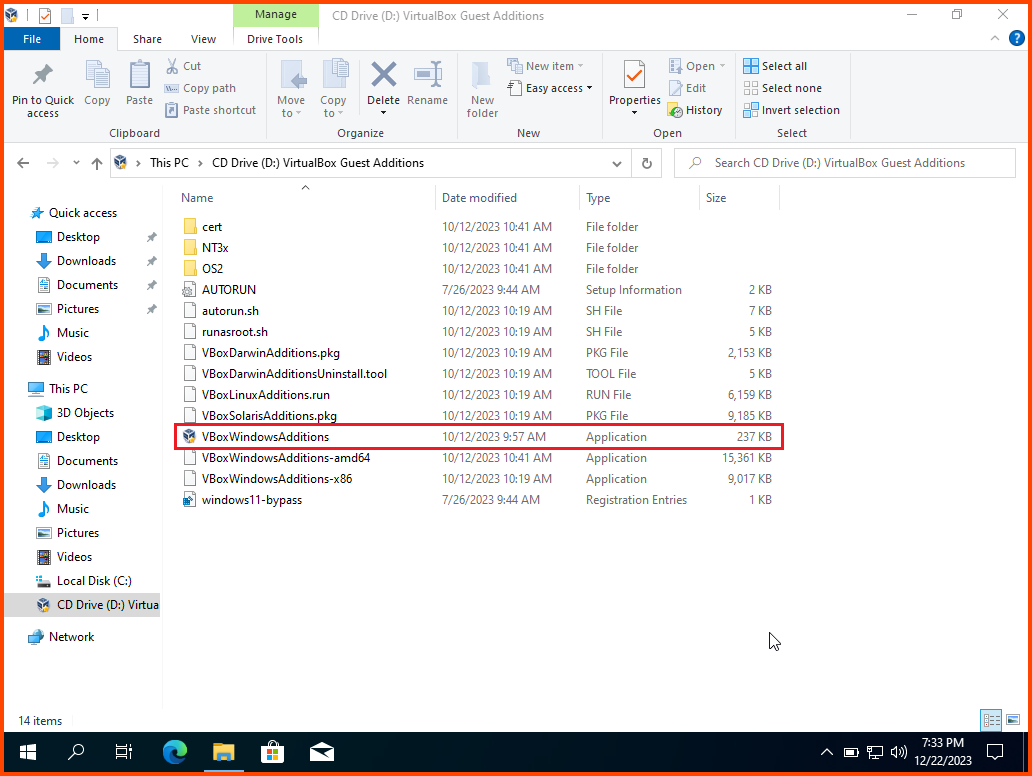
Open File Explorer. Once the disk has loaded from the sidebar select the disk drive. Double-click **`VBoxWindowsAdditions`** to start the installer.

<figure><img src="https://blog.davidvarghese.net/assets/images/building-home-lab-part-7/user-19.png" alt=""><figcaption></figcaption></figure>

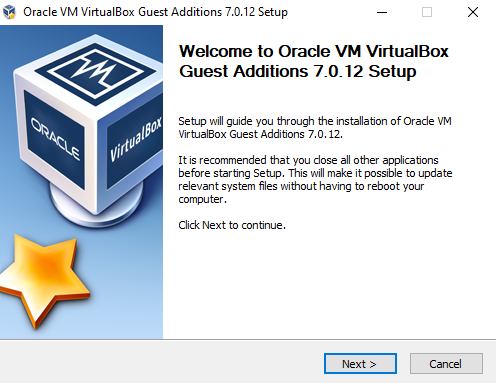
Click **`Next`**.

<figure><img src="https://blog.davidvarghese.net/assets/images/building-home-lab-part-7/user-20.png" alt=""><figcaption></figcaption></figure>

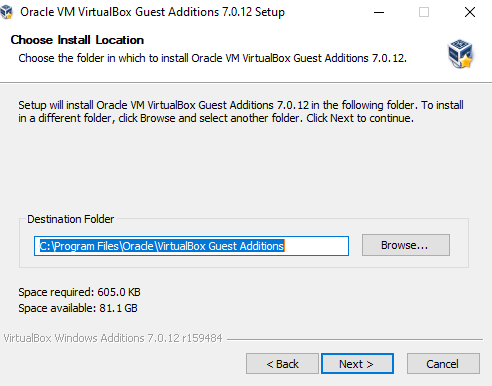
Click **`Next`**.

<figure><img src="https://blog.davidvarghese.net/assets/images/building-home-lab-part-7/user-21.png" alt=""><figcaption></figcaption></figure>

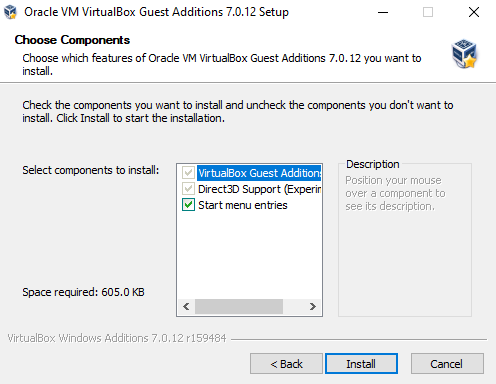
Click on **`Install`** to start the installation.

<figure><img src="https://blog.davidvarghese.net/assets/images/building-home-lab-part-7/user-22.png" alt=""><figcaption></figcaption></figure>

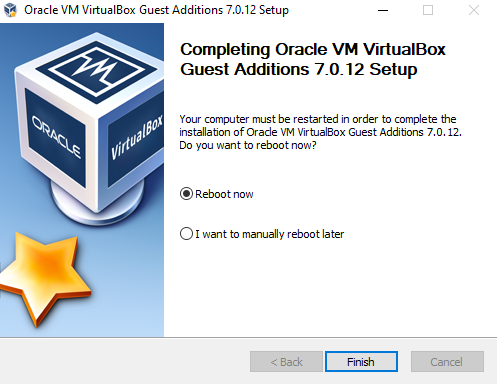
Select “Reboot now” and then click on **`Finish`**. The VM will reboot.

<figure><img src="https://blog.davidvarghese.net/assets/images/building-home-lab-part-7/user-23.png" alt=""><figcaption></figcaption></figure>

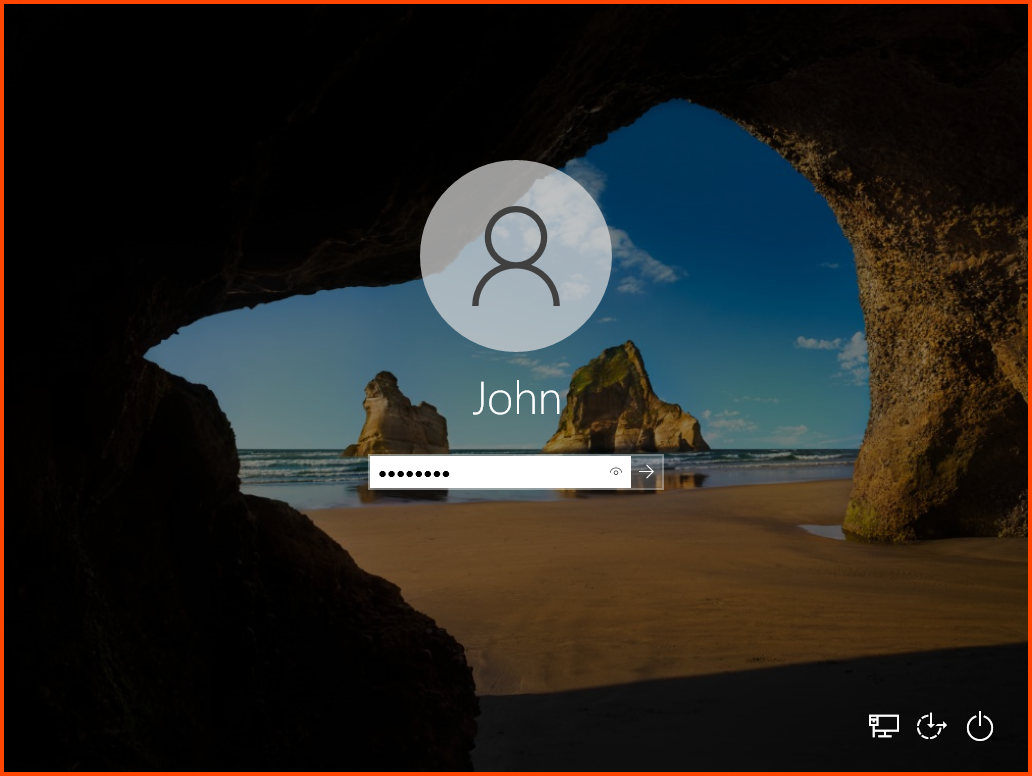
Login into the system.

<figure><img src="https://blog.davidvarghese.net/assets/images/building-home-lab-part-7/user-24.png" alt=""><figcaption></figcaption></figure>

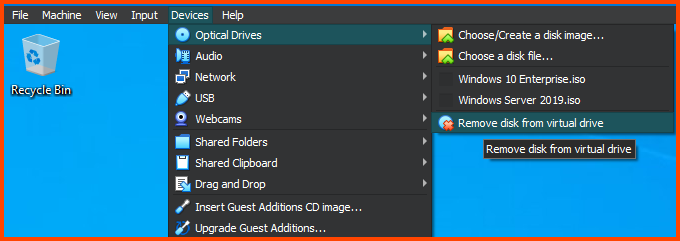
From the toolbar select **`Optical Devices -> Remove disk from virtual drive`** to remove the Guest Additions image.

<figure><img src="https://blog.davidvarghese.net/assets/images/building-home-lab-part-7/user-25.png" alt=""><figcaption></figcaption></figure>

Use the shortcut **`Right Ctrl+F`** to enter Fullscreen mode. Use the same key to exit Fullscreen. The VM should automatically scale to fit the window size.

#### Adding VM1 to Domain <a href="#adding-vm1-to-domain" id="adding-vm1-to-domain"></a>

Now we can add this device to the AD domain and log in as an AD user.

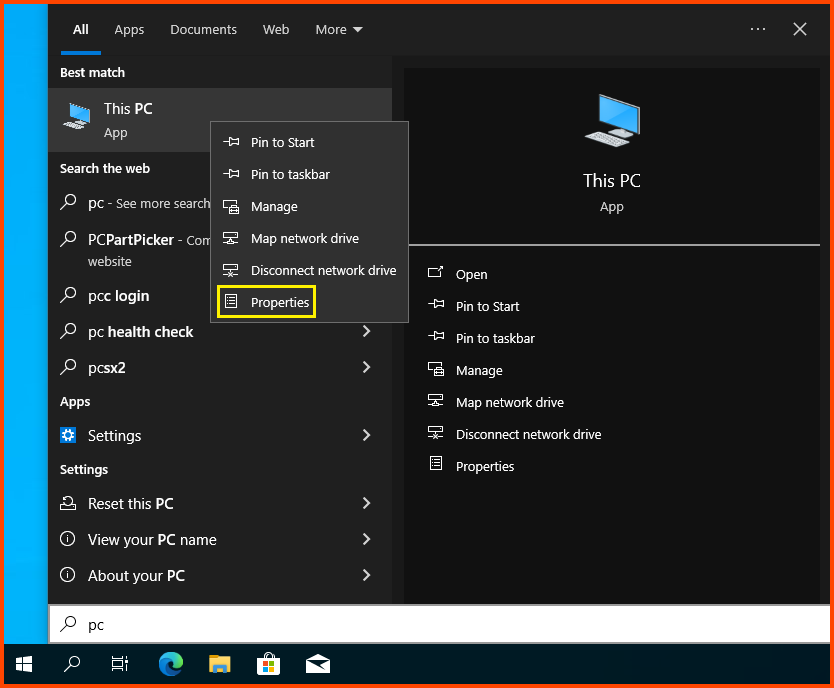
Click on the Search Bar and search for “This PC”. Right-click on it and select **`Properties`**.

<figure><img src="https://blog.davidvarghese.net/assets/images/building-home-lab-part-7/user-26.png" alt=""><figcaption></figcaption></figure>

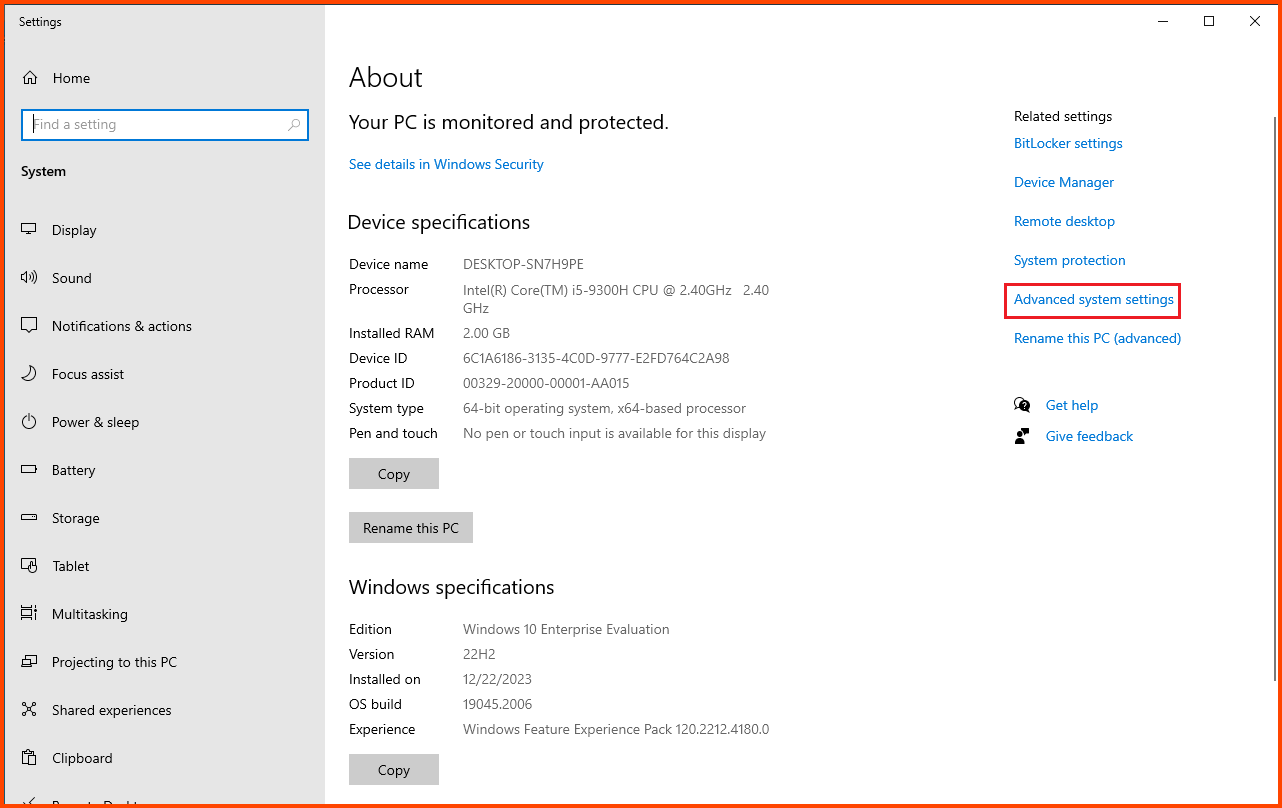
Click on **`Advanced system settings`**.

<figure><img src="https://blog.davidvarghese.net/assets/images/building-home-lab-part-7/user-27.png" alt=""><figcaption></figcaption></figure>

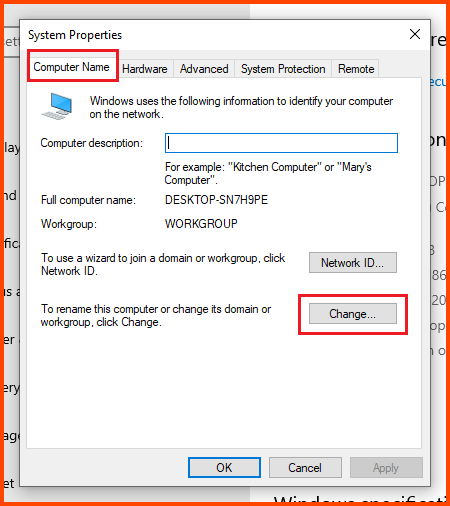
Select the “Computer Name” tab and click on **`Change`**.

<figure><img src="https://blog.davidvarghese.net/assets/images/building-home-lab-part-7/user-28.png" alt=""><figcaption></figcaption></figure>

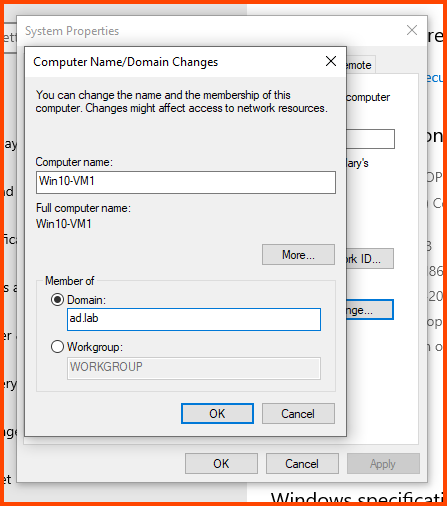
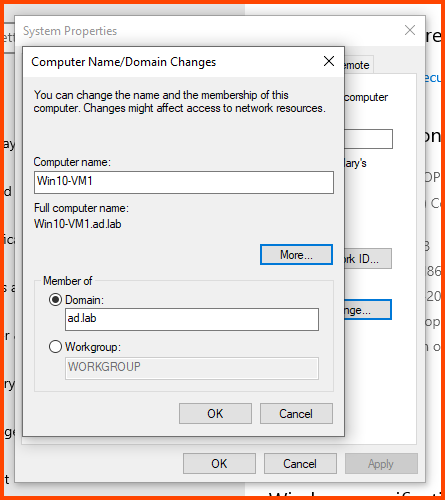
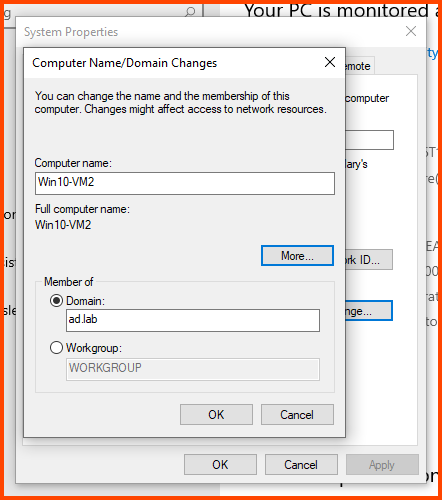
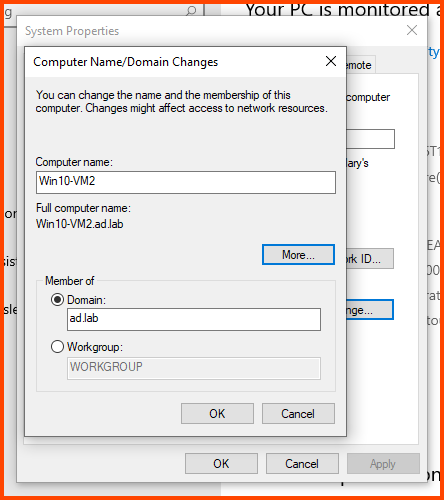
In the Computer name field enter a name that can be used to easily identify this VM. In the Member of section select **`Domain`** and enter the name of the AD domain (in my case **`ad.lab`**). Then click on **`More`**.

<figure><img src="https://blog.davidvarghese.net/assets/images/building-home-lab-part-7/user-29.png" alt=""><figcaption></figcaption></figure>

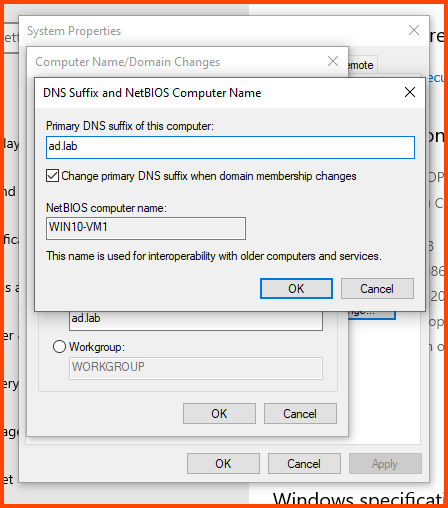
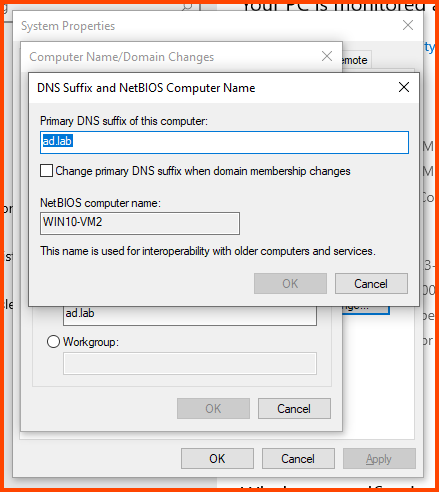
In the “Primary DNS suffix of this computer” field enter the domain name. Click on **`OK`**.

<figure><img src="https://blog.davidvarghese.net/assets/images/building-home-lab-part-7/user-30.png" alt=""><figcaption></figcaption></figure>

Click on **`OK`**.

<figure><img src="https://blog.davidvarghese.net/assets/images/building-home-lab-part-7/user-31.png" alt=""><figcaption></figcaption></figure>

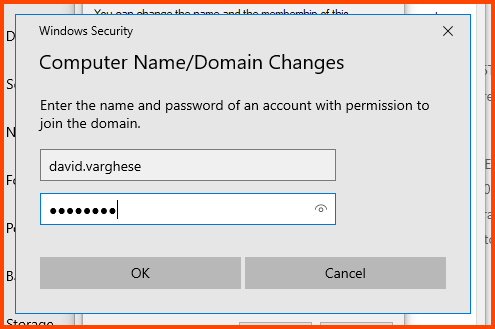
Now a popup should appear. Enter the login name and password of the Domain Admin and click on **`OK`**.

<figure><img src="https://blog.davidvarghese.net/assets/images/building-home-lab-part-7/user-32.png" alt=""><figcaption></figcaption></figure>

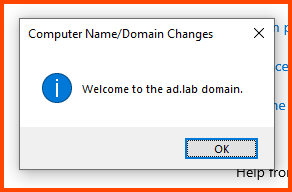
The device will be added to the AD environment. Click on **`OK`**.

<figure><img src="https://blog.davidvarghese.net/assets/images/building-home-lab-part-7/user-33.png" alt=""><figcaption></figcaption></figure>

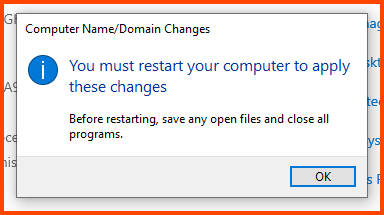
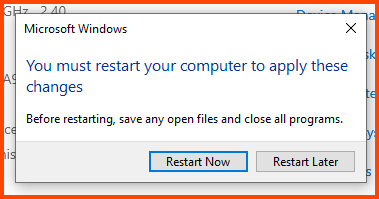
The device needs to be rebooted to apply the domain-specific settings. Click on **`OK`** to continue.

<figure><img src="https://blog.davidvarghese.net/assets/images/building-home-lab-part-7/user-34.png" alt=""><figcaption></figcaption></figure>

Click on “Restart Now”.

<figure><img src="https://blog.davidvarghese.net/assets/images/building-home-lab-part-7/user-35.png" alt=""><figcaption></figcaption></figure>

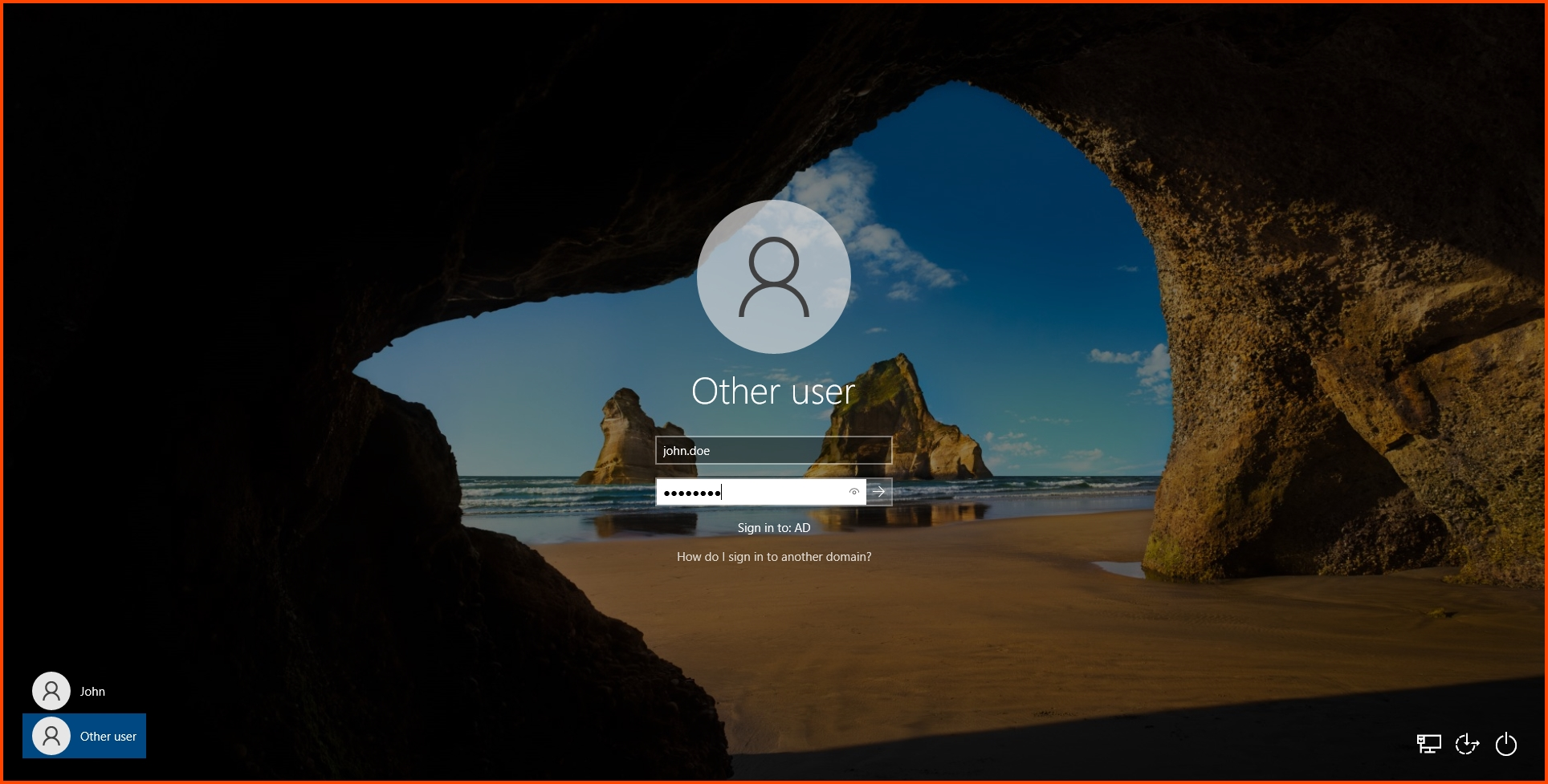
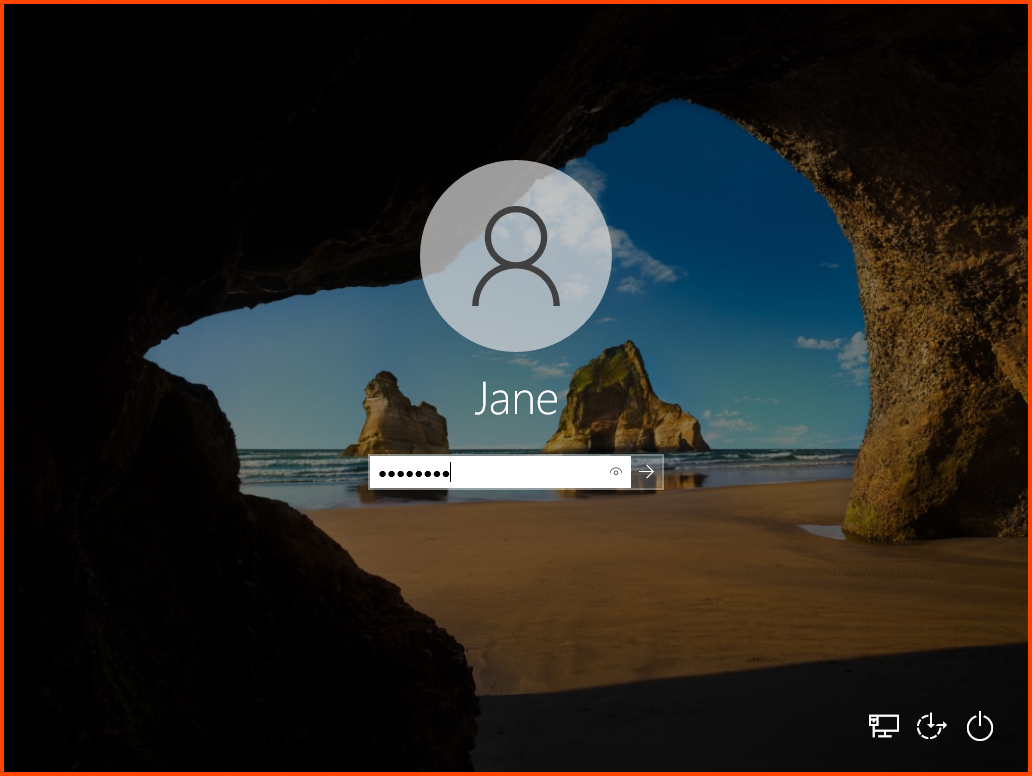
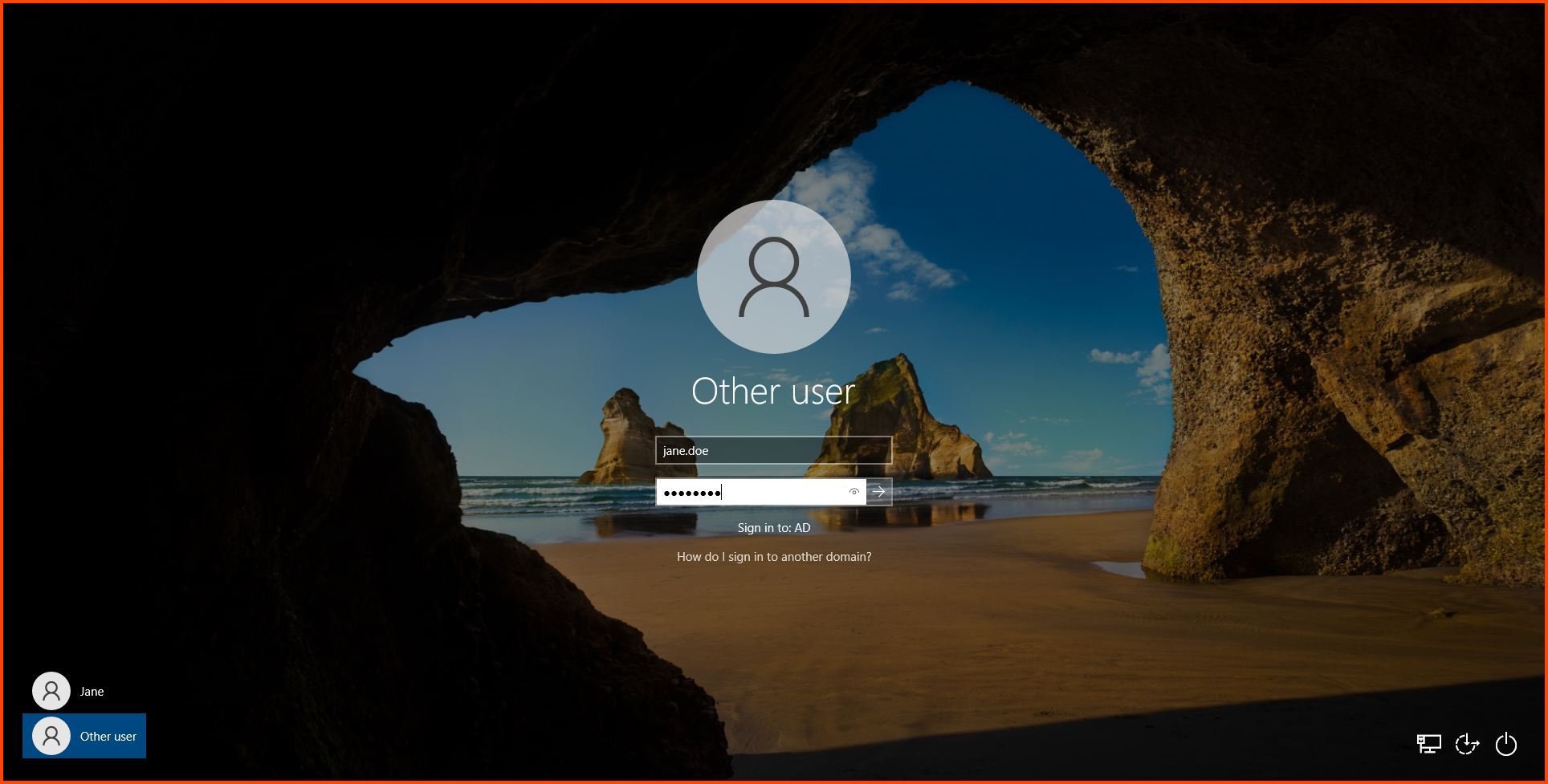
Once on the login screen. Click on “Other user”. Enter the login name and password of the AD user that will use this device and press **`Enter`**.

<figure><img src="https://blog.davidvarghese.net/assets/images/building-home-lab-part-7/user-36.png" alt=""><figcaption></figcaption></figure>

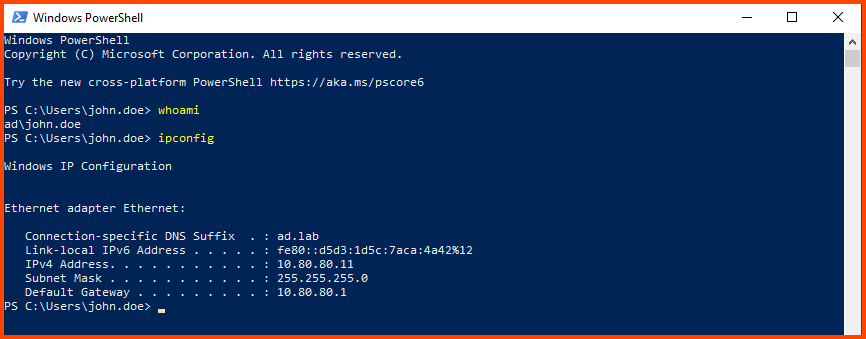
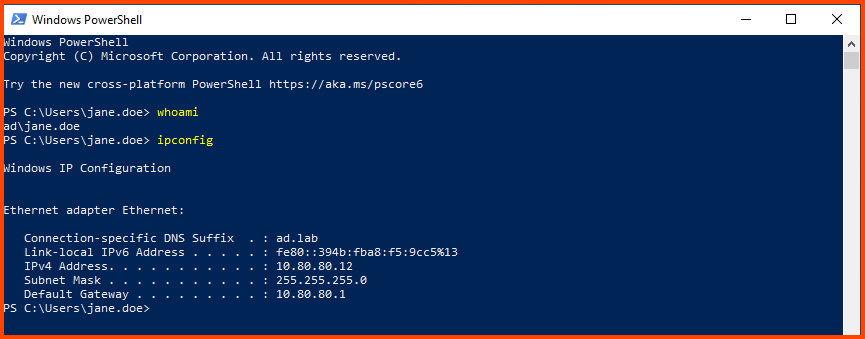
Now we are logged into the system as the AD user. To confirm this we can open PowerShell and run **`whoami`**.

<figure><img src="https://blog.davidvarghese.net/assets/images/building-home-lab-part-7/user-37.png" alt=""><figcaption></figcaption></figure>

### Windows 10 Enterprise VM2 Setup <a href="#windows-10-enterprise-vm2-setup" id="windows-10-enterprise-vm2-setup"></a>

Follow the same steps as above to configure the VM for the second user.

<figure><img src="https://blog.davidvarghese.net/assets/images/building-home-lab-part-7/user-46.png" alt=""><figcaption></figcaption></figure>

#### OS Installation <a href="#os-installation-1" id="os-installation-1"></a>

<figure><img src="https://blog.davidvarghese.net/assets/images/building-home-lab-part-7/user-1.png" alt=""><figcaption></figcaption></figure>

<figure><img src="https://blog.davidvarghese.net/assets/images/building-home-lab-part-7/user-2.png" alt=""><figcaption></figcaption></figure>

<figure><img src="https://blog.davidvarghese.net/assets/images/building-home-lab-part-7/user-4.png" alt=""><figcaption></figcaption></figure>

<figure><img src="https://blog.davidvarghese.net/assets/images/building-home-lab-part-7/user-5.png" alt=""><figcaption></figcaption></figure>

<figure><img src="https://blog.davidvarghese.net/assets/images/building-home-lab-part-7/user-6.png" alt=""><figcaption></figcaption></figure>

<figure><img src="https://blog.davidvarghese.net/assets/images/building-home-lab-part-7/user-7.png" alt=""><figcaption></figcaption></figure>

<figure><img src="https://blog.davidvarghese.net/assets/images/building-home-lab-part-7/user-10.png" alt=""><figcaption></figcaption></figure>

Use the First Name of the second user that was configured in AD.

<figure><img src="https://blog.davidvarghese.net/assets/images/building-home-lab-part-7/user-38.png" alt=""><figcaption></figcaption></figure>

<figure><img src="https://blog.davidvarghese.net/assets/images/building-home-lab-part-7/user-12.png" alt=""><figcaption></figcaption></figure>

<figure><img src="https://blog.davidvarghese.net/assets/images/building-home-lab-part-7/user-13.png" alt=""><figcaption></figcaption></figure>

<figure><img src="https://blog.davidvarghese.net/assets/images/building-home-lab-part-7/user-14.png" alt=""><figcaption></figcaption></figure>

<figure><img src="https://blog.davidvarghese.net/assets/images/building-home-lab-part-7/user-15.png" alt=""><figcaption></figcaption></figure>

<figure><img src="https://blog.davidvarghese.net/assets/images/building-home-lab-part-7/user-16.png" alt=""><figcaption></figcaption></figure>

#### Guest Additions Installation <a href="#guest-additions-installation-1" id="guest-additions-installation-1"></a>

<figure><img src="https://blog.davidvarghese.net/assets/images/building-home-lab-part-7/user-17.png" alt=""><figcaption></figcaption></figure>

<figure><img src="https://blog.davidvarghese.net/assets/images/building-home-lab-part-7/user-18.png" alt=""><figcaption></figcaption></figure>

<figure><img src="https://blog.davidvarghese.net/assets/images/building-home-lab-part-7/user-19.png" alt=""><figcaption></figcaption></figure>

<figure><img src="https://blog.davidvarghese.net/assets/images/building-home-lab-part-7/user-20.png" alt=""><figcaption></figcaption></figure>

<figure><img src="https://blog.davidvarghese.net/assets/images/building-home-lab-part-7/user-22.png" alt=""><figcaption></figcaption></figure>

<figure><img src="https://blog.davidvarghese.net/assets/images/building-home-lab-part-7/user-23.png" alt=""><figcaption></figcaption></figure>

<figure><img src="https://blog.davidvarghese.net/assets/images/building-home-lab-part-7/user-39.png" alt=""><figcaption></figcaption></figure>

<figure><img src="https://blog.davidvarghese.net/assets/images/building-home-lab-part-7/user-25.png" alt=""><figcaption></figcaption></figure>

#### Adding VM2 to Domain <a href="#adding-vm2-to-domain" id="adding-vm2-to-domain"></a>

<figure><img src="https://blog.davidvarghese.net/assets/images/building-home-lab-part-7/user-26.png" alt=""><figcaption></figcaption></figure>

<figure><img src="https://blog.davidvarghese.net/assets/images/building-home-lab-part-7/user-27.png" alt=""><figcaption></figcaption></figure>

<figure><img src="https://blog.davidvarghese.net/assets/images/building-home-lab-part-7/user-28.png" alt=""><figcaption></figcaption></figure>

<figure><img src="https://blog.davidvarghese.net/assets/images/building-home-lab-part-7/user-40.png" alt=""><figcaption></figcaption></figure>

<figure><img src="https://blog.davidvarghese.net/assets/images/building-home-lab-part-7/user-44.png" alt=""><figcaption></figcaption></figure>

<figure><img src="https://blog.davidvarghese.net/assets/images/building-home-lab-part-7/user-41.png" alt=""><figcaption></figcaption></figure>

<figure><img src="https://blog.davidvarghese.net/assets/images/building-home-lab-part-7/user-32.png" alt=""><figcaption></figcaption></figure>

<figure><img src="https://blog.davidvarghese.net/assets/images/building-home-lab-part-7/user-33.png" alt=""><figcaption></figcaption></figure>

<figure><img src="https://blog.davidvarghese.net/assets/images/building-home-lab-part-7/user-34.png" alt=""><figcaption></figcaption></figure>

<figure><img src="https://blog.davidvarghese.net/assets/images/building-home-lab-part-7/user-35.png" alt=""><figcaption></figcaption></figure>

Login using the AD credentials of the second AD user.

<figure><img src="https://blog.davidvarghese.net/assets/images/building-home-lab-part-7/user-42.png" alt=""><figcaption></figcaption></figure>

<figure><img src="https://blog.davidvarghese.net/assets/images/building-home-lab-part-7/user-43.png" alt=""><figcaption></figcaption></figure>

### Appendix <a href="#appendix" id="appendix"></a>

With this, we have completed the setup of the Active Directory lab. To wrap up, in this module we set up 3 VMs. The 1st VM (Windows Server 2019) was configured to be the Domain Controller and the other 2 VMs (Windows 10 Enterprise) were configured as client devices. Additionally, on the DC VM, we enabled DHCP, set up DNS Forwarder, enabled AD Certificate Services and configured Policies to be applied to all devices that are part of the AD environment.

You can delete the Windows Server 2019 ISO file if you do not want to store it for future use. Do not delete the Windows 10 Enterprise ISO just yet as we will require it to setup FlareVM.

#### DNS & DHCP Verification <a href="#dns--dhcp-verification" id="dns--dhcp-verification"></a>

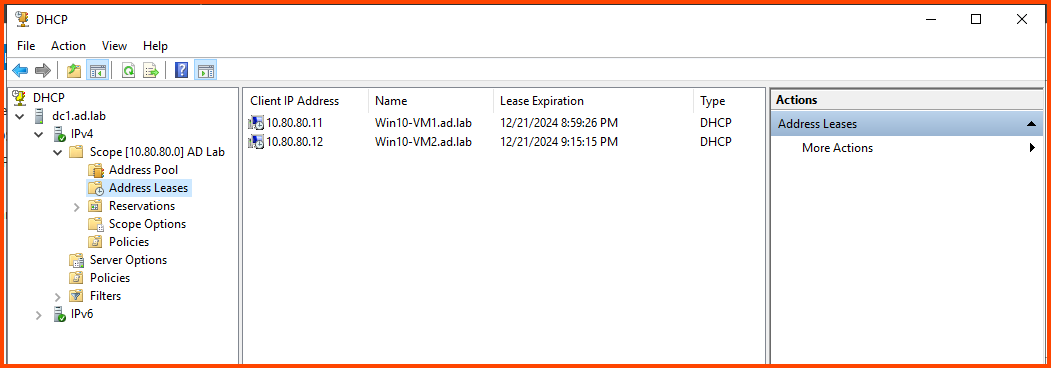
To verify that the client VMs are indeed connected to the AD environment you can open **`DHCP Manager`** and compare the IP address shown with the IP address that has been assigned to the VM.

<figure><img src="https://blog.davidvarghese.net/assets/images/building-home-lab-part-7/misc-1.png" alt=""><figcaption></figcaption></figure>

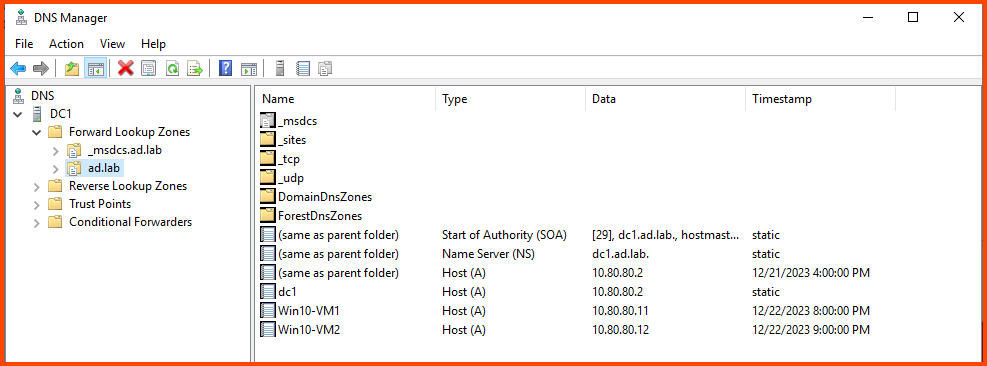
Similarly, we can use **`DNS Manager`** to confirm that new DNS entries have been added for the client devices.

<figure><img src="https://blog.davidvarghese.net/assets/images/building-home-lab-part-7/misc-2.png" alt=""><figcaption></figcaption></figure>

#### Taking VM Snapshots <a href="#taking-vm-snapshots" id="taking-vm-snapshots"></a>

> Snapshots can be taken with the VM in a running state but sometimes doing so can cause the VM to behave erratically. So I recommend “Powering off” all the VM before taking its Snapshot.

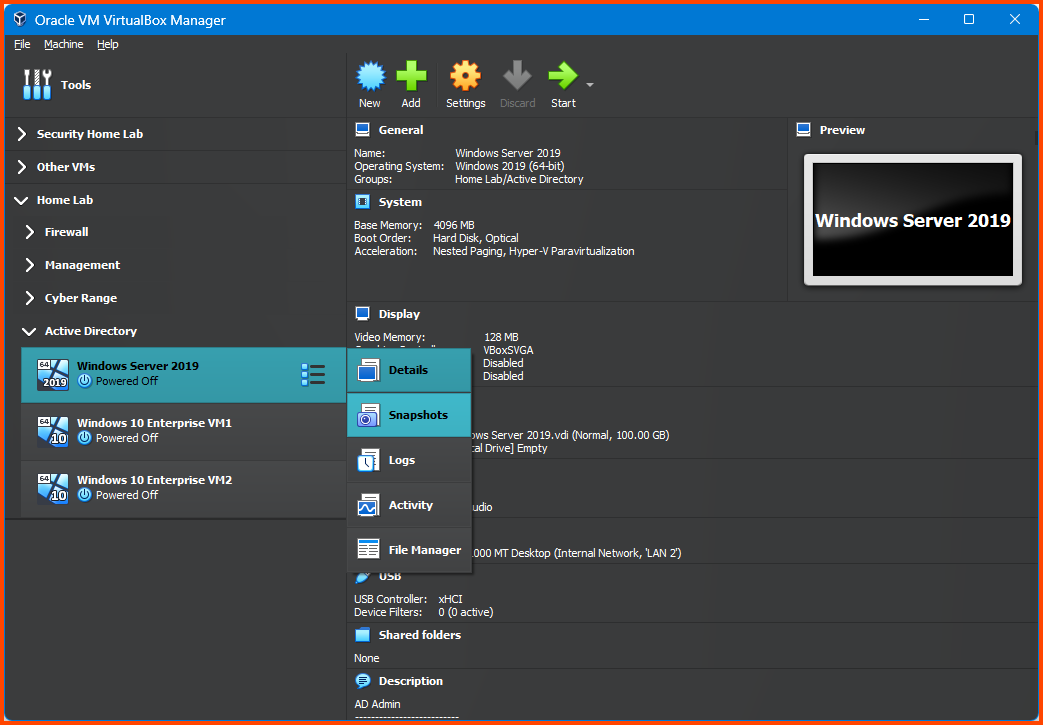
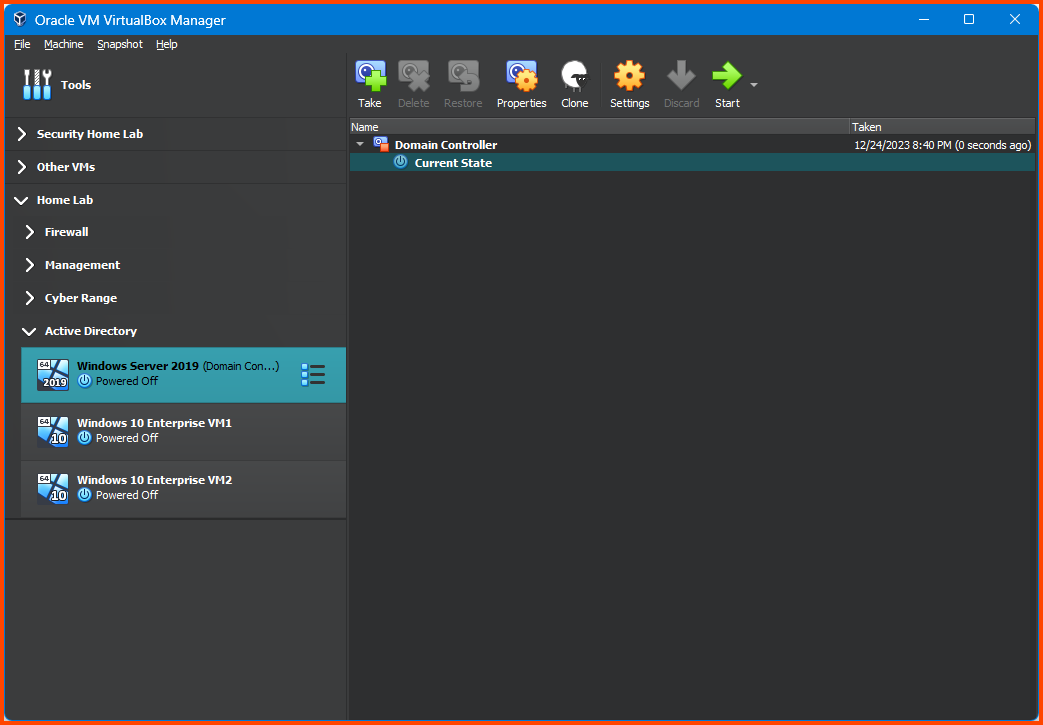
Select the Windows Server 2019 VM. Click on the “Hamburger menu” and select **`Snapshots`** from the dropdown menu.

<figure><img src="https://blog.davidvarghese.net/assets/images/building-home-lab-part-7/misc-3.png" alt=""><figcaption></figcaption></figure>

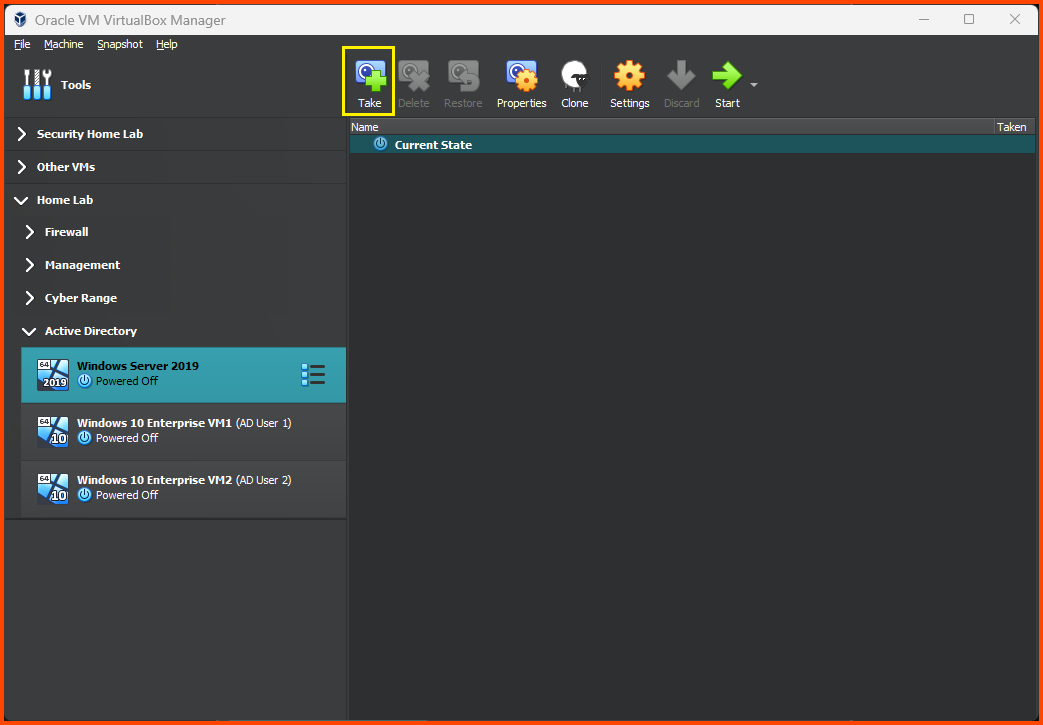
Click on **`Take`** from the toolbar.

<figure><img src="https://blog.davidvarghese.net/assets/images/building-home-lab-part-7/misc-8.png" alt=""><figcaption></figcaption></figure>

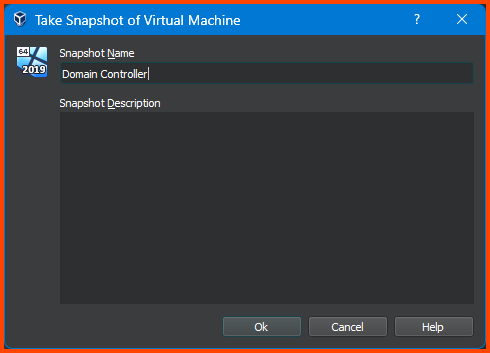
Give the snapshot a descriptive name and click on **`OK`**.

<figure><img src="https://blog.davidvarghese.net/assets/images/building-home-lab-part-7/misc-4.png" alt=""><figcaption></figcaption></figure>

This will create a new Snapshot from the VM.

<figure><img src="https://blog.davidvarghese.net/assets/images/building-home-lab-part-7/misc-5.png" alt=""><figcaption></figcaption></figure>

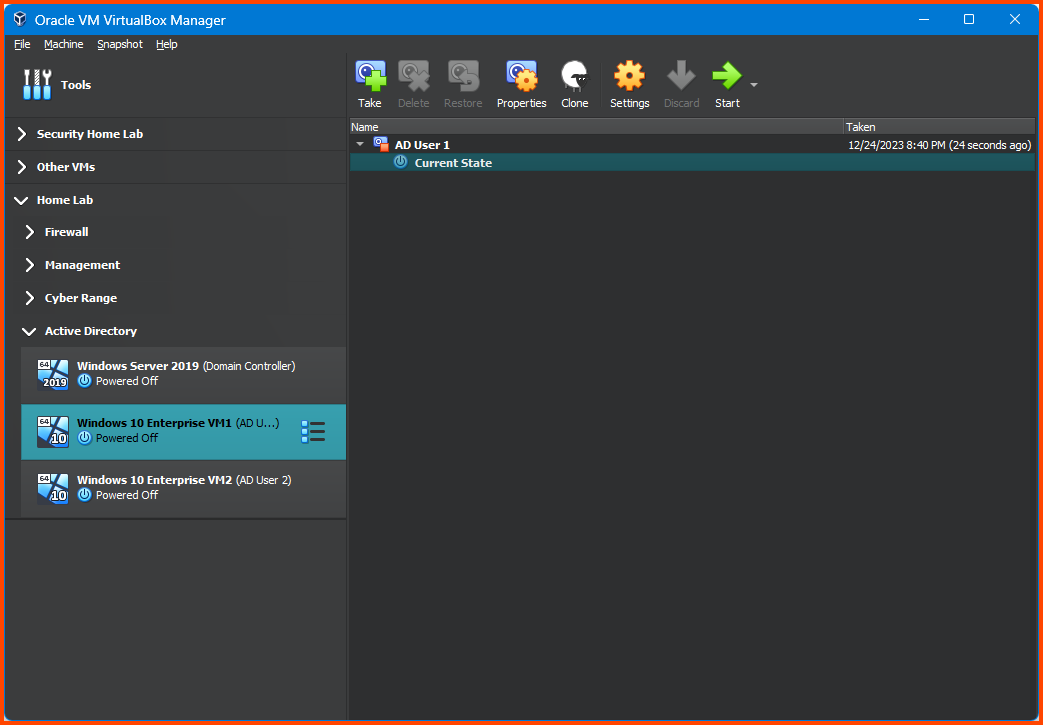
Select the Windows 10 Enterprise VM1 from the sidebar and follow the above steps to create a Snapshot.

<figure><img src="https://blog.davidvarghese.net/assets/images/building-home-lab-part-7/misc-6.png" alt=""><figcaption></figcaption></figure>

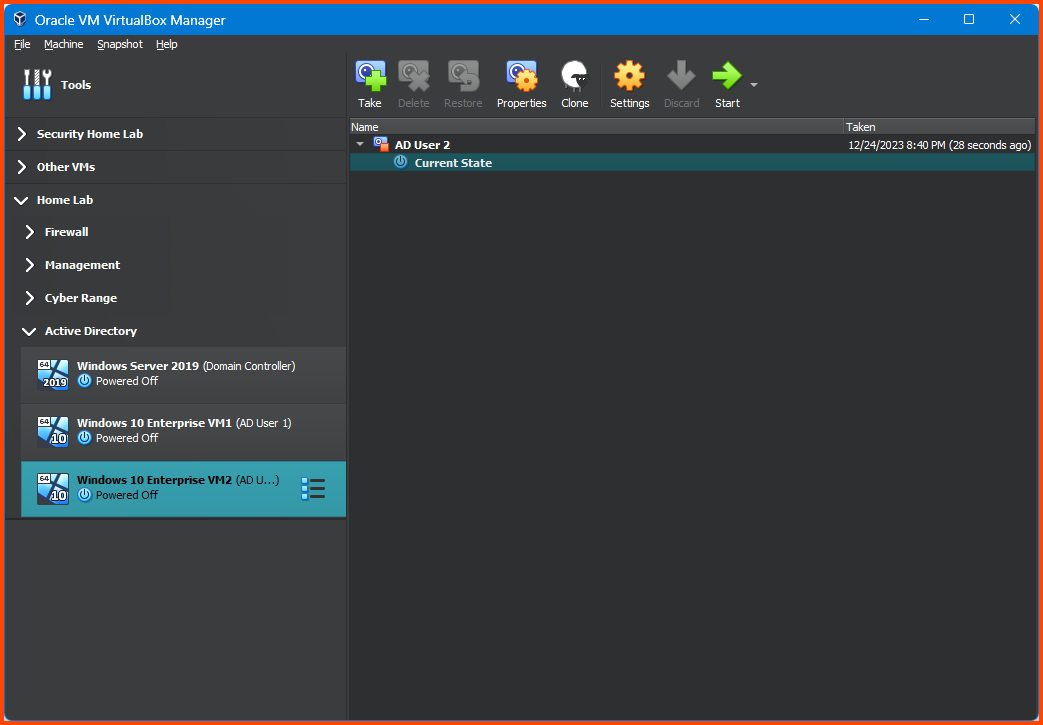
Follow the same steps to create Snapshot for Windows 10 Enterprise VM2.

<figure><img src="https://blog.davidvarghese.net/assets/images/building-home-lab-part-7/misc-7.png" alt=""><figcaption></figcaption></figure>

Right-click on the hamburger menu and select “Details” to return to the VM configuration page.

#### Alternative AD Setup <a href="#alternative-a-d-setup" id="alternative-a-d-setup"></a>

Many other features and services can enabled on the DC. Refer to the below links for variations on the installation process.

* [How to Setup a Basic Home Lab Running Active Directory - YouTube](https://www.youtube.com/watch?v=MHsI8hJmggI)
* [How to Build an Active Directory Hacking Lab - YouTube](https://www.youtube.com/watch?v=xftEuVQ7kY0)

#### Hacking AD Lab <a href="#hacking-a-d-lab" id="hacking-a-d-lab"></a>

There any numerous attacks that can be performed against an AD environment. Refer to the below links to see some of the commonly used hacks.

* [Hack Your VirtualBox AD Lab](https://benheater.com/hack-your-virtualbox-ad-lab/)
* [Active Directory Methodology - HackTricks](https://book.hacktricks.xyz/windows-hardening/active-directory-methodology)

In the next module, we will begin the setup of the Malware Analysis Lab.


---

# Agent Instructions: Querying This Documentation

If you need additional information that is not directly available in this page, you can query the documentation dynamically by asking a question.

Perform an HTTP GET request on the current page URL with the `ask` query parameter:

```
GET https://foothold.gitbook.io/blog/home-lab-part-7.md?ask=<question>
```

The question should be specific, self-contained, and written in natural language.
The response will contain a direct answer to the question and relevant excerpts and sources from the documentation.

Use this mechanism when the answer is not explicitly present in the current page, you need clarification or additional context, or you want to retrieve related documentation sections.