# Home Lab: Part 9

<figure><img src="https://blog.davidvarghese.net/assets/images/building-home-lab-part-9/building-home-lab-part-9-banner.png" alt=""><figcaption></figcaption></figure>

> **Changelog**
>
> * **Oct. 31, 2024**
>   * Updated instructions to reflect additonal step required to install Tsurugi Linux 2024.1+

In this module, we are going to set up Tsurugi Linux which is an OS that comes pre-configured with many of the commonly used Digital Forensics & Incident Response tools. Before deploying the VM we will create a new Interface in pfSense called Security that will have our DFIR VM and in the future other security tools.

### Creating New Interface <a href="#creating-new-interface" id="creating-new-interface"></a>

As discussed in the last module using VirtualBox GUI we cannot create more than 4 interfaces but using the CLI we can create up to 8 Interfaces.

#### Creating new Interface <a href="#creating-new-interface-1" id="creating-new-interface-1"></a>

Before creating the interface we need the name of the pfSense VM. In my case, the VM is called “pfSense”. Also, ensure the VM is “Powered Off” before running the commands.

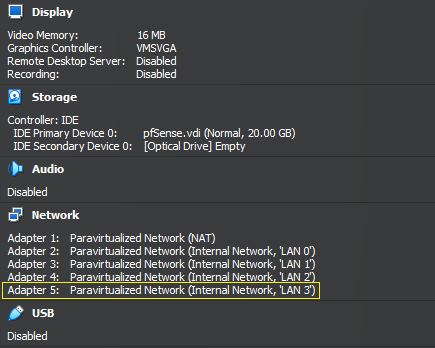
The last Adapter we created is called Adapter 5.

<figure><img src="https://blog.davidvarghese.net/assets/images/building-home-lab-part-8/vbox-45.png" alt=""><figcaption></figcaption></figure>

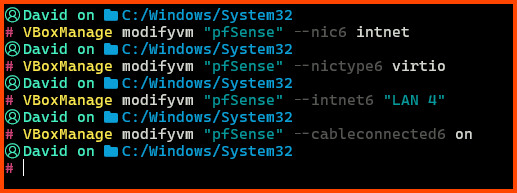
Launch PowerShell and run the following commands:

```
# Create a Internet Network
VBoxManage modifyvm "pfSense" --nic6 intnet

# Use the Paravirtualized Adapter
VBoxManage modifyvm "pfSense" --nictype6 virtio

# Give it the name LAN 3
VBoxManage modifyvm "pfSense" --intnet6 "LAN 4"

# Network Interface is connected by Cable
VBoxManage modifyvm "pfSense" --cableconnected6 on
```

> In the above commands “pfSense” is the name of my VM.\
> In the 3rd command in place of “LAN 3” you can use a different name that matches your network name convention.

<figure><img src="https://blog.davidvarghese.net/assets/images/building-home-lab-part-9/vbox-46.png" alt=""><figcaption></figcaption></figure>

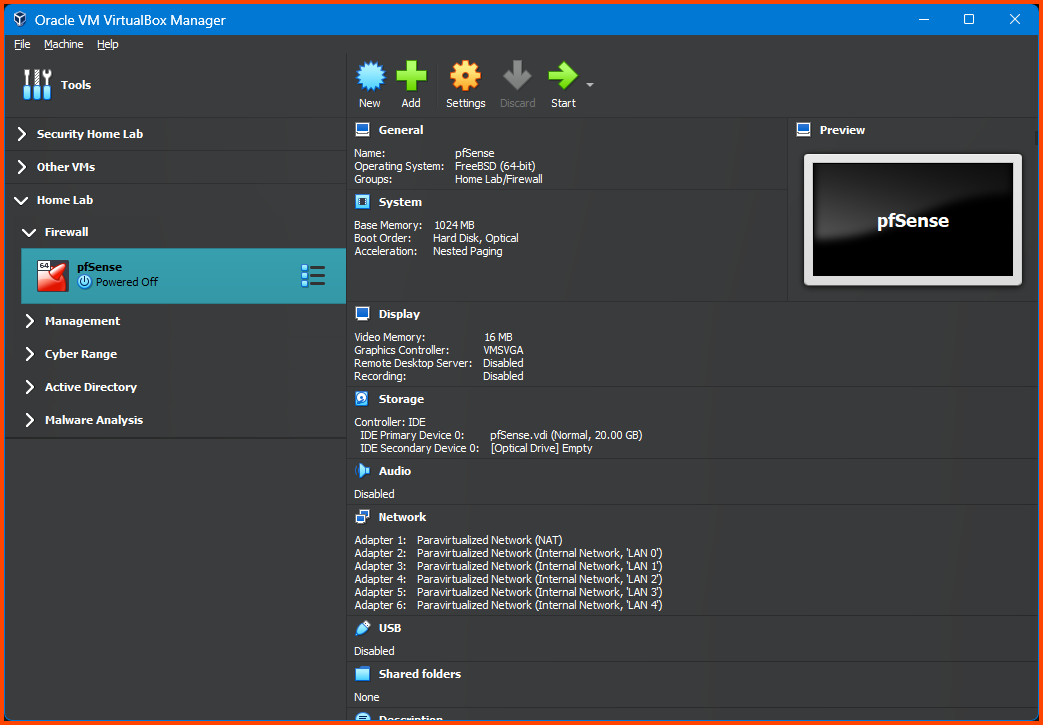
The pfSense VM will now have an Adapter 6.

<figure><img src="https://blog.davidvarghese.net/assets/images/building-home-lab-part-9/vbox-47.png" alt=""><figcaption></figcaption></figure>

#### Enabling the Interface <a href="#enabling-the-interface" id="enabling-the-interface"></a>

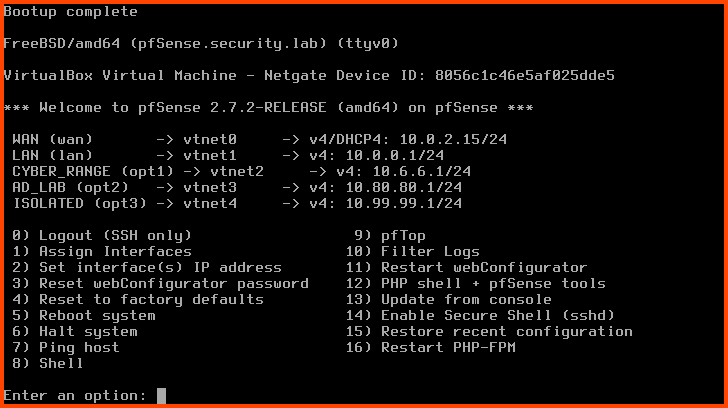
Start the pfSense VM. pfSense will not detect the new interface. We need to onboard the interface before it shows up.

<figure><img src="https://blog.davidvarghese.net/assets/images/building-home-lab-part-9/pfsense-100.png" alt=""><figcaption></figcaption></figure>

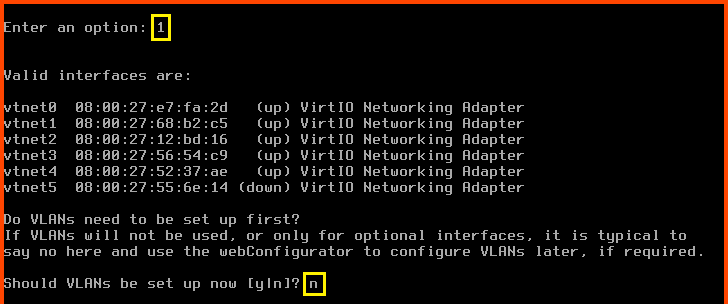
Enter **`1`** to select “Assign Interfaces”.\
Should VLANs be set up now? **`n`**

<figure><img src="https://blog.davidvarghese.net/assets/images/building-home-lab-part-9/pfsense-101.png" alt=""><figcaption></figcaption></figure>

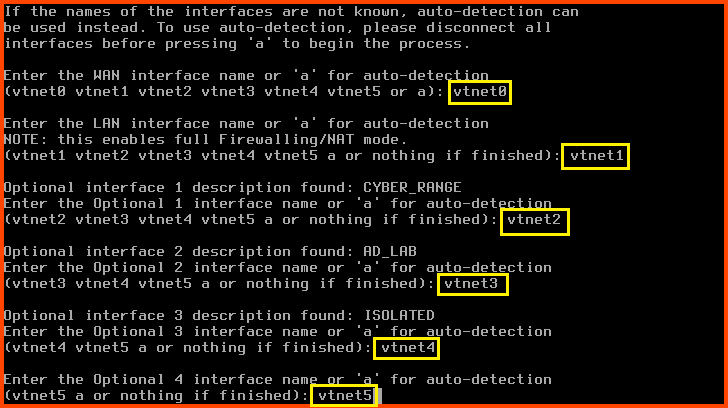
Enter the WAN interface name: **`vtnet0`**\
Enter the LAN interface name: **`vtnet1`**\
Enter the Optional 1 interface name: **`vtnet2`**\
Enter the Optional 2 interface name: **`vtnet3`**\
Enter the Optional 3 interface name: **`vtnet4`**\
Enter the Optional 4 interface name: **`vtnet5`**

<figure><img src="https://blog.davidvarghese.net/assets/images/building-home-lab-part-9/pfsense-102.png" alt=""><figcaption></figcaption></figure>

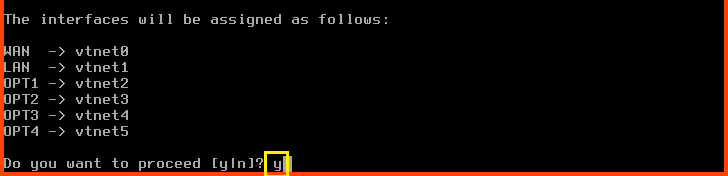
Do you want to proceed?: **`y`**

<figure><img src="https://blog.davidvarghese.net/assets/images/building-home-lab-part-9/pfsense-103.png" alt=""><figcaption></figcaption></figure>

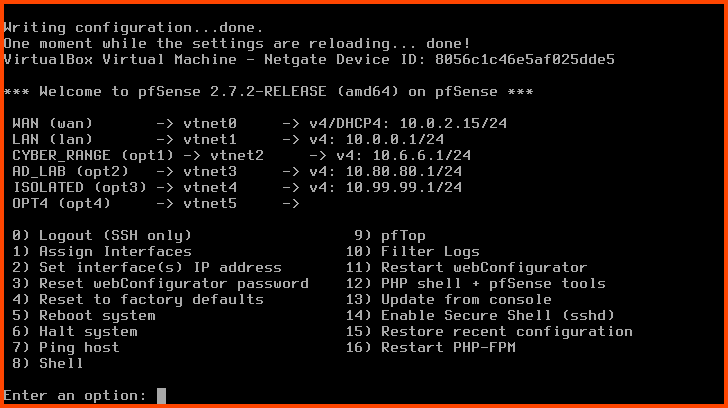
The new interface is onboarded. Now we need to assign it an IP address.

<figure><img src="https://blog.davidvarghese.net/assets/images/building-home-lab-part-9/pfsense-104.png" alt=""><figcaption></figcaption></figure>

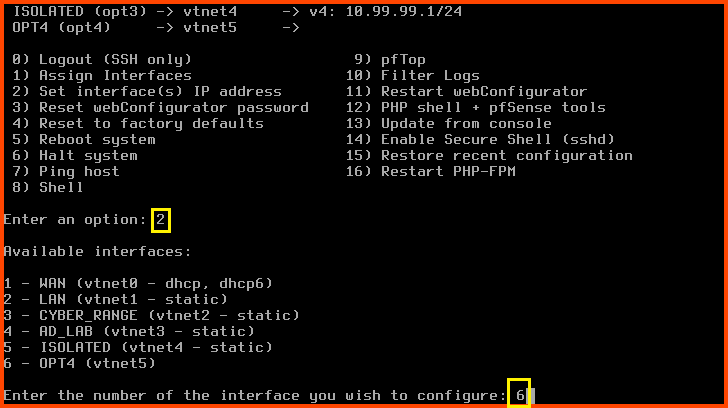
Enter **`2`** to select “Set interface(s) IP address”. Enter **`6`** to select the OPT4 interface.

<figure><img src="https://blog.davidvarghese.net/assets/images/building-home-lab-part-9/pfsense-105.png" alt=""><figcaption></figcaption></figure>

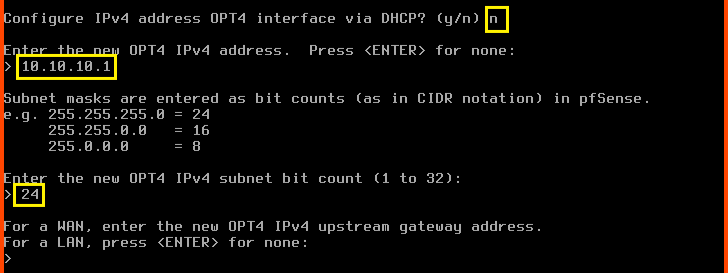
Configure IPv4 address OPT3 interface via DHCP?: **`n`**\
Enter the new OPT4 IPv4 address: **`10.10.10.1`**\
Enter the new OPT4 IPv4 subnet bit count: **`24`**

For the next question directly press **`Enter`**. Since this is an **`LAN`** interface we do not have to worry about configuring the upstream gateway.

<figure><img src="https://blog.davidvarghese.net/assets/images/building-home-lab-part-9/pfsense-106.png" alt=""><figcaption></figcaption></figure>

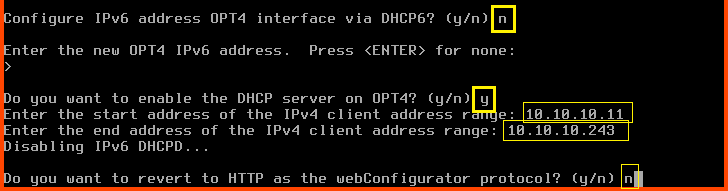
Configure IPv6 address OPT4 interface via DHCP6: **`n`**\
For the new OPT4 IPv6 address question press **`Enter`**.\
Do you want to enable the DHCP server on OPT4?: **`y`**\
Enter the start address of the IPv4 client address range: **`10.10.10.11`**\
Enter the end address of the IPv4 client address range: **`10.10.10.243`**\
Do you want to revert to HTTP as the webConfigurator protocol?: **`n`**

<figure><img src="https://blog.davidvarghese.net/assets/images/building-home-lab-part-9/pfsense-107.png" alt=""><figcaption></figcaption></figure>

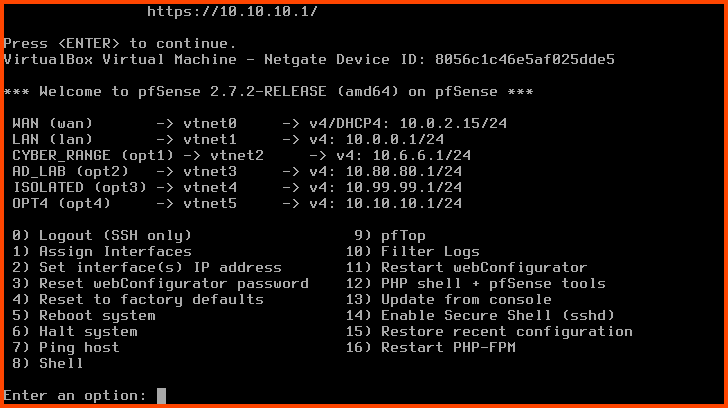
Now interface OPT4 will have an IP address.

<figure><img src="https://blog.davidvarghese.net/assets/images/building-home-lab-part-9/pfsense-108.png" alt=""><figcaption></figcaption></figure>

#### Renaming the Interface <a href="#renaming-the-interface" id="renaming-the-interface"></a>

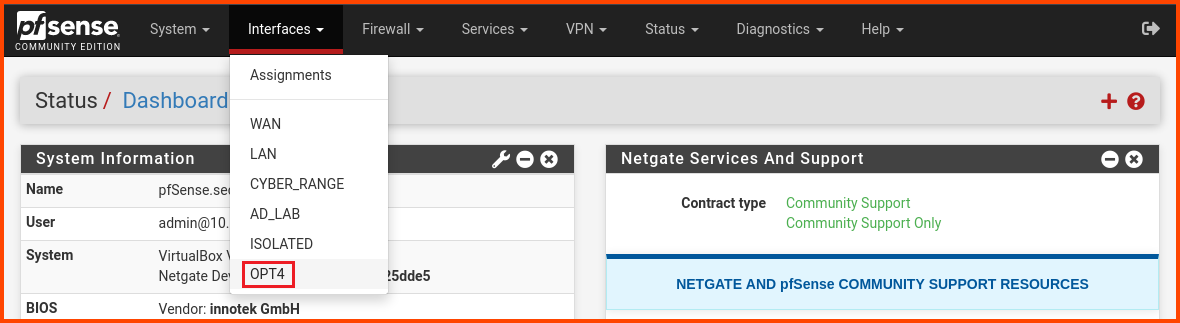
Launch the Kali Linux VM. Login to the pfSense web portal. From the navigation bar select **`Interfaces -> OPT4`**.

<figure><img src="https://blog.davidvarghese.net/assets/images/building-home-lab-part-9/pfsense-109.png" alt=""><figcaption></figcaption></figure>

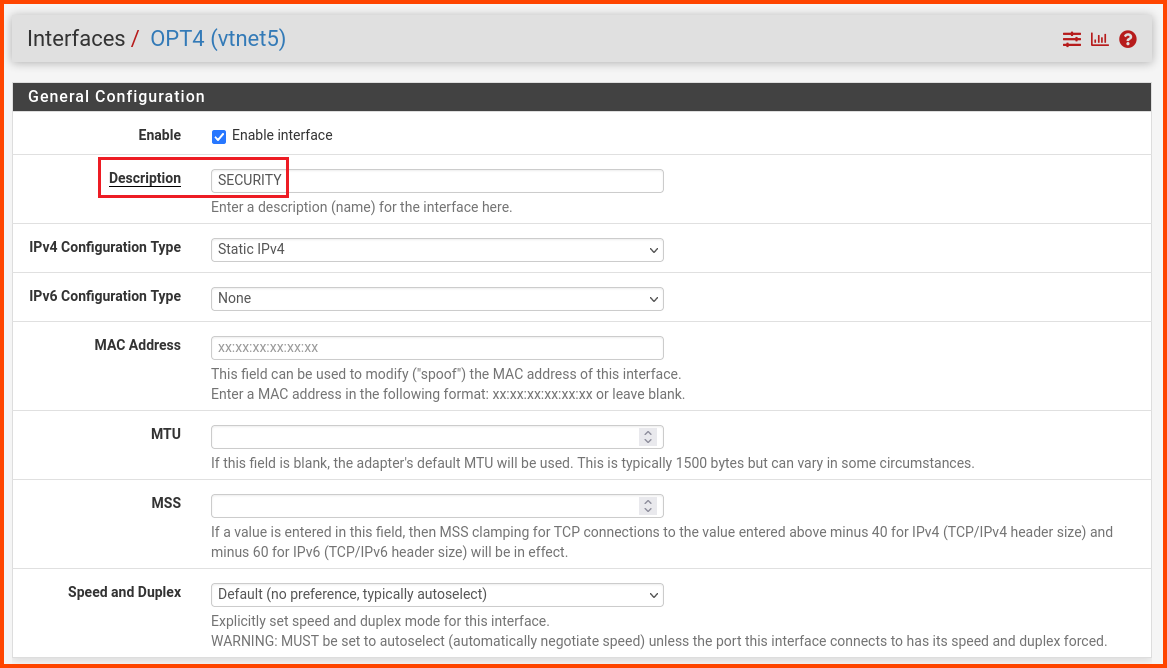
In the description field enter **`SECURITY`**. Scroll to the bottom and click on **`Save`**.

<figure><img src="https://blog.davidvarghese.net/assets/images/building-home-lab-part-9/pfsense-110.png" alt=""><figcaption></figcaption></figure>

Click on **`Apply Changes`** in the popup that appears to persist the changes.

<figure><img src="https://blog.davidvarghese.net/assets/images/building-home-lab-part-9/pfsense-111.png" alt=""><figcaption></figcaption></figure>

#### Interface Firewall Configuration <a href="#interface-firewall-configuration" id="interface-firewall-configuration"></a>

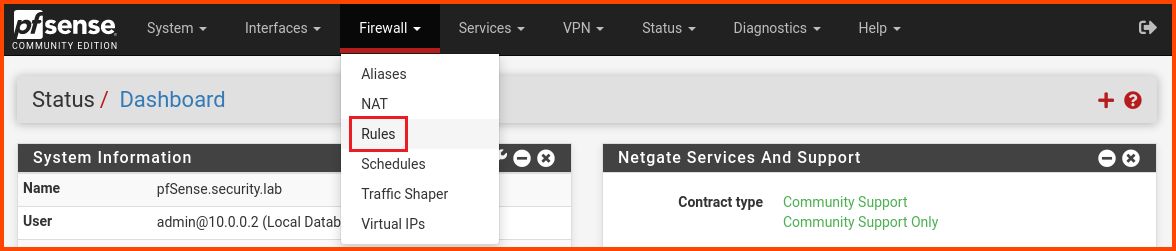
From the navigation bar click on **`Firewall -> Rules`**.

<figure><img src="https://blog.davidvarghese.net/assets/images/building-home-lab-part-8/pfsense-95.png" alt=""><figcaption></figcaption></figure>

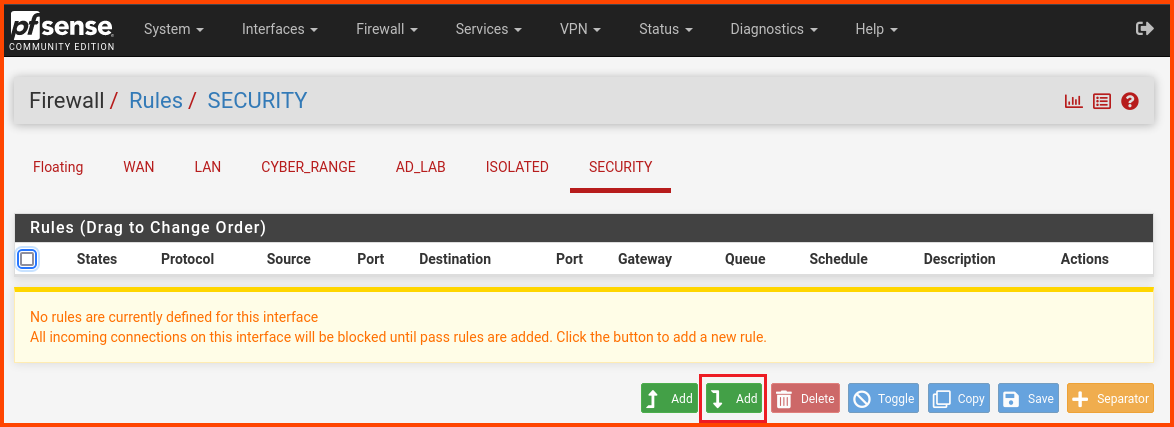
Select the SECURITY tab. Click on the “Add” button to create a new rule.

<figure><img src="https://blog.davidvarghese.net/assets/images/building-home-lab-part-9/pfsense-112.png" alt=""><figcaption></figcaption></figure>

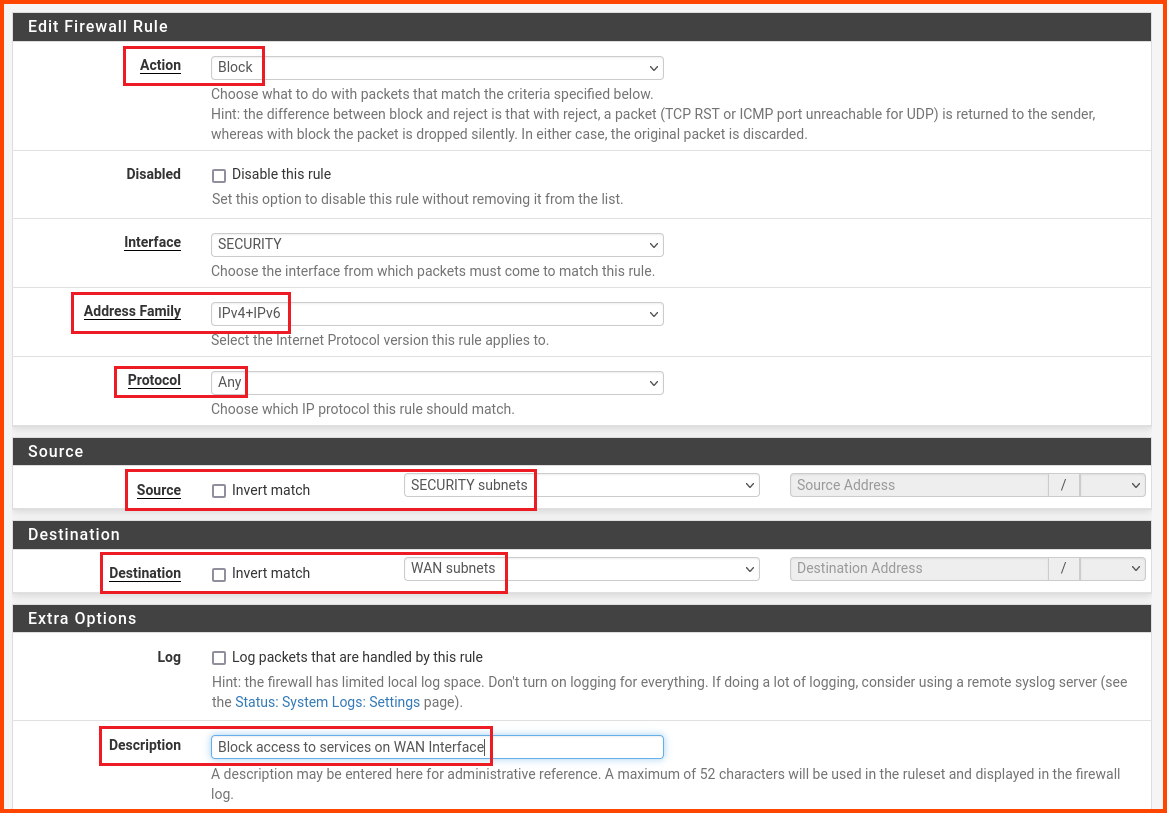
Change the values as follows:\
Action: **`Block`**\
Address Family: **`IPv4+IPv6`**\
Protocol: **`Any`**\
Source: **`SECURITY subnets`**\
Destination: **`WAN subnets`**\
Description: **`Block access to services on WAN interface`**

Scroll to the bottom and click on **`Save`**.

<figure><img src="https://blog.davidvarghese.net/assets/images/building-home-lab-part-9/pfsense-113.png" alt=""><figcaption></figcaption></figure>

Ignore the popup for saving changes. Click on “Add” to create a new rule.

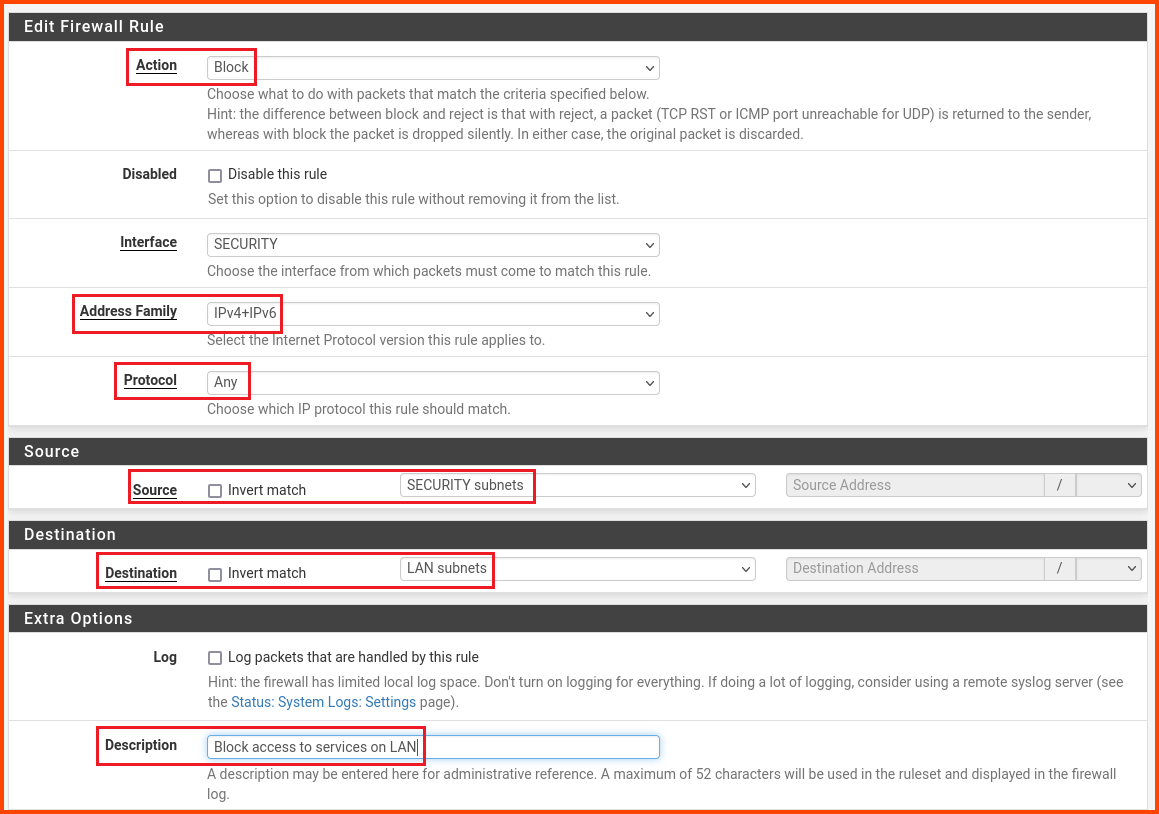
Change the values as follows:\
Action: **`Block`**\
Address Family: **`IPv4+IPv6`**\
Protocol: **`Any`**\
Source: **`SECURITY subnets`**\
Destination: **`LAN subnets`**\
Description: **`Block access to services on LAN`**

Scroll to the bottom and click on **`Save`**.

<figure><img src="https://blog.davidvarghese.net/assets/images/building-home-lab-part-9/pfsense-114.png" alt=""><figcaption></figcaption></figure>

Click on “Add” to create a new rule.

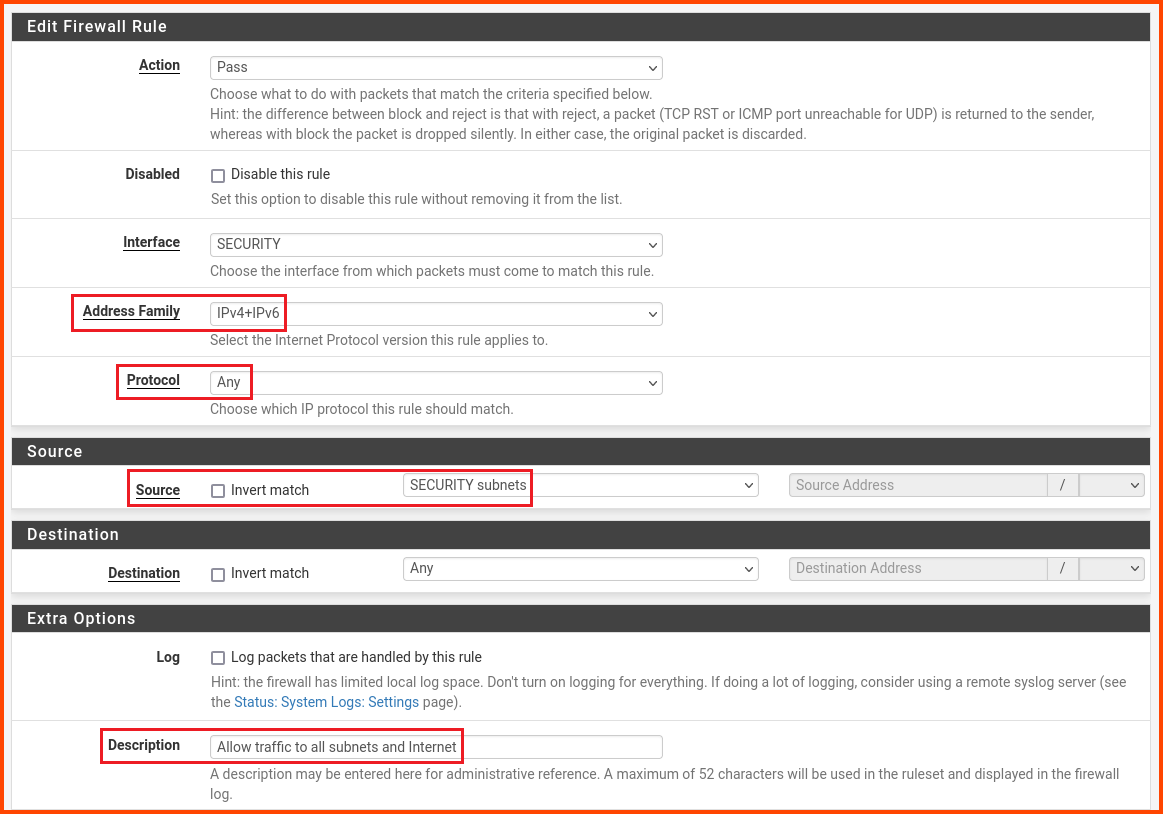
Change the values as follows:\
Address Family: **`IPv4+IPv6`**\
Protocol: **`Any`**\
Source: **`SECURITY subnets`**\
Description: **`Allow traffic to all subnets and Internet`**

Scroll to the bottom and click on **`Save`**.

<figure><img src="https://blog.davidvarghese.net/assets/images/building-home-lab-part-9/pfsense-115.png" alt=""><figcaption></figcaption></figure>

In the popup click on **`Apply Changes`** to persist the new rule.

<figure><img src="https://blog.davidvarghese.net/assets/images/building-home-lab-part-9/pfsense-116.png" alt=""><figcaption></figcaption></figure>

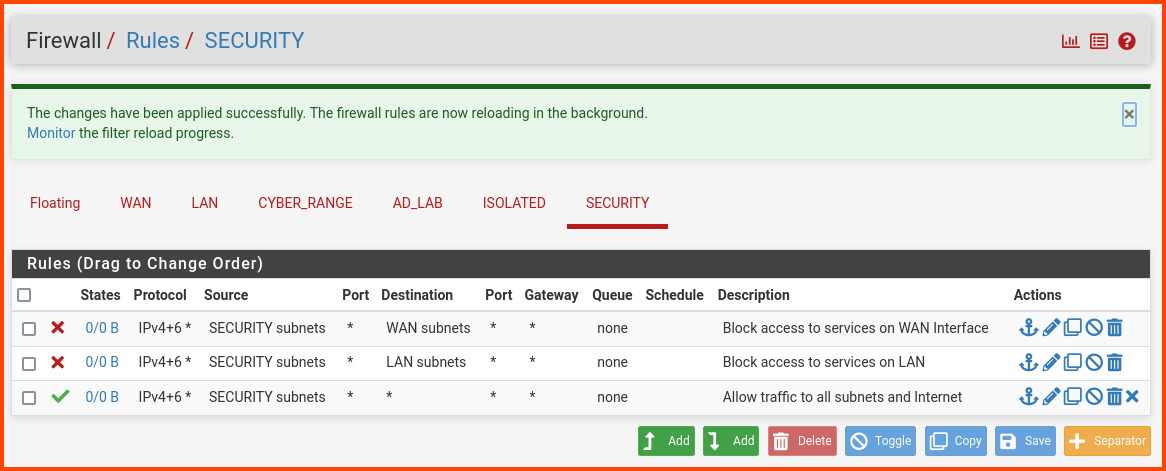
The final result will be as follows:

<figure><img src="https://blog.davidvarghese.net/assets/images/building-home-lab-part-9/pfsense-117.png" alt=""><figcaption></figcaption></figure>

#### Reboot pfSense <a href="#reboot-pfsense" id="reboot-pfsense"></a>

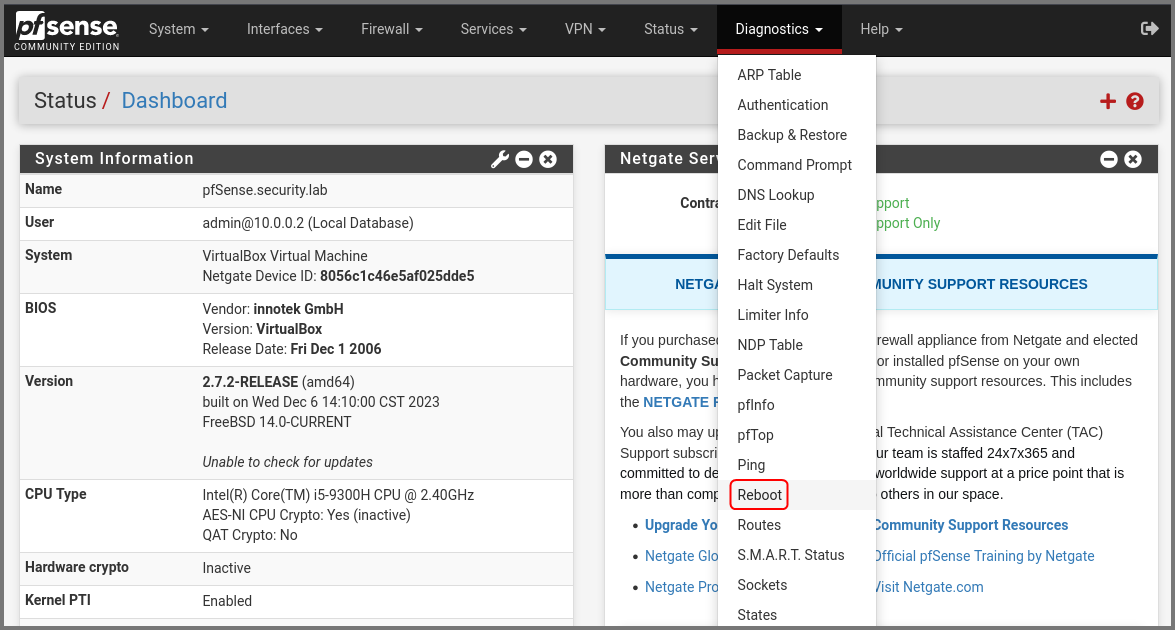
Now we need to restart pfSense to ensure that the firewall rules are propagated properly. From the navigation bar select **`Diagnostics -> Reboot`**.

<figure><img src="https://blog.davidvarghese.net/assets/images/building-home-lab-part-4/pfsense-118.png" alt=""><figcaption></figcaption></figure>

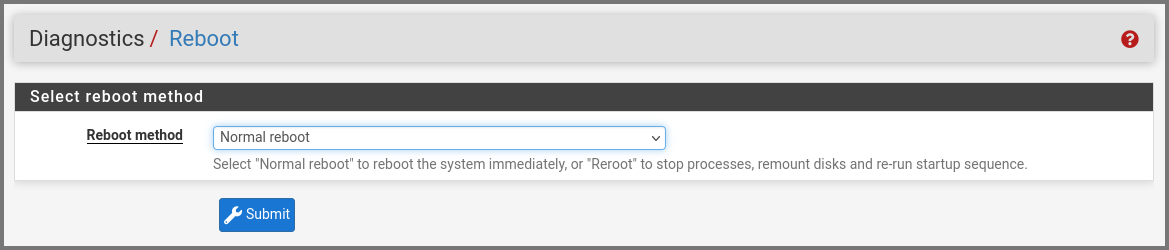
Click on **`Submit`**.

<figure><img src="https://blog.davidvarghese.net/assets/images/building-home-lab-part-4/pfsense-119.png" alt=""><figcaption></figcaption></figure>

Once pfSense boots up you will be redirected to the login page.

### Tsurugi Linux Setup <a href="#tsurugi-linux-setup" id="tsurugi-linux-setup"></a>

#### Download Image <a href="#download-image" id="download-image"></a>

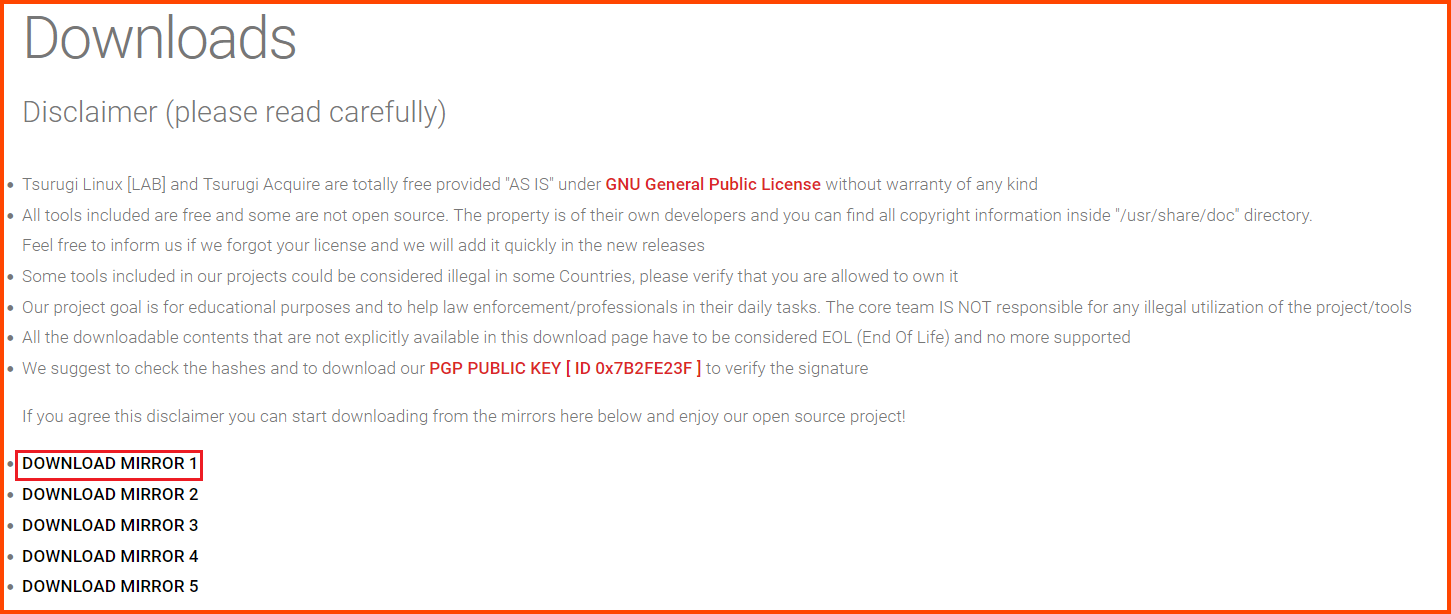
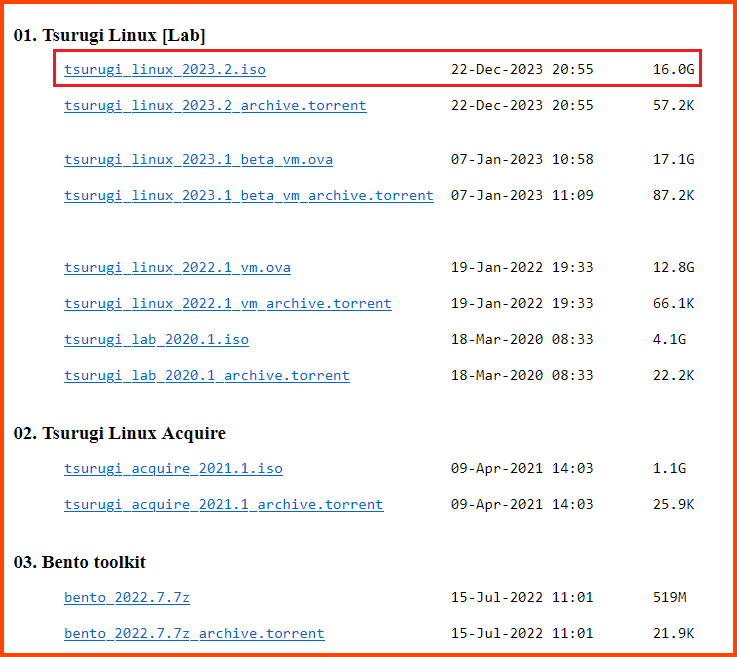
Go to the following URL: [Tsurugi Linux - Downloads](https://tsurugi-linux.org/downloads.php). Select one of the Mirror Links.

<figure><img src="https://blog.davidvarghese.net/assets/images/building-home-lab-part-9/tsurugi-1.png" alt=""><figcaption></figcaption></figure>

Download the ISO image. As of writing the latest version of Tsurugi Linux is **`2023.2`**.\
The ISO is \~16GB. It will take a while to download.

<figure><img src="https://blog.davidvarghese.net/assets/images/building-home-lab-part-9/tsurugi-2.png" alt=""><figcaption></figcaption></figure>

After the download is complete we will have a **`.iso`** file.

<figure><img src="https://blog.davidvarghese.net/assets/images/building-home-lab-part-9/tsurugi-29.png" alt=""><figcaption></figcaption></figure>

#### Creating the VM <a href="#creating-the-vm" id="creating-the-vm"></a>

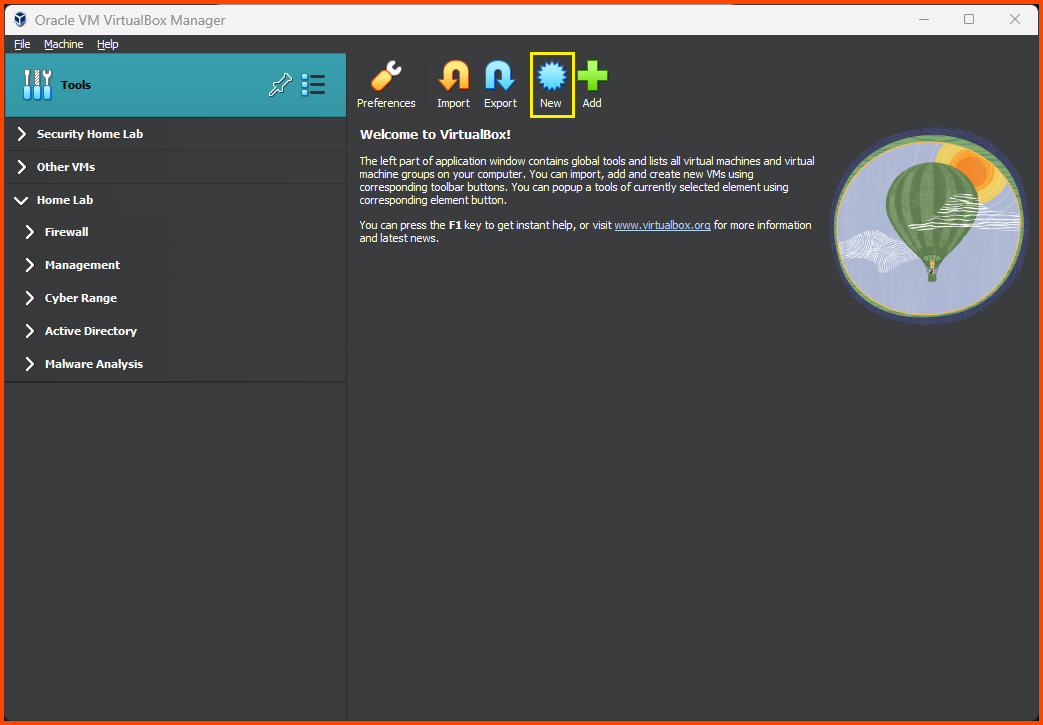
Select Tools from the sidebar and then select **`New`**.

<figure><img src="https://blog.davidvarghese.net/assets/images/building-home-lab-part-9/tsurugi-3.png" alt=""><figcaption></figcaption></figure>

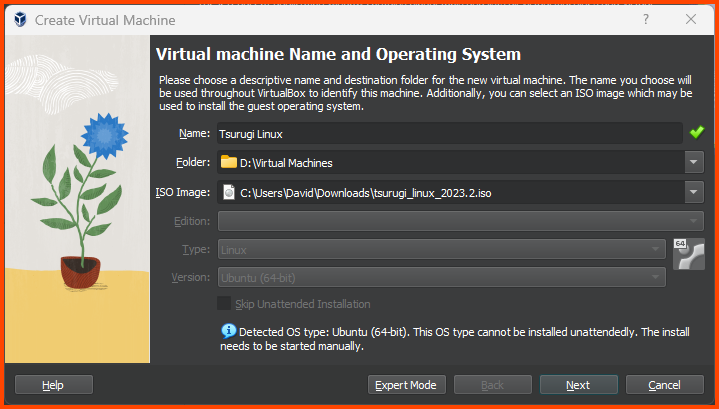
Give the VM a name and then select the downloaded ISO image. Click on **`Next`**.

<figure><img src="https://blog.davidvarghese.net/assets/images/building-home-lab-part-9/tsurugi-4.png" alt=""><figcaption></figcaption></figure>

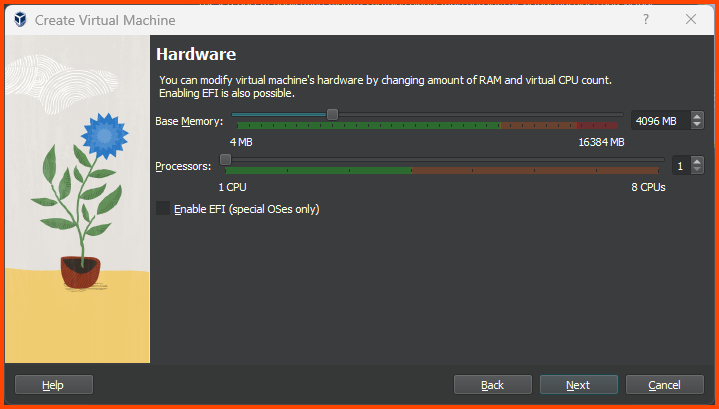
Increase the Base Memory to **`4096MB`** and then click on **`Next`**.

<figure><img src="https://blog.davidvarghese.net/assets/images/building-home-lab-part-9/tsurugi-5.png" alt=""><figcaption></figcaption></figure>

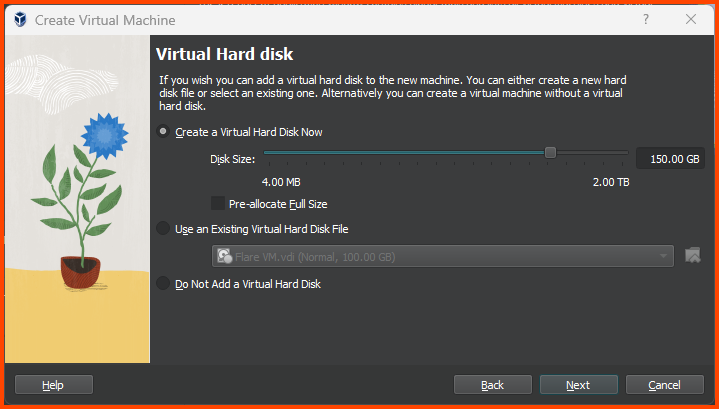
Increase the Hard Disk size to **`150GB`**.

> Tsurugi Linux installation will not work if we provide less than **`110GB`** of storage.

<figure><img src="https://blog.davidvarghese.net/assets/images/building-home-lab-part-9/tsurugi-6.png" alt=""><figcaption></figcaption></figure>

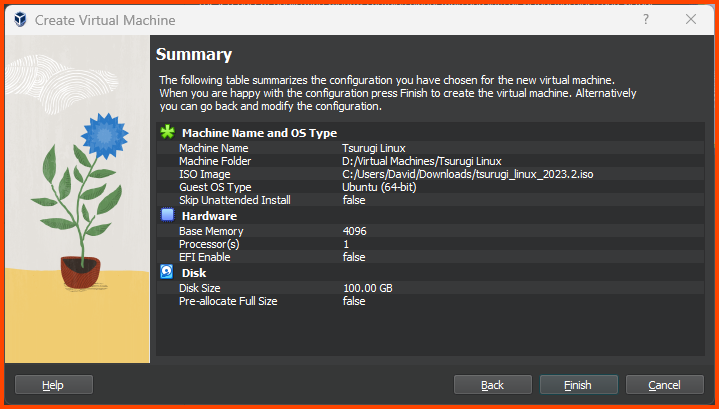
Click if all the settings look right and then click on **`Finish`**.

<figure><img src="https://blog.davidvarghese.net/assets/images/building-home-lab-part-9/tsurugi-7.png" alt=""><figcaption></figcaption></figure>

**Adding VM to Group**

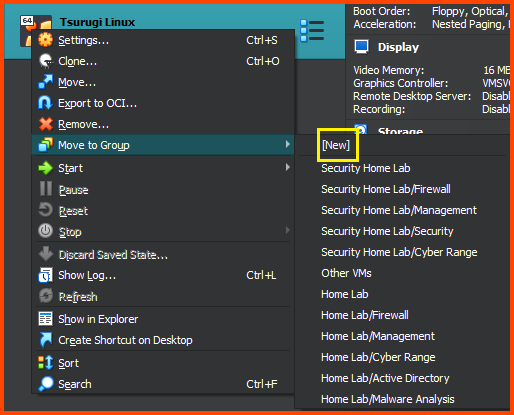
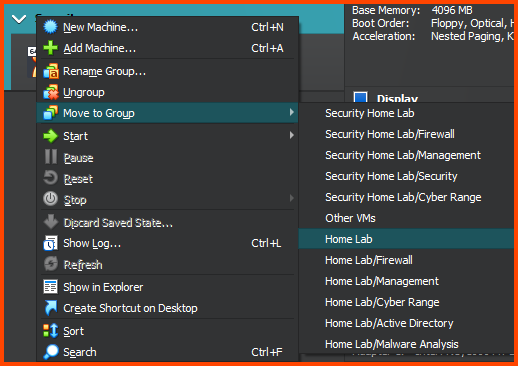
Right-click on the VM name and then select “Move to Group” and then choose **`New`**.

<figure><img src="https://blog.davidvarghese.net/assets/images/building-home-lab-part-9/tsurugi-8.png" alt=""><figcaption></figcaption></figure>

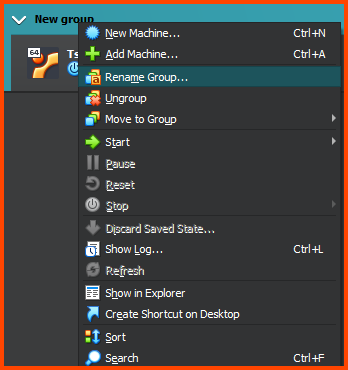
Right-click on the group name, select “Rename Group” and call it “Security”.

<figure><img src="https://blog.davidvarghese.net/assets/images/building-home-lab-part-9/tsurugi-9.png" alt=""><figcaption></figcaption></figure>

Right-click on the group name, select “Move to Group” and then select “Home Lab”.

<figure><img src="https://blog.davidvarghese.net/assets/images/building-home-lab-part-9/tsurugi-10.png" alt=""><figcaption></figcaption></figure>

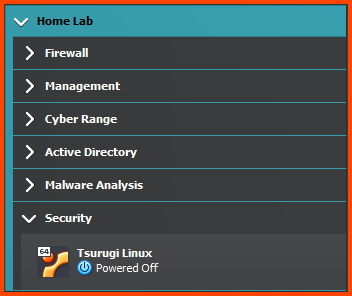
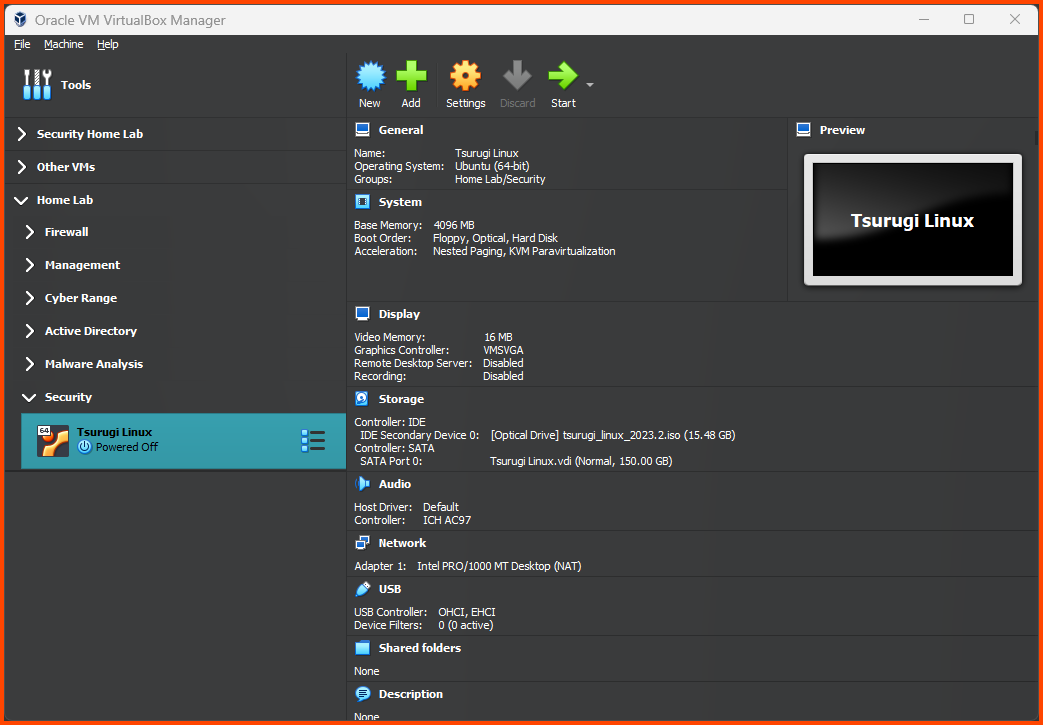
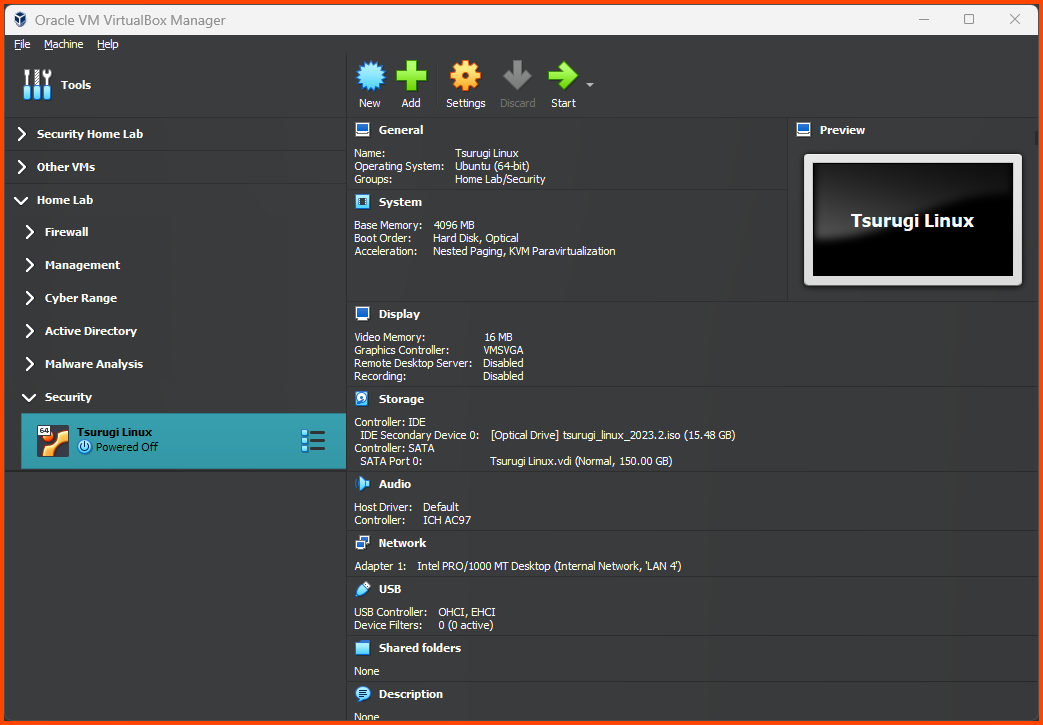
The final result should match the following:

<figure><img src="https://blog.davidvarghese.net/assets/images/building-home-lab-part-9/tsurugi-11.png" alt=""><figcaption></figcaption></figure>

#### Configuring the VM <a href="#configuring-the-vm" id="configuring-the-vm"></a>

Select the VM and then from the toolbar select “Settings”.

<figure><img src="https://blog.davidvarghese.net/assets/images/building-home-lab-part-9/tsurugi-12.png" alt=""><figcaption></figcaption></figure>

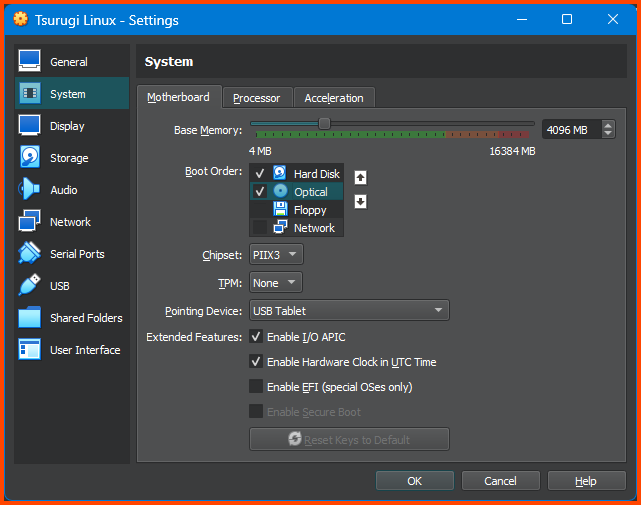
Go to **`System -> Motherboard`**. In Boot Order ensure that Hard Disk is on top followed by Optical. Uncheck Floppy.

<figure><img src="https://blog.davidvarghese.net/assets/images/building-home-lab-part-9/tsurugi-13.png" alt=""><figcaption></figcaption></figure>

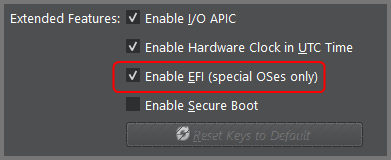
> **Tsurugi Linux 2024.1+ Additional Step**\
> Tsurugi Linux 2024.1 onwards it is necessary to also enabled the “Enable EFI” option in VirtualBox. If this option is not enabled the OS installation will fail.

<figure><img src="https://blog.davidvarghese.net/assets/images/building-home-lab-part-9/tsurugi-47.png" alt=""><figcaption></figcaption></figure>

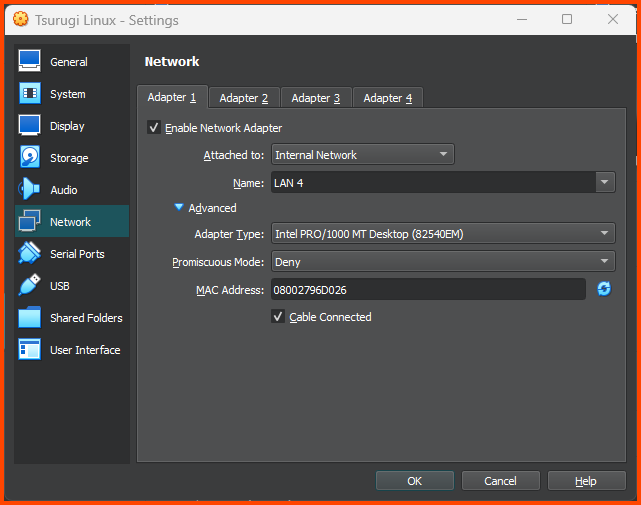
Go to **`Network -> Adapter 1`**. For the Attached to option select **`Internal Network`**. For name select **`LAN 4`**. Click on **`OK`** to save the changes.

<figure><img src="https://blog.davidvarghese.net/assets/images/building-home-lab-part-9/tsurugi-14.png" alt=""><figcaption></figcaption></figure>

#### Installing Tsurugi Linux <a href="#installing-tsurugi-linux" id="installing-tsurugi-linux"></a>

Select the VM and from the toolbar select **`Start`**.

<figure><img src="https://blog.davidvarghese.net/assets/images/building-home-lab-part-9/tsurugi-15.png" alt=""><figcaption></figcaption></figure>

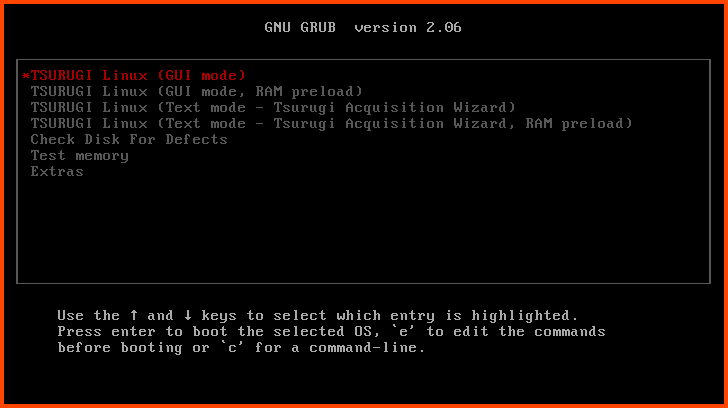
Press **`Enter`** to start the Tsurugi Linux in GUI mode.

<figure><img src="https://blog.davidvarghese.net/assets/images/building-home-lab-part-9/tsurugi-16.png" alt=""><figcaption></figcaption></figure>

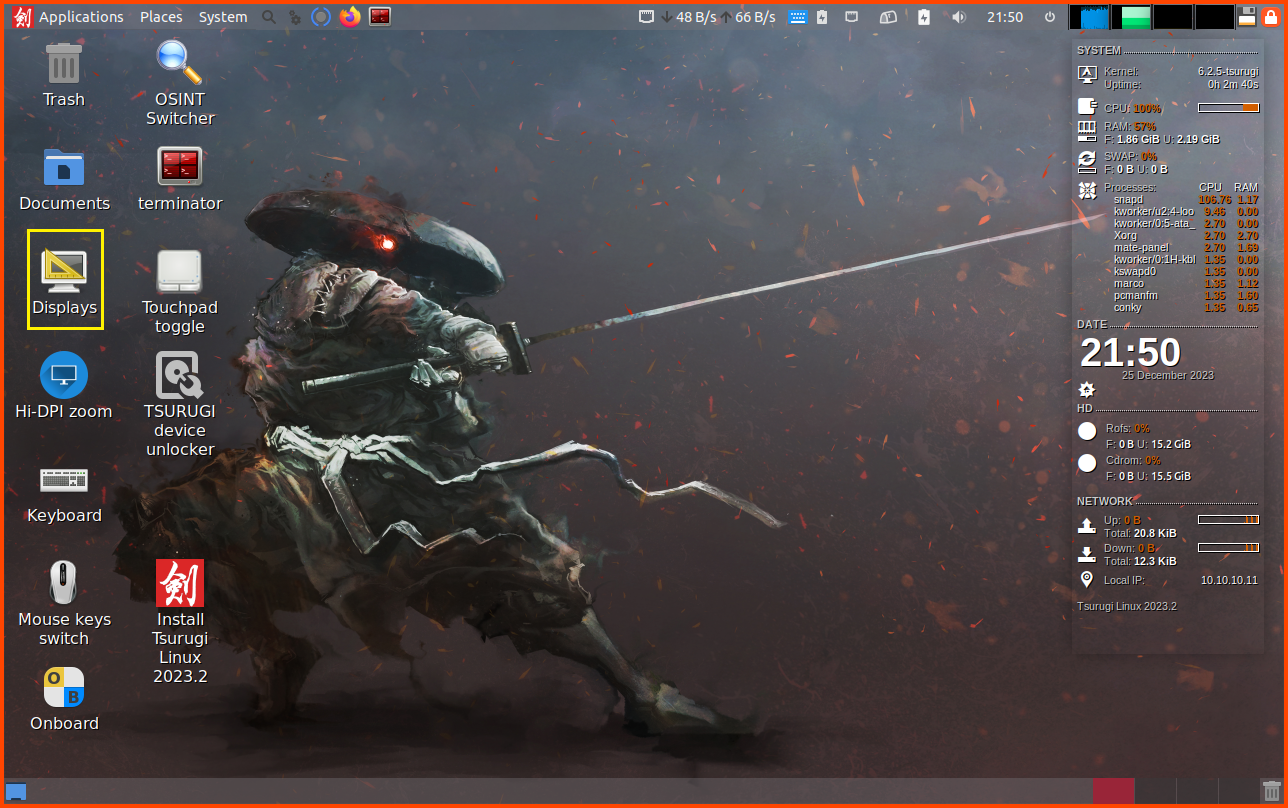
Once on the desktop double-click on **`Displays`**.

<figure><img src="https://blog.davidvarghese.net/assets/images/building-home-lab-part-9/tsurugi-17.png" alt=""><figcaption></figcaption></figure>

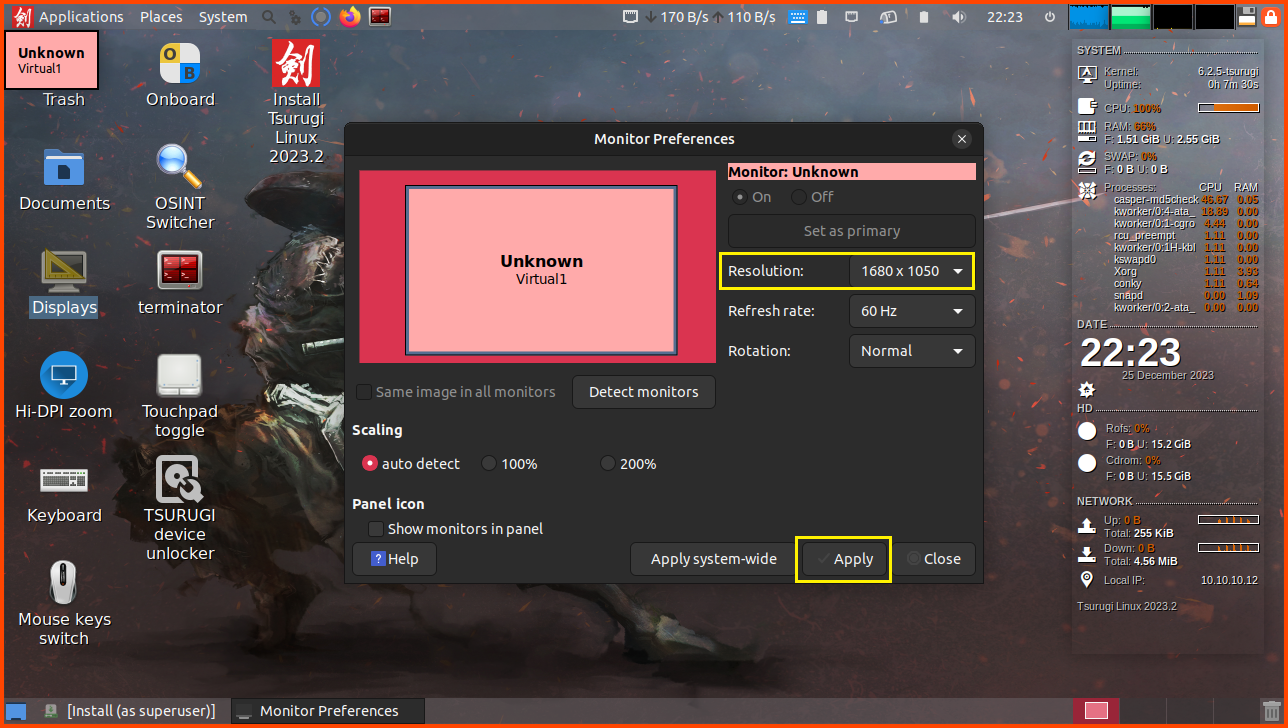
In the Resolution window select 1600x1050 and click on **`Apply`**.

<figure><img src="https://blog.davidvarghese.net/assets/images/building-home-lab-part-9/tsurugi-18.png" alt=""><figcaption></figcaption></figure>

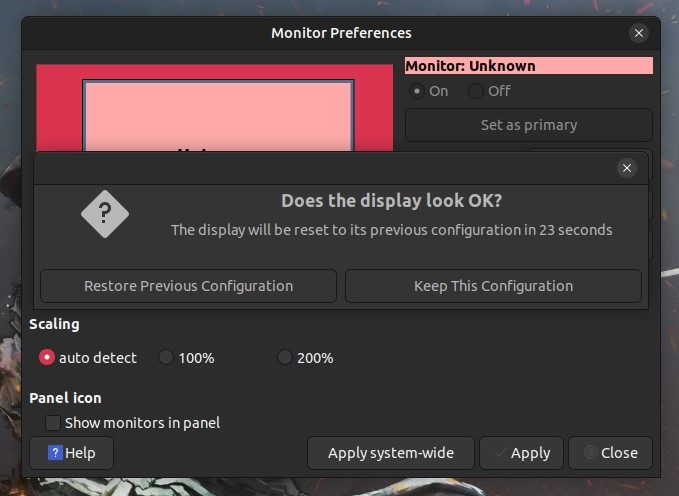
Click on “Keep This Configuration” to confirm the changes.

> Without changing the resolution of the screen you will not be able to see the buttons that are present at the bottom of the Installer.

<figure><img src="https://blog.davidvarghese.net/assets/images/building-home-lab-part-9/tsurugi-19.png" alt=""><figcaption></figcaption></figure>

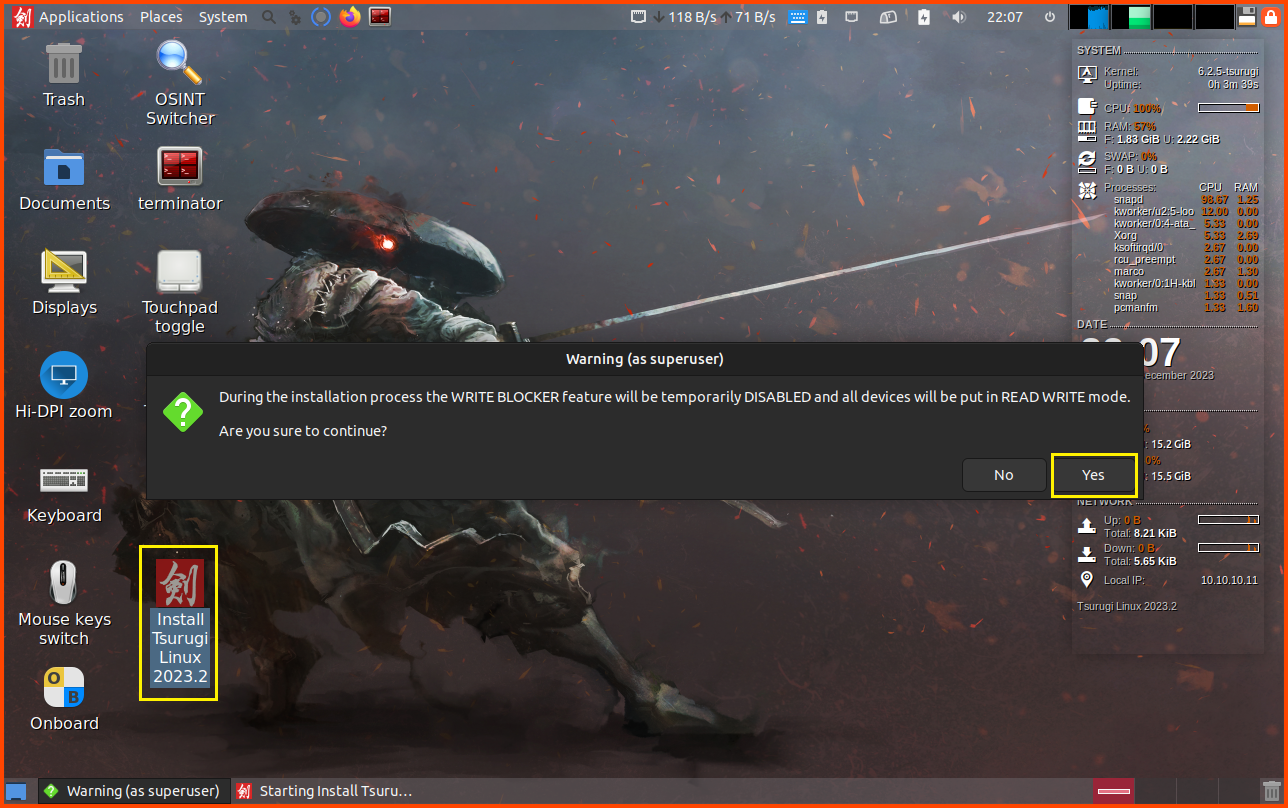
Double-click on the “Install Tsurugi Linux 2023.2” icon to start the installer.

<figure><img src="https://blog.davidvarghese.net/assets/images/building-home-lab-part-9/tsurugi-20.png" alt=""><figcaption></figcaption></figure>

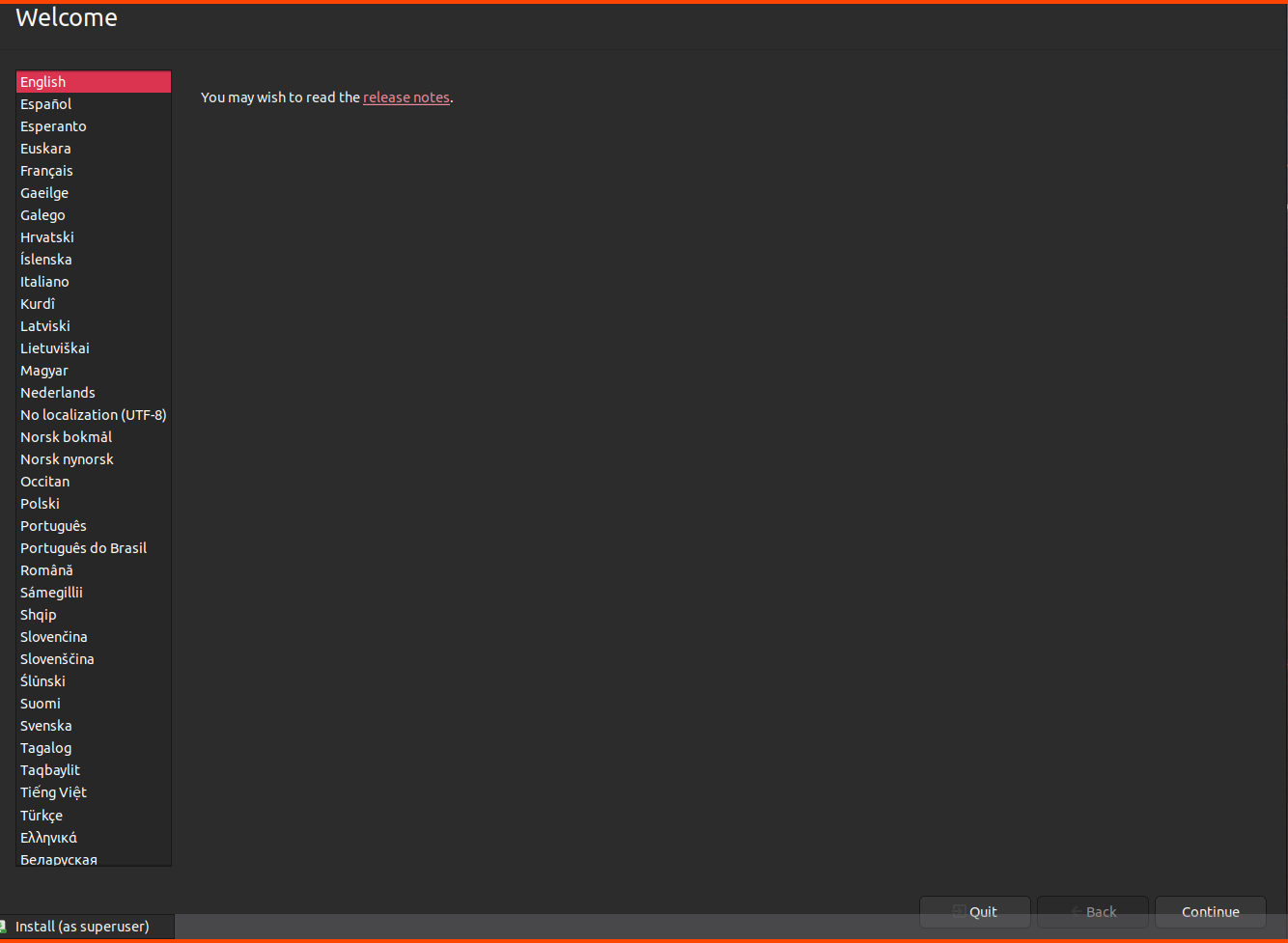
Once the installer starts. Use the scrollbar on the right side of the VM display and scroll to the bottom. Select your language and click on **`Continue`**.

<figure><img src="https://blog.davidvarghese.net/assets/images/building-home-lab-part-9/tsurugi-21.png" alt=""><figcaption></figcaption></figure>

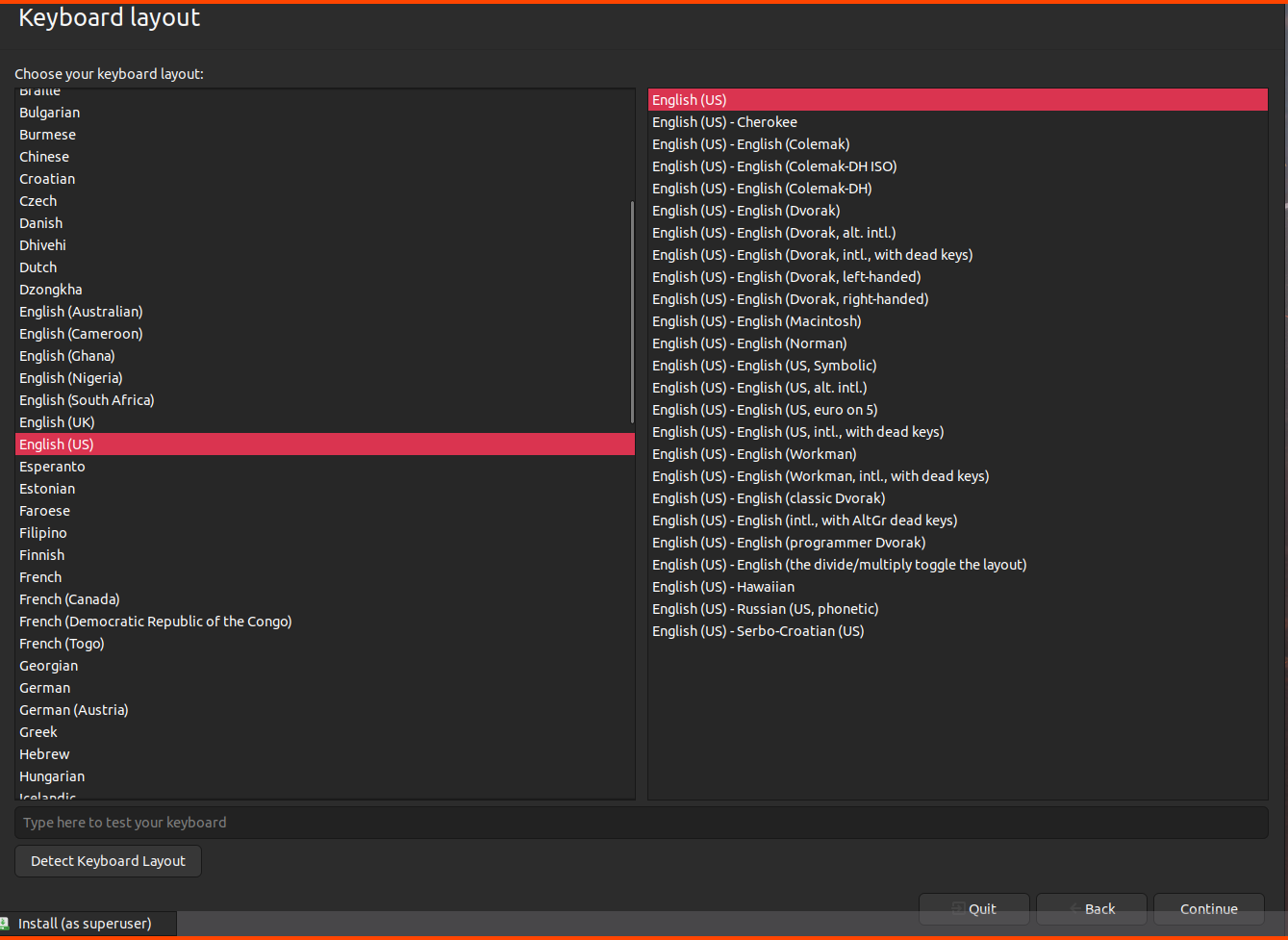
Select Keyboard and click on **`Continue`**.

<figure><img src="https://blog.davidvarghese.net/assets/images/building-home-lab-part-9/tsurugi-22.png" alt=""><figcaption></figcaption></figure>

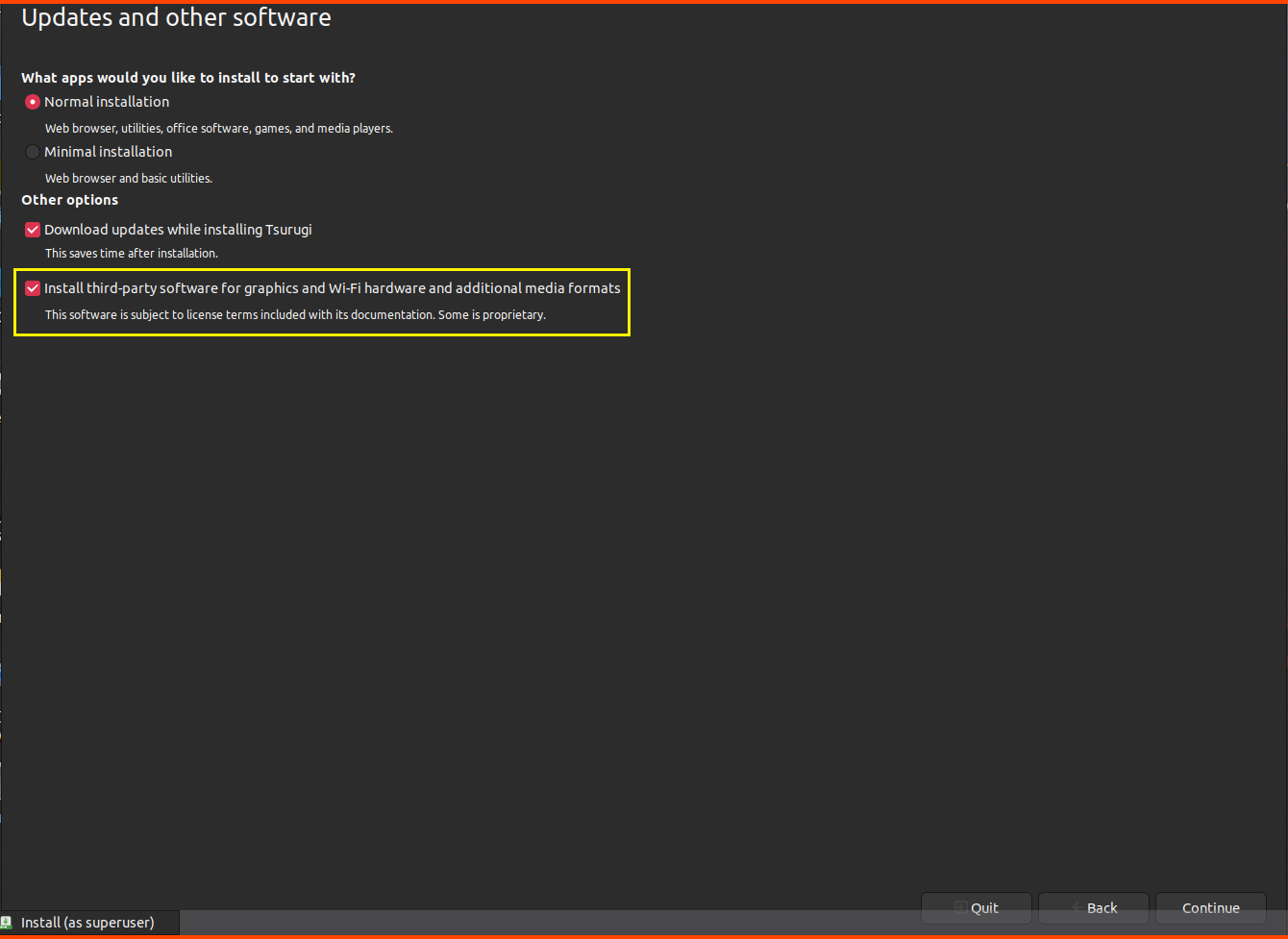
Enable “Install third-party software for graphics and Wi-Fi hardware and additional media features” and click on **`Continue`**.

<figure><img src="https://blog.davidvarghese.net/assets/images/building-home-lab-part-9/tsurugi-23.png" alt=""><figcaption></figcaption></figure>

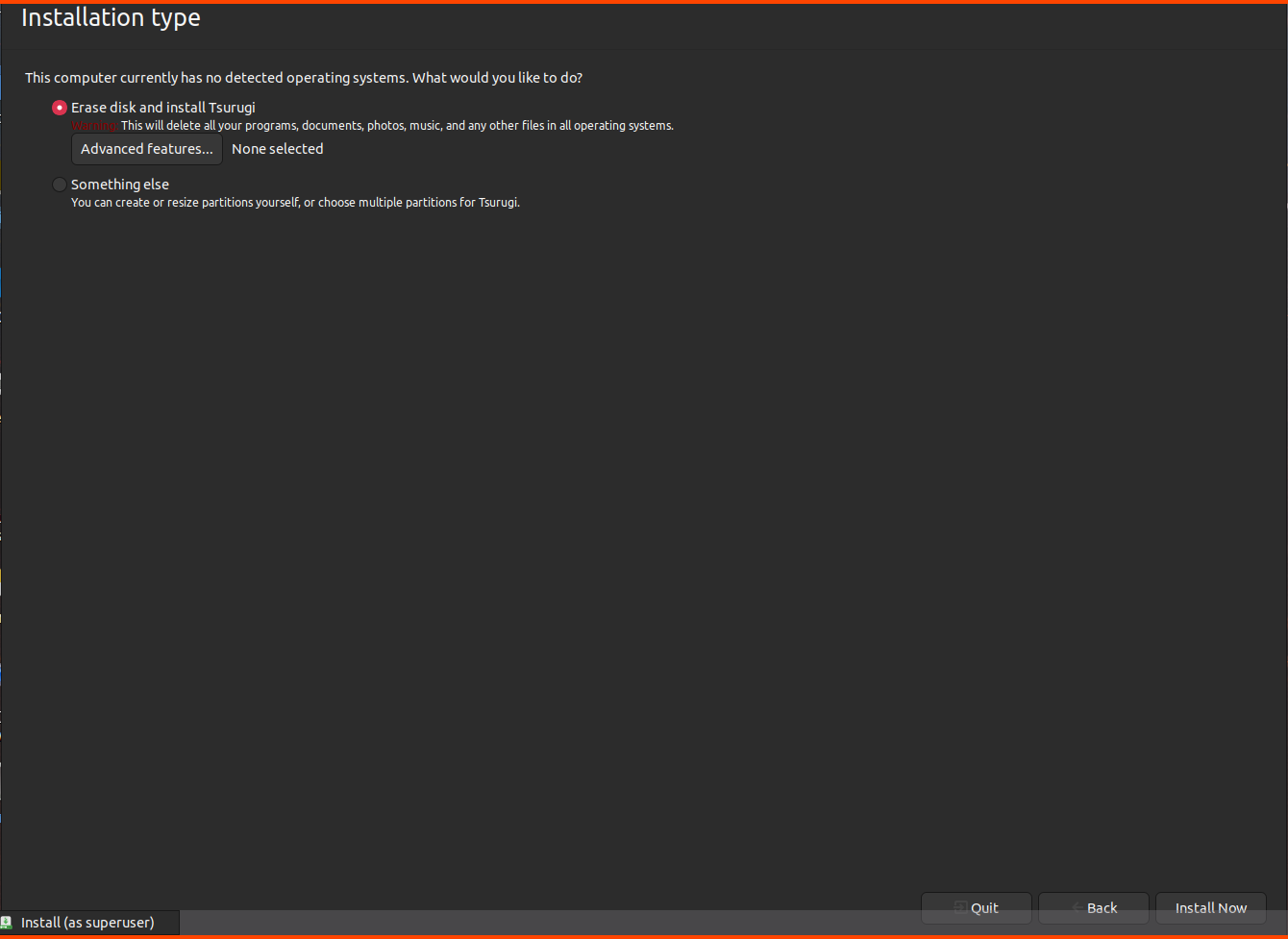
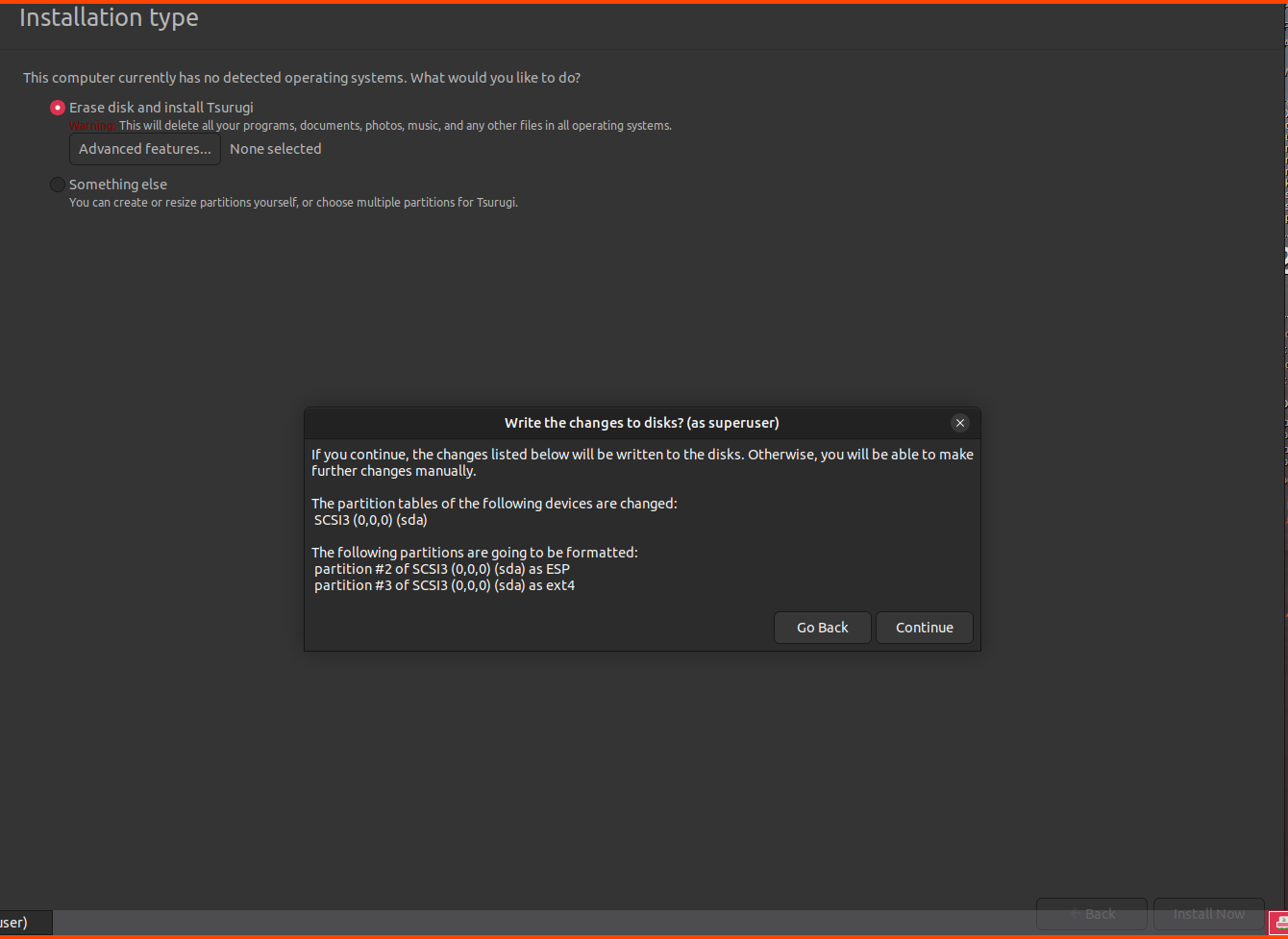
Click on **`Install Now`**.

<figure><img src="https://blog.davidvarghese.net/assets/images/building-home-lab-part-9/tsurugi-24.png" alt=""><figcaption></figcaption></figure>

Click on **`Continue`**.

<figure><img src="https://blog.davidvarghese.net/assets/images/building-home-lab-part-9/tsurugi-25.png" alt=""><figcaption></figcaption></figure>

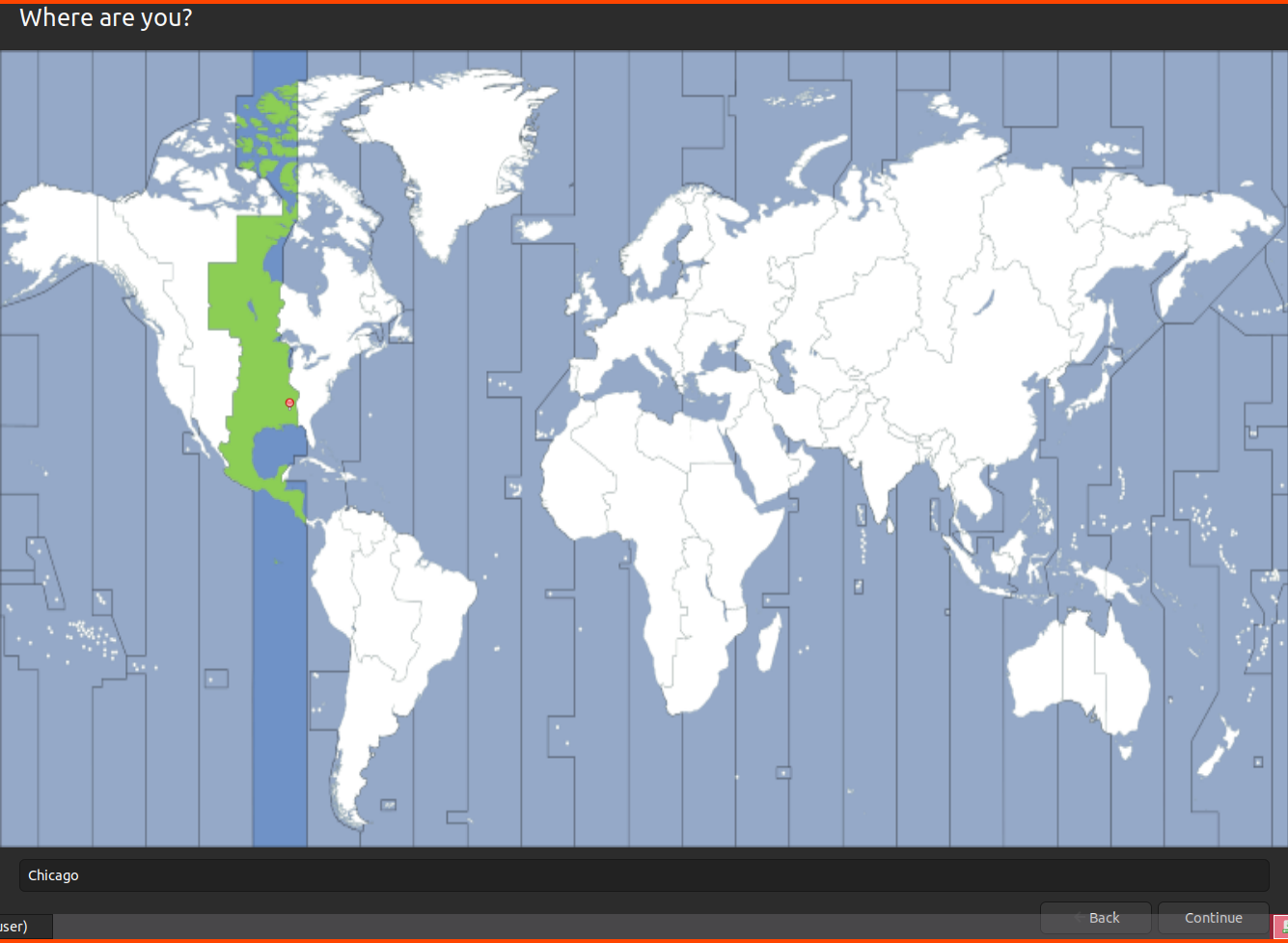
Select your location/timezone using the map and click on **`Continue`**.

<figure><img src="https://blog.davidvarghese.net/assets/images/building-home-lab-part-9/tsurugi-26.png" alt=""><figcaption></figcaption></figure>

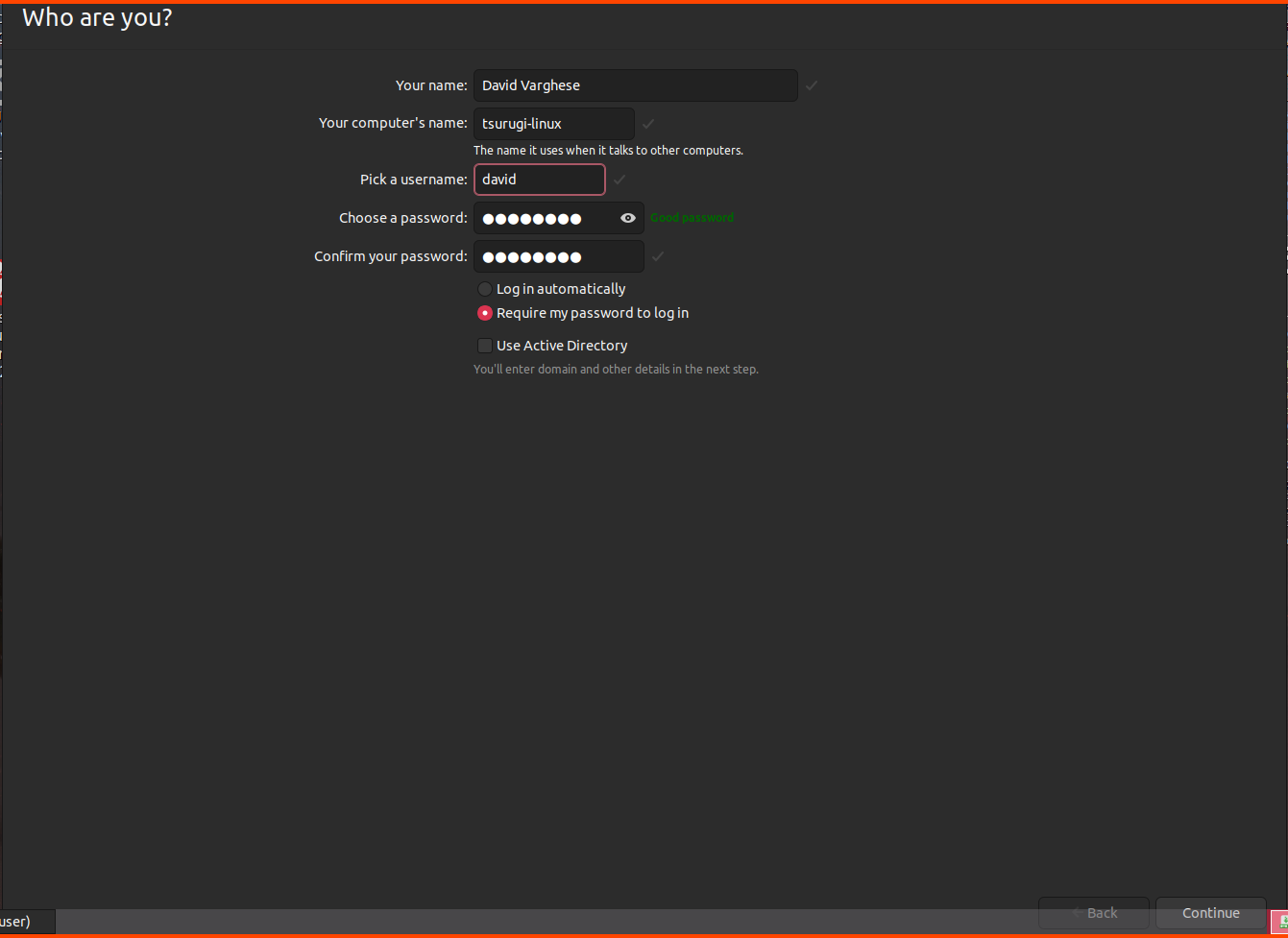
Provide a username, computer name and password then click on **`Continue`**.

<figure><img src="https://blog.davidvarghese.net/assets/images/building-home-lab-part-9/tsurugi-27.png" alt=""><figcaption></figcaption></figure>

<figure><img src="https://blog.davidvarghese.net/assets/images/building-home-lab-part-9/tsurugi-28.png" alt=""><figcaption></figcaption></figure>

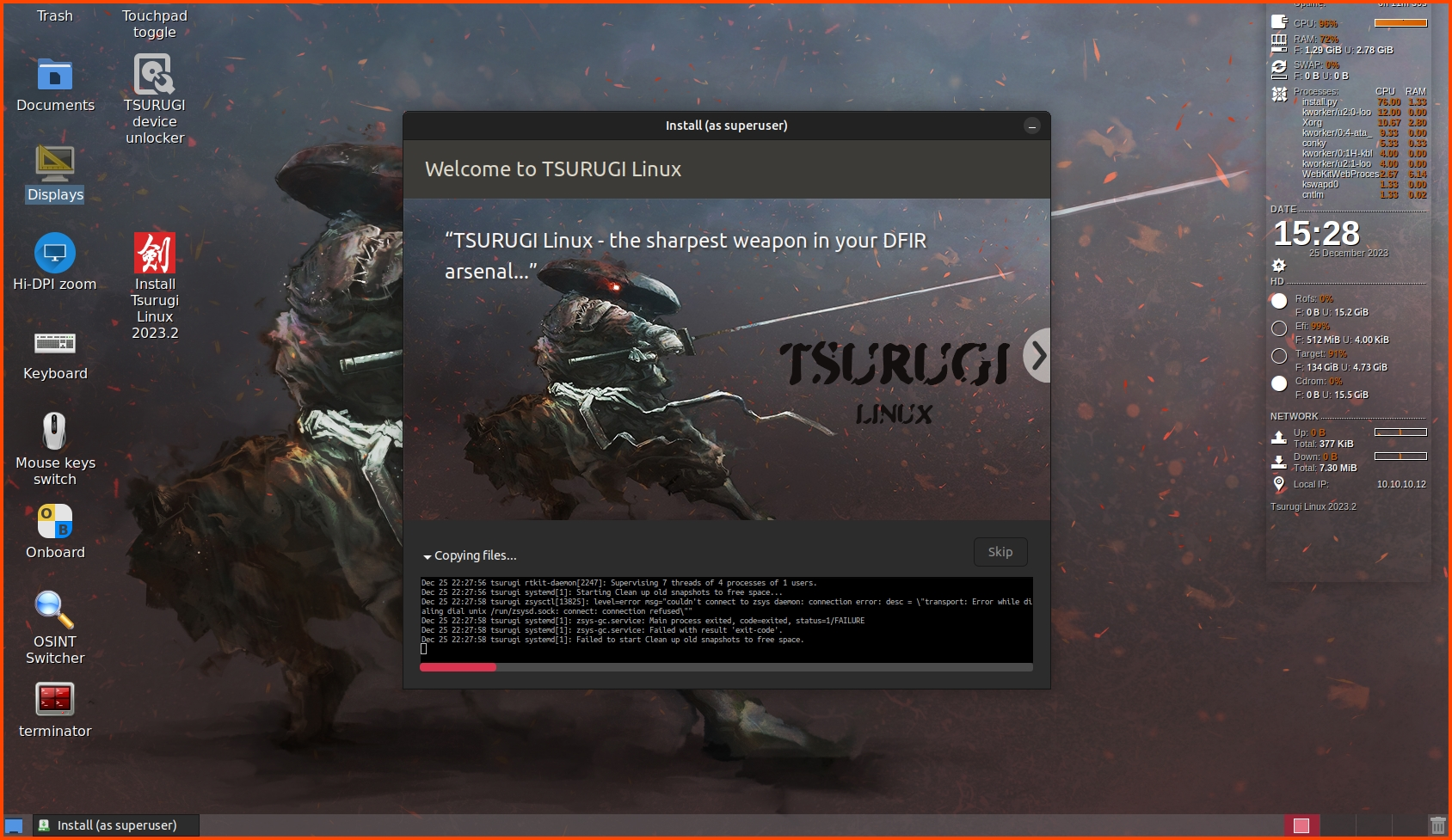
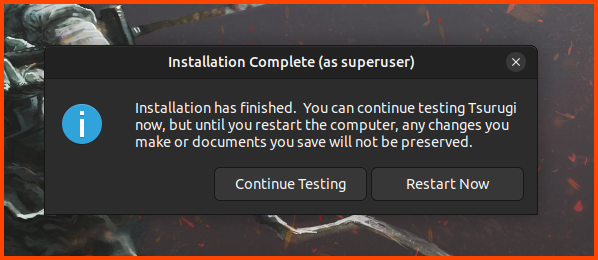
After the installation is complete click on “Restart Now”.

<figure><img src="https://blog.davidvarghese.net/assets/images/building-home-lab-part-9/tsurugi-30.png" alt=""><figcaption></figcaption></figure>

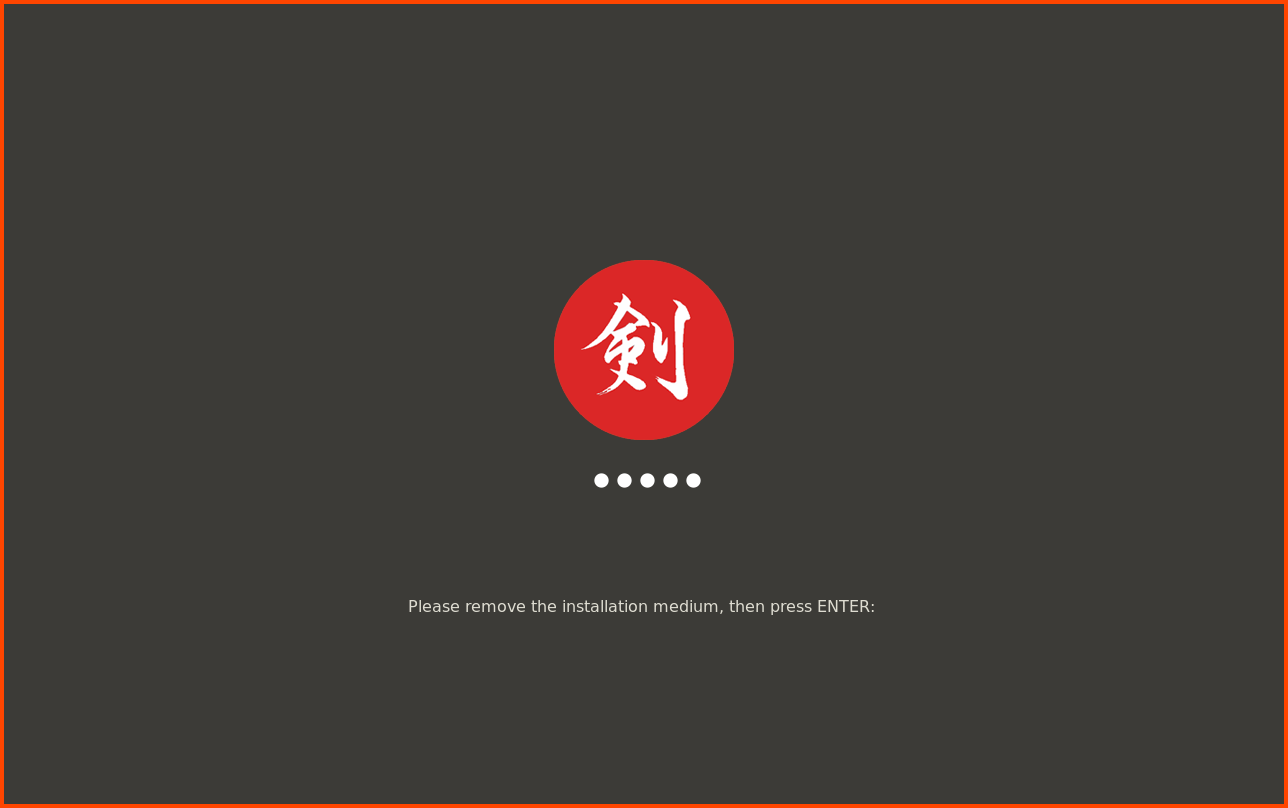
When the VM reboots you might get the following screen. VirtualBox should automatically remove this disk when the screen appears. Press **`Enter`** to continue.

<figure><img src="https://blog.davidvarghese.net/assets/images/building-home-lab-part-9/tsurugi-31.png" alt=""><figcaption></figcaption></figure>

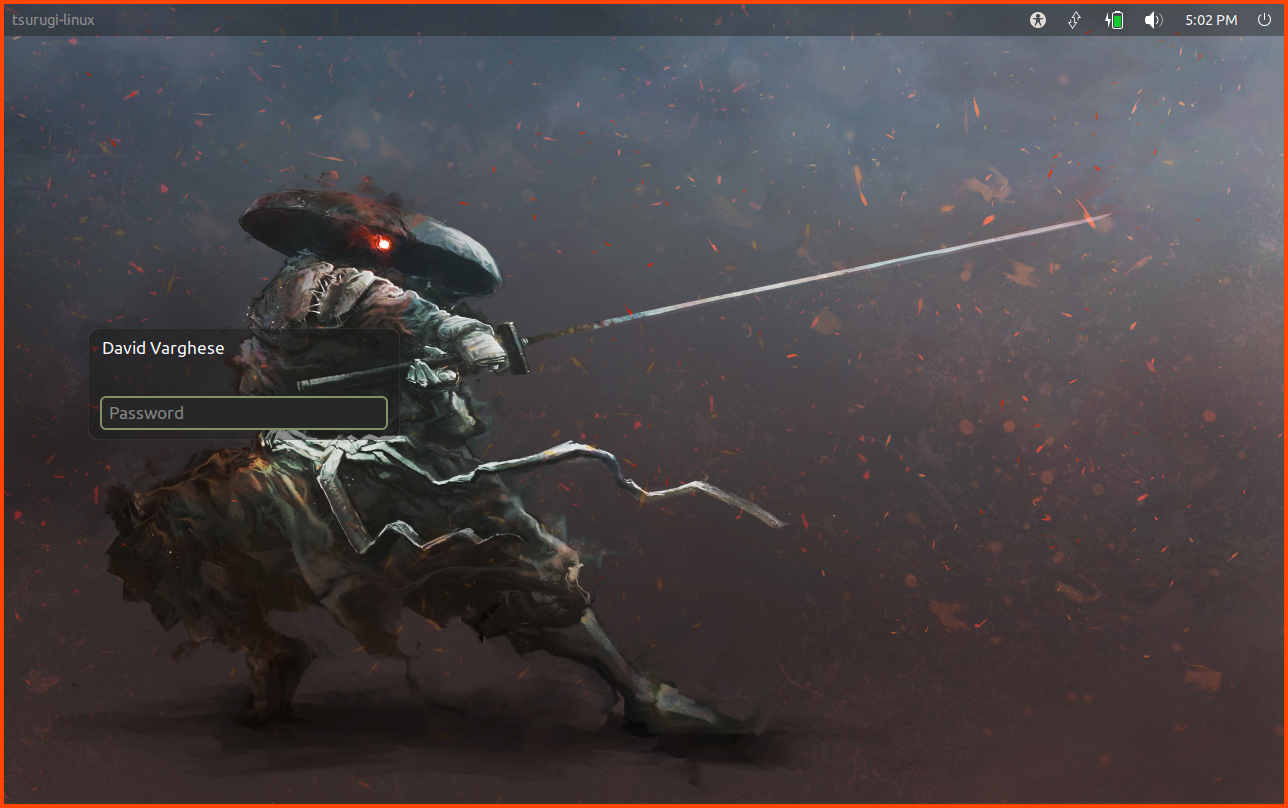
Login using the password that was configured.

<figure><img src="https://blog.davidvarghese.net/assets/images/building-home-lab-part-9/tsurugi-32.png" alt=""><figcaption></figcaption></figure>

#### Post-Install Configuration <a href="#post-install-configuration" id="post-install-configuration"></a>

**Guest Additions Installation**

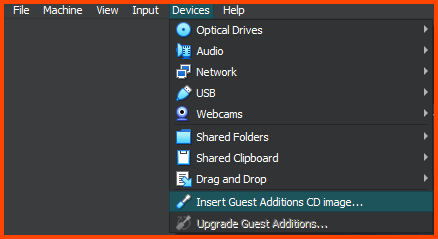
Click on **`Devices -> Inert Guest Additions CD Image`**. This will insert the ISO image.

<figure><img src="https://blog.davidvarghese.net/assets/images/building-home-lab-part-9/tsurugi-33.png" alt=""><figcaption></figcaption></figure>

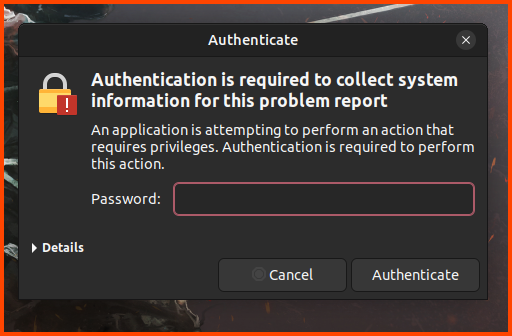
You might be prompted for credentials. Enter the password and click on **`Authenticate`**.

<figure><img src="https://blog.davidvarghese.net/assets/images/building-home-lab-part-9/tsurugi-34.png" alt=""><figcaption></figcaption></figure>

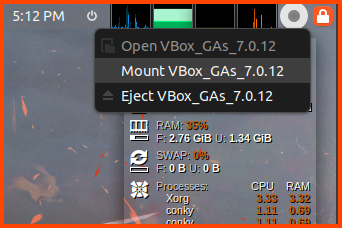
From the top right corner click on the CD icon then select **`Mount VBox_GAs`**.

<figure><img src="https://blog.davidvarghese.net/assets/images/building-home-lab-part-9/tsurugi-35.png" alt=""><figcaption></figcaption></figure>

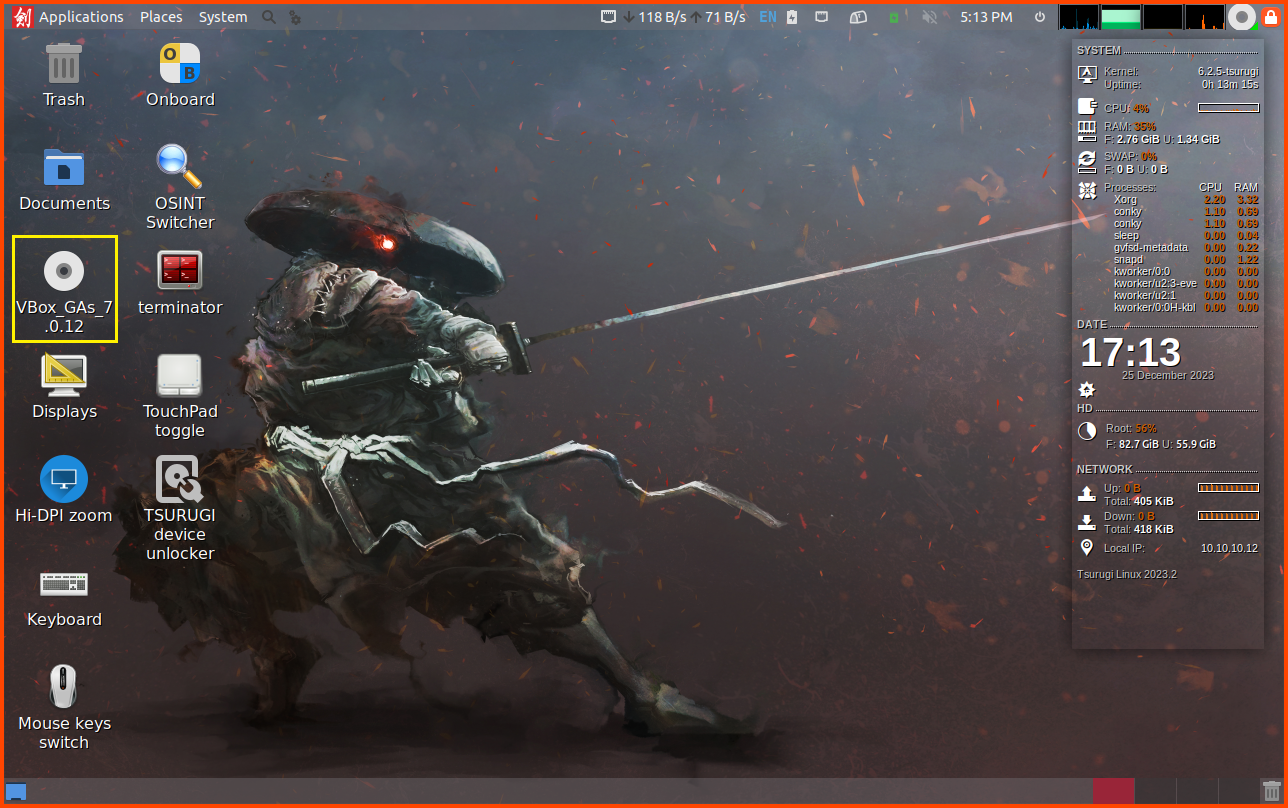
The ISO image will not be visible on the desktop. Double-click on the Image icon.

<figure><img src="https://blog.davidvarghese.net/assets/images/building-home-lab-part-9/tsurugi-36.png" alt=""><figcaption></figcaption></figure>

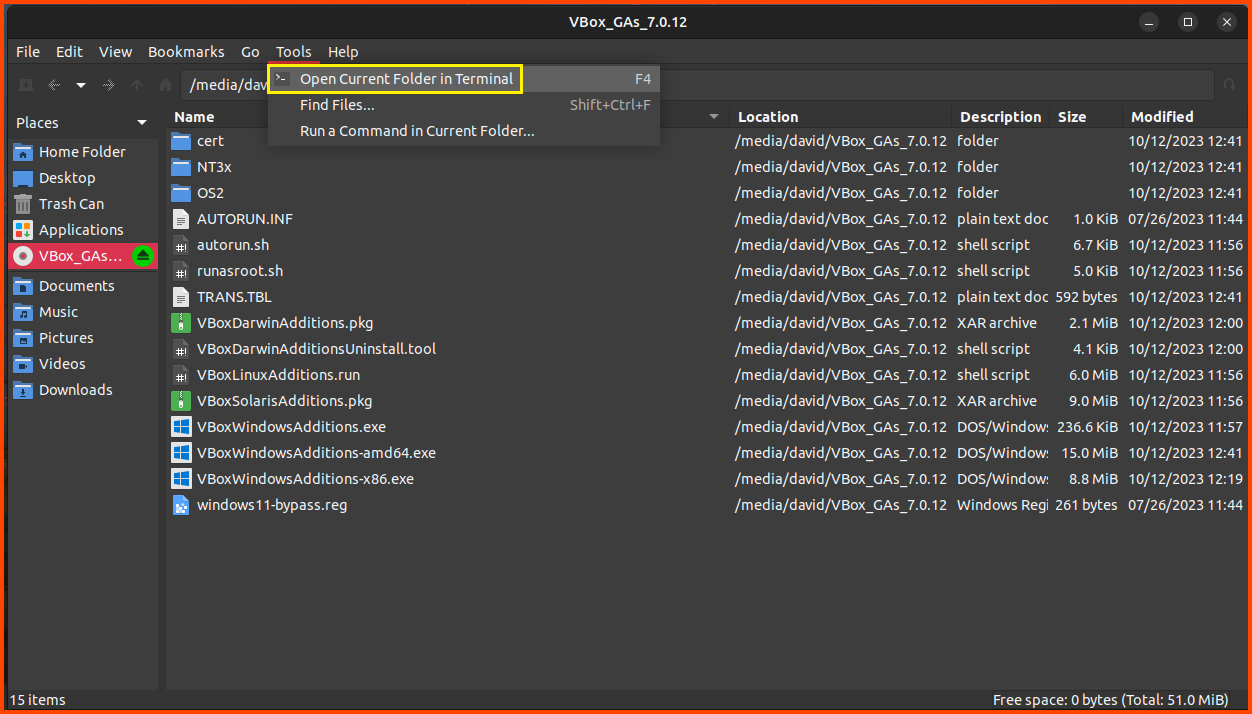
From the toolbar select **`Tools -> Open Current Folder in Terminal`**.

<figure><img src="https://blog.davidvarghese.net/assets/images/building-home-lab-part-9/tsurugi-45.png" alt=""><figcaption></figcaption></figure>

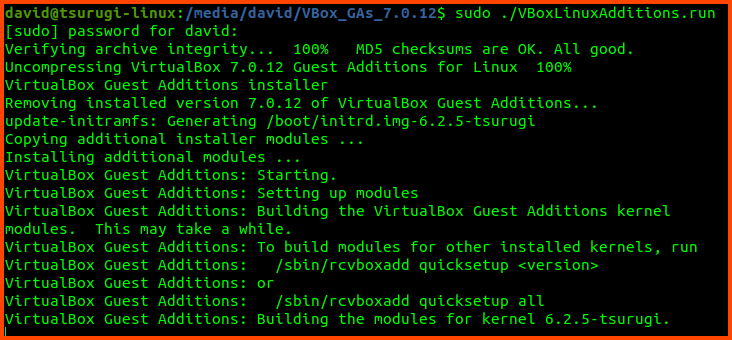
Run the following command to install Guest Additions.

```
sudo ./VBoxLinuxAdditions.run
```

<figure><img src="https://blog.davidvarghese.net/assets/images/building-home-lab-part-9/tsurugi-46.png" alt=""><figcaption></figcaption></figure>

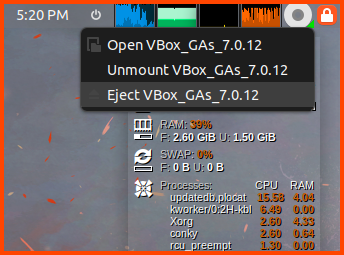
Once the installation is complete. Press **`Right Ctrl+F`** to enter Fullscreen mode. The same key can be used to exit Fullscreen the VM will scale to fit the window size. From the top right corner select **`Eject VBox_GAs`** to remove the ISO image.

<figure><img src="https://blog.davidvarghese.net/assets/images/building-home-lab-part-9/tsurugi-38.png" alt=""><figcaption></figcaption></figure>

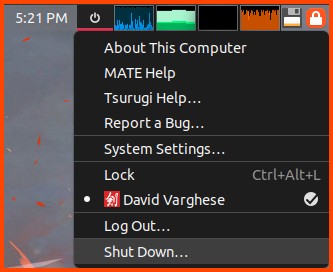
To Shutdown the system click on the power icon beside the clock then select “Shut Down”.

<figure><img src="https://blog.davidvarghese.net/assets/images/building-home-lab-part-9/tsurugi-39.png" alt=""><figcaption></figcaption></figure>

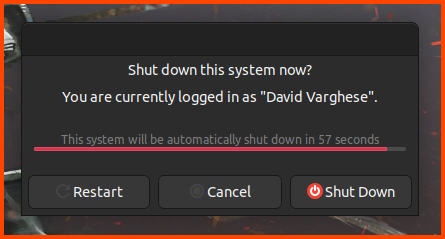
Select “Shut Down”

<figure><img src="https://blog.davidvarghese.net/assets/images/building-home-lab-part-9/tsurugi-40.png" alt=""><figcaption></figcaption></figure>

**Updating the System**

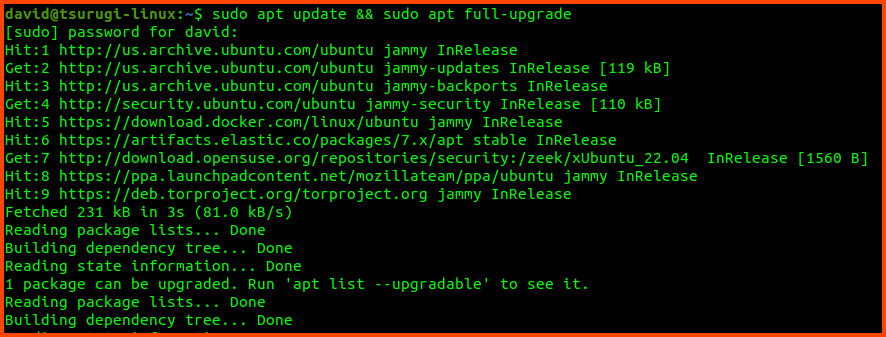
Open the **`terminator`** app from the desktop and run the following command:

```
sudo apt update && sudo apt full-upgrade
```

<figure><img src="https://blog.davidvarghese.net/assets/images/building-home-lab-part-9/tsurugi-44.png" alt=""><figcaption></figcaption></figure>

If there are any updates click **`Enter`** to start the installation. Provide your password when prompted.

**Creating VM Snapshot**

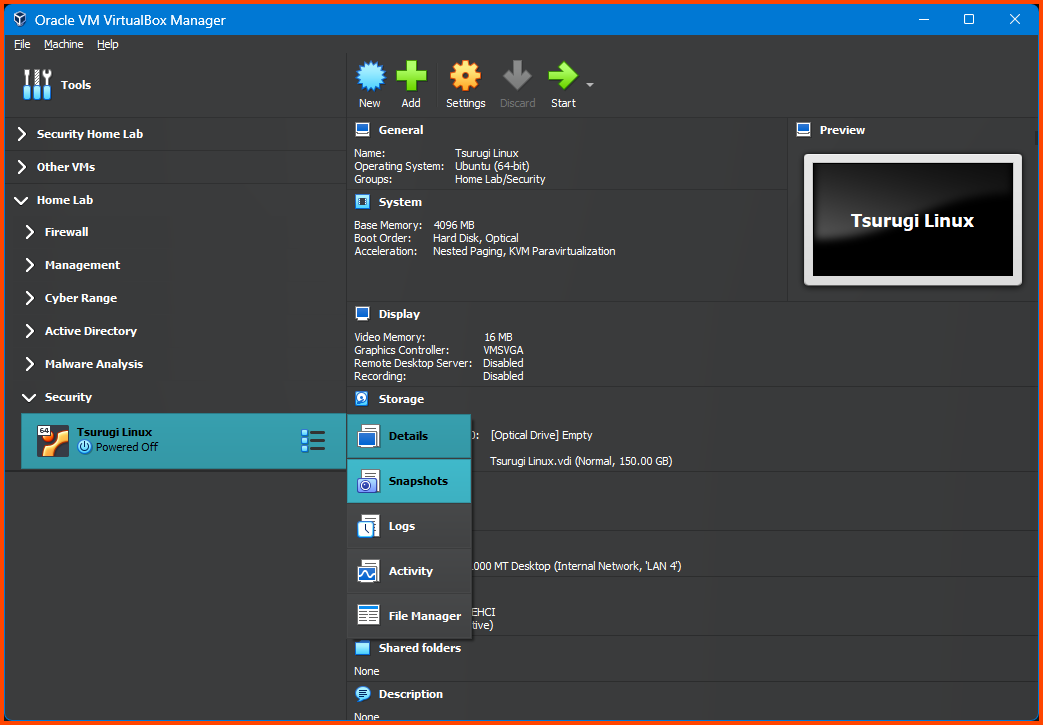
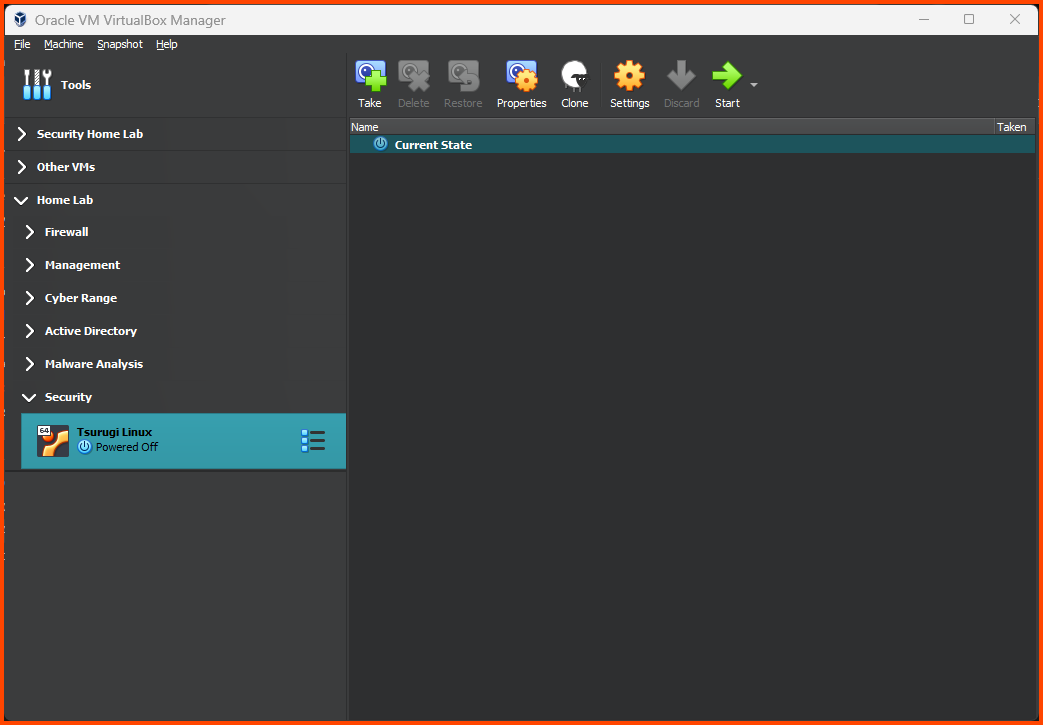
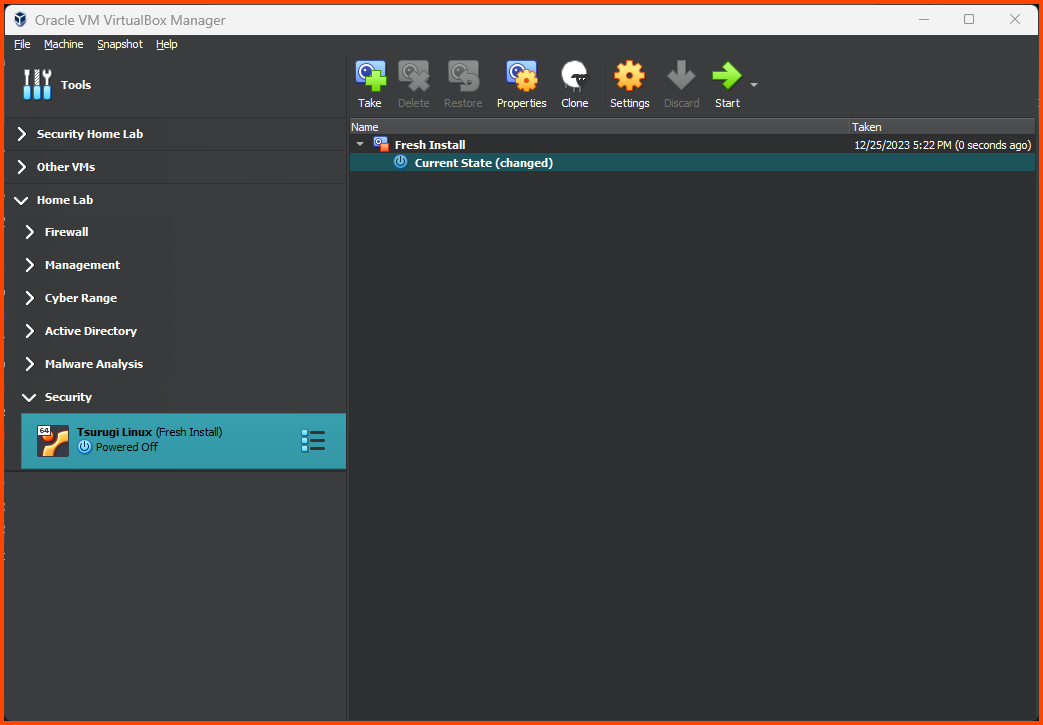
Shut down the VM before creating a Snapshot. Use the Hamburger menu beside the VM name to access the Snapshot page.

<figure><img src="https://blog.davidvarghese.net/assets/images/building-home-lab-part-9/tsurugi-41.png" alt=""><figcaption></figcaption></figure>

Click on **`Take`** to create a Snapshot.

<figure><img src="https://blog.davidvarghese.net/assets/images/building-home-lab-part-9/tsurugi-42.png" alt=""><figcaption></figcaption></figure>

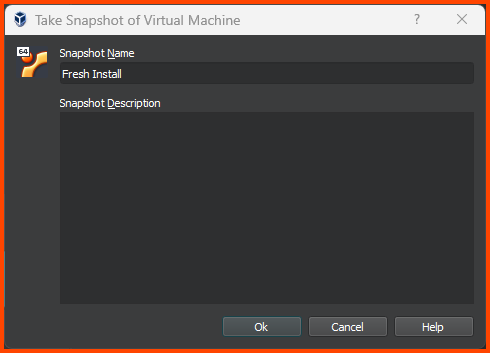
Give the Snapshot a descriptive name and click on **`OK`**.

<figure><img src="https://blog.davidvarghese.net/assets/images/building-home-lab-part-8/remnux-12.png" alt=""><figcaption></figcaption></figure>

Use the Hamburger menu and click on Details to return to the main page.

<figure><img src="https://blog.davidvarghese.net/assets/images/building-home-lab-part-9/tsurugi-43.png" alt=""><figcaption></figcaption></figure>

In the next module, we will install **`Ubuntu`** and then download and set up **`Splunk`**. We will also install the Splunk Universal Forwarder on the Domain Controller in our Active Directory Lab. This will allow us to capture the events that are generated on the Domain Controller.


---

# Agent Instructions: Querying This Documentation

If you need additional information that is not directly available in this page, you can query the documentation dynamically by asking a question.

Perform an HTTP GET request on the current page URL with the `ask` query parameter:

```
GET https://foothold.gitbook.io/blog/home-lab-part-9.md?ask=<question>
```

The question should be specific, self-contained, and written in natural language.
The response will contain a direct answer to the question and relevant excerpts and sources from the documentation.

Use this mechanism when the answer is not explicitly present in the current page, you need clarification or additional context, or you want to retrieve related documentation sections.